Managed Sync
 ActionKit
 Workflows
Overview
You can make requests to any HTTP API using Paragon’s Request step. This is useful for building workflows that interface with your own internal APIs, or with services that Paragon might not support integration with yet.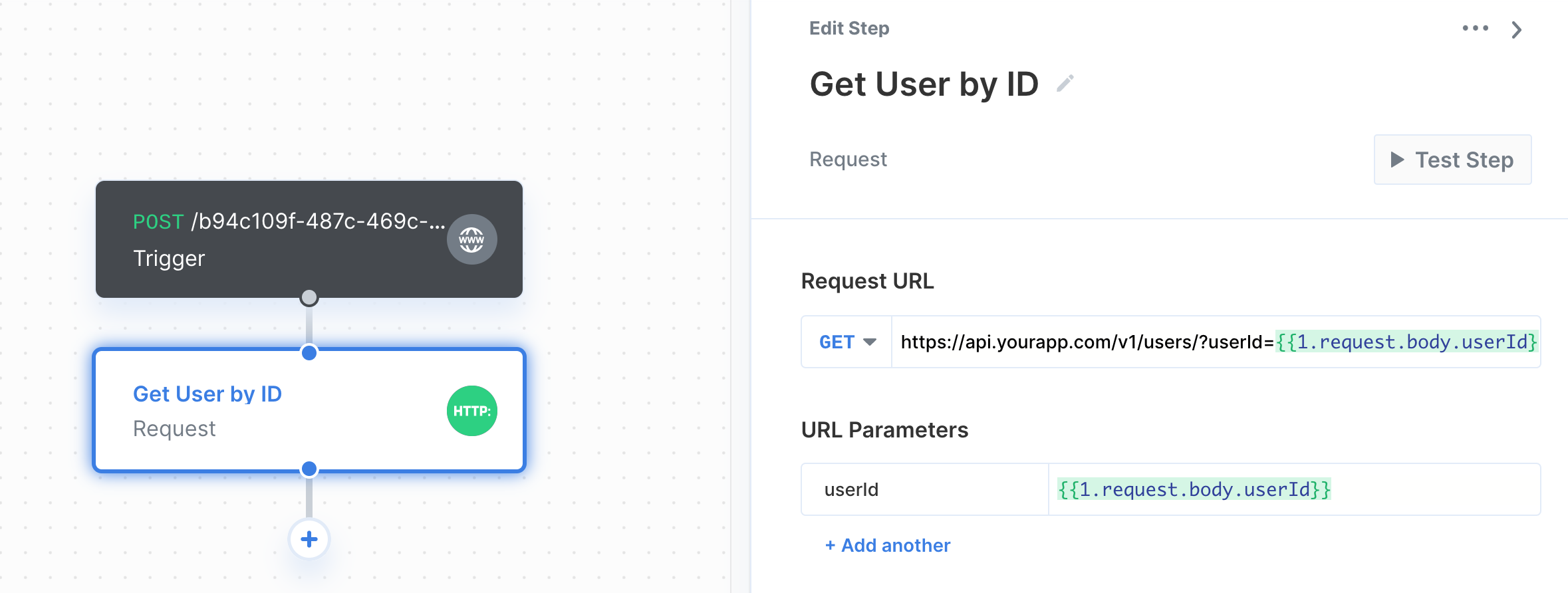
Making a Request
To add a request to your workflow, click the ”+” button in the workflow canvas and choose the Request step from the sidebar. You can follow familiar specifications to setup requests in Paragon:- URL
- Request type
POSTGETPATCHPUTDELETE
- Request data
- Query parameters
- Headers
- Body parameters
JSONmultipart/form-datax-www-form-urlencodedGraphQLXMLRaw
- Authorization
Bearer TokenBasic AuthQuery ParamsAuth HeaderOAuth 2.0 Client CredentialsOAuth 2.0 Refresh TokenROPC Access Token
Configuring your Request URL
You can enter the request URL in the input under “Request URL”. You can also include parameters as part of the URL by typing{{ to invoke the variable menu.
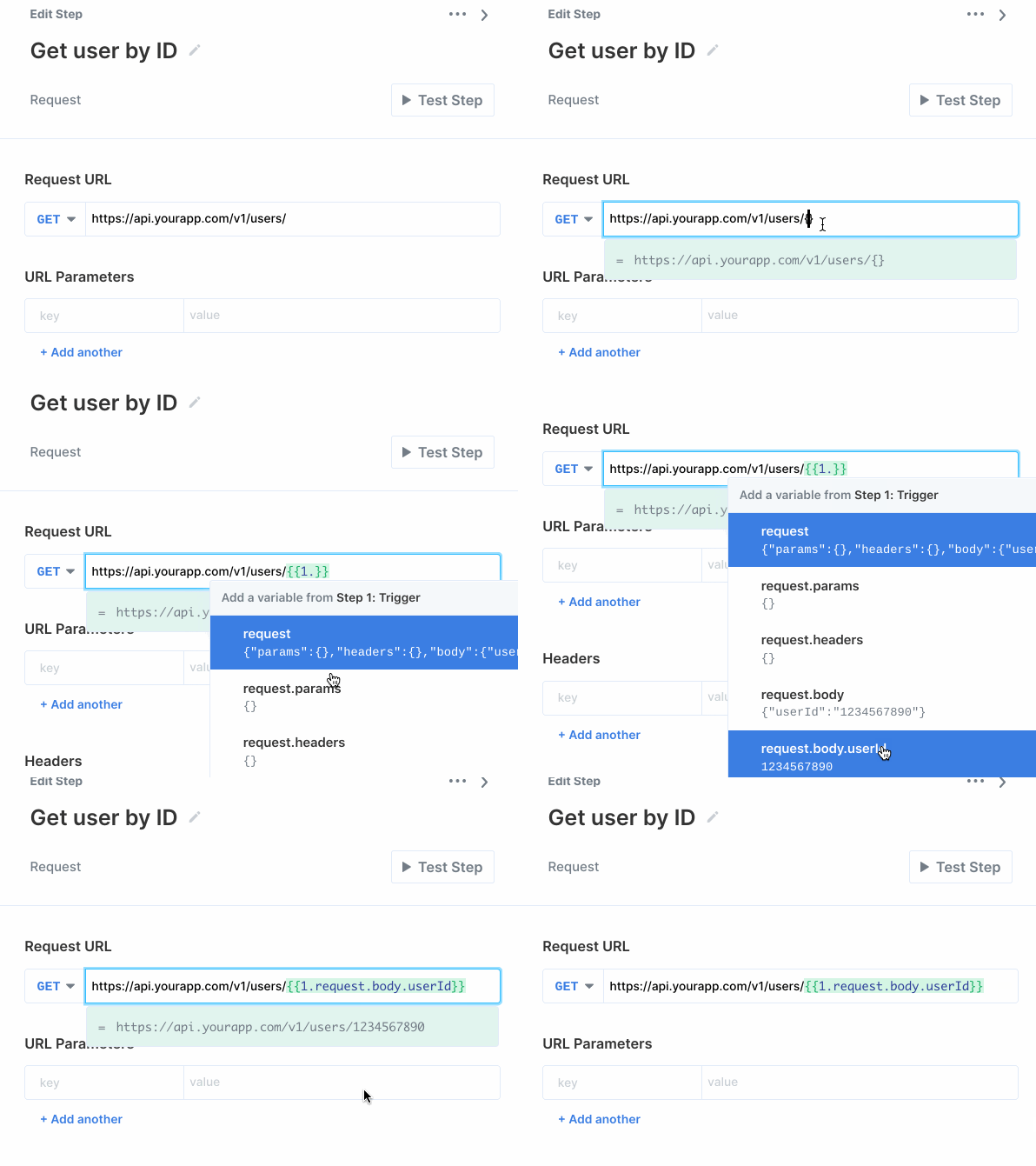
userId from the Trigger into the request URL, which is represented as: /users/{{1.request.body.userId}}
Sending data in the request
Query parameters, headers, and body parameters can be included in the request by adding them in the key-value table under their respective heading.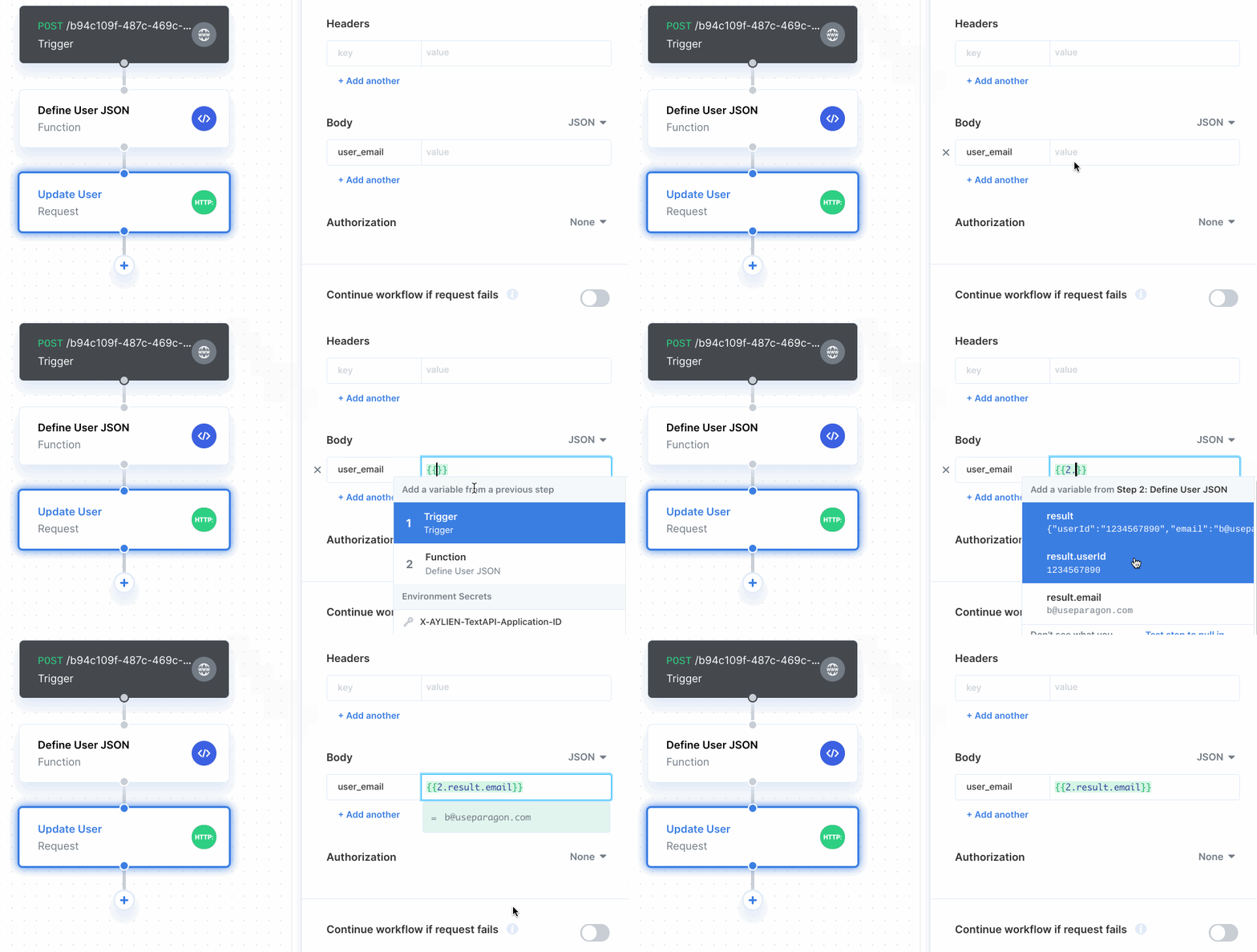
Sending JSON in a request
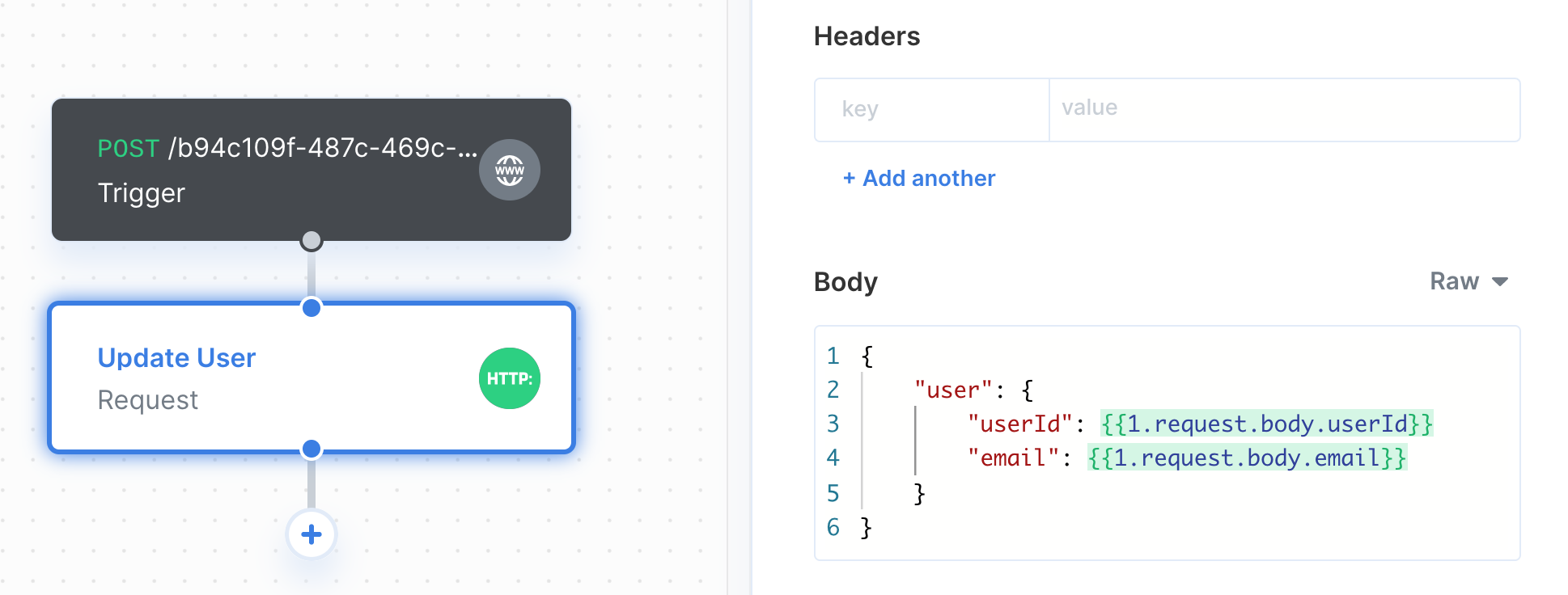
You can easily send JSON in a request by choosingRaw in the dropdown to the right of Body. When creating the raw JSON body, you can type in static values or reference variables from upstream steps by typing {{ to invoke the variable menu.
Handling request failures
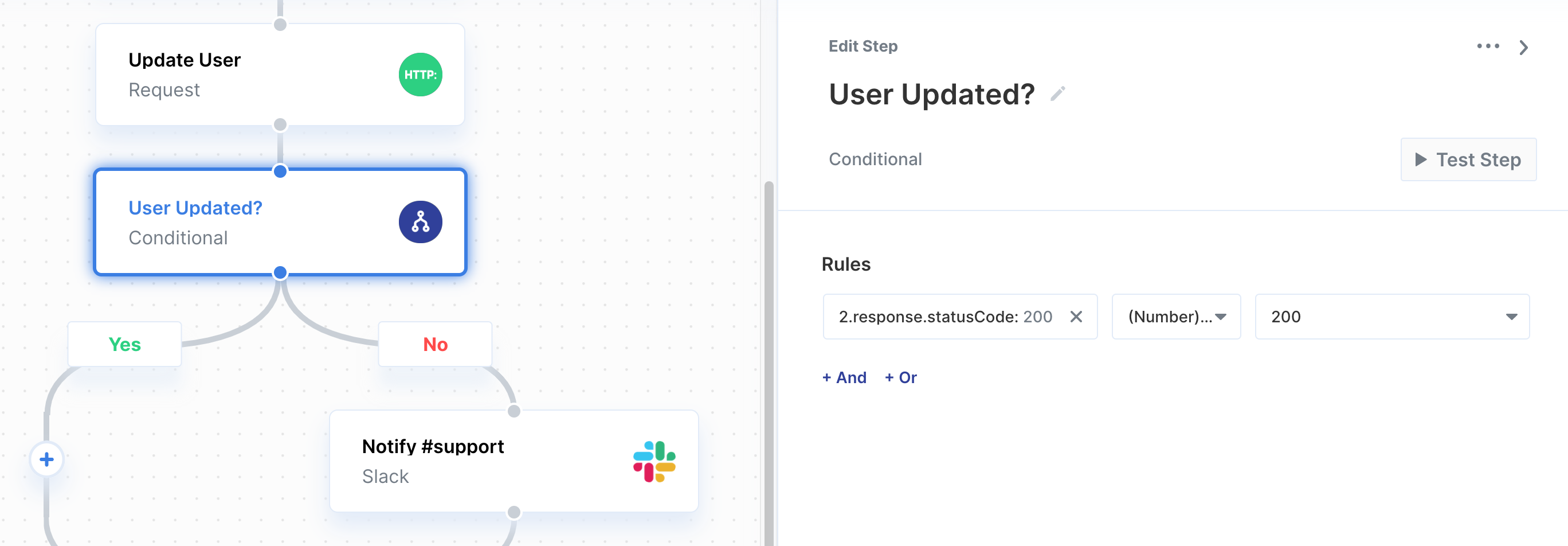
You can choose whether or not the workflow should continue to the next step if the request fails under “Continue workflow if request fails”. This option is useful if you want to conditionally handle request failures. You can do this by adding a Conditional step after the Request step, then referencing the request’s response status code in the Conditional.