Managed Sync
 ActionKit
 Workflows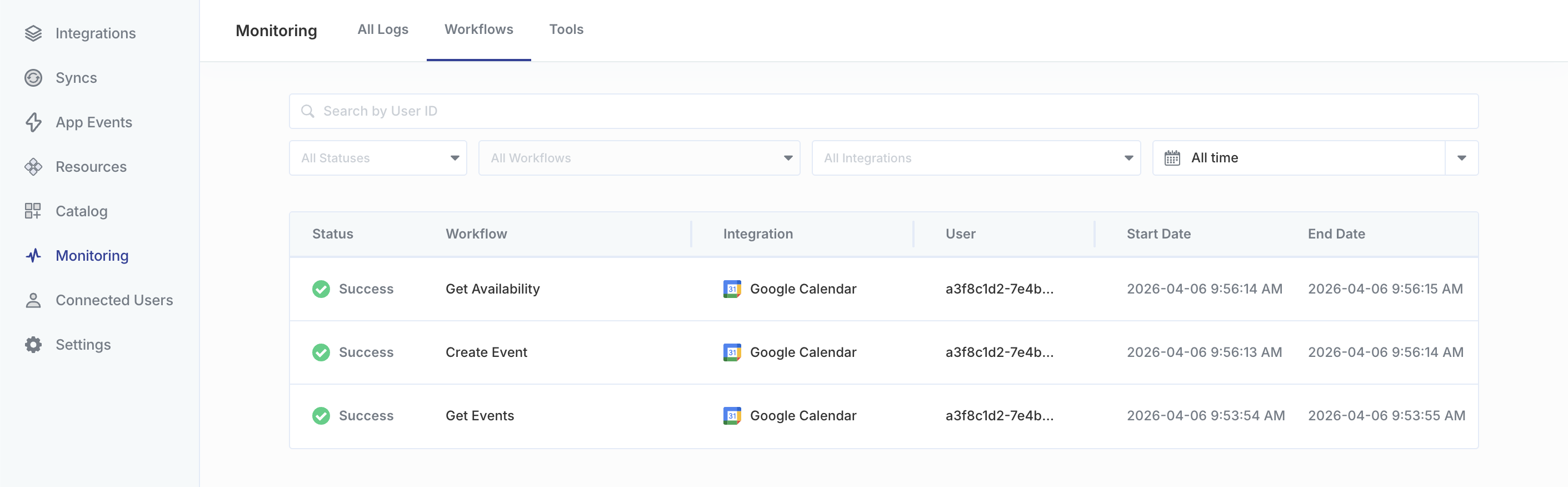
Under the Workflows tab on the Monitoring page, you can find information about each workflow:
- Status (e.g. Success or Errored)
- Trigger method (e.g. every 5 minutes or via an App Event)
- Integration (e.g. Salesforce)
- User who triggered the workflow
- Time and date your workflow ran
Filtering
Filtering allows you to view the history of specific workflows that meet the criteria you specify while hiding the others.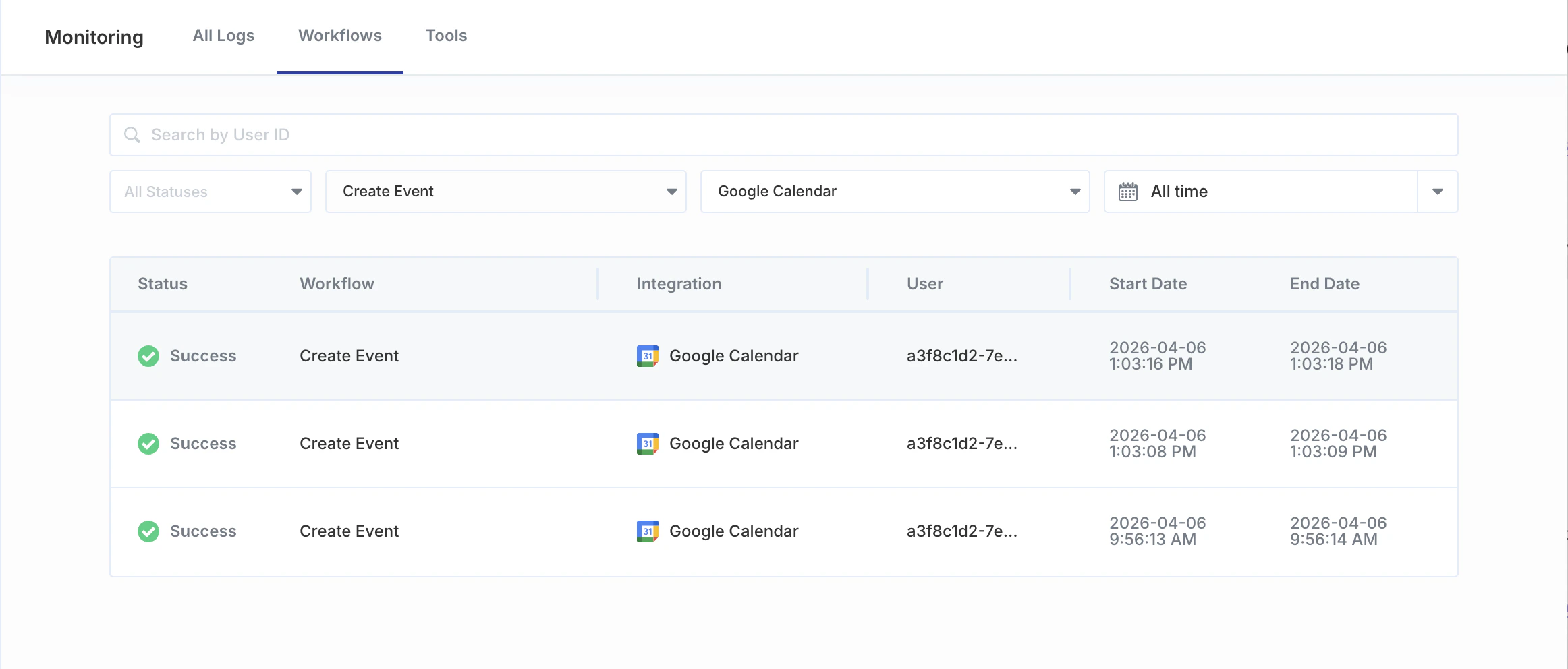
- User ID
- Status
- Queued
- Running
- Waiting
- Success
- Errored
- Paused
- Cancelled
- Workflow name
- Integration name
- Date range
Detailed task execution
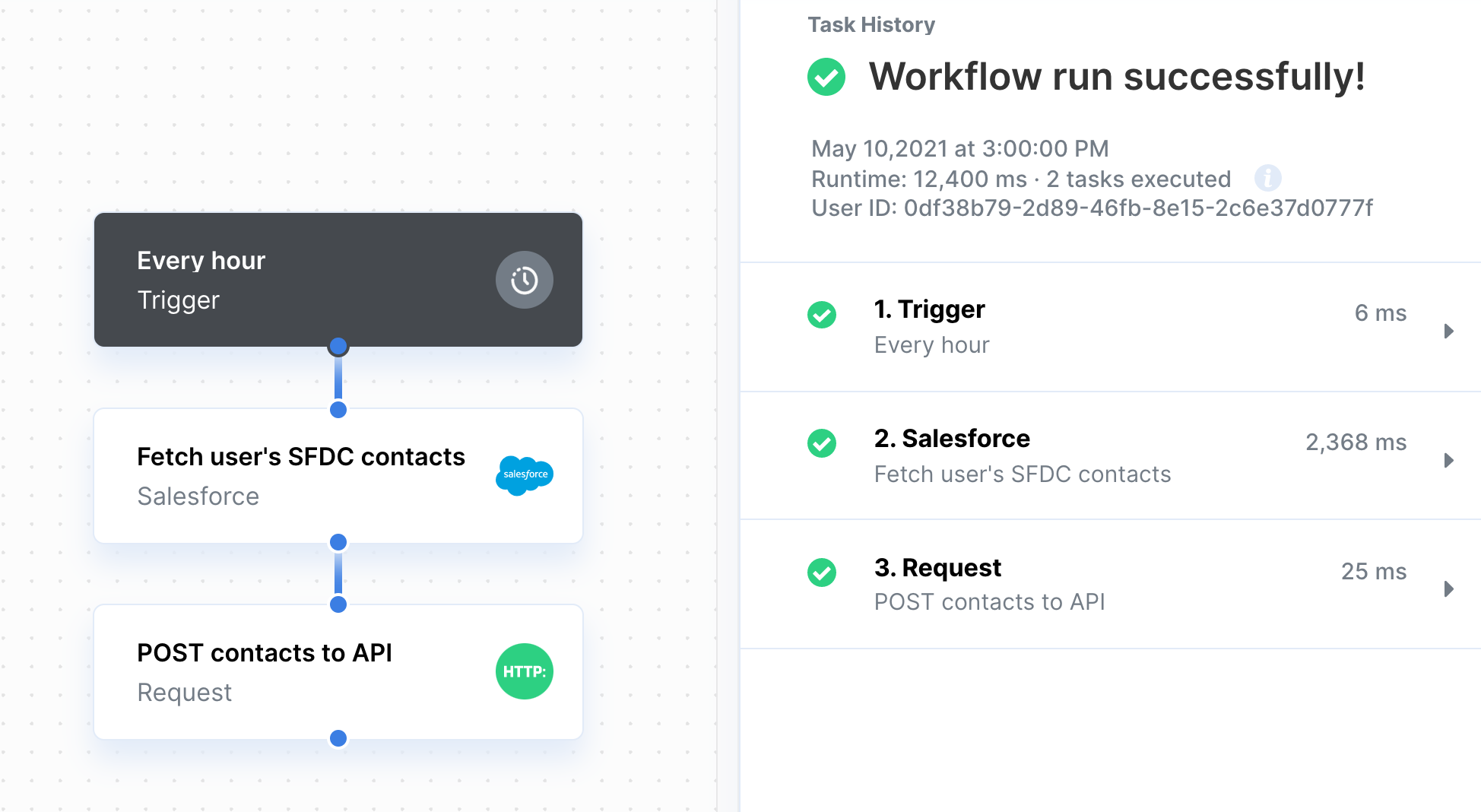
Each row on the Workflows tab includes a step-by-step breakdown of the steps related to the workflow. In this view, the execution detail also shows:- How long it took your workflow to run
- Number of steps executed
- List of each executed step
Following your workflow
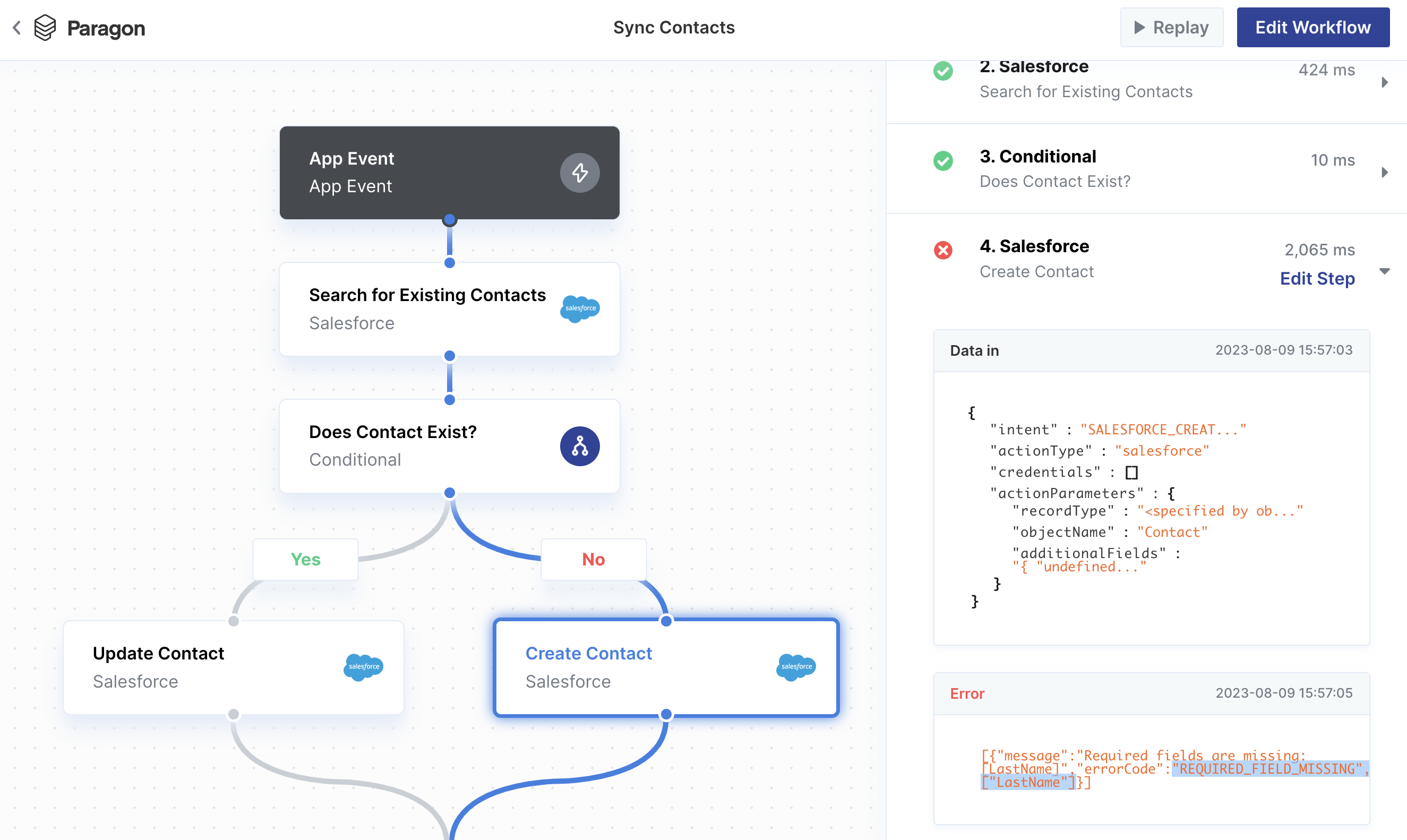
Paragon also allows you to visualize the flow of data throughout each workflow execution, making it easy for teams to track and debug. A blue path indicates the path taken by your workflow while running. A grey path indicates the path exists in the workflow but was not taken during this execution.
Editing and replaying
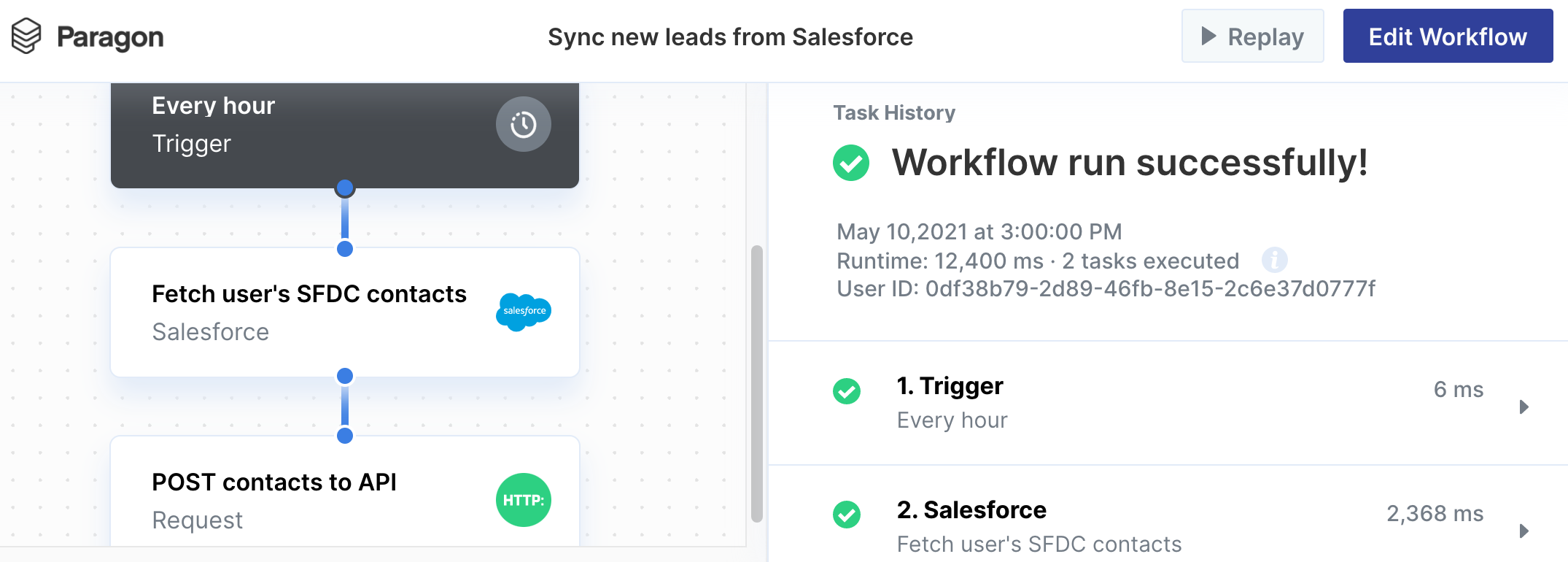
- Editing the Workflow: Pressing the “Edit Workflow” button allows you to make changes to your workflow.
- Replaying the Workflow: Pressing the “Replay” button re-runs your currently deployed workflow. This is useful if you want to replay a workflow that initially failed.
Replaying a workflowThis replays your workflow in its execution state with the original input data. Workflows with an Integration Enabled trigger cannot be replayed.
Debugging
Paragon provides a detailed breakdown of the data input and output of each step. Click on any step to view its status and data. You can make changes to a step by clicking the “Edit Step” button. Doing so will open the workflow editor and display the related step, where you can update it as needed.