

 Managed Sync
 ActionKit
 Workflows
Overview
The Delay step pauses a workflow for a fixed amount of time before running the next step. This is useful for scenarios like adding jitter between requests to avoid hitting an integration’s rate limits, or waiting a few hours before sending a follow-up email. To add a Delay to your workflow, click the ”+” button in the Workflow Editor and choose Delay from the sidebar. Then, specify how long the workflow should wait before continuing.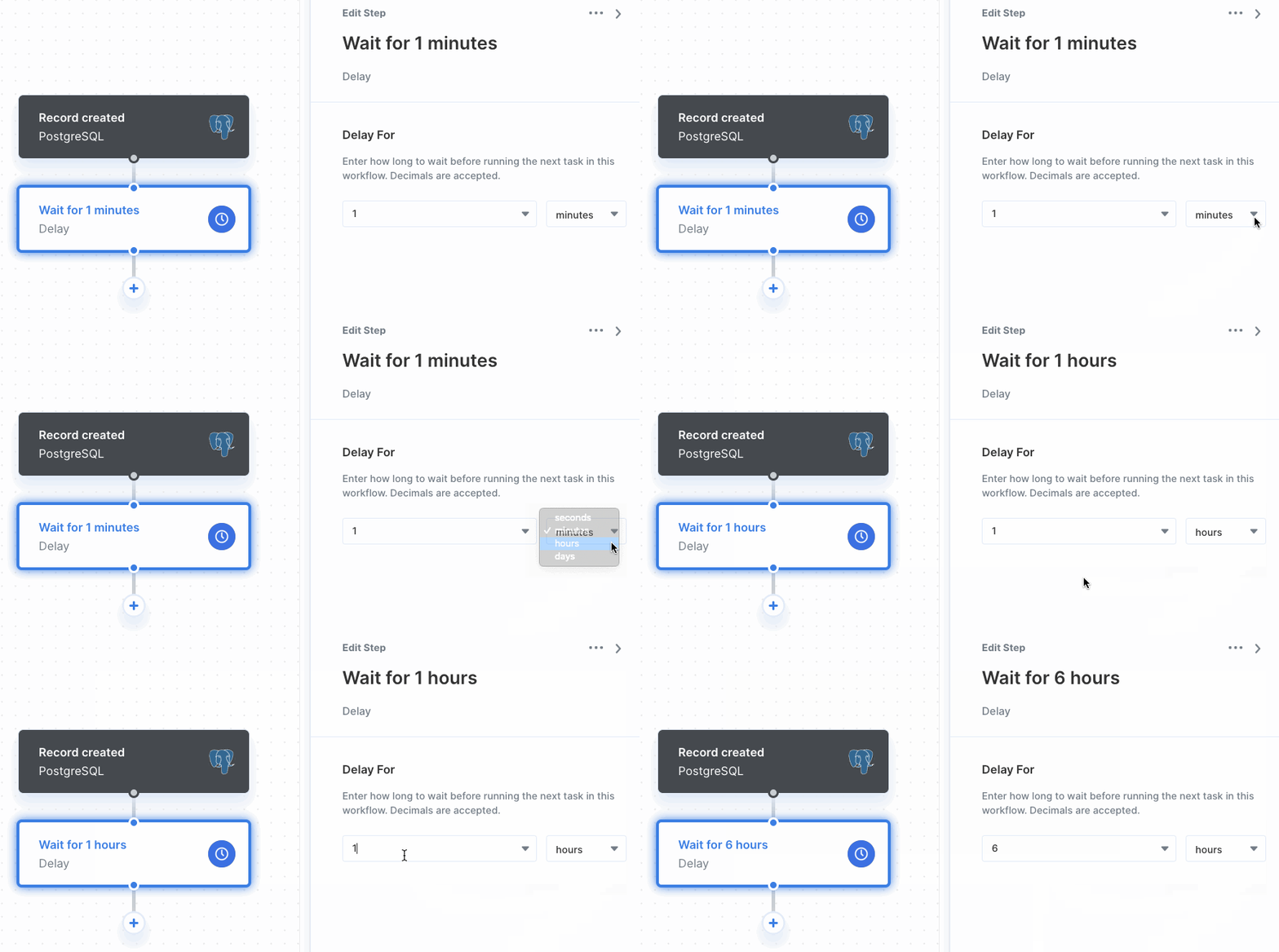
Configuring a Delay
A Delay step takes two parameters:- Value: how long to wait, as a number. This can be a static value or a dynamic variable referencing data from a previous step.
- Unit: the unit of time for the value: Seconds, Minutes, Hours, or Days.
Note: When using Test Step or Test Workflow, Delay steps do not pause for the configured amount of time — they immediately continue the test execution.