In this tutorial series, we will:
  1. Interact with your users’ integration data using ActionKit Tools
  2. React to your users’ integration events via webhook subscriptions using ActionKit Triggers
  3. Provide an example of an integration feature that uses Triggers to kick off an agent with Tools to write-back data
In this first chapter, we’ll set up an integration, allow users to authenticate in your app, and run a real-time action

Set up your Paragon integration

Configure your 3rd-party App

The first step is to configure and enable your integration on the Paragon dashboard. For the purposes of this tutorial, we will be using HubSpot. If you’re following along, visit our HubSpot guide to configure your integration.
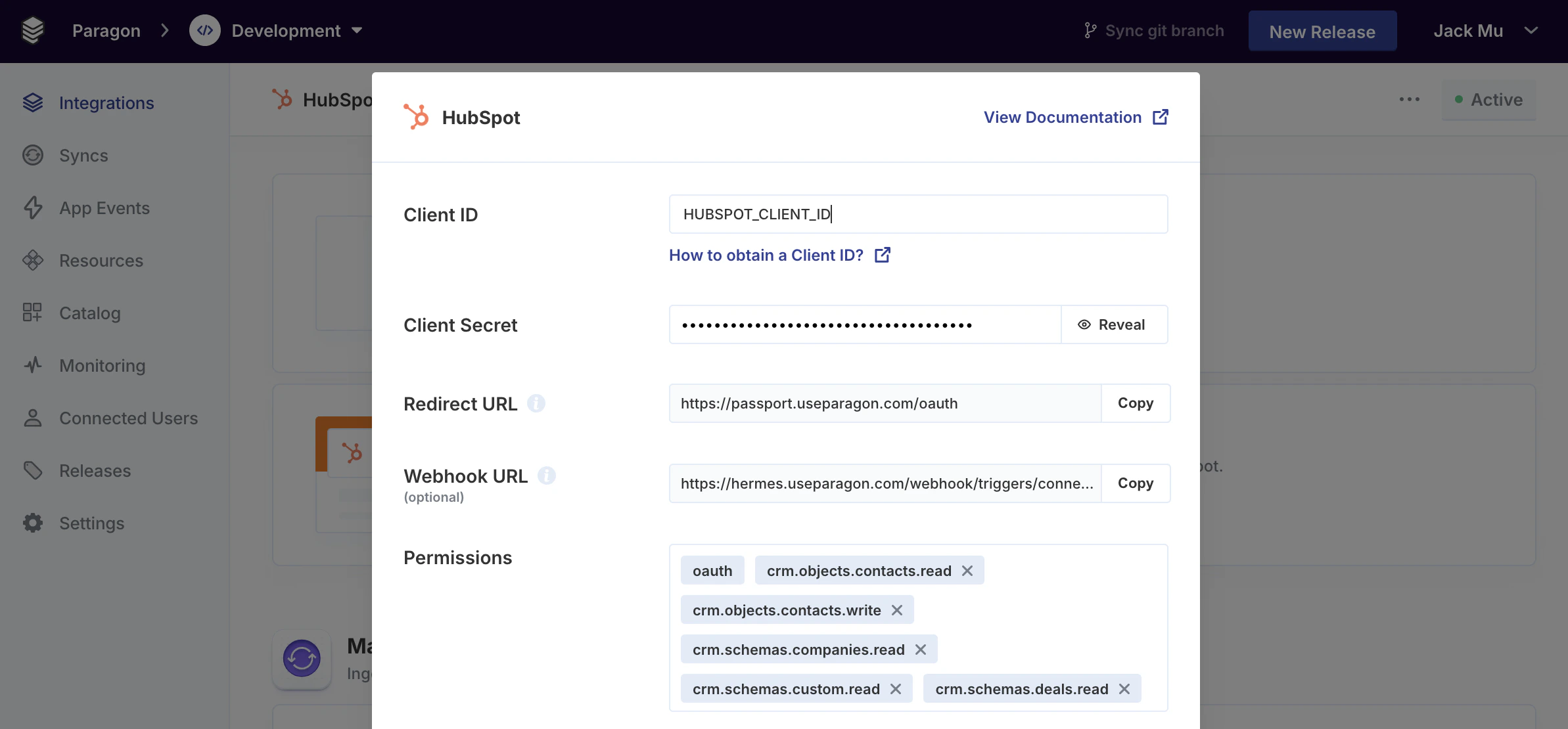
If you’re setting up a different integration, visit our integration catalog for a full list of integrations and how to set up your 3rd-party app in Paragon.

Generate a Paragon Signing Key

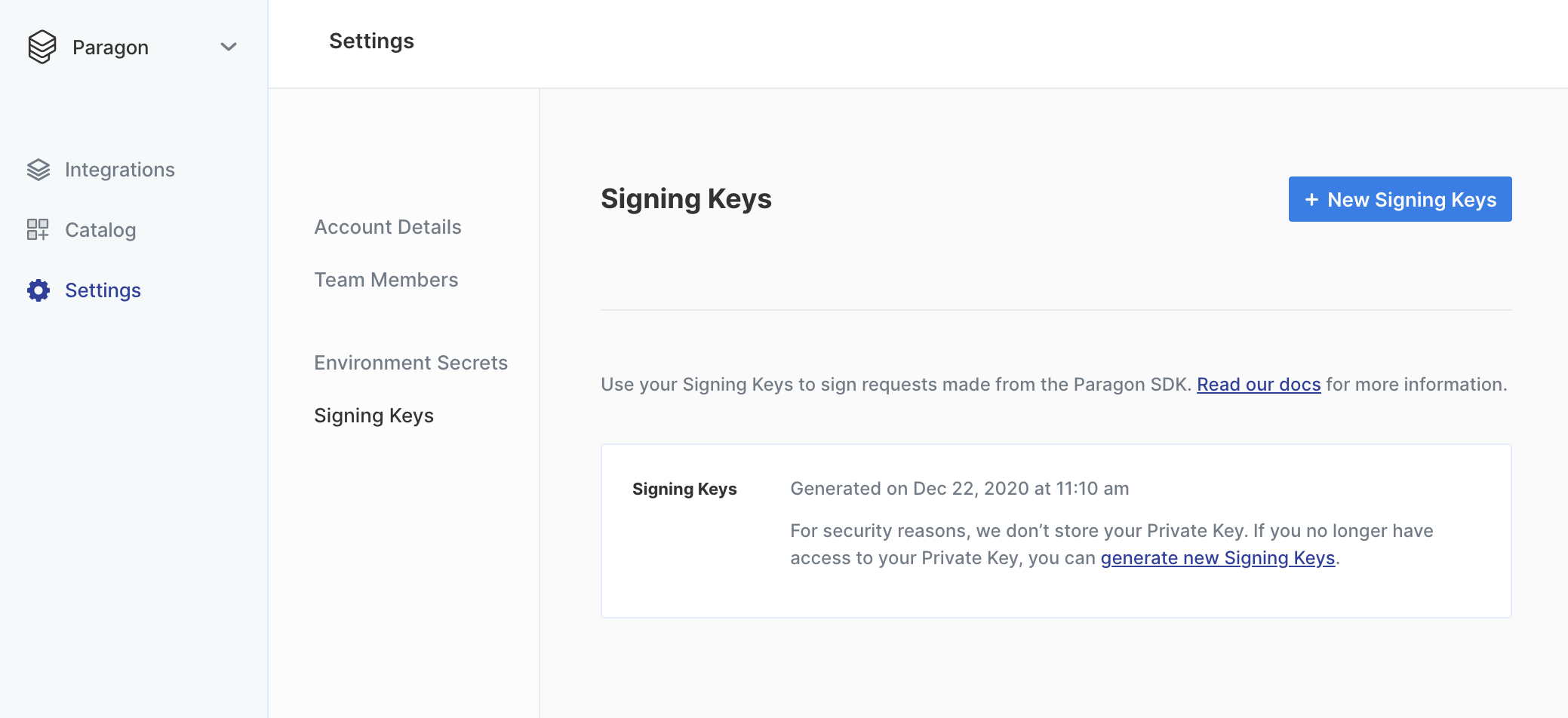
To generate a Signing Key, go to Settings > Signing Keys in your Paragon dashboard. You should store this key in an environment secrets file.
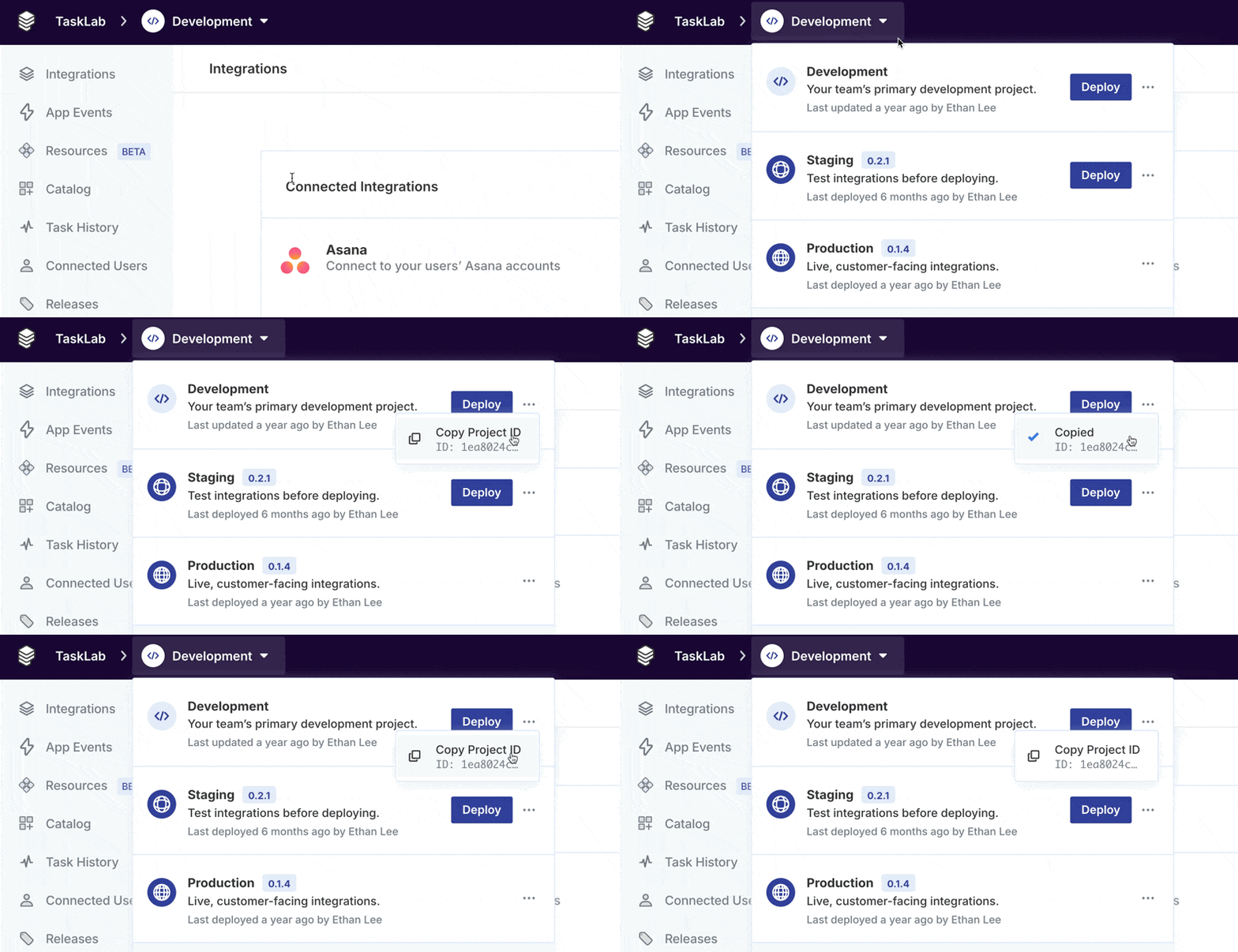
We will also need your Paragon Project ID. You can copy your Project ID by clicking Copy Project ID under the Environment switcher:
Your Signing Key and Project ID will be used as environment variables in your application.

Authenticate your users

Start with the Paragon Skill to embed Paragon in your app

Install the Paragon Skill in your coding agent for a guided experience.
npx skills add useparagon/paragon-skills
The Paragon Skill will steer your agent through setting up the Paragon SDK and embedding the Connect Portal.
Add the Paragon SDK
/paragon-setup-skill Look at my app and set up the Paragon SDK, including all dependencies and required setup steps.

I will provide the following environment variables for your reference:
- `PARAGON_PROJECT_ID`: The Paragon Project UUID.
- `PARAGON_SIGNING_KEY`: The Signing Key as a PKCS8-encoded private key.
Your agent should have set up the following:
  1. A server-side route that creates a signed JWT for each of your users
 // server.js - Adding middleware to sign an authenticated user's token
 const jwt = require('jsonwebtoken');

 app.use((req, res, next) => {
   if (!req.user) {
     return next();
   }
   // JWT NumericDates specified in seconds:
   const currentTime = Math.floor(Date.now() / 1000);
   res.locals({
     paragonToken: jwt.sign(
       {
         sub: req.user.id,  // Your user's or their company's ID
         aud: `useparagon.com/${process.env.PARAGON_PROJECT_ID}`, // Replace with your actual project ID
         iat: currentTime,
         exp: currentTime + (60 * 60), // 1 hour from now
       },
       process.env.PARAGON_SIGNING_KEY,
       {
         algorithm: "RS256",
       }
     ),
   });
   next();
 });
  1. Paragon SDK used on your front-end client to authenticate your users
await paragon.authenticate(
  process.env.PARAGON_PROJECT_ID,
  SIGNED_JWT
);
  1. Front-end components to bring up the Connect Portal for users to connect their integrations
<button onClick={() => paragon.connect("hubspot")}>
  Connect HubSpot
</button>
If you would like to set up Paragon without an agent, see the setup guide

Run your first real-time ActionKit Tool

ActionKit’s Tool API gives your agent or app hundreds of pre-built tools that execute real-time actions.

Get Tools

Get available tools programmatically via the GET Tools endpoint.
fetch(`https://actionkit.useparagon.com/projects/${process.env.PARAGON_PROJECT_ID}/tools`, {
    method: 'GET',
    headers: {Authorization: `Bearer ${SIGNED_JWT}`}
  }
).then(res => res.json())
  .then(res => console.log(res))
  .catch(err => console.error(err));
Example response
{
  "tools": {
    "hubspot": [
      {
        "type": "function",
        "function": {
          "name": "HUBSPOT_CREATE_RECORD_CONTACTS",
          "description": "Create a contact in HubSpot CRM",
          "parameters": {
            "type": "object",
            "properties": {
              "field-email": {
                "type": "string",
                "description": "Email"
              },
              "field-firstname": {
                "type": "string",
                "description": "First Name"
              },
              "field-lastname": {
                "type": "string",
                "description": "Last Name"
              },
              "field-jobtitle": {
                "type": "string",
                "description": "Job Title"
              },
              "field-company": {
                "type": "string",
                "description": "Company Name"
              },
              "field-hubspot_owner_id": {
                "type": "string",
                "description": "Contact Owner: The HubSpot user who is assigned to this contact. Use Connect Portal Workflow Settings to allow users to select an Owner. (example value: \"{{settings.owner}}\")"
              },
              "field-lifecyclestage": {
                "type": "string",
                "description": "Lifecycle Stage: Defaults to the user's first Lifecycle Stage if not provided. Use Connect Portal Workflow Settings to allow users to select a Lifecycle Stage. (example value: \"{{settings.lifecycleStage}}\")"
              },
              "field-hs_lead_status": {
                "type": "string",
                "description": "Lead Status: Defaults to the user's first Lead Status if not provided. Use Connect Portal Workflow Settings to allow users to select a Lead Status. (example value: \"{{settings.leadStatus}}\")"
              },
              "additionalFieldsJSON": {
                "type": "string",
                "description": "Additional Fields: Specify any other fields that should be updated in JSON below. Use Connect Portal Workflow Settings to allow users to select which Contact fields to update. (example value: \"{\\n  \\\"property_number\\\": \\\"17\\\",\\n  \\\"property_dropdown\\\": \\\"choice_b\\\",\\n  \\\"property_radio\\\": \\\"option_1\\\",\\n  \\\"property_string\\\": \\\"value\\\",\\n  \\\"property_date\\\": \\\"1572480000000\\\"\\n}\")"
              }
            },
            "required": [
              "recordType",
              "field-email"
            ],
            "additionalProperties": false,
            "$schema": "http://json-schema.org/draft-07/schema#"
          }
        }
      }
    ]
  },
  "errors": []
}
If you have a specific Tool in mind, you can also visit the ActionKit docs to browse every available Tool.

Execute Tool

To execute a tool, run a POST /tools call against the ActionKit API with the tool name and any tool parameters.
fetch(`https://actionkit.useparagon.com/projects/${process.env.PARAGON_PROJECT_ID}/tools`, {
  method: 'POST',
  headers: {Authorization: `Bearer ${SIGNED_JWT}`, 'Content-Type': 'application/json'},
  body: JSON.stringify({
    tool: 'HUBSPOT_CREATE_RECORD_CONTACTS',
    parameters: {
      email: '[email protected]',
      firstname: 'jack',
      lastname: 'm',
      jobtitle: 'developer',
      company: 'Paragon',
    }
  })
}).then(res => res.json())
  .then(res => console.log(res))
  .catch(err => console.error(err));
And that’s all it takes to run any integration action with the Tools API! In the next chapter, we’ll be subscribing to HubSpot webhooks through ActionKit’s Triggers API.