

 Managed Sync
 ActionKit
 Workflows
Required Scopes
To configure a Sync for SharePoint, you need to request the following scopes from your Microsoft OAuth application:Sites.Read.AllFiles.Read.AllUser.Readoffline_accessUser.ReadBasic.All(optional - for including organization users in the Permissions Sync)GroupMember.Read.All(optional - for including group membership in the Permissions Sync)Sites.FullControl.All(optional - for indexing link sharing groups in the Permissions Sync, and for including sharing and permission changes in real-time webhook updates)
File and folder ingestion does not require the optional user, group, or full-control scopes. Request
User.ReadBasic.All and GroupMember.Read.All only when using Permissions API. Request Sites.FullControl.All when using Permissions API if you need to index users granted access through SharePoint sharing links. The broader User.Read.All and Group.Read.All scopes also satisfy the user and group requirements if they are already granted.Using Permissions API?
Using Permissions API?
When using Permissions API, SharePoint requires 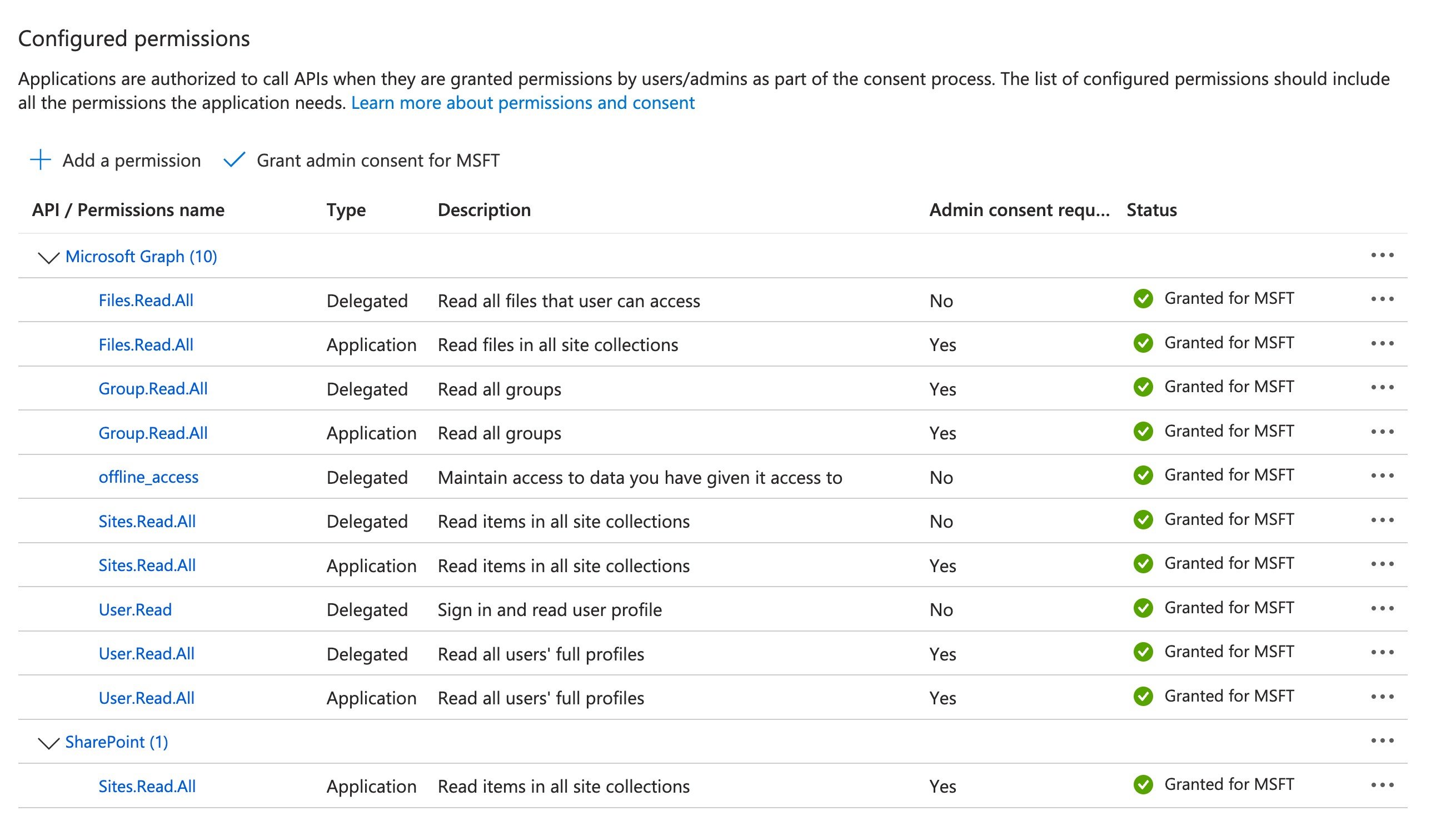
Sites.Read.All, Files.Read.All, User.ReadBasic.All, and GroupMember.Read.All to be configured as Application Permissions (not Delegated Permissions) in your Azure AD app registration.To index users granted access through SharePoint sharing links (link sharing groups), also add Sites.FullControl.All as a SharePoint Application Permission. Without it, Permissions Sync still indexes direct grants, Microsoft 365 groups, and standard site groups (Owners, Members, Visitors), but cannot enumerate membership of sharing-link groups.If you enable real-time webhook updates, also add Sites.FullControl.All as a Microsoft Graph Application Permission.This requires certificate-based authentication and admin consent.Follow the SharePoint: Using Application Permissions setup guide before enabling a sync.After following these steps, verify that you have added Sites.Read.All as both a Microsoft Graph and as a SharePoint scope. If you are indexing sharing-link access, also add Sites.FullControl.All as a SharePoint scope:Synced Objects
SharePoint supports the following Synced Objects:Files
Send a request to Enable Sync to start a file sync. Syncs for SharePoint can be created with one of the following configurations:- Site Sync: All files in the specified SharePoint site will be synced.
- Folder Sync: Only files in the specified folder will be synced (recursively including all subfolders by default).
- Sync of specific files: Only a group of specific files will be synced.
- Site Sync
- Folder Sync
- Sync of specific files
Example
string
The SharePoint Site ID to sync files from. Defaults to the site that the user selected when connecting their SharePoint account in the Connect Portal, if using post-OAuth options.
If you skip the post-OAuth Site Selection install stage or use
bypassPostOAuthPrompt, this value must be provided in the Sync configuration.string[]
An optional array of MIME types to filter synced files. Only files matching the specified MIME types will be synced.
string
An optional RE2 regular expression that filters synced files by filename. Only files whose name matches the pattern are synced. Folders are always traversed regardless of the pattern.Matching is unanchored and case-sensitive. Use the inline
(?i) flag for case-insensitive matches, and anchors (^, $) for exact-name matches. Lookarounds and backreferences are not supported. Patterns are limited to 1000 characters.Example: (?i)\.pdf$ syncs only PDF files.boolean
Set to
true to include each file’s SharePoint list item fields (custom columns and library metadata) on the synced File under customFields.metadata. Defaults to false. See File metadata for details.boolean
Set to
true to keep the Sync up to date in real time using SharePoint change notifications instead of periodic incremental syncs. Defaults to false. See Real-time updates with webhooks for details.Real-time updates with webhooks
By default, SharePoint Syncs detect changes with periodic Incremental Syncs. SetuseWebhooks to true in the Sync configuration to detect changes in real time with SharePoint change notifications instead.
Example
useWebhooks is enabled, Paragon subscribes to SharePoint change notifications after the Initial Sync completes. The subscriptions cover:
- File changes: When a file in the Sync’s scope is created, updated, or has its content changed, Paragon updates the synced record and emits the corresponding
record_createdorrecord_updatedwebhook without waiting for the next Incremental Sync. - Sharing and permission changes: When a file is shared or unshared, Paragon updates the file’s access rules so that Permissions API checks reflect the change in near real time.
- Group membership and directory changes: When users are added to or removed from a Microsoft 365 group referenced in a file’s permissions, or when users join or leave the organization, Paragon updates the affected permission relationships.
useWebhooks when your application depends on low-latency updates, such as permission-aware search or retrieval, where stale records or access rules would surface incorrect results.
Note the following behavior for webhook-backed Syncs:
- Scheduled Incremental Syncs are disabled. Changes arrive through change notifications instead.
- Periodic Full Syncs continue to run (every 24 hours by default) to catch any changes missed by notifications.
- If a Sync is disabled and later re-enabled, Paragon re-establishes the change notification subscriptions automatically.
- Sharing and permission change notifications require the optional
Sites.FullControl.Allscope. Real-time group membership and organization directory updates also use the optionalGroupMember.Read.AllandUser.ReadBasic.Allscopes.
File metadata
Synced SharePoint files include additional metadata in the FilecustomFields object:
fullPath(always included): The file’s full path within its drive, built from the parent folder path and file name (for example,/drives/<driveId>/root:/Shared Documents/Reports/Q1.pdf). Use this when you need to display or reason about the location of a file in SharePoint without traversing the folder hierarchy yourself.metadata(included whenincludeMetadataistrue): A flat object of the file’s SharePoint list item fields, including built-in columns and any custom columns defined on the document library. This is fetched per file using the Microsoft GraphlistItemendpoint, so enabling it adds an extra API call per synced file.
includeMetadata enabled:
If a file does not have an associated list item (for example, items in a
personal OneDrive context), the
metadata field is omitted for that file.Choosing Files and Folders
You can allow your user to select files from their SharePoint account in your app with the SharePoint File Picker provided by the Paragon SDK. Showing the File Picker Use the Paragon SDK in your frontend application to show the File Picker in your app. The SDK provides anExternalFilePicker class to load SharePoint’s JavaScript into your page and authenticate with your user’s connected SharePoint account.
siteUrl or siteId to init() to open a different site. siteUrl takes precedence when both are provided.