

 Managed Sync
 ActionKit
 Workflows
Get started with your coding agent
The fastest way to set up Agent OS is with the Paragon Skills in your coding agent (Claude Code, Cursor, Codex, OpenCode, etc.). The skills give your agent the context it needs to set up authentication, create Setup Links, and call the Context and Tools APIs in your codebase. Install them with thenpx skills CLI:
Starter prompt
1. Get your Project ID and Signing Key
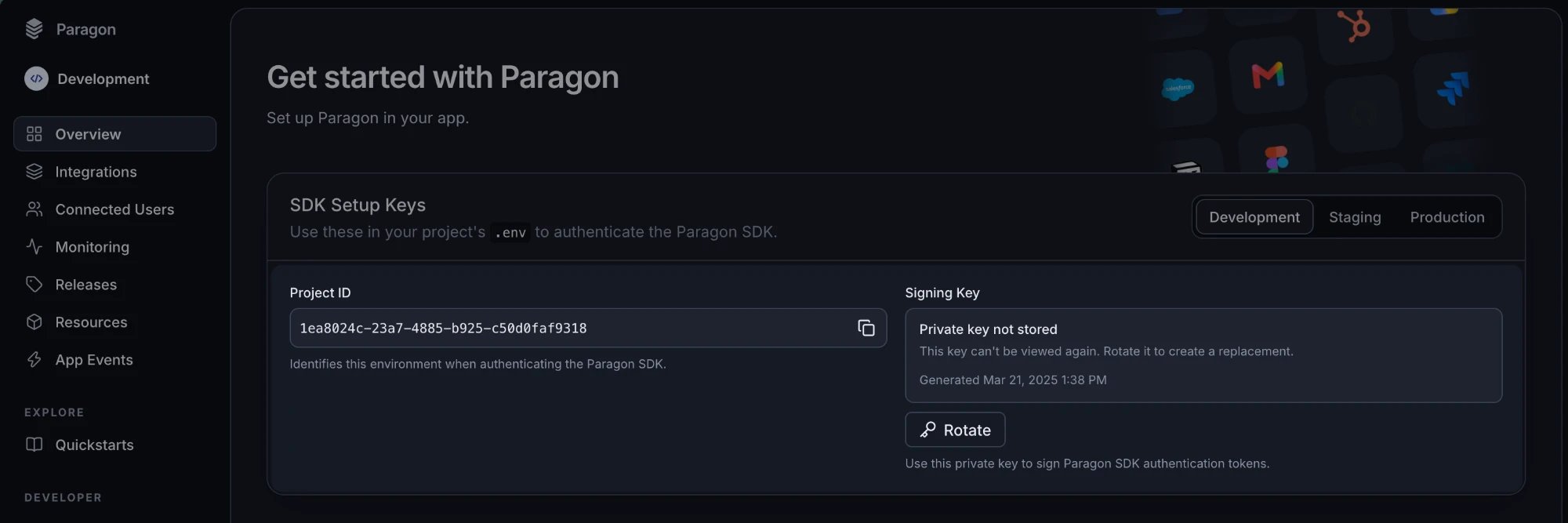
Open the Overview page in your Paragon dashboard. The SDK Setup Keys section has the 2 values you need, with a tab for each environment:- Project ID: Identifies your project. Every Agent OS request includes it in its path. Click the copy button to copy it.
- Signing Key: The private key your backend uses to sign Paragon User Tokens. Click Rotate to generate a new key, and save it right away.
.env:
.env
https://agentos.useparagon.com for US Cloud.
2. Sign a Paragon User Token
Agent OS identifies your users with a Paragon User Token: a JWT that your backend signs for each of your authenticated users. Every Context API and Tools API request is scoped to the Connected User in the token’ssub claim.
Sign a JWT with RS256 that includes the sub, aud, iat, and exp claims. Agent OS requires the aud claim to be useparagon.com/<your Project ID>.
server.js
Just for testing: Use the Paragon JWT Generator to generate one-off tokens during development. Never use static tokens in production.
If you already use Auth0, Firebase, or a JWKS-compatible authentication server, you can use its tokens instead of signing your own. See Using a managed authentication service.
3. Send your user a Setup Link
A Setup Link is a hosted page where your user connects their apps and chooses what content to sync, so you don’t need to build any connection UI to get started. Call Create Setup Link from your backend with the user’s Paragon User Token. You can also authenticate with a Paragon API key that has the Setup Links API scope by passing the Connected User’s ID asendUserId.
This endpoint is served from https://zeus.useparagon.com (US Cloud) or https://zeus.eu.paragon.so (EU Cloud), not the Agent OS base URL.
server.js
url to your user, for example by redirecting them to it or opening it in a new tab. On the hosted page, your user:
-
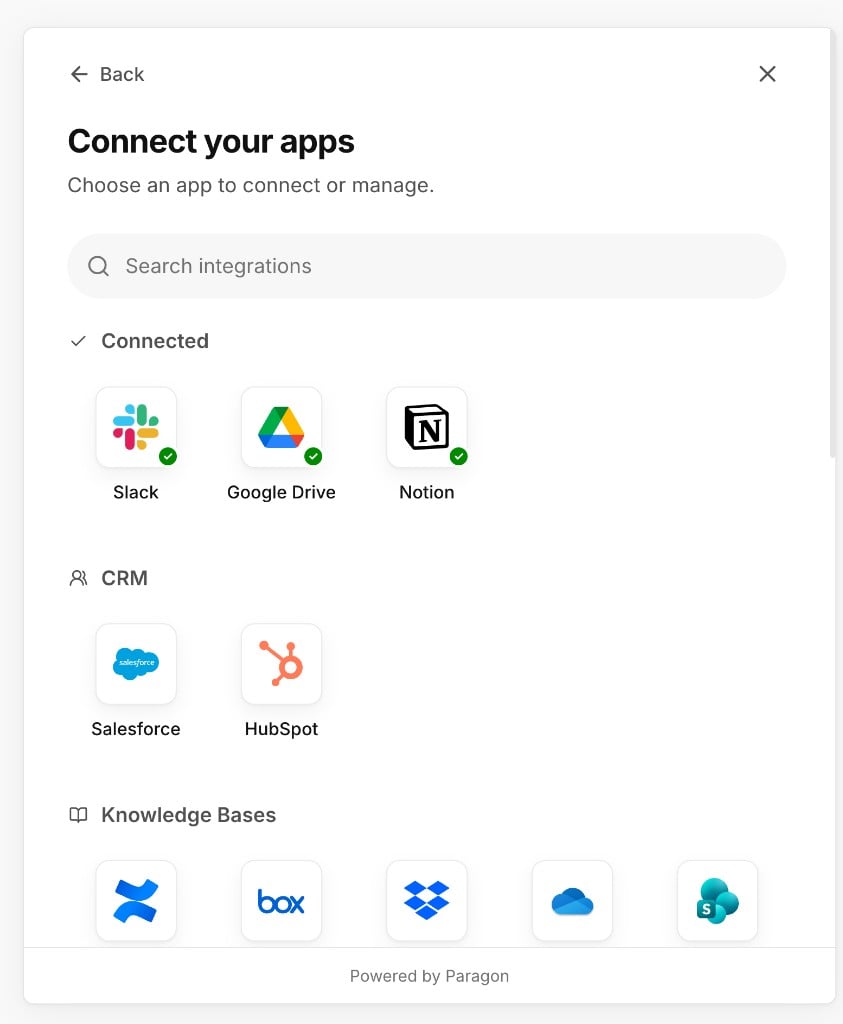
Connects the apps they want your agent to use. Apps they’ve already connected show a green check.
-
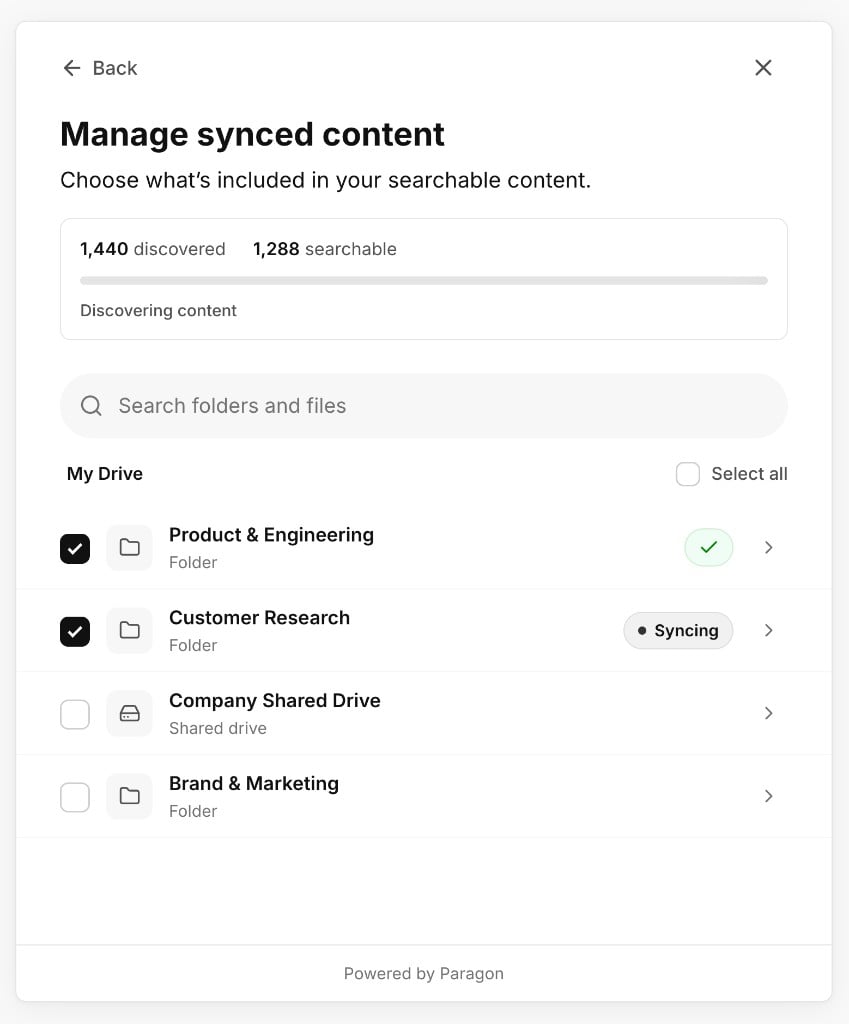
Chooses what content to sync from their knowledge sources, such as specific folders in Google Drive. Paragon syncs and indexes this content for the Context API.
4. Search your user’s content
Once your user’s content is synced and indexed, your agent can find relevant passages with Search Context:identity can access in the source app. Each passage includes a pointer that you can pass to Read Segment Context to read more of the surrounding text.
5. Find and run Tools
The Tools API lets your agent act in your user’s connected apps. Rather than loading every available Tool into your agent, use Search Tools to find the ones relevant to the current task:output.inline. Large results are stored and returned as a resultId that your agent can page through with Get Result Rows or Get Result Content, keeping your agent’s context small. See Handling large results.
Next steps
Context API
Learn how search results are organized and how user permissions are applied.
Tools API
Learn how to filter Tools, wait for long-running Tools, and read large results.