

 Managed Sync
 ActionKit
 Workflows
How it works
1
Create a Setup Link
Your backend calls Create Setup Link for a Connected User and gets back a hosted URL. Send that URL to your user.
2
Your user connects their apps
The Setup Link opens a hosted page where your user connects the apps they want your agent to search, such as Google Drive, Box, or SharePoint. Apps they’ve already connected show a green check.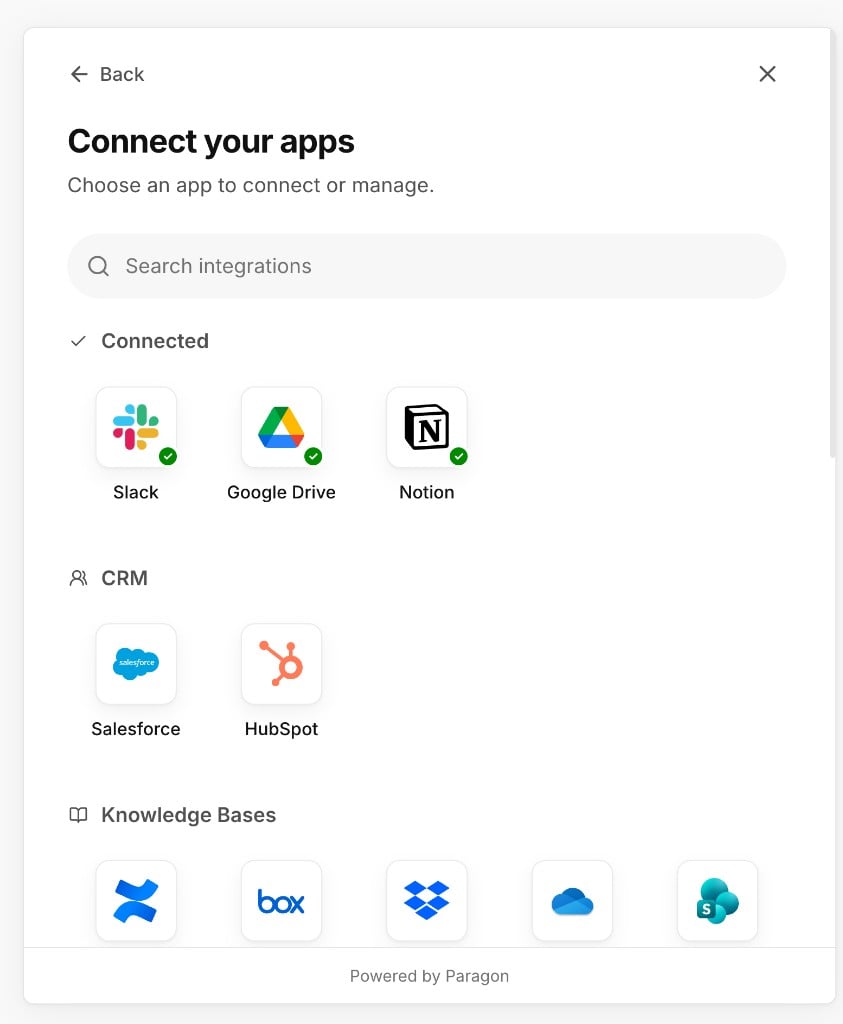
3
Your user chooses what to sync
After connecting an app, your user picks the folders and files to include in their searchable content. The page shows how much content has been discovered and is searchable, and the sync status of each selection.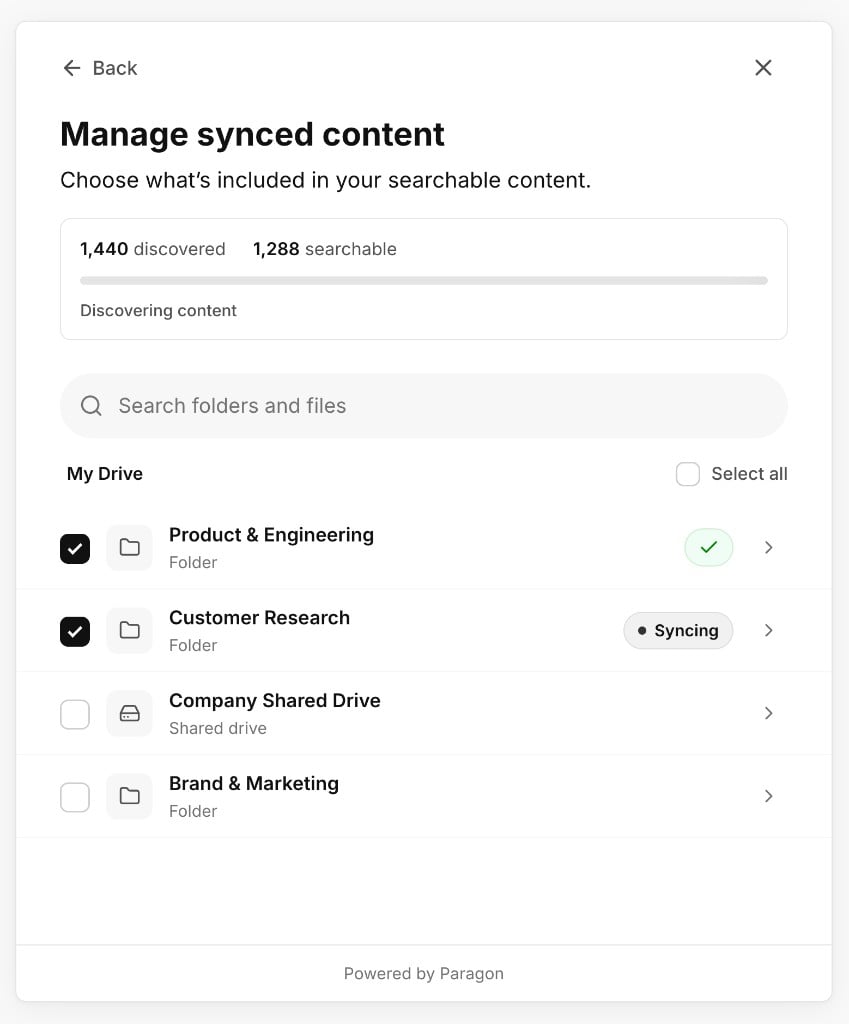
4
Search the content
Once content is synced and indexed, your agent finds relevant passages with Search Context and reads more of the surrounding text with Read Segment Context.
Endpoints
How search results are organized
Search returns one result per record. A record is one item (for example, a file or page) in one sync. If the same item is included in two syncs, it appears as two results. Each result includes its best matching passages. Every passage has apointer that you can pass to Read Segment Context to retrieve more of the surrounding text.
Supported sources
You can limit a search to specific sources with thesources field:
onedrive, sharepoint, dropbox, box, confluence, googledrive
Respecting user permissions
Search results only include content the user is allowed to access in the source app. Useidentity to tell Agent OS which account to apply on each source.
The
principal can be an email address or a provider-specific user ID. When you use a provider-specific ID rather than an email, you must also set source.