Managed Sync
 ActionKit
 Workflows
1. Get SendGrid API Key
You can see a list of your SendGrid API keys via the API Keys section of your SendGrid account’s Settings page. You’ll need to create a new API key to use with Paragon - press the “Create API Key” button to create a new key save it.2. Add SendGrid to Paragon
To add SendGrid to Paragon, click the ”+” button in the workflow canvas and choose Sendgrid from the sidebar. Under Connect your SendGrid account, choose “Add new account for SendGrid” and enter your SendGrid API key.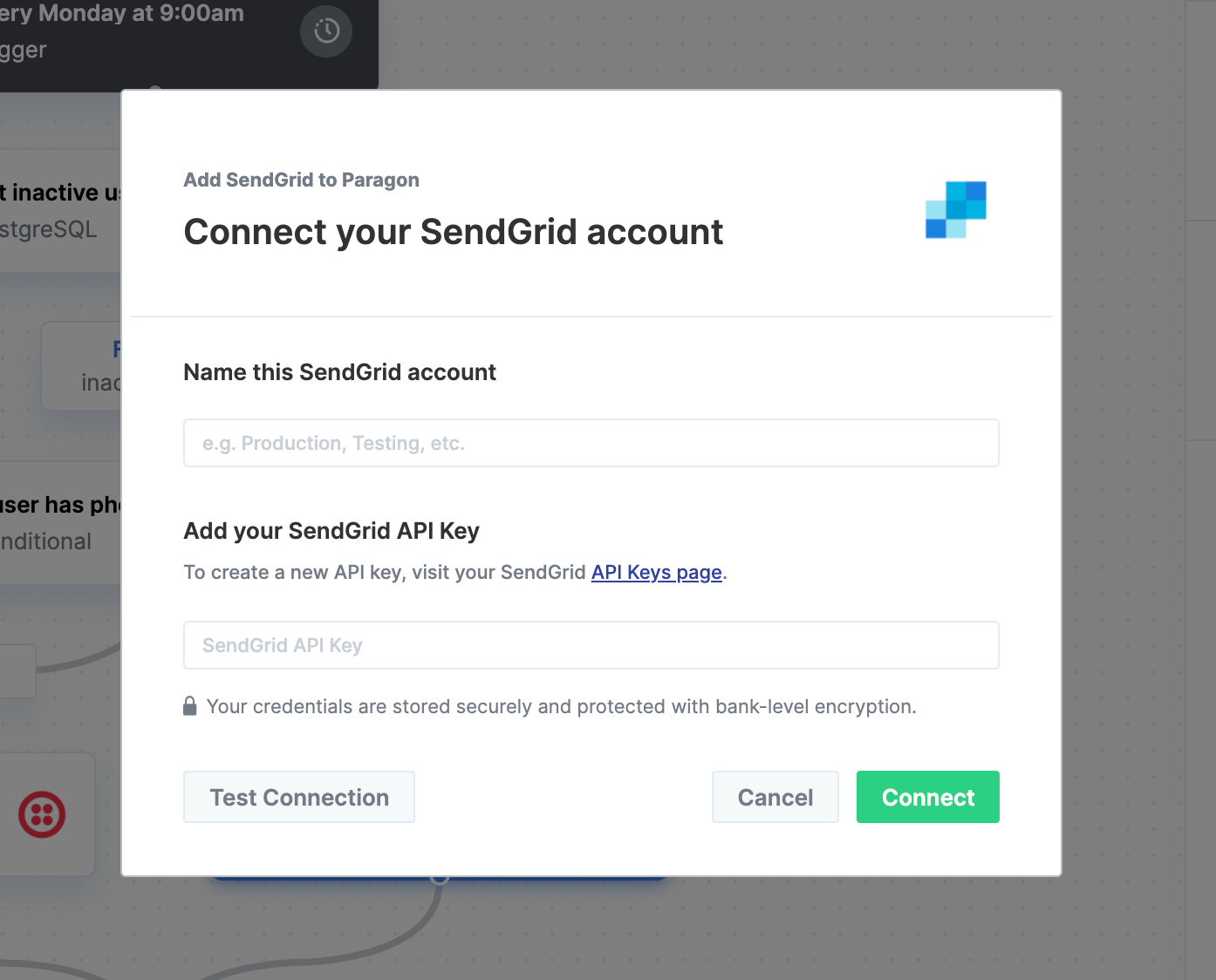
3. Send emails with SendGrid
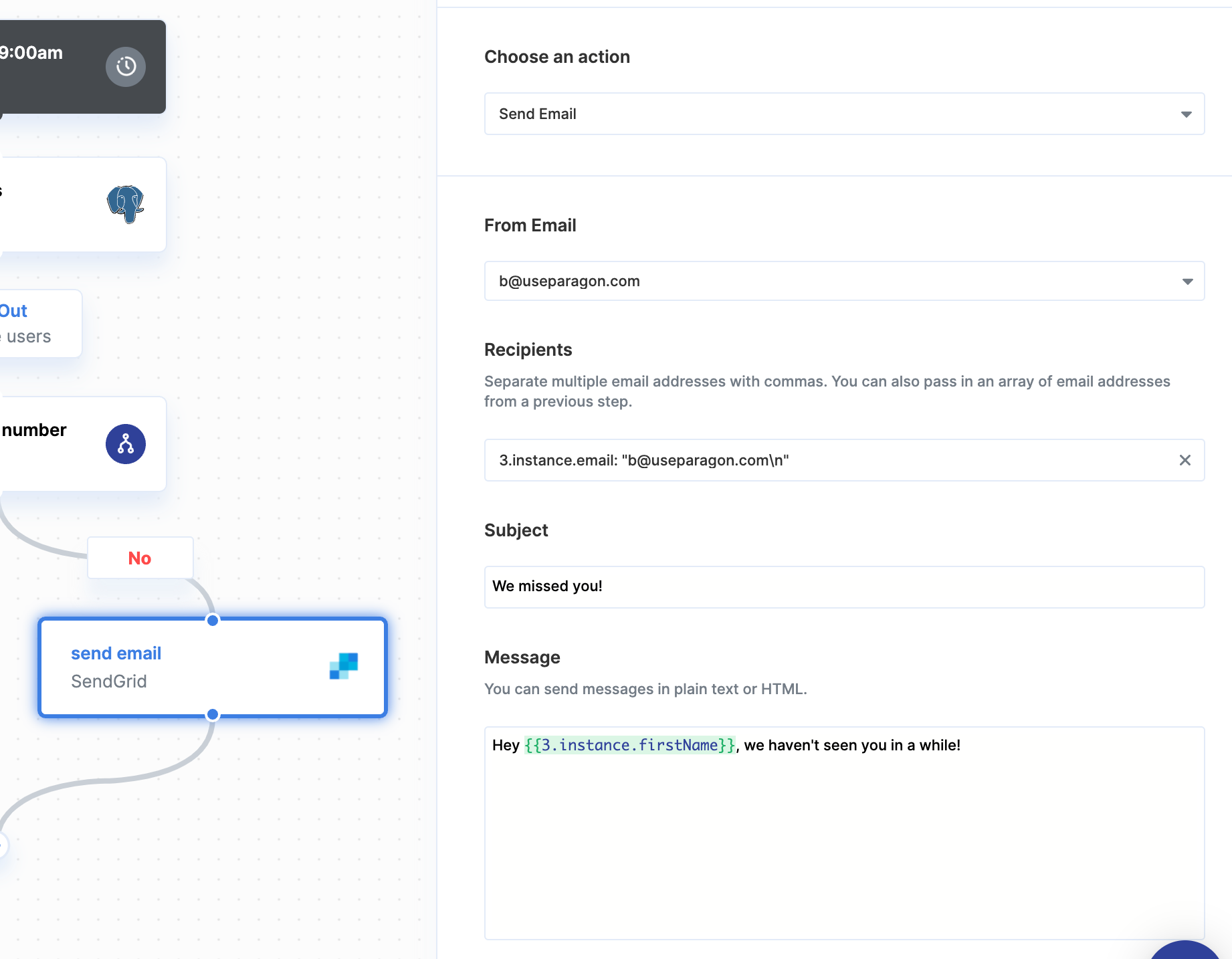
Once your SenGrid account is connected, you can add steps to perform the following actions:- Send email
- Send email from Template
{{ to invoke the variable menu.