> ## Documentation Index
> Fetch the complete documentation index at: https://docs.useparagon.com/llms.txt
> Use this file to discover all available pages before exploring further.
# Using Delay
> Pause a workflow for a fixed amount of time before continuing.
## Overview
The Delay step pauses a workflow for a fixed amount of time before running the next step. This is useful for scenarios like adding jitter between requests to avoid hitting an integration's rate limits, or waiting a few hours before sending a follow-up email.
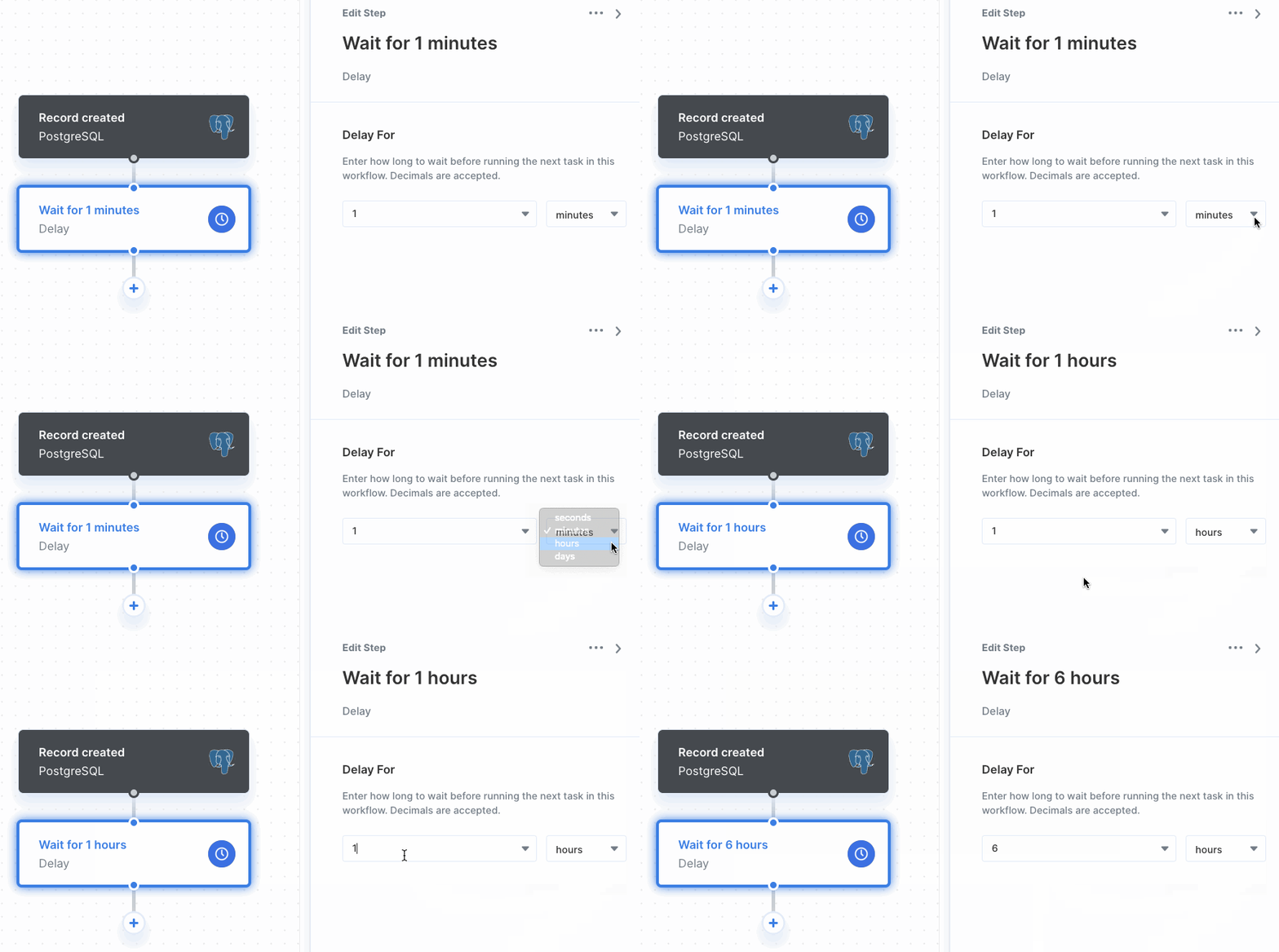
To add a Delay to your workflow, click the "+" button in the Workflow Editor and choose Delay from the sidebar. Then, specify how long the workflow should wait before continuing.
 ## Configuring a Delay
A Delay step takes two parameters:
* **Value**: how long to wait, as a number. This can be a static value or a [dynamic variable](/workflows/using-dynamic-variables) referencing data from a previous step.
* **Unit**: the unit of time for the value: Seconds, Minutes, Hours, or Days.
**Note:** When using Test Step or Test Workflow, Delay steps do not pause for the configured amount of time — they immediately continue the test execution.
## Viewing delayed executions
While a workflow execution is paused on a Delay step, it appears with a **Waiting** status on the [Monitoring](/workflows/viewing-workflow-executions) page. Once the delay elapses, execution resumes automatically with the next step in the workflow.
## Billing
Delay steps do not count as [tasks](/billing/tasks). The maximum delay you can configure depends on your billing plan:
| Plan | Maximum delay |
| -------------- | ------------- |
| **Trial** | 30 days |
| **Pro** | 30 days |
| **Enterprise** | 366 days |
## Configuring a Delay
A Delay step takes two parameters:
* **Value**: how long to wait, as a number. This can be a static value or a [dynamic variable](/workflows/using-dynamic-variables) referencing data from a previous step.
* **Unit**: the unit of time for the value: Seconds, Minutes, Hours, or Days.
**Note:** When using Test Step or Test Workflow, Delay steps do not pause for the configured amount of time — they immediately continue the test execution.
## Viewing delayed executions
While a workflow execution is paused on a Delay step, it appears with a **Waiting** status on the [Monitoring](/workflows/viewing-workflow-executions) page. Once the delay elapses, execution resumes automatically with the next step in the workflow.
## Billing
Delay steps do not count as [tasks](/billing/tasks). The maximum delay you can configure depends on your billing plan:
| Plan | Maximum delay |
| -------------- | ------------- |
| **Trial** | 30 days |
| **Pro** | 30 days |
| **Enterprise** | 366 days |