> ## Documentation Index
> Fetch the complete documentation index at: https://docs.useparagon.com/llms.txt
> Use this file to discover all available pages before exploring further.
# API Resources
> Add API Resources to your project to build reusable Triggers and Steps for your API in Workflows.
## Overview
API Resources are reusable connections to your internal API endpoints that can be used to define Requests and Triggers for Workflows.
With API Resources, you can:
* Connect Workflows to existing webhooks in your API
* Define your API configuration once (including authentication and basic API details) and reuse it across requests made in Workflows
## Getting Started
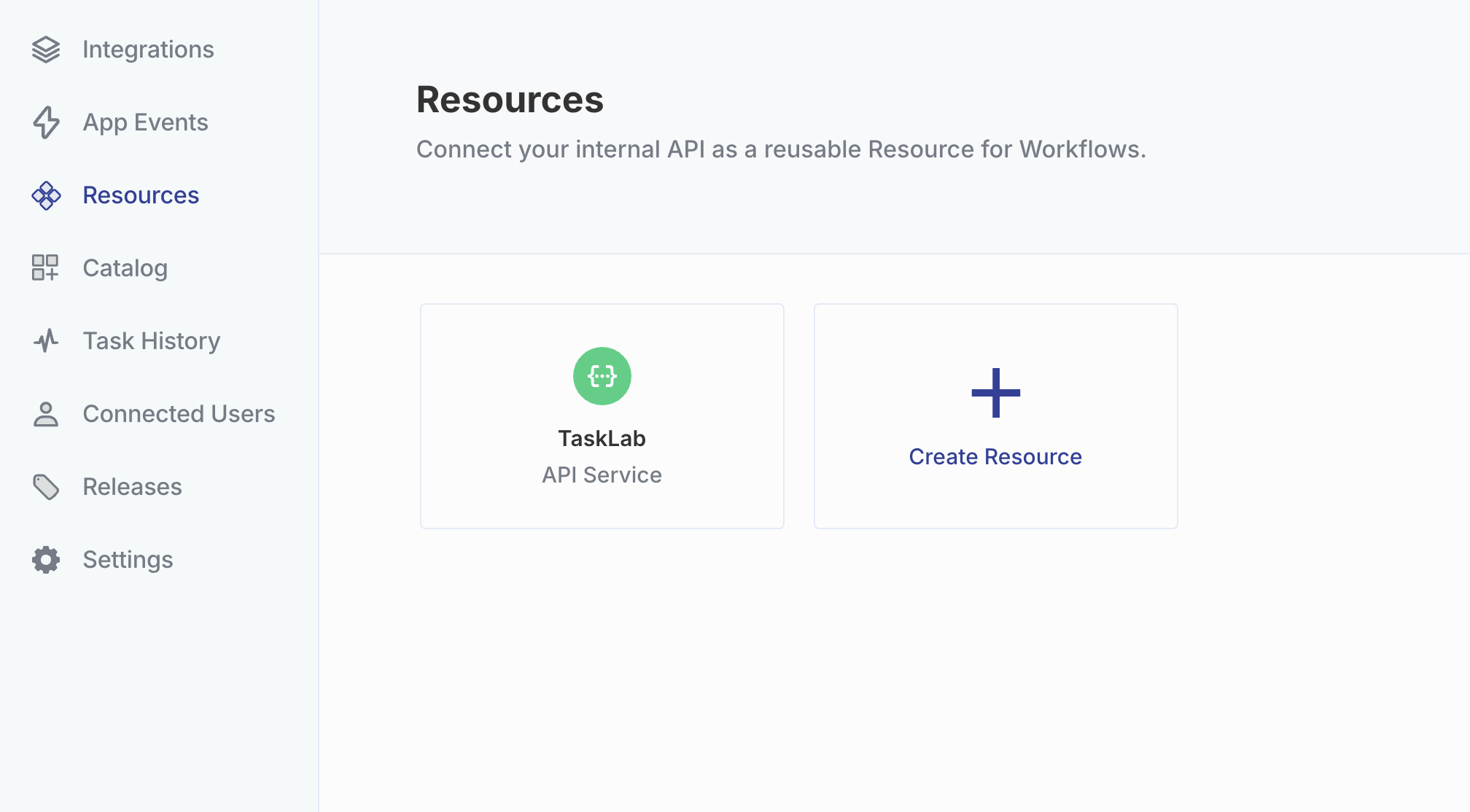
To start creating an API Resource, navigate to the **Resources** page in your dashboard sidebar and click **Create Resource**.
You will be prompted to name your Resource, which will be used to reference your API in Triggers and Requests. For example, if your Resource is named "TaskLab", you will see "TaskLab Request" Steps and "TaskLab Triggers" appear as options for your Workflows.
 ### API Info
Next, you'll configure your API Resource with details on how your API authenticates and sends requests.
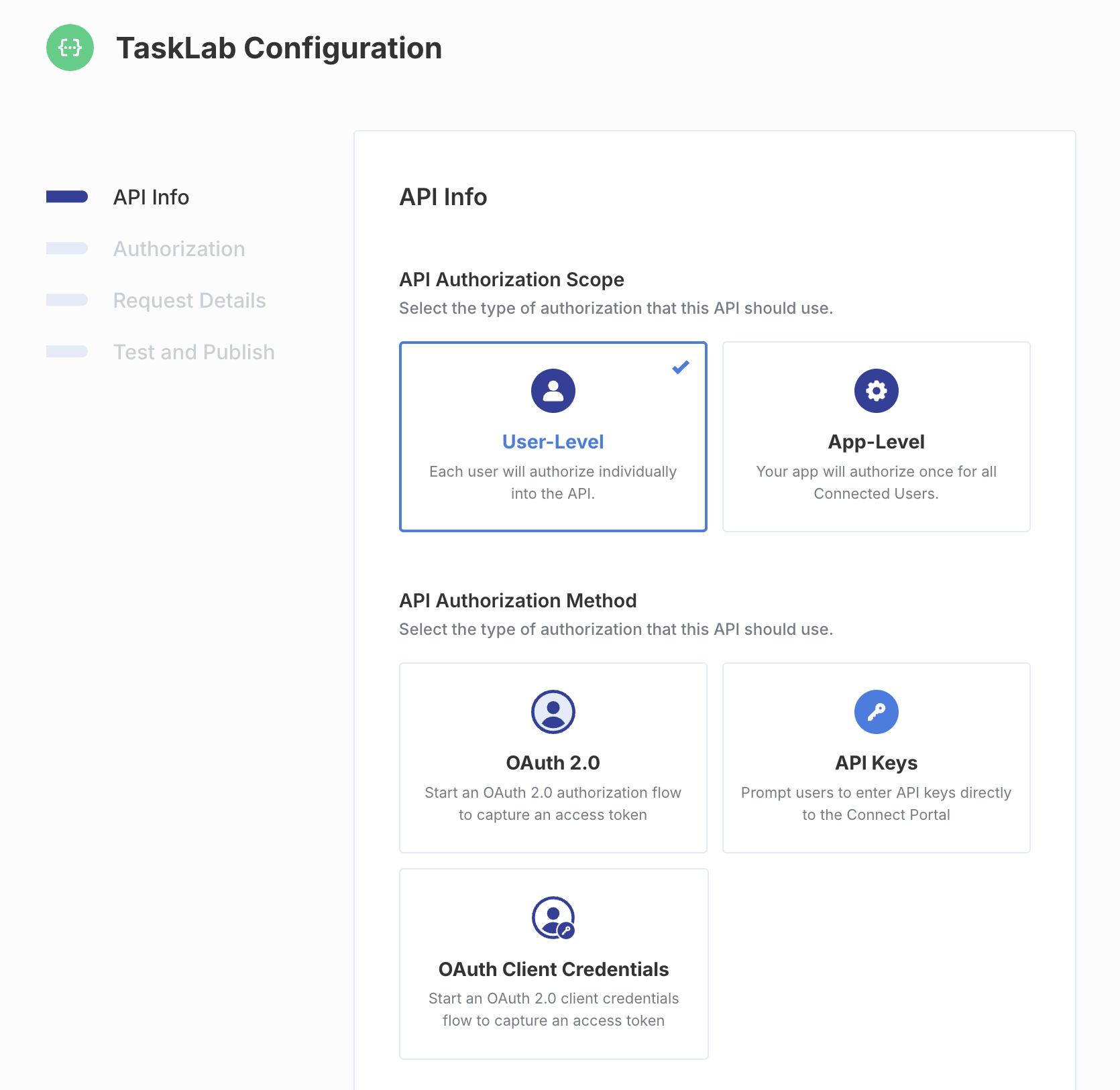
1. **Choose between a User-Level and an App-Level Resource.** **User-Level Resources** require you to use the SDK/API to save separate API credentials for each of your Connected Users. Choose this option if each of your users will have separate OAuth tokens or API keys. **App-Level Resources** use one set of API credentials to authenticate for all of your Connected Users. Choose this option if one set of API keys/service account credentials will be used to authenticate to your API from Paragon.
2. **Select an authentication type.** Resources support the most common API authentication types, including OAuth 2.0 (Refresh Token or Client Credentials) and API Keys.
### API Info
Next, you'll configure your API Resource with details on how your API authenticates and sends requests.
1. **Choose between a User-Level and an App-Level Resource.** **User-Level Resources** require you to use the SDK/API to save separate API credentials for each of your Connected Users. Choose this option if each of your users will have separate OAuth tokens or API keys. **App-Level Resources** use one set of API credentials to authenticate for all of your Connected Users. Choose this option if one set of API keys/service account credentials will be used to authenticate to your API from Paragon.
2. **Select an authentication type.** Resources support the most common API authentication types, including OAuth 2.0 (Refresh Token or Client Credentials) and API Keys.
 ### Authorization
**Note**: The next steps may vary depending on which options you select above. If you selected App-Level Resource, proceed directly to [Request Details](/workflows/api-resources#request-details).
#### OAuth 2.0
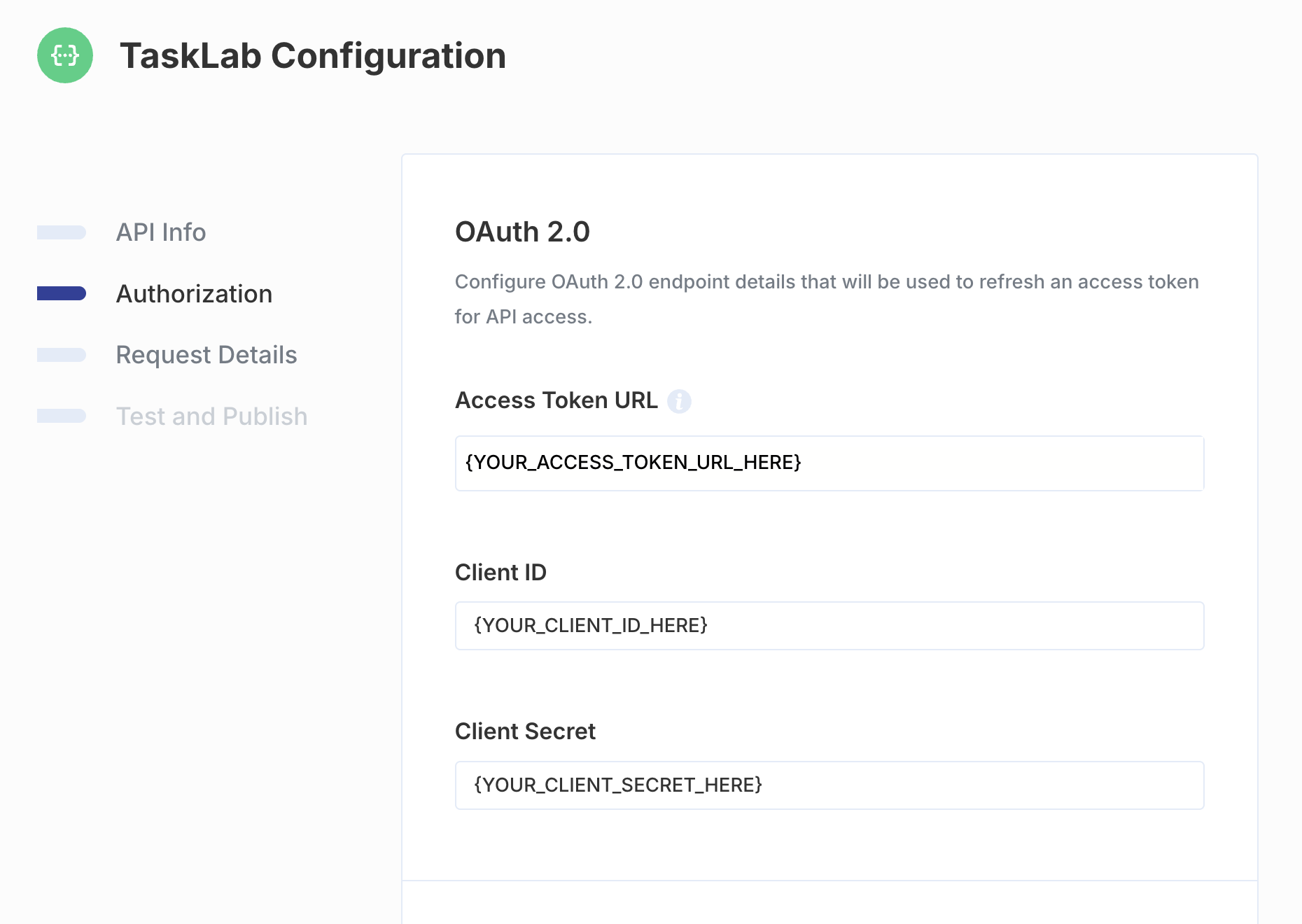
If you selected OAuth 2.0 authentication, you'll need to provide the following details:
* **Access Token URL**: URL that Paragon will use to refresh OAuth tokens for your API.
* **Client ID and Client Secret**: The `client_id` and `client_secret` parameters that will be used for the OAuth refresh request to the preconfigured URL.
* Optionally, you can configure additional settings under Advanced Options:
* **Required Inputs**: Add an input to this list if you need to parameterize values like the Access Token URL or API Base URL.
* **Include Client ID and Secret**: You can disable this setting if your integration does not use a Basic Authorization header to pass your Client ID and Secret into the token request.
### Authorization
**Note**: The next steps may vary depending on which options you select above. If you selected App-Level Resource, proceed directly to [Request Details](/workflows/api-resources#request-details).
#### OAuth 2.0
If you selected OAuth 2.0 authentication, you'll need to provide the following details:
* **Access Token URL**: URL that Paragon will use to refresh OAuth tokens for your API.
* **Client ID and Client Secret**: The `client_id` and `client_secret` parameters that will be used for the OAuth refresh request to the preconfigured URL.
* Optionally, you can configure additional settings under Advanced Options:
* **Required Inputs**: Add an input to this list if you need to parameterize values like the Access Token URL or API Base URL.
* **Include Client ID and Secret**: You can disable this setting if your integration does not use a Basic Authorization header to pass your Client ID and Secret into the token request.
 #### API Keys
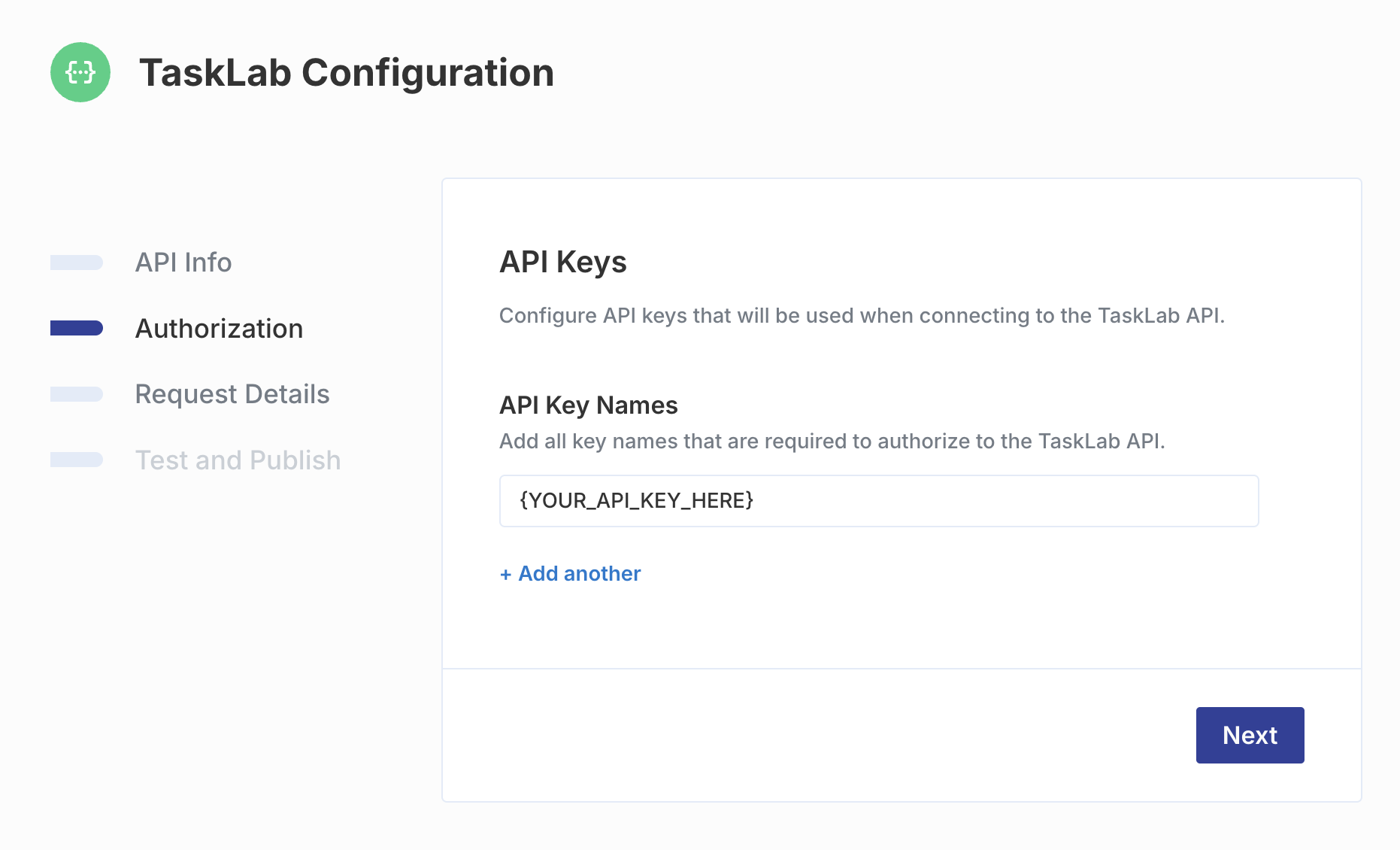
If you selected API Key authentication, you'll need to provide the names of any values that are required as a part of a user's credentials to your API.
For example, if your API requires a username and password to authenticate, add `username` and `password` as API Key names.
#### API Keys
If you selected API Key authentication, you'll need to provide the names of any values that are required as a part of a user's credentials to your API.
For example, if your API requires a username and password to authenticate, add `username` and `password` as API Key names.
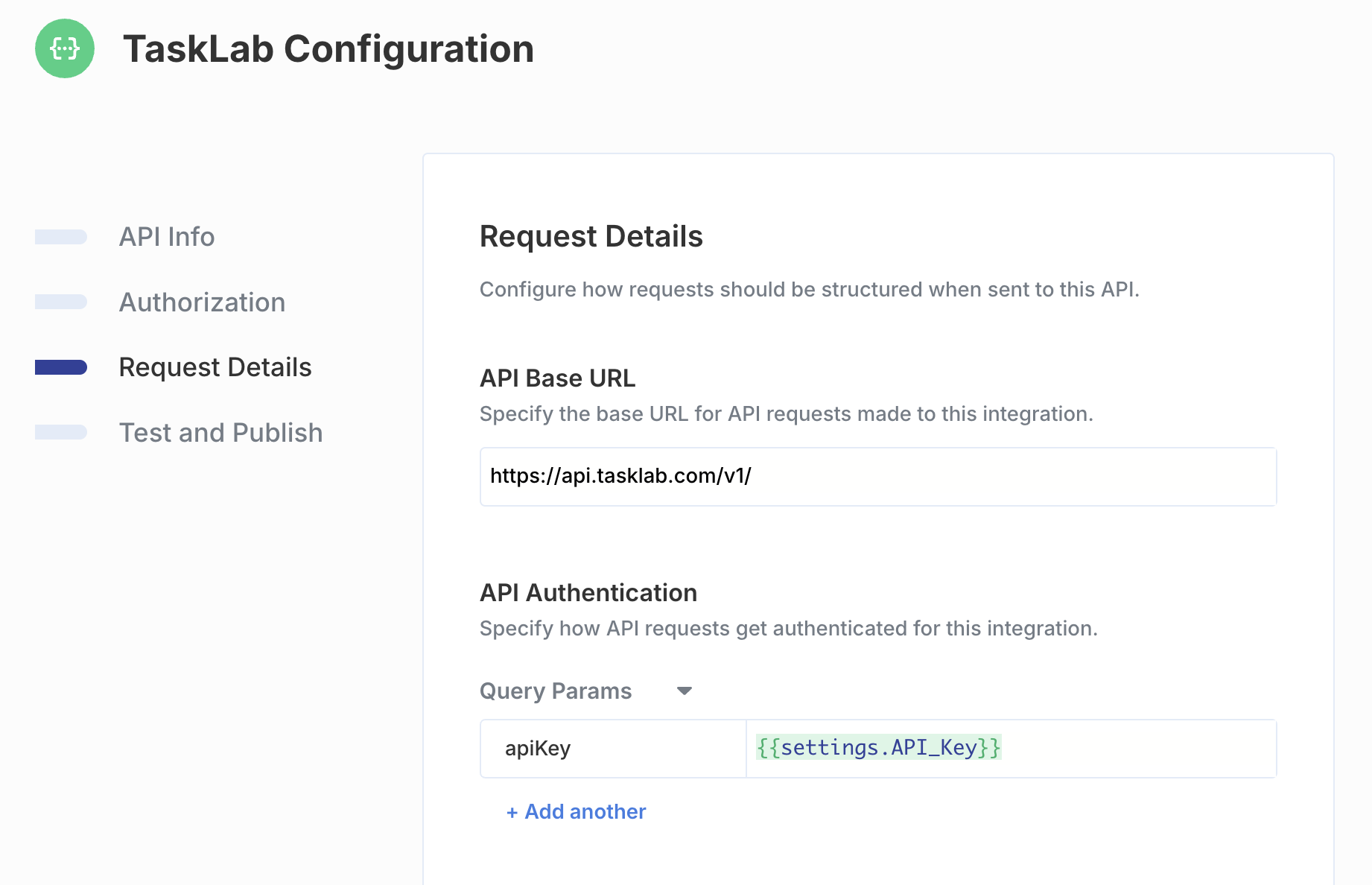
 ### Request Details
Next, define a template for how requests are sent to your API.
* **API Base URL**: URL that should be used to send requests.
* If you are using a User-Level Resource and added Required Inputs in the **Authorization** step, you can use the variable menu (type `{{` to open) to parameterize this value with a user-specific input.
* **API Authentication:** Define how tokens or other values are used to authenticate requests sent to your API.
* Optionally, if you are using a User-Level Resource, you can configure a User Profile.
* User Profiles are retrieved from your API at the time of first authentication and can be used to store persistent information about the user's Resource Connection.
* You can configure a Request or use a field from a JWT-encoded access token to save the User Profile.
### Request Details
Next, define a template for how requests are sent to your API.
* **API Base URL**: URL that should be used to send requests.
* If you are using a User-Level Resource and added Required Inputs in the **Authorization** step, you can use the variable menu (type `{{` to open) to parameterize this value with a user-specific input.
* **API Authentication:** Define how tokens or other values are used to authenticate requests sent to your API.
* Optionally, if you are using a User-Level Resource, you can configure a User Profile.
* User Profiles are retrieved from your API at the time of first authentication and can be used to store persistent information about the user's Resource Connection.
* You can configure a Request or use a field from a JWT-encoded access token to save the User Profile.
 ### Test and Publish
Finally, you can send a test request to your API Resource to verify that you can connect to your API.
If you are using a User-Level Resource, you will be prompted to enter test credentials using your Required Fields (and an access/refresh token, for OAuth). *This step must be completed to test your Resource in the Workflow Editor and Webhook Setup pages.*
### Test and Publish
Finally, you can send a test request to your API Resource to verify that you can connect to your API.
If you are using a User-Level Resource, you will be prompted to enter test credentials using your Required Fields (and an access/refresh token, for OAuth). *This step must be completed to test your Resource in the Workflow Editor and Webhook Setup pages.*
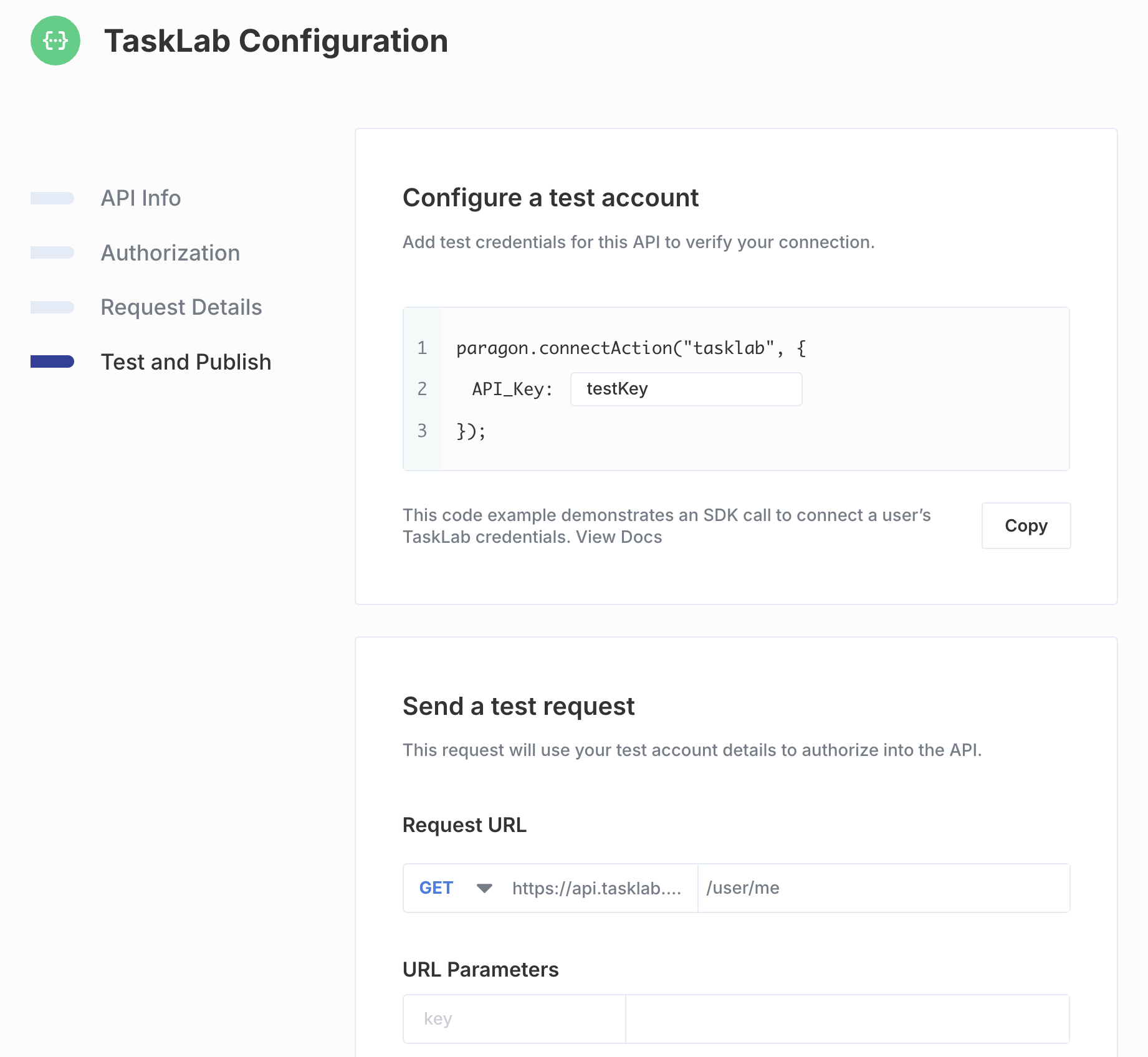 Once you are finished verifying that your API Resource can send requests successfully, click **Finish** to save your Resource configuration.
## Connecting Resources
If you are using User-Level Resources, you will need to connect your users' credentials to ensure that Resource Requests and Triggers can run as expected.
To connect your users' credentials via your frontend application, you can use the SDK's `connectAction` method to pass through the Required Keys for your User-Level Resource.
**Example OAuth 2.0 connectAction call:**
```js theme={null}
await paragon.connectAction("Resource Name", {
access_token: "eyJ....",
refresh_token: "ref_123..."
});
```
You can visit **Resource Setup** > **Test and Publish** to see a code example of your specific Resource, with all required keys.
To connect your users' credentials via the REST API, perform the following request:
```http theme={null}
POST https://zeus.useparagon.com/projects/[Project ID]/sdk/resources/[Resource ID]/connect
Authorization: Bearer [Paragon User Token]
Content-Type: application/json
{
"access_token": "eyJ...",
"refresh_token": "ref_123..."
}
```
* **Project ID**: Your Paragon Project ID
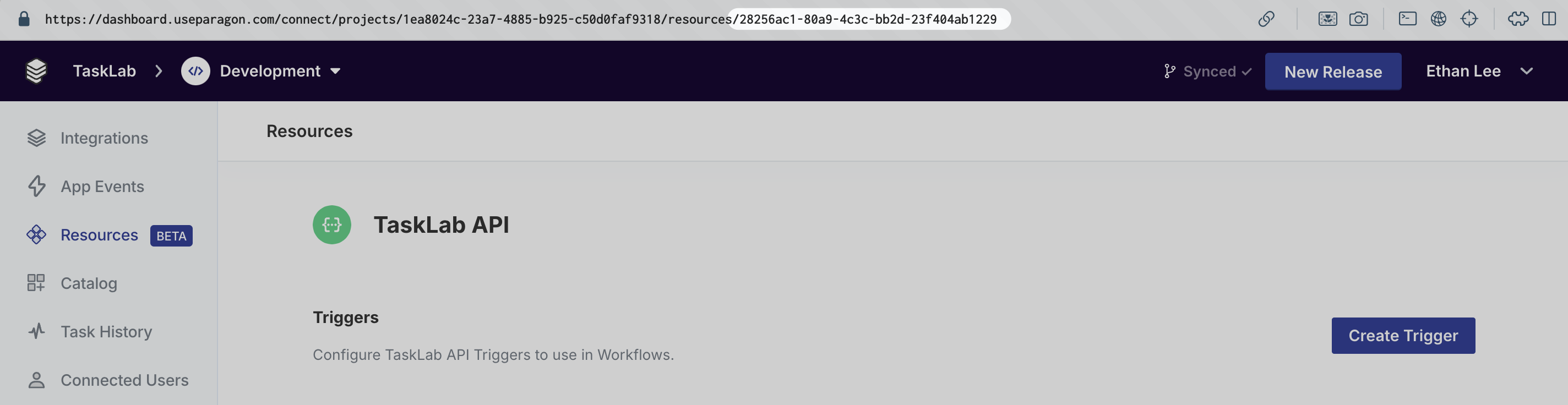
* **Resource ID**: You can find your Resource ID in your dashboard, in the URL of your Resource page. It is a UUID which follows the `/resources/` path of the URL.
Once you are finished verifying that your API Resource can send requests successfully, click **Finish** to save your Resource configuration.
## Connecting Resources
If you are using User-Level Resources, you will need to connect your users' credentials to ensure that Resource Requests and Triggers can run as expected.
To connect your users' credentials via your frontend application, you can use the SDK's `connectAction` method to pass through the Required Keys for your User-Level Resource.
**Example OAuth 2.0 connectAction call:**
```js theme={null}
await paragon.connectAction("Resource Name", {
access_token: "eyJ....",
refresh_token: "ref_123..."
});
```
You can visit **Resource Setup** > **Test and Publish** to see a code example of your specific Resource, with all required keys.
To connect your users' credentials via the REST API, perform the following request:
```http theme={null}
POST https://zeus.useparagon.com/projects/[Project ID]/sdk/resources/[Resource ID]/connect
Authorization: Bearer [Paragon User Token]
Content-Type: application/json
{
"access_token": "eyJ...",
"refresh_token": "ref_123..."
}
```
* **Project ID**: Your Paragon Project ID
* **Resource ID**: You can find your Resource ID in your dashboard, in the URL of your Resource page. It is a UUID which follows the `/resources/` path of the URL.
 * **Paragon User Token:** The User Token which authenticates the Connected User you are trying to connect a Resource for.