> ## Documentation Index
> Fetch the complete documentation index at: https://docs.useparagon.com/llms.txt
> Use this file to discover all available pages before exploring further.
# Full Example of an End-to-End HubSpot Integration
> Let's tie Tools and Triggers together in the context of a reactive AI agent
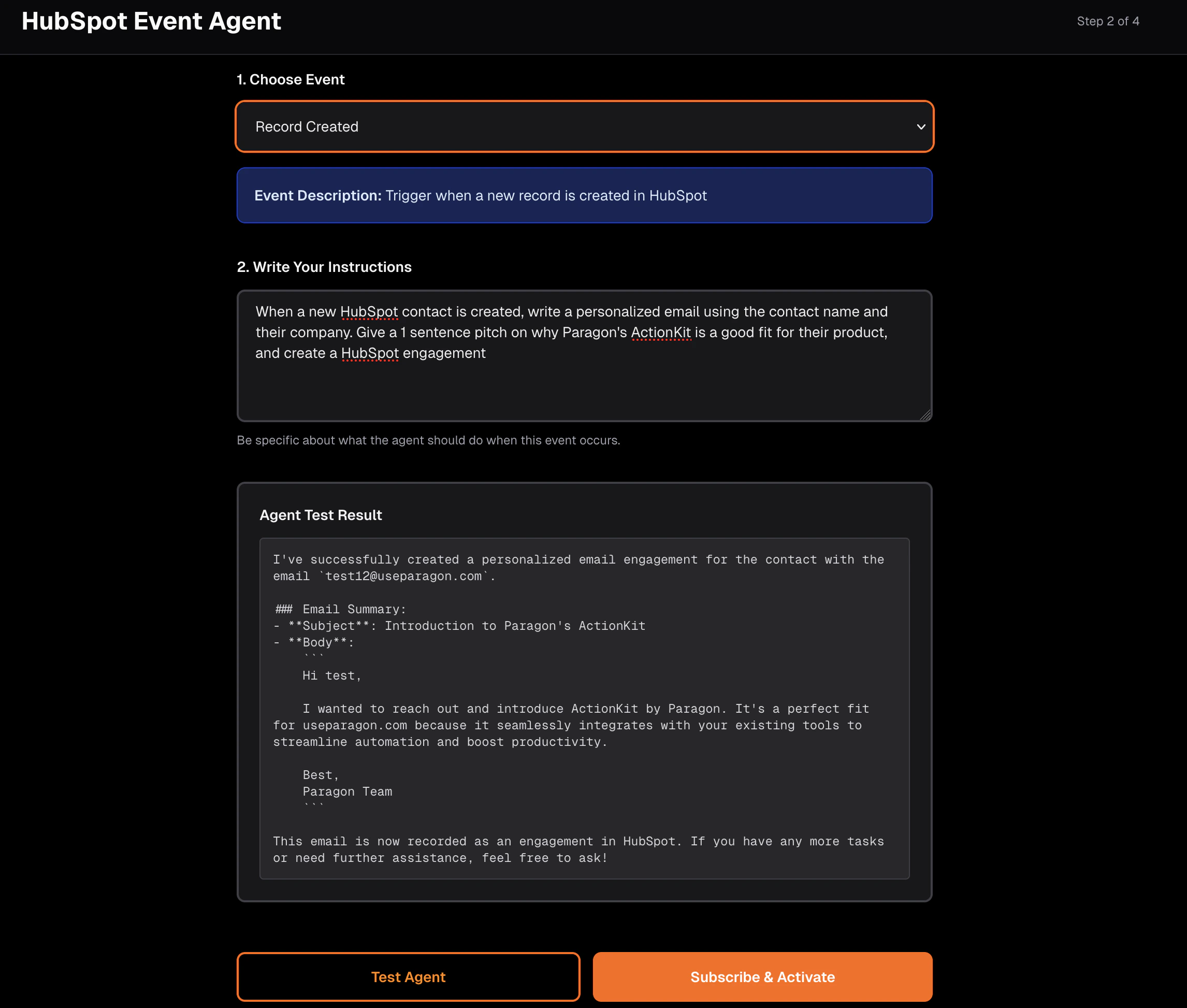
In this final chapter, we'll build an automated HubSpot agent together. Our HubSpot agent uses:
1. [Triggers](/tutorials/actionkit-guide/first-trigger) to run the agent whenever a new HubSpot record is created
2. [Tools](/tutorials/actionkit-guide/first-action) for the agent to get, create, and update HubSpot data if it's relevant to the user's prompt template.
## 1. Authenticate our User and Connect their HubSpot Integration
First we'll generate a Paragon-signed JWT for our user that we'll use client-side with the Paragon SDK.
```typescript server-side function expandable theme={null}
import jwt from "jsonwebtoken";
const PROJECT_ID = process.env.NEXT_PUBLIC_PARAGON_PROJECT_ID!;
const SIGNING_KEY = process.env.PARAGON_SIGNING_KEY!;
export function signParagonToken(userId: string): string {
const currentTime = Math.floor(Date.now() / 1000);
return jwt.sign(
{
sub: userId,
aud: `useparagon.com/${PROJECT_ID}`,
iat: currentTime,
exp: currentTime + 60 * 60,
},
SIGNING_KEY,
{ algorithm: "RS256" }
);
}
```
Then we can use the Paragon SDK to authenticate and connect our user's HubSpot account.
```typescript calling our backend route to retrieve our JWT before authenticating expandable theme={null}
const res = await fetch("/api/auth/paragon-token", {
method: "POST",
headers: { "Content-Type": "application/json" },
body: JSON.stringify({ userId }),
});
const { token } = await res.json();
await paragon.authenticate(PROJECT_ID, token);
```
```tsx Paragon.connect to bring up the Connect Portal theme={null}
```
## 2. Let our Users Configure their HubSpot Event Subscription
Using the `GET triggers` endpoint, we can let our users select the type of HubSpot event they'd like their agent to receive.
```typescript Gets the available Triggers for our specific user expandable theme={null}
const PROJECT_ID = process.env.NEXT_PUBLIC_PARAGON_PROJECT_ID!;
const BASE_URL = "https://actionkit.useparagon.com";
async function fetchActionKit(
path: string,
userId: string,
options: RequestInit = {}
) {
const token = signParagonToken(userId);
const res = await fetch(`${BASE_URL}${path}`, {
...options,
headers: {
Authorization: `Bearer ${token}`,
"Content-Type": "application/json",
...options.headers,
},
});
if (!res.ok) {
const body = await res.text();
throw new Error(`ActionKit API error ${res.status}: ${body}`);
}
return res.json();
}
export async function listAvailableTriggers(
userId: string,
integration = "hubspot"
): Promise> {
const data = await fetchActionKit(
`/projects/${PROJECT_ID}/triggers?integrations=${integration}`,
userId
);
return data.triggers;
}
```
```tsx Use the Triggers response to surface configurations to our user expandable theme={null}
{selectedTrigger.parameters.map((p) => (
))}
```
After the user selects a Trigger and configures it, we can subscribe to that user's HubSpot events.
```typescript Subscribes to the Trigger theme={null}
// fetchActionKit appends the endpoint on ActionKit's base URL
export async function subscribeToTrigger(
userId: string,
integration: string,
triggerType: string,
parameters: Record,
): Promise {
const body: Record = {
integration,
type: triggerType,
parameters,
webhookOverride: {
url: process.env.WEBHOOK_ENDPOINT,
}
}
return fetchActionKit(
`/projects/${PROJECT_ID}/trigger-subscriptions`,
userId,
{
method: "POST",
body: JSON.stringify(body),
}
);
}
```
## 3. Kick Off an Agent with Tools Whenever a New Event Fires
Whenever a new HubSpot event occurs (new record, updated record, deleted record), Triggers will send a webhook to our `process.env.WEBHOOK_ENDPOINT`. That endpoint will kick off an agent with HubSpot Tools for followup work.
In the screenshot above, the custom prompt was:
```markdown theme={null}
When a new HubSpot contact is created, write a personalized email using the
contact name and their company. Give a 1 sentence pitch on why Paragon's
ActionKit is a good fit for their product, and create a HubSpot engagement.
```
Our automated agent should use the `HUBSPOT_CREATE_ENGAGEMENT` Tool to perform its task.
First let's get pre-built tools for our agent using ActionKit's Tools API.
```typescript Get ActionKit Tools theme={null}
// fetchActionKit appends the endpoint on ActionKit's base URL
export async function listTools(
userId: string,
integration = "hubspot"
): Promise> {
const data = await fetchActionKit(
`/projects/${PROJECT_ID}/tools?integrations=${integration}&format=json_schema`,
userId
);
return data.tools;
}
```
Next, we'll format these Tools per Vercel's ai-sdk specifications for their agent (you can format Tools for Vercel, LangChain, or any LLM API directly).
```typescript expandable theme={null}
import { tool, type ToolSet } from "ai";
import { z } from "zod";
async function getHubSpotTools(userId: string): Promise {
const toolsMap = await listTools(userId, "hubspot");
const hubspotTools = toolsMap.hubspot ?? [];
const tools: ToolSet = {};
for (const t of hubspotTools) {
const fn = t.function;
const toolName = fn.name;
const paramSchema: Record = {};
if (fn.parameters && typeof fn.parameters === "object") {
const props = (fn.parameters as { properties?: Record }).properties ?? {};
const required = (fn.parameters as { required?: string[] }).required ?? [];
for (const [key, val] of Object.entries(props)) {
let schema: z.ZodTypeAny = z.string();
if (val.type === "number" || val.type === "integer") {
schema = z.number();
} else if (val.type === "boolean") {
schema = z.boolean();
} else if (val.type === "array") {
schema = z.array(z.string());
}
if (!required.includes(key)) {
schema = schema.optional();
}
if (val.description) {
schema = schema.describe(val.description);
}
paramSchema[key] = schema;
}
}
tools[toolName] = tool({
description: fn.description ?? `HubSpot action: ${toolName}`,
inputSchema: z.object(paramSchema),
execute: async (params: Record) => {
console.log(`[Agent] Running tool: ${toolName}`, params);
const result = await runTool(userId, toolName, params);
return result;
},
});
}
return tools;
}
```
Now we can provide our ai-sdk agent with the formatted Tools.
```typescript expandable theme={null}
import { generateText, gateway, stepCountIs } from "ai";
export async function runAgent(
userId: string,
eventPayload: Record,
triggerType: string,
userPrompt: string
): Promise {
const hubSpotTools = await getHubSpotTools(userId);
const toolNames = Object.keys(hubSpotTools);
const systemPrompt = `You are an AI agent that responds to HubSpot events. You have access to the following HubSpot tools: ${toolNames.join(", ")}.
When a HubSpot event occurs, use the event data along with the user's instructions to decide what actions to take. Call the appropriate tools to fulfill the user's request.
Always explain what you're doing and why. If you cannot fulfill the request with available tools, explain what's missing.
Current event type: ${triggerType}`;
const eventDescription = `A HubSpot event just fired:
Event Type: ${triggerType}
Event Data: ${JSON.stringify(eventPayload, null, 2)}
User's instruction for this event: ${userPrompt}`;
const { text } = await generateText({
model: gateway("openai/gpt-5"),
system: systemPrompt,
prompt: eventDescription,
tools: hubSpotTools,
stopWhen: stepCountIs(10),
});
return text;
}
```
We now have a fully reactive agent that fires around the clock, using:
1. Triggers to "prompt" the agent to work whenever our users have their configured event fire
2. Tools to give our agent integration tools that can write back to the triggered integration or any other Paragon integration
 ## 1. Authenticate our User and Connect their HubSpot Integration
First we'll generate a Paragon-signed JWT for our user that we'll use client-side with the Paragon SDK.
```typescript server-side function expandable theme={null}
import jwt from "jsonwebtoken";
const PROJECT_ID = process.env.NEXT_PUBLIC_PARAGON_PROJECT_ID!;
const SIGNING_KEY = process.env.PARAGON_SIGNING_KEY!;
export function signParagonToken(userId: string): string {
const currentTime = Math.floor(Date.now() / 1000);
return jwt.sign(
{
sub: userId,
aud: `useparagon.com/${PROJECT_ID}`,
iat: currentTime,
exp: currentTime + 60 * 60,
},
SIGNING_KEY,
{ algorithm: "RS256" }
);
}
```
Then we can use the Paragon SDK to authenticate and connect our user's HubSpot account.
```typescript calling our backend route to retrieve our JWT before authenticating expandable theme={null}
const res = await fetch("/api/auth/paragon-token", {
method: "POST",
headers: { "Content-Type": "application/json" },
body: JSON.stringify({ userId }),
});
const { token } = await res.json();
await paragon.authenticate(PROJECT_ID, token);
```
```tsx Paragon.connect to bring up the Connect Portal theme={null}
```
## 2. Let our Users Configure their HubSpot Event Subscription
Using the `GET triggers` endpoint, we can let our users select the type of HubSpot event they'd like their agent to receive.
```typescript Gets the available Triggers for our specific user expandable theme={null}
const PROJECT_ID = process.env.NEXT_PUBLIC_PARAGON_PROJECT_ID!;
const BASE_URL = "https://actionkit.useparagon.com";
async function fetchActionKit(
path: string,
userId: string,
options: RequestInit = {}
) {
const token = signParagonToken(userId);
const res = await fetch(`${BASE_URL}${path}`, {
...options,
headers: {
Authorization: `Bearer ${token}`,
"Content-Type": "application/json",
...options.headers,
},
});
if (!res.ok) {
const body = await res.text();
throw new Error(`ActionKit API error ${res.status}: ${body}`);
}
return res.json();
}
export async function listAvailableTriggers(
userId: string,
integration = "hubspot"
): Promise
## 1. Authenticate our User and Connect their HubSpot Integration
First we'll generate a Paragon-signed JWT for our user that we'll use client-side with the Paragon SDK.
```typescript server-side function expandable theme={null}
import jwt from "jsonwebtoken";
const PROJECT_ID = process.env.NEXT_PUBLIC_PARAGON_PROJECT_ID!;
const SIGNING_KEY = process.env.PARAGON_SIGNING_KEY!;
export function signParagonToken(userId: string): string {
const currentTime = Math.floor(Date.now() / 1000);
return jwt.sign(
{
sub: userId,
aud: `useparagon.com/${PROJECT_ID}`,
iat: currentTime,
exp: currentTime + 60 * 60,
},
SIGNING_KEY,
{ algorithm: "RS256" }
);
}
```
Then we can use the Paragon SDK to authenticate and connect our user's HubSpot account.
```typescript calling our backend route to retrieve our JWT before authenticating expandable theme={null}
const res = await fetch("/api/auth/paragon-token", {
method: "POST",
headers: { "Content-Type": "application/json" },
body: JSON.stringify({ userId }),
});
const { token } = await res.json();
await paragon.authenticate(PROJECT_ID, token);
```
```tsx Paragon.connect to bring up the Connect Portal theme={null}
```
## 2. Let our Users Configure their HubSpot Event Subscription
Using the `GET triggers` endpoint, we can let our users select the type of HubSpot event they'd like their agent to receive.
```typescript Gets the available Triggers for our specific user expandable theme={null}
const PROJECT_ID = process.env.NEXT_PUBLIC_PARAGON_PROJECT_ID!;
const BASE_URL = "https://actionkit.useparagon.com";
async function fetchActionKit(
path: string,
userId: string,
options: RequestInit = {}
) {
const token = signParagonToken(userId);
const res = await fetch(`${BASE_URL}${path}`, {
...options,
headers: {
Authorization: `Bearer ${token}`,
"Content-Type": "application/json",
...options.headers,
},
});
if (!res.ok) {
const body = await res.text();
throw new Error(`ActionKit API error ${res.status}: ${body}`);
}
return res.json();
}
export async function listAvailableTriggers(
userId: string,
integration = "hubspot"
): Promise