> ## Documentation Index
> Fetch the complete documentation index at: https://docs.useparagon.com/llms.txt
> Use this file to discover all available pages before exploring further.
# Defining Workflows
> Learn how to define workflows as code within a Paragraph project.
Paragraph workflows are TypeScript or JavaScript files that define a workflow, including its step configuration and control flow.
Workflows authored in Paragraph are fully compatible with the Paragon dashboard, for viewing in Monitoring and the Workflow Editor.
## Creating a workflow
You can create a new workflow by running the following CLI command:
```bash theme={null}
para new workflow --integration [integration name, e.g. salesforce]
```
The CLI will prompt you to title your workflow. Once you have completed this prompt, the CLI will create a new TypeScript file in the `workflows/` folder of your selected integration:
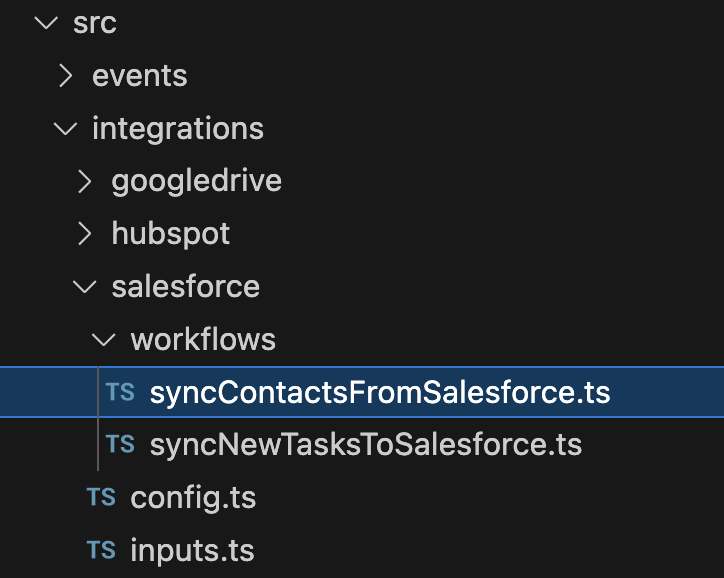 An example of a simple workflow to sync contacts from Salesforce is below:
```ts theme={null}
/**
* Sync contacts from Salesforce workflow implementation
*/
export default class extends Workflow {
define(
integration: ISalesforceIntegration,
context: IContext,
connectUser: IConnectUser>,
) {
// Define steps used in workflow
const triggerStep = integration.triggers.recordCreated({
recordType: 'Contact',
});
const searchByEmailStep = new RequestStep({
url: `https://api.myapp.io/api/contacts?email=${triggerStep.output.contact.email}`,
method: 'GET',
});
const contactExistsCondition = new ConditionalStep({
if: Operators.ArrayIsNotEmpty(searchByEmailStep.output.response.body.data),
});
const createContactStep = new RequestStep({
url: `https://api.myapp.io/api/contacts`,
method: 'POST',
body: { user_id: connectUser.userId, contact: triggerStep.output.result },
bodyType: 'json',
});
const updateContactStep = new RequestStep({
url: `https://api.myapp.io/api/contacts`,
method: 'PATCH',
body: { user_id: connectUser.userId, contact: `${triggerStep.output.result}`, contact_id: `${searchByEmailStep.output.response.body[0].id}` },
bodyType: 'json',
});
// Orchestrate steps
triggerStep
.nextStep(searchByEmailStep)
.nextStep(
contactExistsCondition
.whenTrue(updateContactStep)
.whenFalse(createContactStep),
);
return this.register({ triggerStep, searchByEmailStep, contactExistsCondition, createContactStep, updateContactStep });
}
}
```
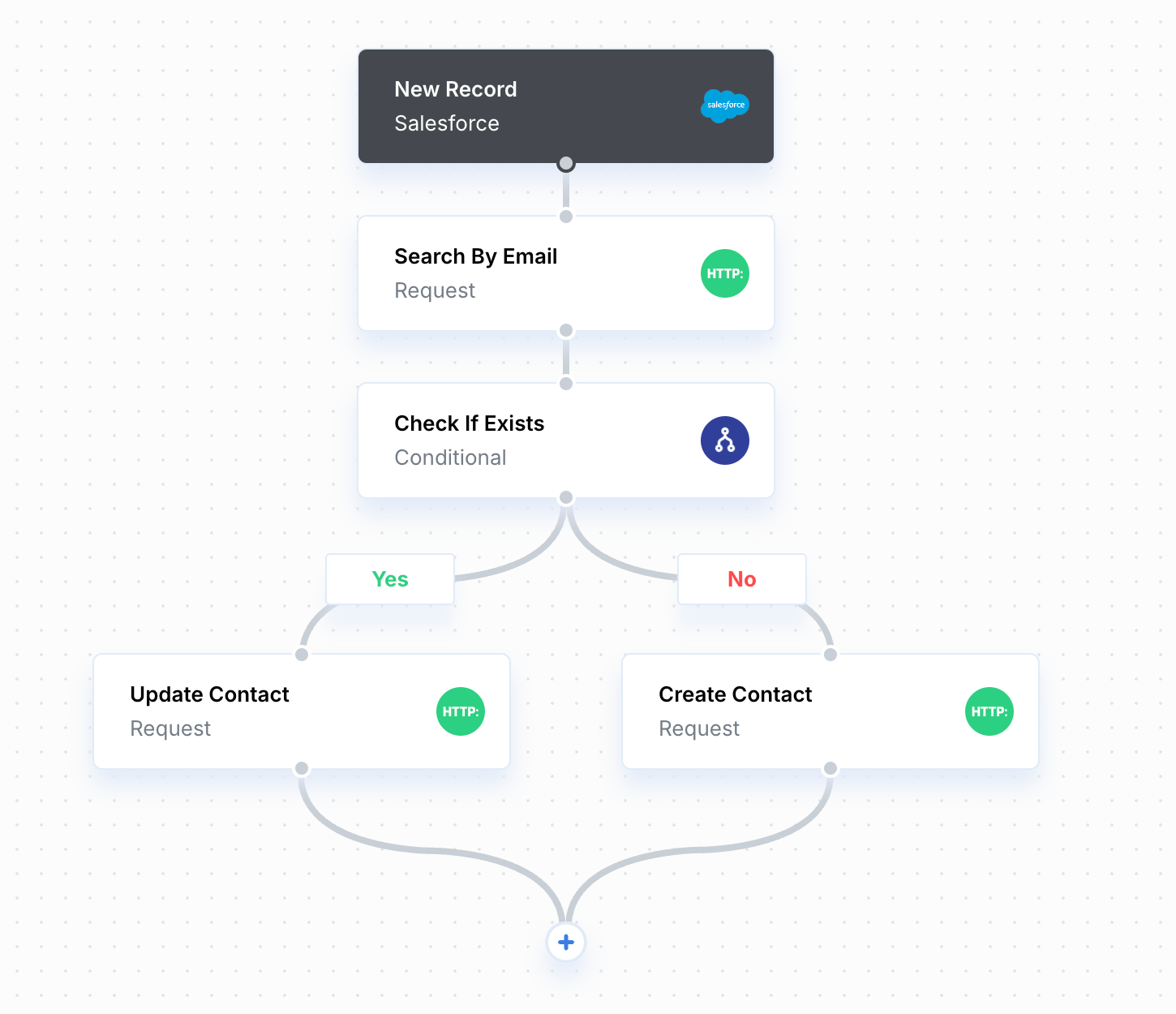
This is equivalent to the following workflow structure in the workflow dashboard:
An example of a simple workflow to sync contacts from Salesforce is below:
```ts theme={null}
/**
* Sync contacts from Salesforce workflow implementation
*/
export default class extends Workflow {
define(
integration: ISalesforceIntegration,
context: IContext,
connectUser: IConnectUser>,
) {
// Define steps used in workflow
const triggerStep = integration.triggers.recordCreated({
recordType: 'Contact',
});
const searchByEmailStep = new RequestStep({
url: `https://api.myapp.io/api/contacts?email=${triggerStep.output.contact.email}`,
method: 'GET',
});
const contactExistsCondition = new ConditionalStep({
if: Operators.ArrayIsNotEmpty(searchByEmailStep.output.response.body.data),
});
const createContactStep = new RequestStep({
url: `https://api.myapp.io/api/contacts`,
method: 'POST',
body: { user_id: connectUser.userId, contact: triggerStep.output.result },
bodyType: 'json',
});
const updateContactStep = new RequestStep({
url: `https://api.myapp.io/api/contacts`,
method: 'PATCH',
body: { user_id: connectUser.userId, contact: `${triggerStep.output.result}`, contact_id: `${searchByEmailStep.output.response.body[0].id}` },
bodyType: 'json',
});
// Orchestrate steps
triggerStep
.nextStep(searchByEmailStep)
.nextStep(
contactExistsCondition
.whenTrue(updateContactStep)
.whenFalse(createContactStep),
);
return this.register({ triggerStep, searchByEmailStep, contactExistsCondition, createContactStep, updateContactStep });
}
}
```
This is equivalent to the following workflow structure in the workflow dashboard:
 ## Defining steps
In the `define` function of a workflow, steps can be created and configured. A step can be created in one of the following ways:
```ts theme={null}
// Constructing a new standard Step
const request = new RequestStep({
...
});
// Calling an Integration Action or Integration Trigger
const getRecords = integration.actions.searchRecords({
...
}, {})
```
* **Standard steps and triggers** (App Event Trigger, Request Trigger, Cron Trigger, Function, Request, Response, Conditional, Fan Out, and Integration Request) must be imported from the `@useparagon/core` library and configured to include the parameters that are required to run the step.
* **Integration-specific Actions or Triggers** are available in the `integration` parameter passed to the `define` function.
All steps can use the following options in the constructor (or the second parameter for Integration Actions):
```ts theme={null}
{
// If true, this step will use Auto-Retry on failures
autoRetry: true,
// If true, this step will allow the workflow to continue if it fails,
// emitting the error as output
continueWorkflowOnError: true,
// The step title, as displayed in the Workflow Editor
description: "Step Title for Workflow Editor"
}
```
For a full reference of steps, see our API documentation for the `@useparagon/core` package: [@useparagon/core Glossary](/paragraph/reference/useparagon-core).
#### Referencing step outputs
Steps can be declared and configured in the `define()` function in any order. You will define an explicit flow/ordering for the steps using orchestration functions: see [Orchestrating steps](/paragraph/defining-workflows#orchestrating-steps).
To reference step output in another step, simply access the `.output` property of a step or trigger:
```ts theme={null}
const triggerStep = integration.triggers.recordCreated({
recordType: 'Contact',
});
const searchByEmailStep = new RequestStep({
url: `https://api.myapp.io/api/contacts?email=${triggerStep.output.contact.email}`,
method: 'GET',
params: {},
headers: {},
description: 'Search By Email',
});
```
For convenience, you can interpolate step outputs into strings with the template string format as in the example above. This mirrors the `{{1.output.contact.email}}` syntax of the Workflow Editor. For more advanced transformations on outputs, use a Function step.
#### Referencing User Settings and Environment Secrets
To reference User Settings or Environment Secrets as inputs, use the `context` parameter of the `define()` function.
The `.getEnvironmentSecret` function will use the [Environment Secret](/workflows/environment-secrets) value stored at a specified key.
```ts theme={null}
const requestStep = new RequestStep({
url: `https://api.myapp.io/api/contacts`,
method: 'GET',
headers: {
Authorization: `Bearer ${context.getEnvironmentSecret("API_KEY")}`
},
});
```
The `.getInput` function will get the value of a User Setting. You can reference integration-level User Settings by importing from the integration's `inputs.ts` file or workflow-level User Settings with `this.inputs`.
```ts theme={null}
// Import integration-level User Settings
import inputs from '../inputs';
//...
const searchRecordsStep = integration.actions.searchRecords({
// Reference integration-level User Settings
recordType: context.getInput(inputs.fieldMapping).objectName,
filterFormula: Operators.StringContains(
"OpportunityStage",
// Reference workflow-level User Settings
context.getInput(this.inputs.opportunityStage)
)
}, {});
```
#### Referencing User Metadata or IDs
To reference [User Metadata](/apis/users#using-metadata-in-workflows) or your Connected User ID, use the `connectUser` parameter of the `define()` function.
```ts theme={null}
const updateContactStep = new RequestStep({
url: `https://api.myapp.io/api/contacts`,
method: 'PATCH',
params: {},
headers: {},
body: {
user_id: connectUser.userId,
user_email: connectUser.meta.Email,
contact: `${triggerStep.output.result}`,
contact_id: `${searchByEmailStep.output.response.body[0].id}`,
},
bodyType: 'json',
});
```
The type for User Metadata comes from the `persona.meta.ts` file at the root of your Paragraph `src/` folder. You can export an example metadata object from that file to expose available fields.
#### Conditional logic
Some steps will require you to define `ConditionInput` parameters, such as the Conditional Step or Stop Condition for Request Step Pagination.
When you need to define a condition, start by importing the `Operators` from `@useparagon/core`:
```bash theme={null}
import * as Operators from '@useparagon/core/operator';
```
Operators contain conditions (like "string equals" or "number greater than") that can be chained together with AND or OR conditions. Paragon requires conditions to be in "disjunctive normal form" when chained, meaning that all conditions are "ORs of ANDs."
For example:
```ts theme={null}
const shouldUpdateCondition = new ConditionalStep({
if: Operators.Or(
Operators.And(
Operators.ArrayIsNotEmpty(requestStep.output.response.body.data),
),
),
description: 'Update or Create',
});
```
## Orchestrating steps
After defining or importing steps, the workflow requires an *orchestration* that describes how the steps are connected in the control flow.
The basic way to orchestrate step is to use the `.next()` function, available for every step. For example:
```ts theme={null}
// Request -> Function -> Response
requestStep
.next(functionStep)
.next(responseStep);
```
### Conditional branches
Conditional steps have additional functions, `.whenTrue()` and `.whenFalse()` for creating execution branches when a condition is True or False.
```ts theme={null}
ifContactExistsStep
.whenTrue(updateRecord)
.whenFalse(createRecord)
.next(responseStep)
```
Conditional steps do not need to specify `.whenTrue` or `.whenFalse` functions. If unspecified, the respective True/False branch will be empty.
### Fan out branches
Fan Out steps have an additional function, `.branch`, for creating a branch of execution that runs in parallel over an array of data.
Note that the branch function is *not* chainable.
```ts theme={null}
fanOut
.branch(
transformRecord
.next(pickProperties)
.next(updateRecord)
).next(responseStep)
```
## Reusing steps
You can reuse steps or configuration by creating a shared top-level directory in your project `src/` folder (the name can be anything *except* `integrations`).
For example, you can create a `common/` folder within `src/`:
```plain theme={null}
src/
+ ├─ common/
+ │ ├─ apiRequest.ts
├─ integrations/
│ ├─ salesforce/
│ │ ├─ workflows/
│ │ ├─ config.ts
```
You can export step definitions from common files as in the example below. To access `execution` data, you can import the static `Execution` class from the `@useparagon/workflow` library:
```ts theme={null}
// src/common/apiRequest.ts
import { Execution, RequestStep } from '@useparagon/core';
export const apiRequest = (path) => new RequestStep({
url: `https://myapi.example.com${path}`,
authorization: {
type: "BEARER",
token: Execution.getEnvironmentSecret("API_PRIVATE_KEY")
}
});
```
Workflow files are able to import and reuse steps from top-level folders locally.
```ts theme={null}
// src/integrations/salesforce/workflows/syncNewRecords.ts
import { Step, Trigger } from '@useparagon/workflow';
import { SalesforceWorkflow } from '@useparagon/integrations/salesforce';
import { apiRequest } from '../../../common/apiRequest';
export default class ExampleWorkflow extends SalesforceWorkflow {
define: (salesforce, execution, user) => {
// ...
const apiRequestWhenTrue = apiRequest('/success');
const apiRequestWhenFalse = apiRequest('/failure');
const stateMachine = event
.next(stringContainsParagonDomain)
.whenTrue(apiRequestWhenTrue)
.whenFalse(apiRequestWhenFalse);
this.register(stateMachine, { event, functionStep, apiRequestWhenTrue, apiRequestWhenFalse });
}
}
```
## Defining steps
In the `define` function of a workflow, steps can be created and configured. A step can be created in one of the following ways:
```ts theme={null}
// Constructing a new standard Step
const request = new RequestStep({
...
});
// Calling an Integration Action or Integration Trigger
const getRecords = integration.actions.searchRecords({
...
}, {})
```
* **Standard steps and triggers** (App Event Trigger, Request Trigger, Cron Trigger, Function, Request, Response, Conditional, Fan Out, and Integration Request) must be imported from the `@useparagon/core` library and configured to include the parameters that are required to run the step.
* **Integration-specific Actions or Triggers** are available in the `integration` parameter passed to the `define` function.
All steps can use the following options in the constructor (or the second parameter for Integration Actions):
```ts theme={null}
{
// If true, this step will use Auto-Retry on failures
autoRetry: true,
// If true, this step will allow the workflow to continue if it fails,
// emitting the error as output
continueWorkflowOnError: true,
// The step title, as displayed in the Workflow Editor
description: "Step Title for Workflow Editor"
}
```
For a full reference of steps, see our API documentation for the `@useparagon/core` package: [@useparagon/core Glossary](/paragraph/reference/useparagon-core).
#### Referencing step outputs
Steps can be declared and configured in the `define()` function in any order. You will define an explicit flow/ordering for the steps using orchestration functions: see [Orchestrating steps](/paragraph/defining-workflows#orchestrating-steps).
To reference step output in another step, simply access the `.output` property of a step or trigger:
```ts theme={null}
const triggerStep = integration.triggers.recordCreated({
recordType: 'Contact',
});
const searchByEmailStep = new RequestStep({
url: `https://api.myapp.io/api/contacts?email=${triggerStep.output.contact.email}`,
method: 'GET',
params: {},
headers: {},
description: 'Search By Email',
});
```
For convenience, you can interpolate step outputs into strings with the template string format as in the example above. This mirrors the `{{1.output.contact.email}}` syntax of the Workflow Editor. For more advanced transformations on outputs, use a Function step.
#### Referencing User Settings and Environment Secrets
To reference User Settings or Environment Secrets as inputs, use the `context` parameter of the `define()` function.
The `.getEnvironmentSecret` function will use the [Environment Secret](/workflows/environment-secrets) value stored at a specified key.
```ts theme={null}
const requestStep = new RequestStep({
url: `https://api.myapp.io/api/contacts`,
method: 'GET',
headers: {
Authorization: `Bearer ${context.getEnvironmentSecret("API_KEY")}`
},
});
```
The `.getInput` function will get the value of a User Setting. You can reference integration-level User Settings by importing from the integration's `inputs.ts` file or workflow-level User Settings with `this.inputs`.
```ts theme={null}
// Import integration-level User Settings
import inputs from '../inputs';
//...
const searchRecordsStep = integration.actions.searchRecords({
// Reference integration-level User Settings
recordType: context.getInput(inputs.fieldMapping).objectName,
filterFormula: Operators.StringContains(
"OpportunityStage",
// Reference workflow-level User Settings
context.getInput(this.inputs.opportunityStage)
)
}, {});
```
#### Referencing User Metadata or IDs
To reference [User Metadata](/apis/users#using-metadata-in-workflows) or your Connected User ID, use the `connectUser` parameter of the `define()` function.
```ts theme={null}
const updateContactStep = new RequestStep({
url: `https://api.myapp.io/api/contacts`,
method: 'PATCH',
params: {},
headers: {},
body: {
user_id: connectUser.userId,
user_email: connectUser.meta.Email,
contact: `${triggerStep.output.result}`,
contact_id: `${searchByEmailStep.output.response.body[0].id}`,
},
bodyType: 'json',
});
```
The type for User Metadata comes from the `persona.meta.ts` file at the root of your Paragraph `src/` folder. You can export an example metadata object from that file to expose available fields.
#### Conditional logic
Some steps will require you to define `ConditionInput` parameters, such as the Conditional Step or Stop Condition for Request Step Pagination.
When you need to define a condition, start by importing the `Operators` from `@useparagon/core`:
```bash theme={null}
import * as Operators from '@useparagon/core/operator';
```
Operators contain conditions (like "string equals" or "number greater than") that can be chained together with AND or OR conditions. Paragon requires conditions to be in "disjunctive normal form" when chained, meaning that all conditions are "ORs of ANDs."
For example:
```ts theme={null}
const shouldUpdateCondition = new ConditionalStep({
if: Operators.Or(
Operators.And(
Operators.ArrayIsNotEmpty(requestStep.output.response.body.data),
),
),
description: 'Update or Create',
});
```
## Orchestrating steps
After defining or importing steps, the workflow requires an *orchestration* that describes how the steps are connected in the control flow.
The basic way to orchestrate step is to use the `.next()` function, available for every step. For example:
```ts theme={null}
// Request -> Function -> Response
requestStep
.next(functionStep)
.next(responseStep);
```
### Conditional branches
Conditional steps have additional functions, `.whenTrue()` and `.whenFalse()` for creating execution branches when a condition is True or False.
```ts theme={null}
ifContactExistsStep
.whenTrue(updateRecord)
.whenFalse(createRecord)
.next(responseStep)
```
Conditional steps do not need to specify `.whenTrue` or `.whenFalse` functions. If unspecified, the respective True/False branch will be empty.
### Fan out branches
Fan Out steps have an additional function, `.branch`, for creating a branch of execution that runs in parallel over an array of data.
Note that the branch function is *not* chainable.
```ts theme={null}
fanOut
.branch(
transformRecord
.next(pickProperties)
.next(updateRecord)
).next(responseStep)
```
## Reusing steps
You can reuse steps or configuration by creating a shared top-level directory in your project `src/` folder (the name can be anything *except* `integrations`).
For example, you can create a `common/` folder within `src/`:
```plain theme={null}
src/
+ ├─ common/
+ │ ├─ apiRequest.ts
├─ integrations/
│ ├─ salesforce/
│ │ ├─ workflows/
│ │ ├─ config.ts
```
You can export step definitions from common files as in the example below. To access `execution` data, you can import the static `Execution` class from the `@useparagon/workflow` library:
```ts theme={null}
// src/common/apiRequest.ts
import { Execution, RequestStep } from '@useparagon/core';
export const apiRequest = (path) => new RequestStep({
url: `https://myapi.example.com${path}`,
authorization: {
type: "BEARER",
token: Execution.getEnvironmentSecret("API_PRIVATE_KEY")
}
});
```
Workflow files are able to import and reuse steps from top-level folders locally.
```ts theme={null}
// src/integrations/salesforce/workflows/syncNewRecords.ts
import { Step, Trigger } from '@useparagon/workflow';
import { SalesforceWorkflow } from '@useparagon/integrations/salesforce';
import { apiRequest } from '../../../common/apiRequest';
export default class ExampleWorkflow extends SalesforceWorkflow {
define: (salesforce, execution, user) => {
// ...
const apiRequestWhenTrue = apiRequest('/success');
const apiRequestWhenFalse = apiRequest('/failure');
const stateMachine = event
.next(stringContainsParagonDomain)
.whenTrue(apiRequestWhenTrue)
.whenFalse(apiRequestWhenFalse);
this.register(stateMachine, { event, functionStep, apiRequestWhenTrue, apiRequestWhenFalse });
}
}
```