> ## Documentation Index
> Fetch the complete documentation index at: https://docs.useparagon.com/llms.txt
> Use this file to discover all available pages before exploring further.
# Managing Connected Users
> Manage connected users and their integrations.
The **Connected Users Dashboard** provides an overview of your users and their connected integrations. For example, you can view which workflows your customers enable or disconnect integrations if they stop paying.
In the Connected Users Dashboard, you can find information about each user:
* **Name/User ID** (e.g. `bowie@useparagon.com` or Paragon)
* **Status** (e.g. Connected or Account Errors)
* **Integrations Enabled** (e.g. Salesforce)
* **Date Created**
.png?fit=max&auto=format&n=867oBBVpxd2C3zc4&q=85&s=dd97d0a1b585154f9fca0513cacd3ced) ### Managing Integrations
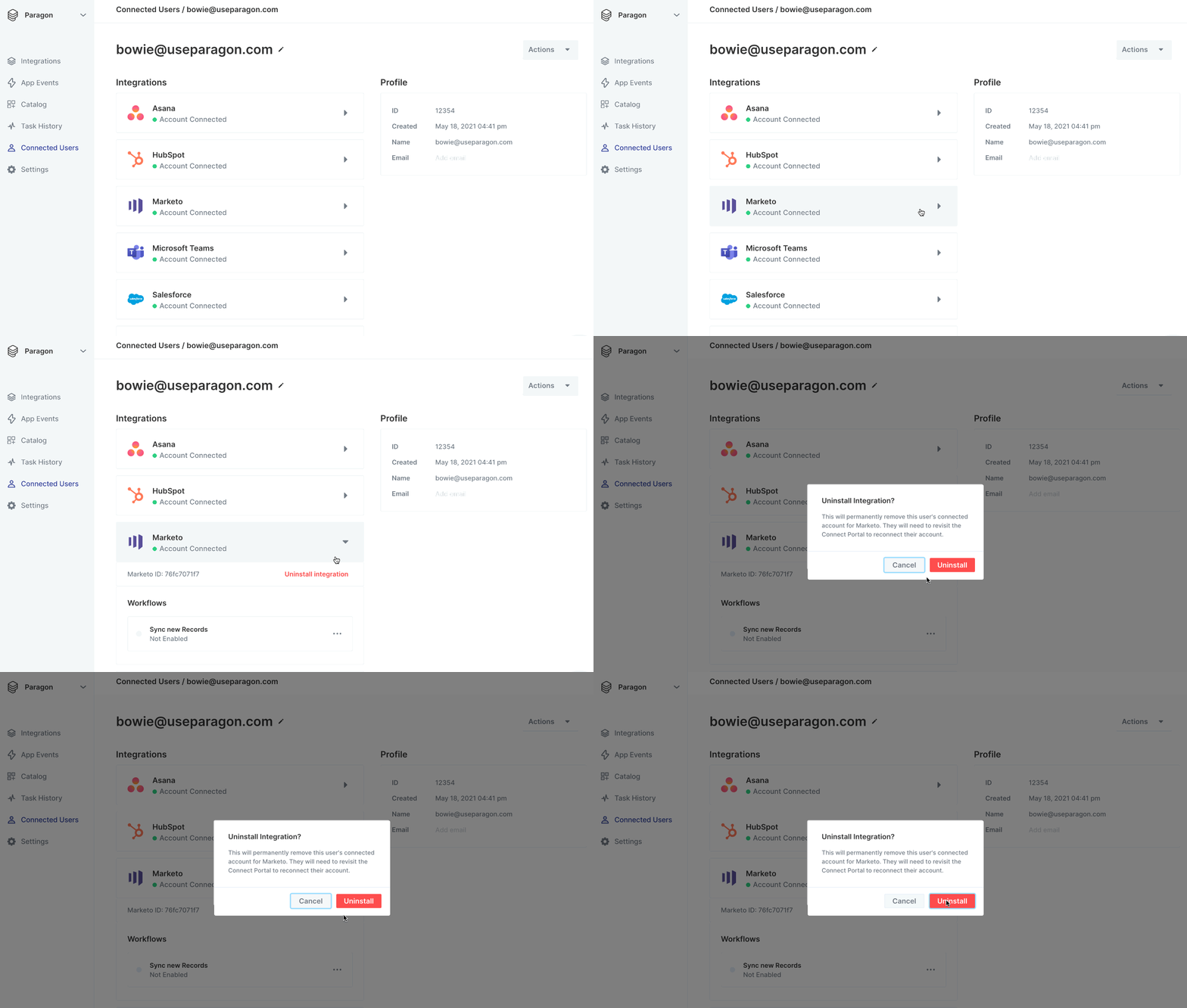
The Connected Users Dashboard provides an overview of your user's connected integrations. You can uninstall any integration your user has connected to. This will permanently remove this user's connected account for the integration. They will need to revisit the Connect Portal to reconnect their account.
### Managing Integrations
The Connected Users Dashboard provides an overview of your user's connected integrations. You can uninstall any integration your user has connected to. This will permanently remove this user's connected account for the integration. They will need to revisit the Connect Portal to reconnect their account.
 **Note:** Integration-enabled trigger workflows are displayed as **"Not Enabled"** when viewing users' integrations in the Connected Users Dashboard.
This status does not affect functionality; the workflow will trigger and execute successfully once activated by the Connected User. You can view the workflow's execution in the [Monitoring > Workflows](/workflows/viewing-workflow-executions) page.
### Disabling Users
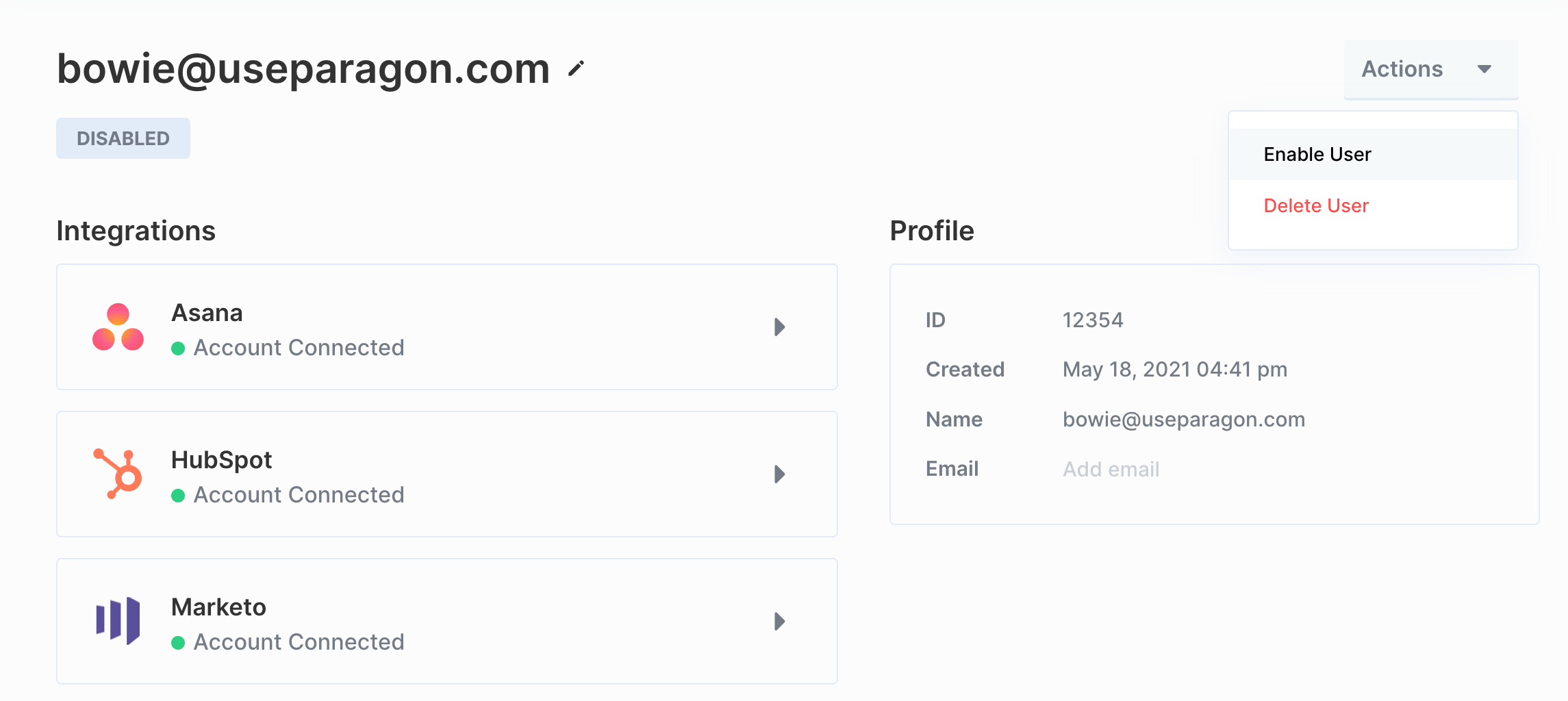
You can disable users to stop their workflows and prevent them from using the Connect Portal. You can re-enable the user later.
**Note:** Integration-enabled trigger workflows are displayed as **"Not Enabled"** when viewing users' integrations in the Connected Users Dashboard.
This status does not affect functionality; the workflow will trigger and execute successfully once activated by the Connected User. You can view the workflow's execution in the [Monitoring > Workflows](/workflows/viewing-workflow-executions) page.
### Disabling Users
You can disable users to stop their workflows and prevent them from using the Connect Portal. You can re-enable the user later.
 ### Disabling Workflows for Users
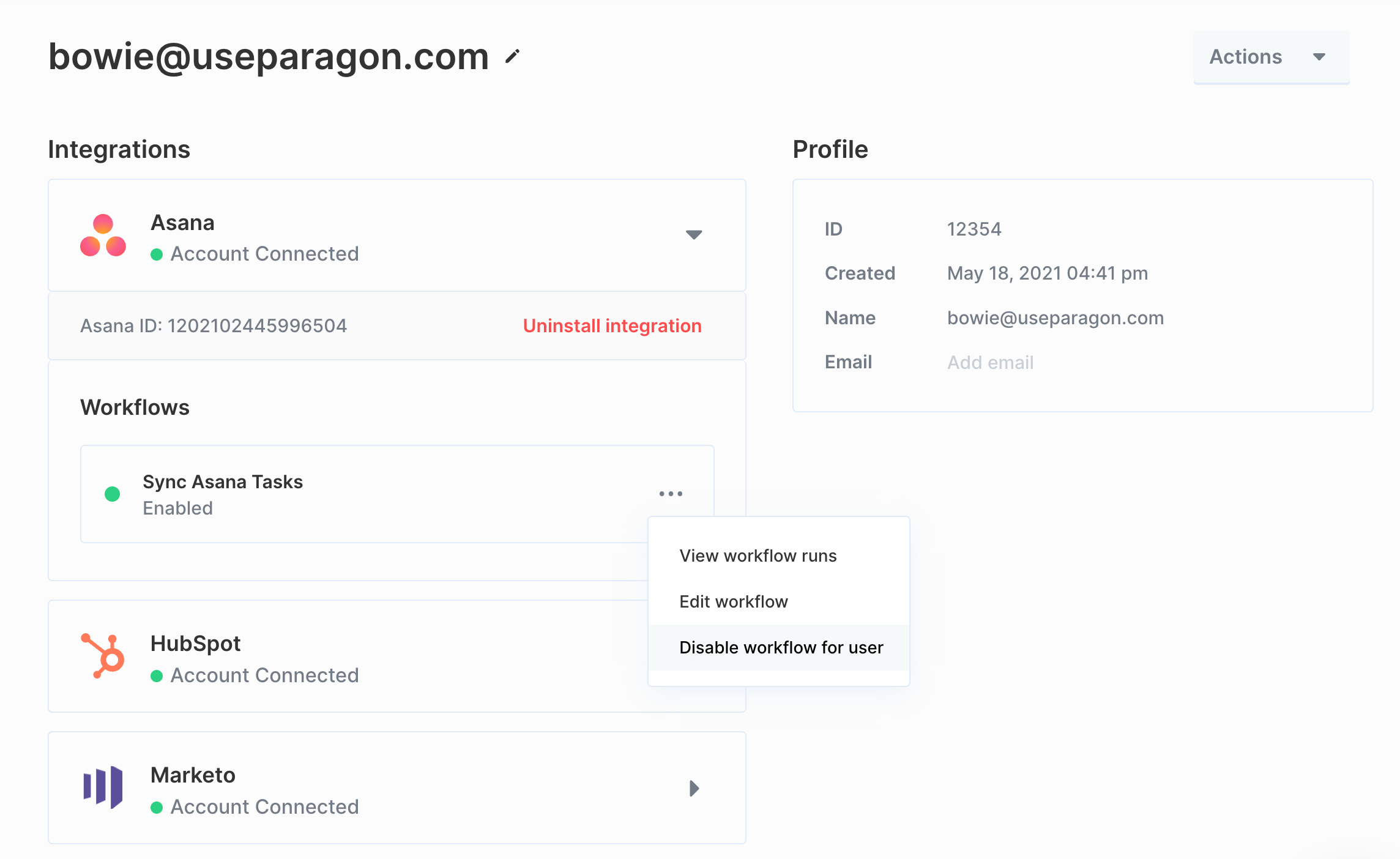
You can also disable workflows for specific users. Any disabled workflow can be re-enabled by the user in the Connect Portal.
To disable a workflow for a user:
1. Select the integration the workflow belongs to.
2. Click the triple-dot menu to the right of the workflow you would like to disable.
3. Select **Disable workflow for user**.
### Disabling Workflows for Users
You can also disable workflows for specific users. Any disabled workflow can be re-enabled by the user in the Connect Portal.
To disable a workflow for a user:
1. Select the integration the workflow belongs to.
2. Click the triple-dot menu to the right of the workflow you would like to disable.
3. Select **Disable workflow for user**.
 ### Viewing Workflow Executions
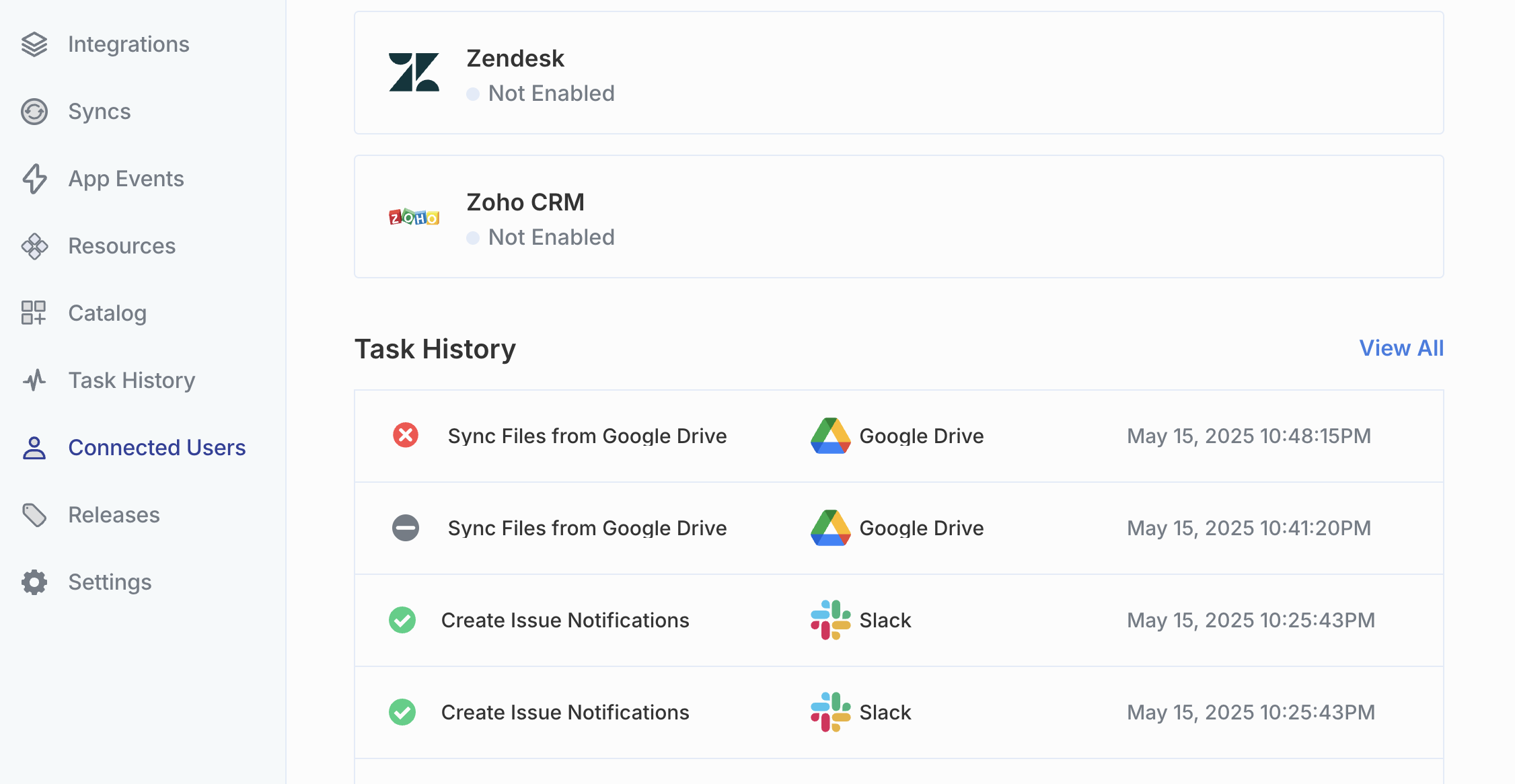
You can view workflow executions for a specific user within the Connected Users Dashboard.
To view a Connected User's workflow executions:
1. Select the Connected User you would like to view the workflow executions for.
2. Scroll to the **Workflow executions** section at the bottom of the page.
3. Click the **View All** button to open the Monitoring page filtered to that user.
### Viewing Workflow Executions
You can view workflow executions for a specific user within the Connected Users Dashboard.
To view a Connected User's workflow executions:
1. Select the Connected User you would like to view the workflow executions for.
2. Scroll to the **Workflow executions** section at the bottom of the page.
3. Click the **View All** button to open the Monitoring page filtered to that user.