> ## Documentation Index
> Fetch the complete documentation index at: https://docs.useparagon.com/llms.txt
> Use this file to discover all available pages before exploring further.
# Sending Events to Datadog
> Send notifications from your Paragon project into Datadog.
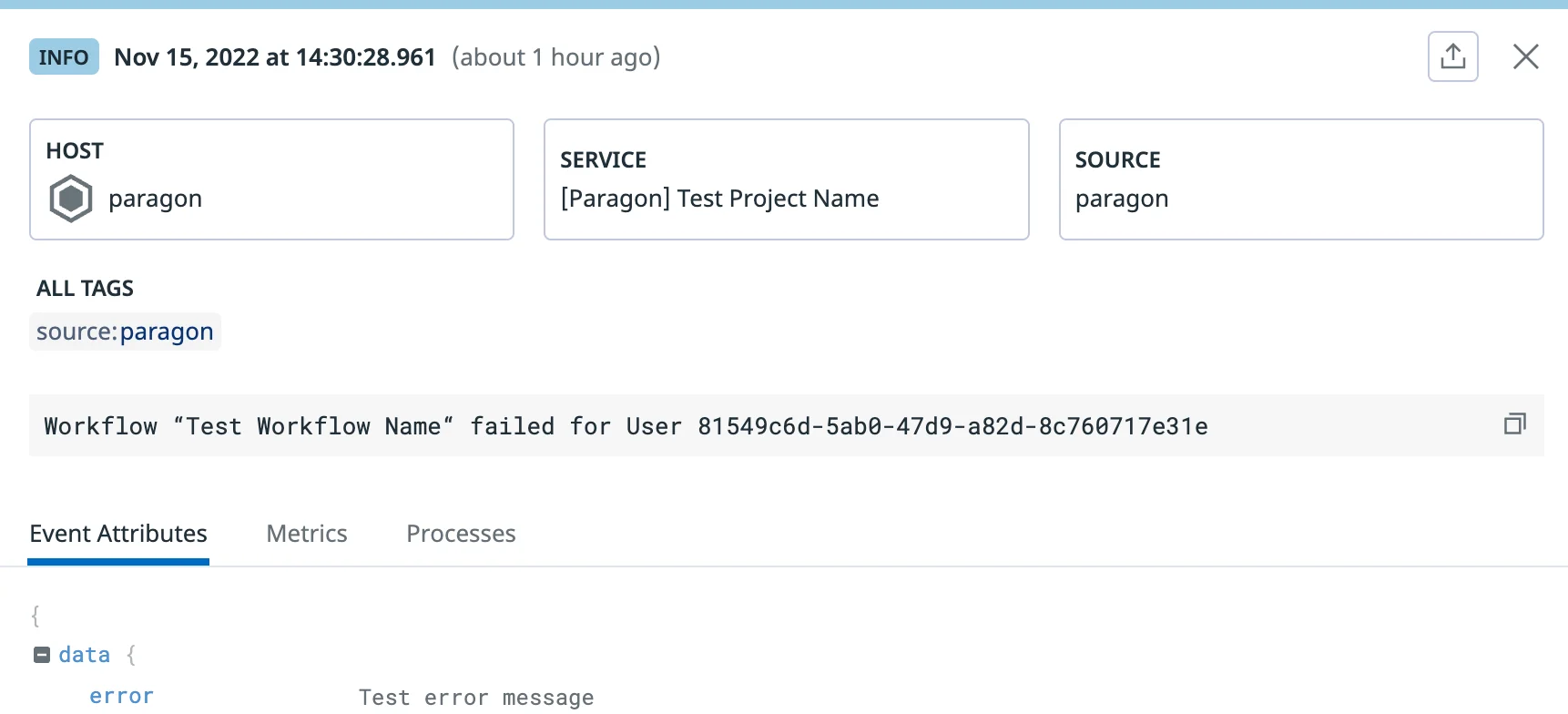
You can configure a Webhook Destination with a preconfigured payload to send messages into Datadog when events, like workflow failures, occur in your Paragon project.
 **Webhook Destinations are available for Paragon customers on Pro and Enterprise plans.** To learn more, contact your Customer Success Manager or [sales@useparagon.com](mailto:sales@useparagon.com).
## Configure Datadog
To send notifications to Datadog, you will need to add an API Key to your Datadog organization:
1. In the bottom right menu of your Datadog account, navigate to **Organization Settings**.
**Webhook Destinations are available for Paragon customers on Pro and Enterprise plans.** To learn more, contact your Customer Success Manager or [sales@useparagon.com](mailto:sales@useparagon.com).
## Configure Datadog
To send notifications to Datadog, you will need to add an API Key to your Datadog organization:
1. In the bottom right menu of your Datadog account, navigate to **Organization Settings**.
.png?fit=max&auto=format&n=jCM_Y_j0HttScr1R&q=85&s=4bbaff5bdafbdcd16beb71e1ebb79b81) 2. Under **Access**, click the **API Keys** settings page.
2. Under **Access**, click the **API Keys** settings page.
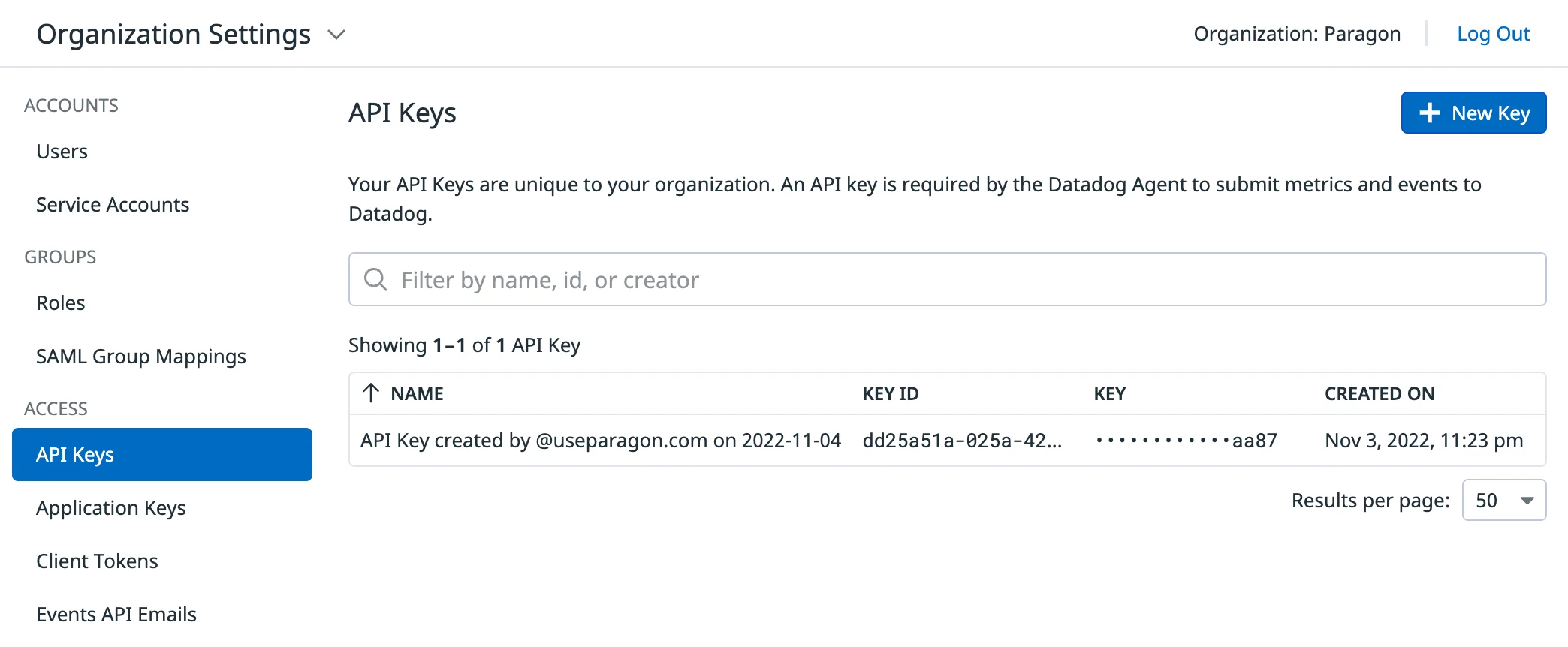 3. Click **New Key** and name the key something recognizable, like "Paragon".
4. Once the new API Key value appears, click **Copy Key**. You will need this value to add the Event Destination below.
You will also need to make note of your Datadog Site value, which you can get from your Datalog Login URL or the `DD-SITE` value used in your Datadog agent:
3. Click **New Key** and name the key something recognizable, like "Paragon".
4. Once the new API Key value appears, click **Copy Key**. You will need this value to add the Event Destination below.
You will also need to make note of your Datadog Site value, which you can get from your Datalog Login URL or the `DD-SITE` value used in your Datadog agent:
.png?fit=max&auto=format&n=jCM_Y_j0HttScr1R&q=85&s=12c3cd30d7635943af0b41541249fefc) In the above URL for the Datadog dashboard, **us5.datadoghq.com** is the Datadog Site.
## Create Event Destination
*To create an Event Destination with Datadog, you will need to have followed the above steps to obtain a **Datadog Site and Datadog API Key.***
1. From the Settings > Monitoring page, click the **Add Destination** button at the top right.
2. In the **Type** field, select **Webhook (HTTP Request).**
3. Click "Select Template" next to **Request Payload** and select **Datadog**.
4. In the **URL** field, replace `` with your **Datadog Site** value (e.g. `us5.datadoghq.com`).
5. In the **Request Headers** table, replace `` with your **Datadog API Key**.
6. Click **Test Webhook** to verify that a log can be sent successfully to your Datadog instance.
7. Click **Save** to create and enable the Event Destination.
In the above URL for the Datadog dashboard, **us5.datadoghq.com** is the Datadog Site.
## Create Event Destination
*To create an Event Destination with Datadog, you will need to have followed the above steps to obtain a **Datadog Site and Datadog API Key.***
1. From the Settings > Monitoring page, click the **Add Destination** button at the top right.
2. In the **Type** field, select **Webhook (HTTP Request).**
3. Click "Select Template" next to **Request Payload** and select **Datadog**.
4. In the **URL** field, replace `` with your **Datadog Site** value (e.g. `us5.datadoghq.com`).
5. In the **Request Headers** table, replace `` with your **Datadog API Key**.
6. Click **Test Webhook** to verify that a log can be sent successfully to your Datadog instance.
7. Click **Save** to create and enable the Event Destination.