> ## Documentation Index
> Fetch the complete documentation index at: https://docs.useparagon.com/llms.txt
> Use this file to discover all available pages before exploring further.
# Managing Event Destinations
> Send notifications from your Paragon project into your logging, analytics, and APM services.
**Note:** This feature is only available to **Admin** users. [Learn more](/managing-account/teams#managing-roles-and-permissions).
Event Destinations allow you to configure notifications for events that occur in your Paragon project.
For example, if you'd like to add another email to be notified by email when a workflow fails, you can add an Email Destination. If you prefer notifications via Slack, you can configure a Webhook Destination to a Slack incoming webhook.
You can find your project's Event Destinations by navigating to the global **Settings** tab in the left sidebar and selecting **Monitoring** under your Project Settings.
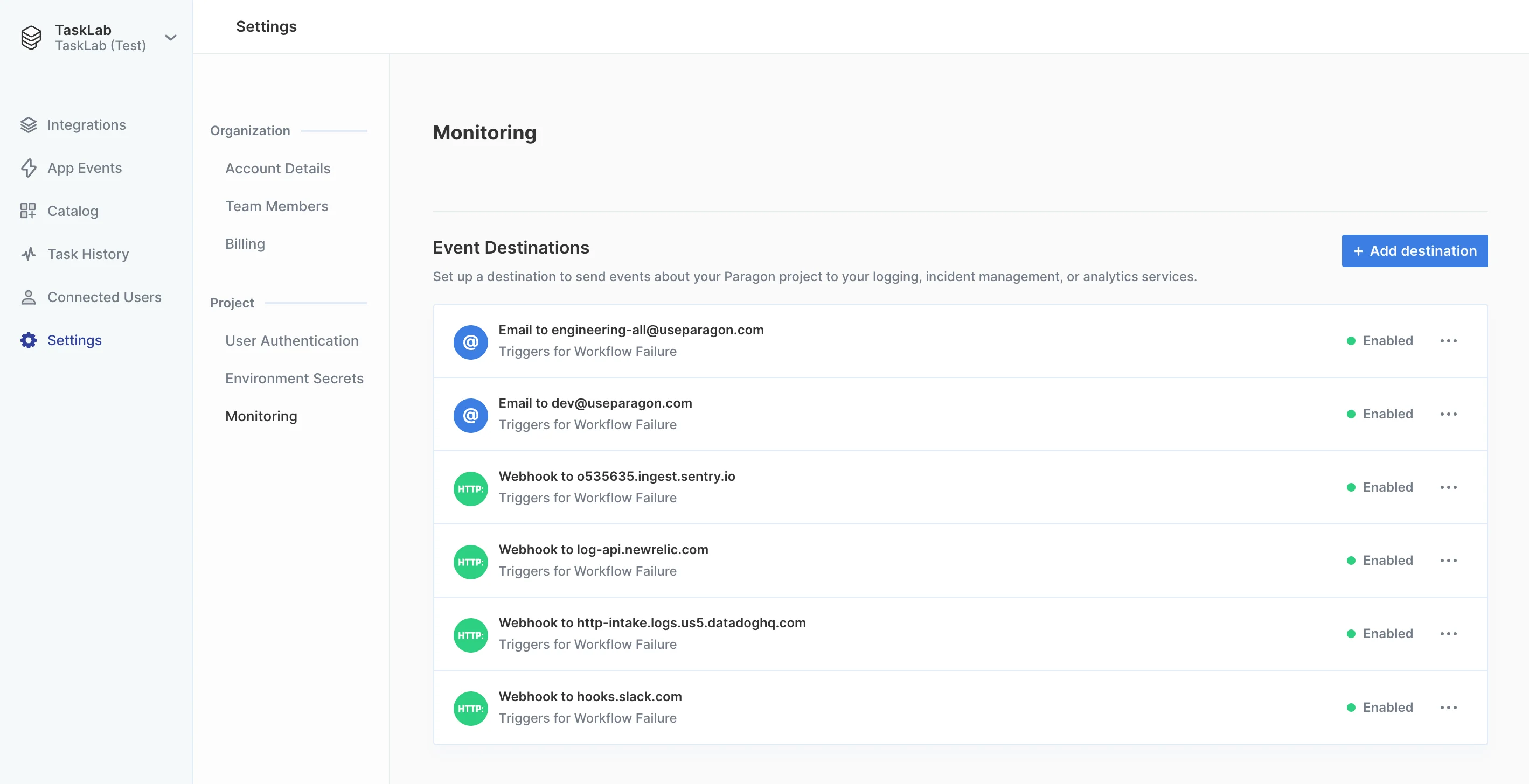 From this Monitoring page, you can take any of the following actions for any Event Destination:
* Update the configuration of the Event Destination (such as changing the email address or webhook URL)
* Disable the Event Destination, which temporarily pauses notifications sent to this destination
* Delete the Event Destination
## Email Destinations
By default, your project will include an Email Destination for Workflow Failure events, using the email address of the user that created the project.
From this Monitoring page, you can take any of the following actions for any Event Destination:
* Update the configuration of the Event Destination (such as changing the email address or webhook URL)
* Disable the Event Destination, which temporarily pauses notifications sent to this destination
* Delete the Event Destination
## Email Destinations
By default, your project will include an Email Destination for Workflow Failure events, using the email address of the user that created the project.
.png?fit=max&auto=format&n=jCM_Y_j0HttScr1R&q=85&s=a72874b14bd0ee5af6628cc9bade7f15) You can set up additional Email Destinations by following these steps:
1. From the Settings > Monitoring page, click the **Add Destination** button at the top right.
2. In the **Type** field, select **Email.**
3. In the **To** field, enter the desired email to be notified.
4. Optionally, send a test email with the **Test Email** button at the bottom left.
5. Click **Save** to create and enable the new destination.
## Webhook Destinations
**Webhook Destinations are available for Paragon customers on paid plans.** To learn more, contact our team at [sales@useparagon.com](mailto:sales@useparagon.com).
Webhook Destinations allow you to receive event notifications from your Paragon project via HTTP requests. Webhook Destinations will receive a POST request when the event occurs, with configurable request headers and body contents.
You can set up additional Email Destinations by following these steps:
1. From the Settings > Monitoring page, click the **Add Destination** button at the top right.
2. In the **Type** field, select **Email.**
3. In the **To** field, enter the desired email to be notified.
4. Optionally, send a test email with the **Test Email** button at the bottom left.
5. Click **Save** to create and enable the new destination.
## Webhook Destinations
**Webhook Destinations are available for Paragon customers on paid plans.** To learn more, contact our team at [sales@useparagon.com](mailto:sales@useparagon.com).
Webhook Destinations allow you to receive event notifications from your Paragon project via HTTP requests. Webhook Destinations will receive a POST request when the event occurs, with configurable request headers and body contents.
.png?fit=max&auto=format&n=jCM_Y_j0HttScr1R&q=85&s=acbfe38cb052c001d069f07ba0697559) ### Setup from template
If you use Slack, Datadog, New Relic, or Sentry, you can configure a Webhook Destination by clicking "Select Template" under **Request Payload** and following the guide to configure below:
Send events as messages in Slack
Send events as logs in Datadog
Send events as logs in New Relic
Send events as issues in Sentry
### Setup manually
You can set up a Webhook Destination by following these steps:
1. From the Settings > Monitoring page, click the **Add Destination** button at the top right.
2. In the **Type** field, select **Webhook (HTTP Request).**
3. In the **URL** field, enter the desired URL to receive the event payload.
4. Optionally, in the **Request Payload** field, you can change the format of the payload. By default, the webhook will receive the full event object (`$.event`). Use `{{` to specify a part of the event data to use in the request payload.
### Setup from template
If you use Slack, Datadog, New Relic, or Sentry, you can configure a Webhook Destination by clicking "Select Template" under **Request Payload** and following the guide to configure below:
Send events as messages in Slack
Send events as logs in Datadog
Send events as logs in New Relic
Send events as issues in Sentry
### Setup manually
You can set up a Webhook Destination by following these steps:
1. From the Settings > Monitoring page, click the **Add Destination** button at the top right.
2. In the **Type** field, select **Webhook (HTTP Request).**
3. In the **URL** field, enter the desired URL to receive the event payload.
4. Optionally, in the **Request Payload** field, you can change the format of the payload. By default, the webhook will receive the full event object (`$.event`). Use `{{` to specify a part of the event data to use in the request payload.
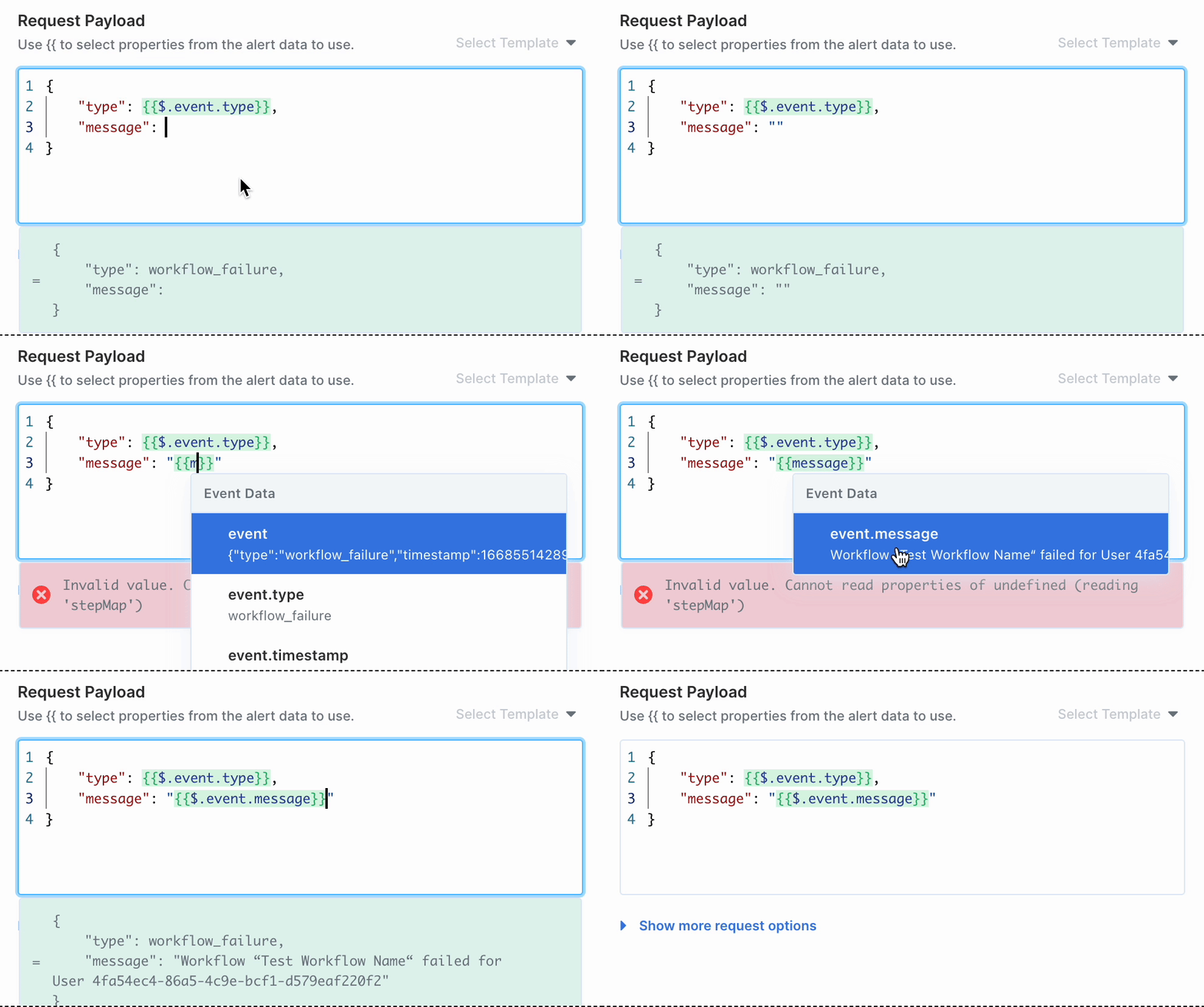 5. Optionally, additional request headers can be specified by expanding "Show more request options".
6. Send a test request to your Webhook Destination by clicking **Test Webhook** button at the bottom left.
7. Click **Save** to create and enable the new destination.
**Note:** Your Webhook Destination may be automatically disabled if your webhook responds with too many non-2xx status codes for consecutive events.
## Supported Events
The following events can be sent from your Paragon project:
An error occurs at any point in a workflow and causes the workflow to reach the Failed status.
**Example webhook payload:**
```json theme={null}
{
"type": "workflow_failure",
"timestamp": 1729629642607,
"timestampISO": "2024-10-22T20:40:42.607Z",
"message": "Workflow “Test Workflow Name“ failed for User ",
"user": {
"id": "",
"metadata": {}
},
"project": {
"id": "613b038f-e9bf-49ec-bc58-ba8d620754c7",
"name": "Test Project Name"
},
"integration": {
"id": "57a96b31-c69e-421a-bb32-7a25f9c6a893",
"type": "slack"
},
"workflow": {
"id": "cae72d65-7fc6-4249-9047-48fc640bfd46",
"name": "Test Workflow Name"
},
"data": {
"type": "workflow_failure",
"projectId": "613b038f-e9bf-49ec-bc58-ba8d620754c7",
"workflowId": "cae72d65-7fc6-4249-9047-48fc640bfd46",
"workflowExecution": {
"id": "07911c9b-2006-4348-938b-b7ebac94dc1f"
},
"stepExecution": {
"stepId": "3507a59f-d552-45a5-8bca-ed5315111ca0",
"instanceId": "45ab5c3d-5ad3-46a0-9b79-692b4c06520d",
"startTime": 1729629642606,
"endTime": 1729629642606
},
"timestamp": 1729629642606,
"error": "Test error message",
"executionUrl": "https://dashboard.useparagon.com/connect/projects/613b038f-e9bf-49ec-bc58-ba8d620754c7/monitoring/workflows/cae72d65-7fc6-4249-9047-48fc640bfd46/executions/07911c9b-2006-4348-938b-b7ebac94dc1f"
}
}
```
An error occurs during the OAuth refresh process which cannot be retried. After this error, the user's credential will be [marked as invalid](/apis/users#validating-account-status-with-the-credentialstatus-property).
Use this event to notify your user to revisit the Connect Portal in your app and re-establish the connection to the affected integration.
**Example webhook payload:**
```json theme={null}
{
"type": "credentials_failure",
"timestamp": 1729629449422,
"timestampISO": "2024-10-22T20:37:43.849Z",
"message": "Connected User ““ credential for expired and can not be refreshed.",
"user": {
"id": "",
"metadata": {}
},
"project": {
"id": "613b038f-e9bf-49ec-bc58-ba8d620754c7",
"name": "Test Project Name"
},
"integration": {
"id": "57a96b31-c69e-421a-bb32-7a25f9c6a893",
"type": "slack"
},
"data": {
"userId": "",
"error": "invalid_grant"
}
}
```
We are working on adding support for more events. Have a request for other events you'd like to send from your Paragon project? [Let us know](mailto:team@useparagon.com).
5. Optionally, additional request headers can be specified by expanding "Show more request options".
6. Send a test request to your Webhook Destination by clicking **Test Webhook** button at the bottom left.
7. Click **Save** to create and enable the new destination.
**Note:** Your Webhook Destination may be automatically disabled if your webhook responds with too many non-2xx status codes for consecutive events.
## Supported Events
The following events can be sent from your Paragon project:
An error occurs at any point in a workflow and causes the workflow to reach the Failed status.
**Example webhook payload:**
```json theme={null}
{
"type": "workflow_failure",
"timestamp": 1729629642607,
"timestampISO": "2024-10-22T20:40:42.607Z",
"message": "Workflow “Test Workflow Name“ failed for User ",
"user": {
"id": "",
"metadata": {}
},
"project": {
"id": "613b038f-e9bf-49ec-bc58-ba8d620754c7",
"name": "Test Project Name"
},
"integration": {
"id": "57a96b31-c69e-421a-bb32-7a25f9c6a893",
"type": "slack"
},
"workflow": {
"id": "cae72d65-7fc6-4249-9047-48fc640bfd46",
"name": "Test Workflow Name"
},
"data": {
"type": "workflow_failure",
"projectId": "613b038f-e9bf-49ec-bc58-ba8d620754c7",
"workflowId": "cae72d65-7fc6-4249-9047-48fc640bfd46",
"workflowExecution": {
"id": "07911c9b-2006-4348-938b-b7ebac94dc1f"
},
"stepExecution": {
"stepId": "3507a59f-d552-45a5-8bca-ed5315111ca0",
"instanceId": "45ab5c3d-5ad3-46a0-9b79-692b4c06520d",
"startTime": 1729629642606,
"endTime": 1729629642606
},
"timestamp": 1729629642606,
"error": "Test error message",
"executionUrl": "https://dashboard.useparagon.com/connect/projects/613b038f-e9bf-49ec-bc58-ba8d620754c7/monitoring/workflows/cae72d65-7fc6-4249-9047-48fc640bfd46/executions/07911c9b-2006-4348-938b-b7ebac94dc1f"
}
}
```
An error occurs during the OAuth refresh process which cannot be retried. After this error, the user's credential will be [marked as invalid](/apis/users#validating-account-status-with-the-credentialstatus-property).
Use this event to notify your user to revisit the Connect Portal in your app and re-establish the connection to the affected integration.
**Example webhook payload:**
```json theme={null}
{
"type": "credentials_failure",
"timestamp": 1729629449422,
"timestampISO": "2024-10-22T20:37:43.849Z",
"message": "Connected User ““ credential for expired and can not be refreshed.",
"user": {
"id": "",
"metadata": {}
},
"project": {
"id": "613b038f-e9bf-49ec-bc58-ba8d620754c7",
"name": "Test Project Name"
},
"integration": {
"id": "57a96b31-c69e-421a-bb32-7a25f9c6a893",
"type": "slack"
},
"data": {
"userId": "",
"error": "invalid_grant"
}
}
```
We are working on adding support for more events. Have a request for other events you'd like to send from your Paragon project? [Let us know](mailto:team@useparagon.com).