> ## Documentation Index
> Fetch the complete documentation index at: https://docs.useparagon.com/llms.txt
> Use this file to discover all available pages before exploring further.
# Working with Team Members
> Invite your team to create integrations on Paragon.
## Inviting a Team Member
Collaborate with your team members to create new integrations or see integration activity in [Monitoring](/monitoring/overview).
By default, Paragon has [two types of roles](/managing-account/teams#managing-roles-and-permissions) available for projects: **Organization Admin** and **Developer**. *Additional roles are available with *[Role-Based Access Control](/managing-account/role-based-access-control)*.*
To add Team Members to your Organization in Paragon:
### 1. Go to "Team Members" in Settings
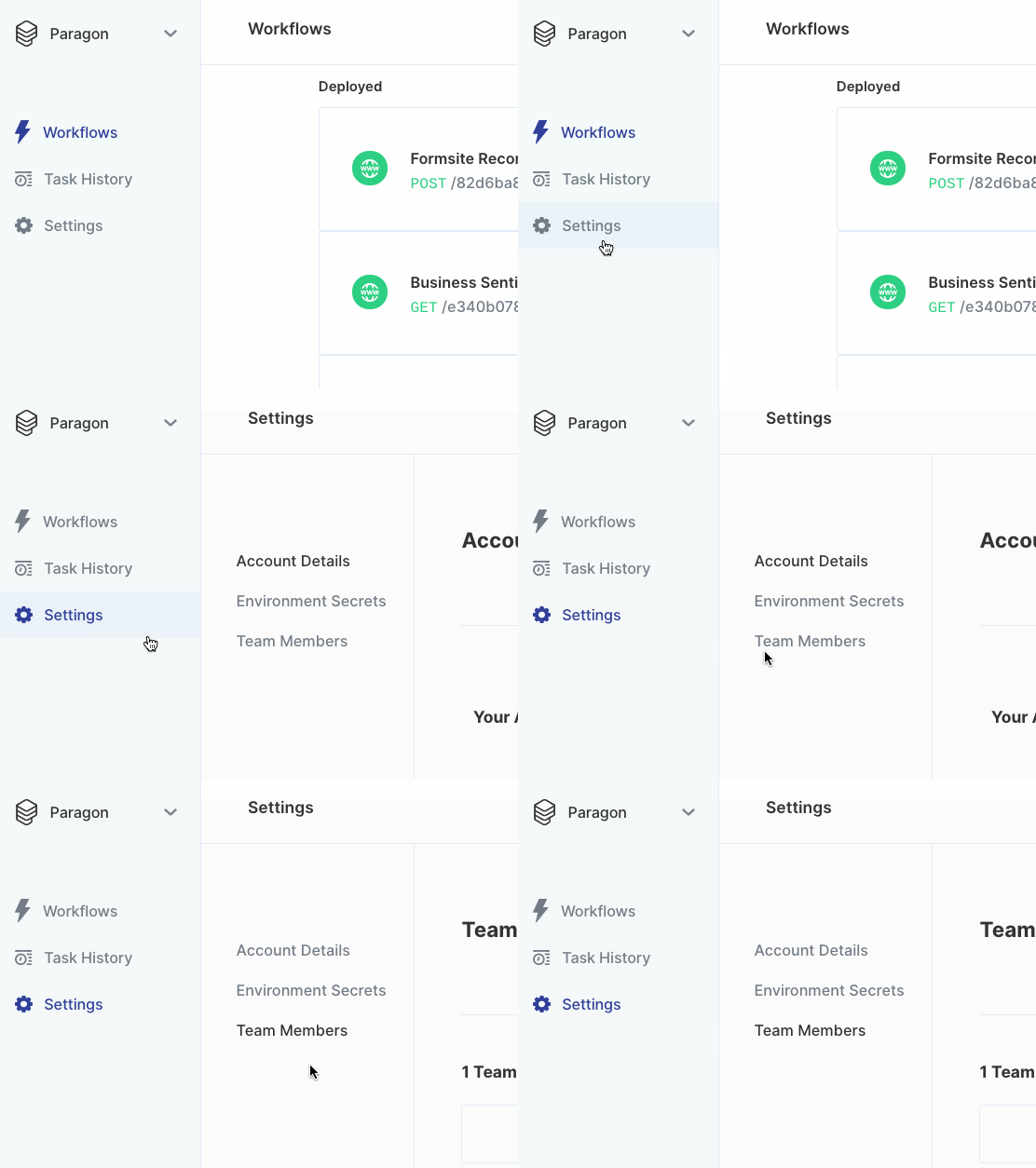
Click on "Settings" in the sidebar, then click on "Team Members".
 ### 2. Add new team member information
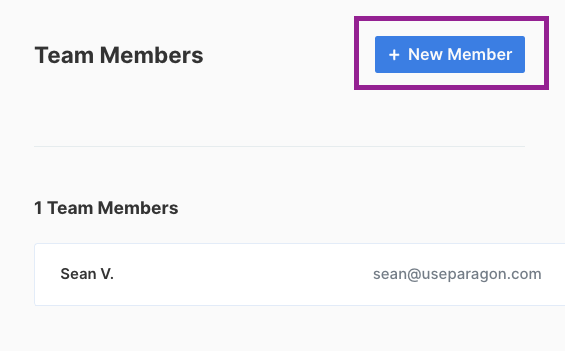
Click the blue "+ New Member" button to the right of the dashboard to invite team members to your Organization in Paragon.
### 2. Add new team member information
Click the blue "+ New Member" button to the right of the dashboard to invite team members to your Organization in Paragon.
 Invitees will receive an **email invitation** to join your Organization on Paragon. You’ll receive a confirmation email once your invitations are accepted.
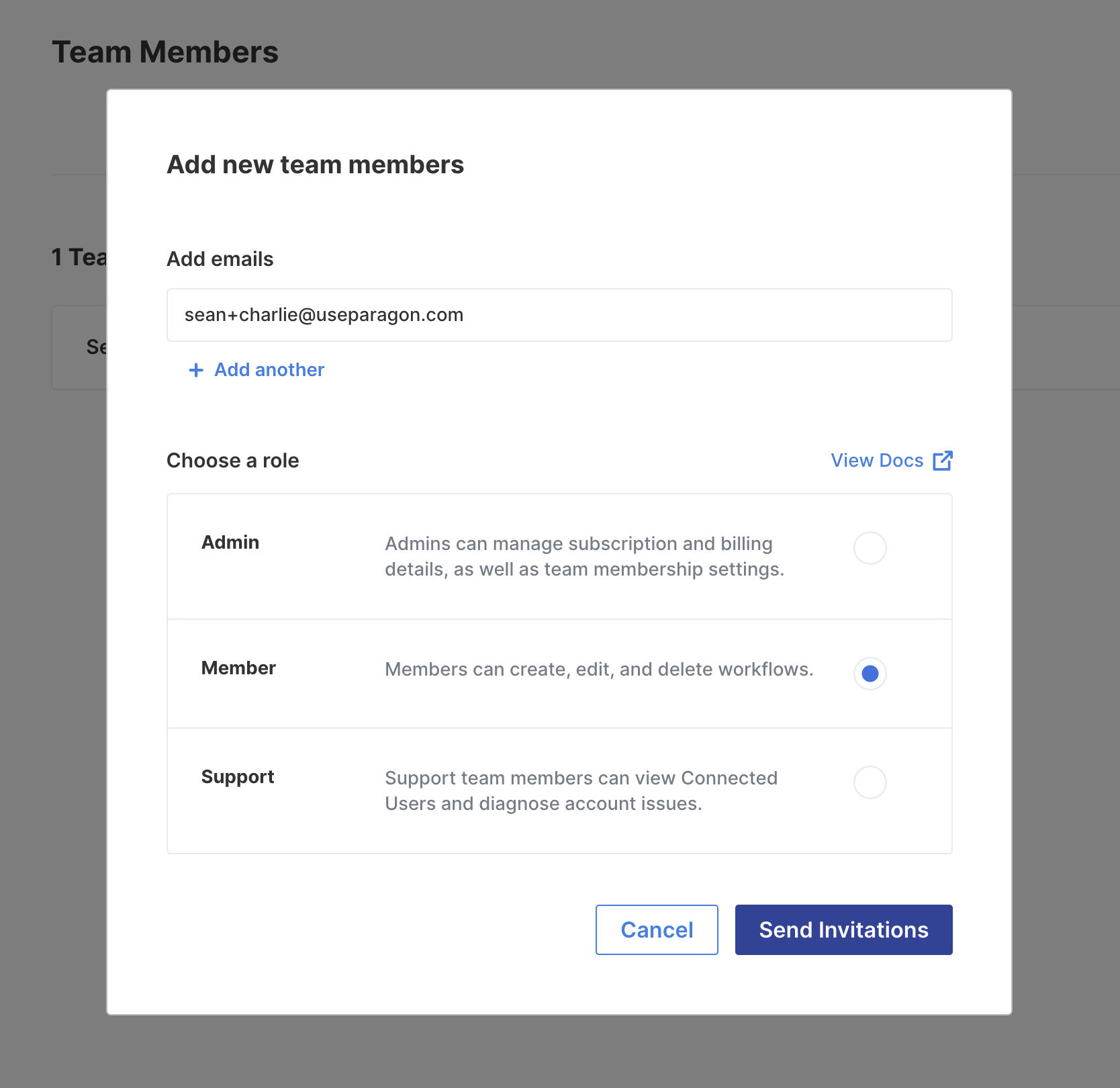
### 3. Select a Role and Send an Invitation
Invitees will receive an **email invitation** to join your Organization on Paragon. You’ll receive a confirmation email once your invitations are accepted.
### 3. Select a Role and Send an Invitation
 ## Managing Roles and Permissions
There are three types of roles Team Members can have in your Organization:
| User Permissions | Support\* | Developer | Organization Admin |
| ------------------------------------------------------------ | --------- | --------- | ------------------ |
| View Monitoring | ☑️ | ☑️ | ☑️ |
| View Connected Users | ☑️ | ☑️ | ☑️ |
| Create workflows | | ☑️ | ☑️ |
| Edit workflows | | ☑️ | ☑️ |
| Delete workflows | | ☑️ | ☑️ |
| Manage [Environment Secrets](/workflows/environment-secrets) | | | ☑️ |
| Manage [Event Destinations](/monitoring/event-destinations) | | | ☑️ |
| Manage API Keys | | | ☑️ |
| Edit Billing Details | | | ☑️ |
| Update team membership settings | | | ☑️ |
| Manage Subscription | | | ☑️ |
\**This role requires *[*Role-Based Access Control*](/managing-account/role-based-access-control)*.*
## Removing a Team Member
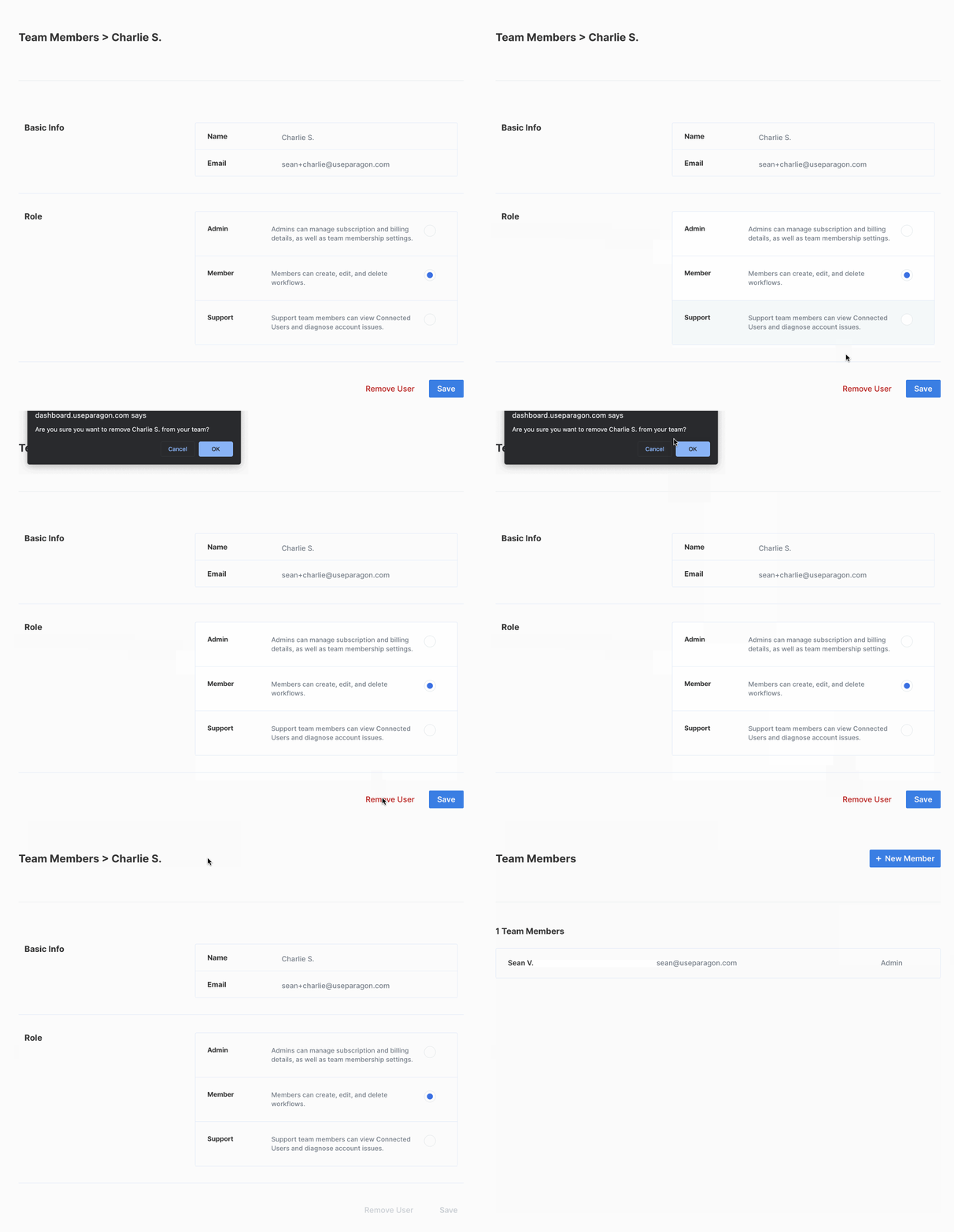
Click on "Remove User" underneath the team member you'd like to remove. After confirming the deletion, the team member will be removed from your Organization.
## Managing Roles and Permissions
There are three types of roles Team Members can have in your Organization:
| User Permissions | Support\* | Developer | Organization Admin |
| ------------------------------------------------------------ | --------- | --------- | ------------------ |
| View Monitoring | ☑️ | ☑️ | ☑️ |
| View Connected Users | ☑️ | ☑️ | ☑️ |
| Create workflows | | ☑️ | ☑️ |
| Edit workflows | | ☑️ | ☑️ |
| Delete workflows | | ☑️ | ☑️ |
| Manage [Environment Secrets](/workflows/environment-secrets) | | | ☑️ |
| Manage [Event Destinations](/monitoring/event-destinations) | | | ☑️ |
| Manage API Keys | | | ☑️ |
| Edit Billing Details | | | ☑️ |
| Update team membership settings | | | ☑️ |
| Manage Subscription | | | ☑️ |
\**This role requires *[*Role-Based Access Control*](/managing-account/role-based-access-control)*.*
## Removing a Team Member
Click on "Remove User" underneath the team member you'd like to remove. After confirming the deletion, the team member will be removed from your Organization.