> ## Documentation Index
> Fetch the complete documentation index at: https://docs.useparagon.com/llms.txt
> Use this file to discover all available pages before exploring further.
# Role Based Access Control
> Assign roles to team members working together on Paragon.
Role-Based Access Control allows you to give team members different levels of visibility to your Paragon projects. For example, you can:
* Assign support team members with **Support** roles for access to the Connected Users and Monitoring pages *only*
* Designate specific users with **Organization Admin** roles to manage global settings, including team member access and billing information
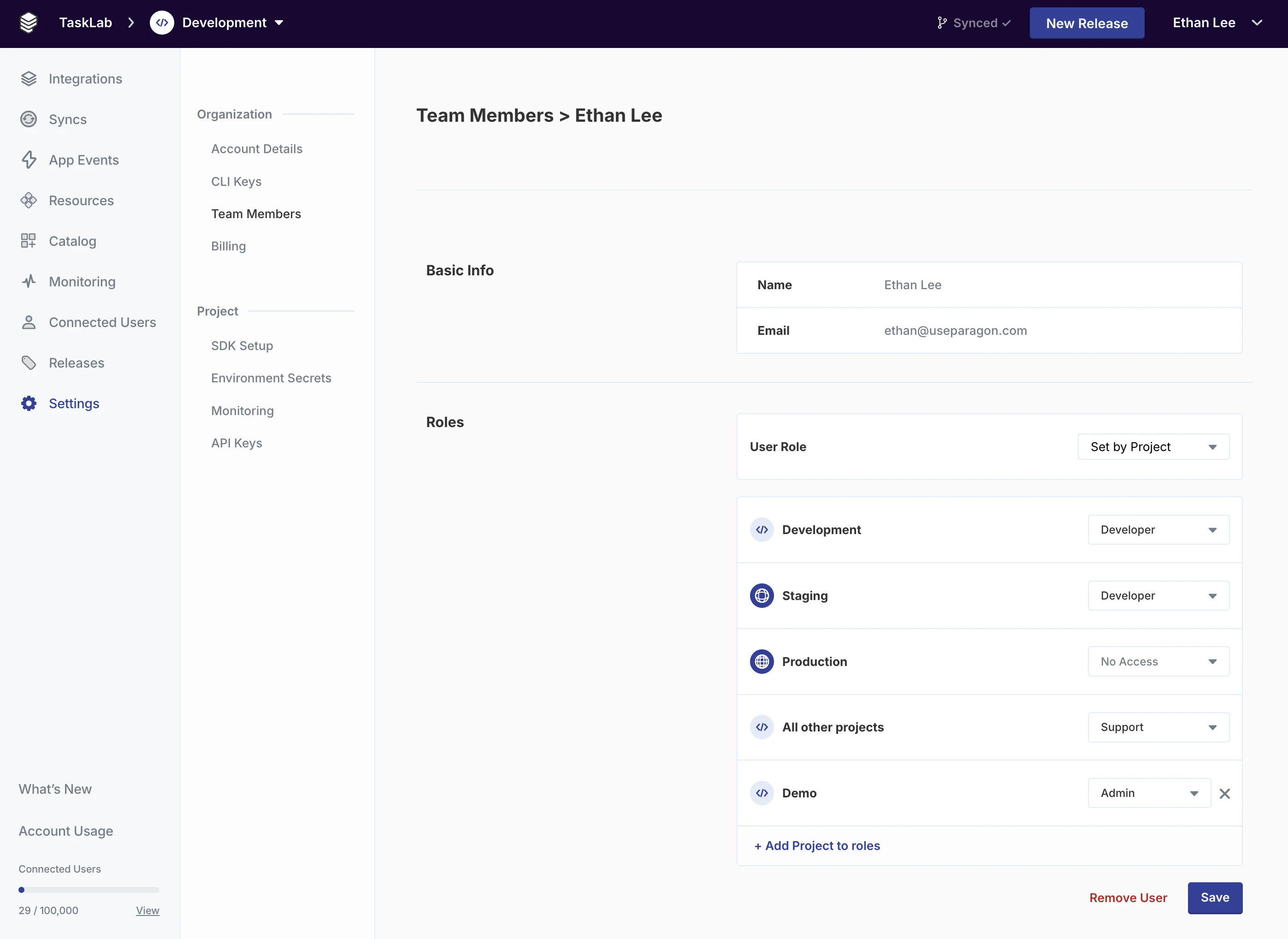
* Invite development contractors and integration partners as **Set by Project** roles to give them isolated access to a separate project for development purposes
We recommend giving team members the minimal level of access they need, according to the principle of least privilege.
**Role-Based Access Control is available for Paragon customers on Enterprise plans.** To learn more, contact your Customer Success Manager or [sales@useparagon.com](mailto:sales@useparagon.com).
**Organization Admin and Developer roles are available for customers on all plans.** See [Working with Team Members](/managing-account/teams) for more information.
## Managing Roles
Roles are managed on an organizational/global level. When a role is assigned, that role will apply across all projects.
Roles can be managed from the dashboard by visiting **Settings** > **Team Members** page for any Project.
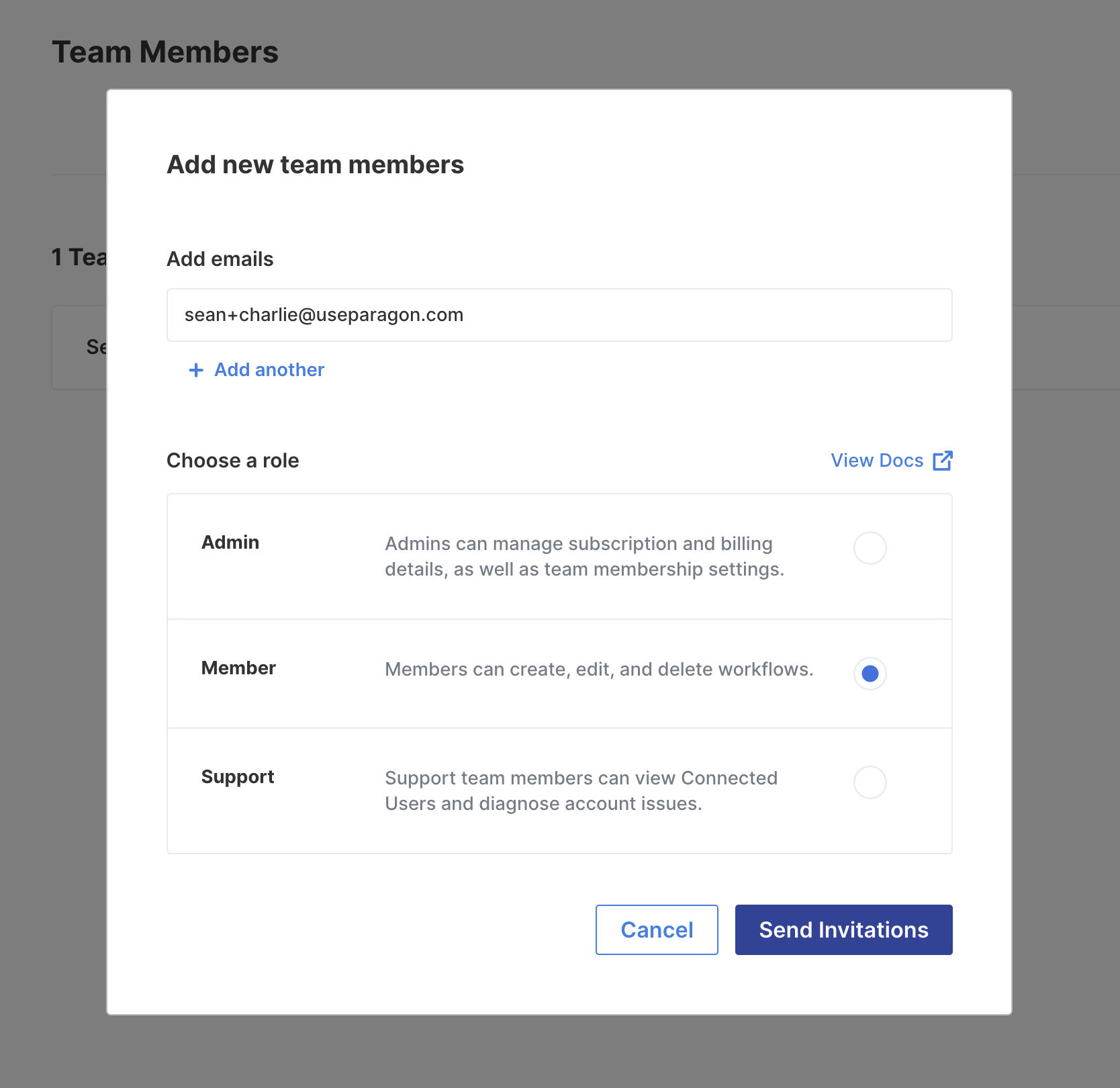
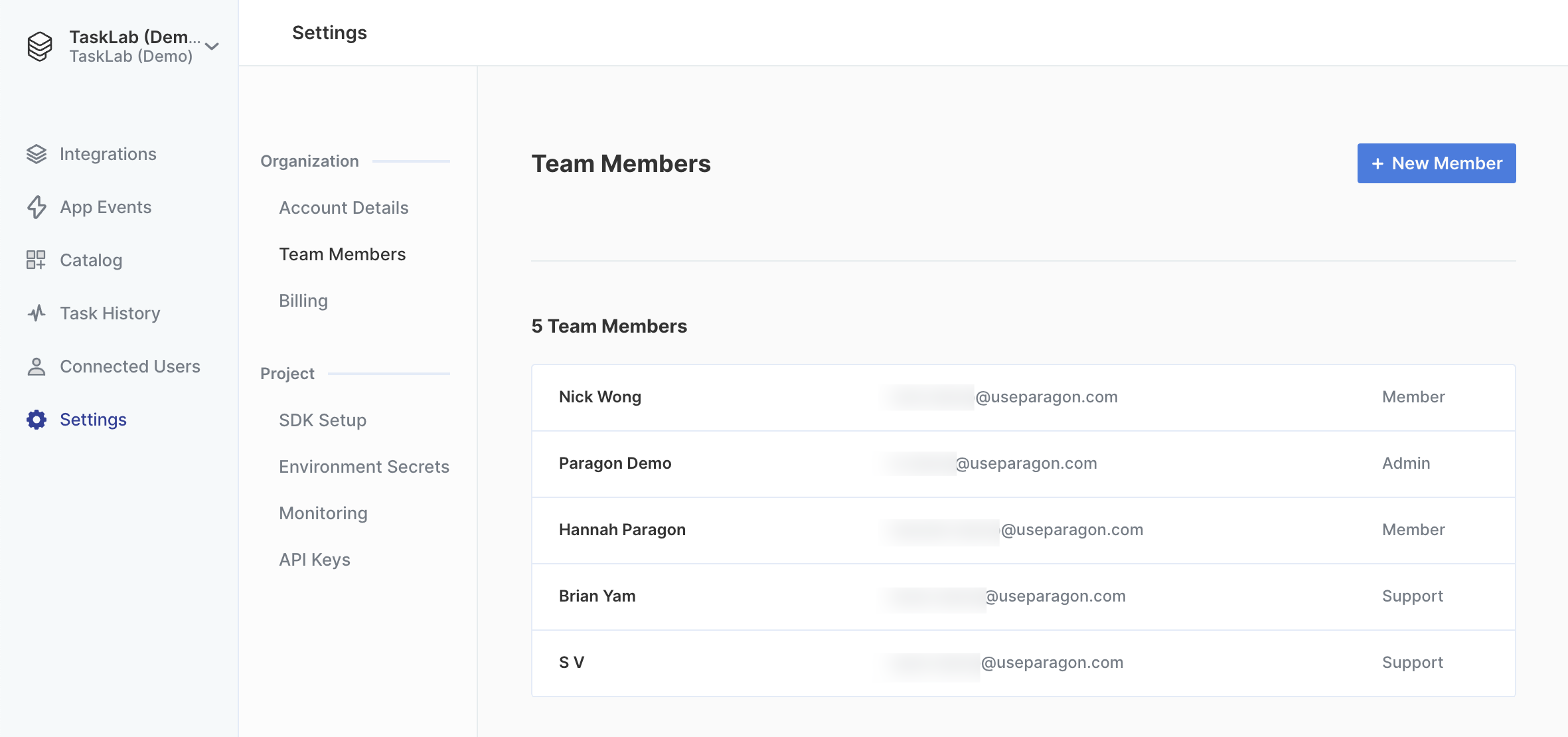 You can select any existing team member to change their role. New team members can also be invited with a specific role selected.
 ## Role Types
### Organization Admin
**Organization Admins have full read/write access to all Paragon projects**. Organization Admins can also exclusively invite new team members and view billing details.
### Developers
Developers are allowed to modify integrations and deploy workflows, but they cannot create new Event Destinations or modify existing Environment Secrets.
| ✓ Developers are allowed to: | ✗ Developers are not allowed to: |
| ------------------------------------------------------------------------------------------------------------------------------------------------------------- | ---------------------------------------------------------------------------------------------------------------------------------------------------------------------------------------- |
| • Create, delete, activate, or deactivate Integrations
## Role Types
### Organization Admin
**Organization Admins have full read/write access to all Paragon projects**. Organization Admins can also exclusively invite new team members and view billing details.
### Developers
Developers are allowed to modify integrations and deploy workflows, but they cannot create new Event Destinations or modify existing Environment Secrets.
| ✓ Developers are allowed to: | ✗ Developers are not allowed to: |
| ------------------------------------------------------------------------------------------------------------------------------------------------------------- | ---------------------------------------------------------------------------------------------------------------------------------------------------------------------------------------- |
| • Create, delete, activate, or deactivate Integrations
• Create, modify, and deploy Workflows
• Update SDK Setup options, including Signing Key | • View or update Event Destinations
• Update existing Environment Secret values
• Manage API Keys
• Invite new team members
• View or modify billing details |
### Support
Support members are only allowed to view the Connected Users and Monitoring pages of the dashboard. Using these pages, they can provide support and error information to integration users.
| ✓ Support members are allowed to: | ✗ Support members are not allowed to: |
| --------------------------------------------------------------------------------------------------------------------------------------------------------------------------------------------- | ---------------------------------------------------------------------------------------------------------------------------------------------------- |
| • View and manage Connected Users, their integrations, and their metadata
• View workflow executions on the Monitoring page
• Replay failed Workflow Executions from Monitoring | • Create new Projects
• Modify any project details (including Integrations or Workflows)
• View Client IDs or Secrets for Integrations |
### Set by Project
Team Members with the **Set by Project** role can be assigned any of the role types (Admin, Developer, Support) for a specific project(s).
By default, any projects that are not explicitly assigned to **Set by Project**-type team members will not be accessible.