> ## Documentation Index
> Fetch the complete documentation index at: https://docs.useparagon.com/llms.txt
> Use this file to discover all available pages before exploring further.
# Managing Account Settings
> Update your Account Settings, like email, password, and MFA options.
When logged into the dashboard, you can manage your Account Settings by clicking "Settings" in the sidebar.
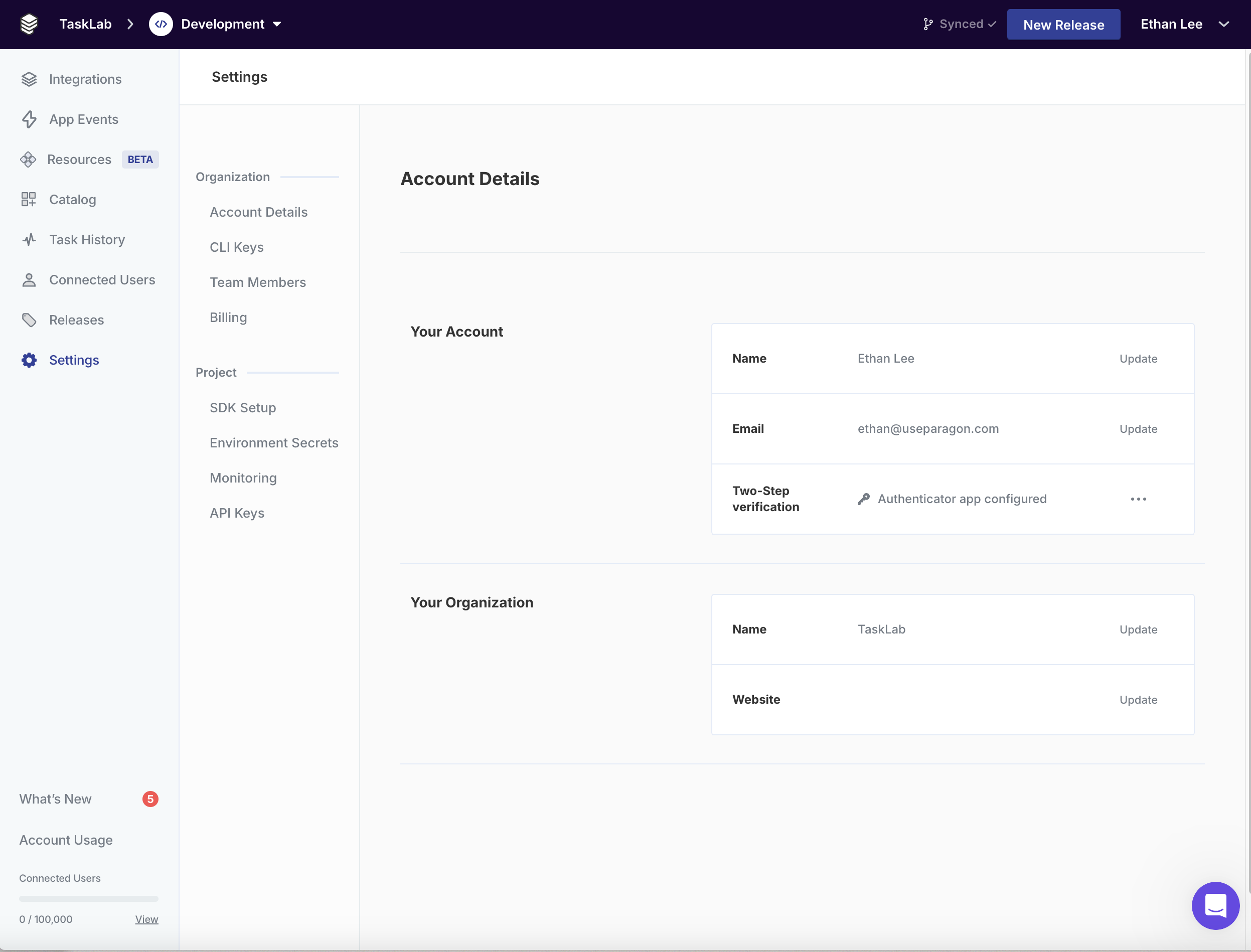 You can update the following account details:
* **Name**: Your name, as it appears to other members of your team in [Team Members](/managing-account/teams), [Workflow Version History](/workflows/version-history), or [Releases](/deploying-integrations/release-environments).
* **Email**: The email address you use to log in to your account.
* **Two-Step Verification**: [Setup an authenticator app](#adding-two-step-verification) to add an extra layer of security to your account.
* **Organization Name**: The name of your organization, as it appears in the header of your dashboard.
* **Organization Website**: The website of your organization (optional and not used for login).
## Changing your password
To change or reset your password, visit the Paragon dashboard and click "**Forgot password?"** under the login form. If you are already logged in, you must first log out (click your name in the top right corner and click "**Sign out**").
You will be prompted to confirm your email, and a password reset email will be sent to your account's email address.
## Adding two-step verification
In **Settings > Account Details**, you can click **Setup authenticator app** to configure an authenticator app, like Google Authenticator, to add an extra layer of security to your account.
Follow the prompt that appears to complete the setup of your authenticator app.
1. Scan the QR code that appears or click "View setup key" to manually enter the setup code.
2. Enter a code generated by your authenticator app to verify the setup.
3. Click **Finish** to complete the setup process and add Two-Step Verification to your login.
If you need to remove or change your Two-Step Verification settings in the future, you can visit **Settings > Account Details** and click the three-dot menu in the Two-Step Verification section and select **Remove** to setup a new device.
If you lose access to the device you used to setup your authenticator app, you will need to [contact support](mailto:support@paragon.com) to unlock your account.
You can update the following account details:
* **Name**: Your name, as it appears to other members of your team in [Team Members](/managing-account/teams), [Workflow Version History](/workflows/version-history), or [Releases](/deploying-integrations/release-environments).
* **Email**: The email address you use to log in to your account.
* **Two-Step Verification**: [Setup an authenticator app](#adding-two-step-verification) to add an extra layer of security to your account.
* **Organization Name**: The name of your organization, as it appears in the header of your dashboard.
* **Organization Website**: The website of your organization (optional and not used for login).
## Changing your password
To change or reset your password, visit the Paragon dashboard and click "**Forgot password?"** under the login form. If you are already logged in, you must first log out (click your name in the top right corner and click "**Sign out**").
You will be prompted to confirm your email, and a password reset email will be sent to your account's email address.
## Adding two-step verification
In **Settings > Account Details**, you can click **Setup authenticator app** to configure an authenticator app, like Google Authenticator, to add an extra layer of security to your account.
Follow the prompt that appears to complete the setup of your authenticator app.
1. Scan the QR code that appears or click "View setup key" to manually enter the setup code.
2. Enter a code generated by your authenticator app to verify the setup.
3. Click **Finish** to complete the setup process and add Two-Step Verification to your login.
If you need to remove or change your Two-Step Verification settings in the future, you can visit **Settings > Account Details** and click the three-dot menu in the Two-Step Verification section and select **Remove** to setup a new device.
If you lose access to the device you used to setup your authenticator app, you will need to [contact support](mailto:support@paragon.com) to unlock your account.