Google Docs, Sheets, and Slides will be synced as their Office-compatible equivalent formats:
* **Docs**: DOCX file * **Sheets**: XLSX file * **Slides**: PPTX file * **Drawings**: PDF file * [Permissions](/managed-sync/permissions-api) ## Files Send a request to [Enable Sync](/managed-sync/api/enable-a-sync) to start a file sync. Syncs for Google Drive can be created with one of the following configurations: * **Global Sync**: All files in the user's Google Drive account will be synced. * **Folder Sync**: Only files in the specified folder will be synced (recursively including all subfolders by default). * **Sync of specific files**: Only a group of specific files will be synced.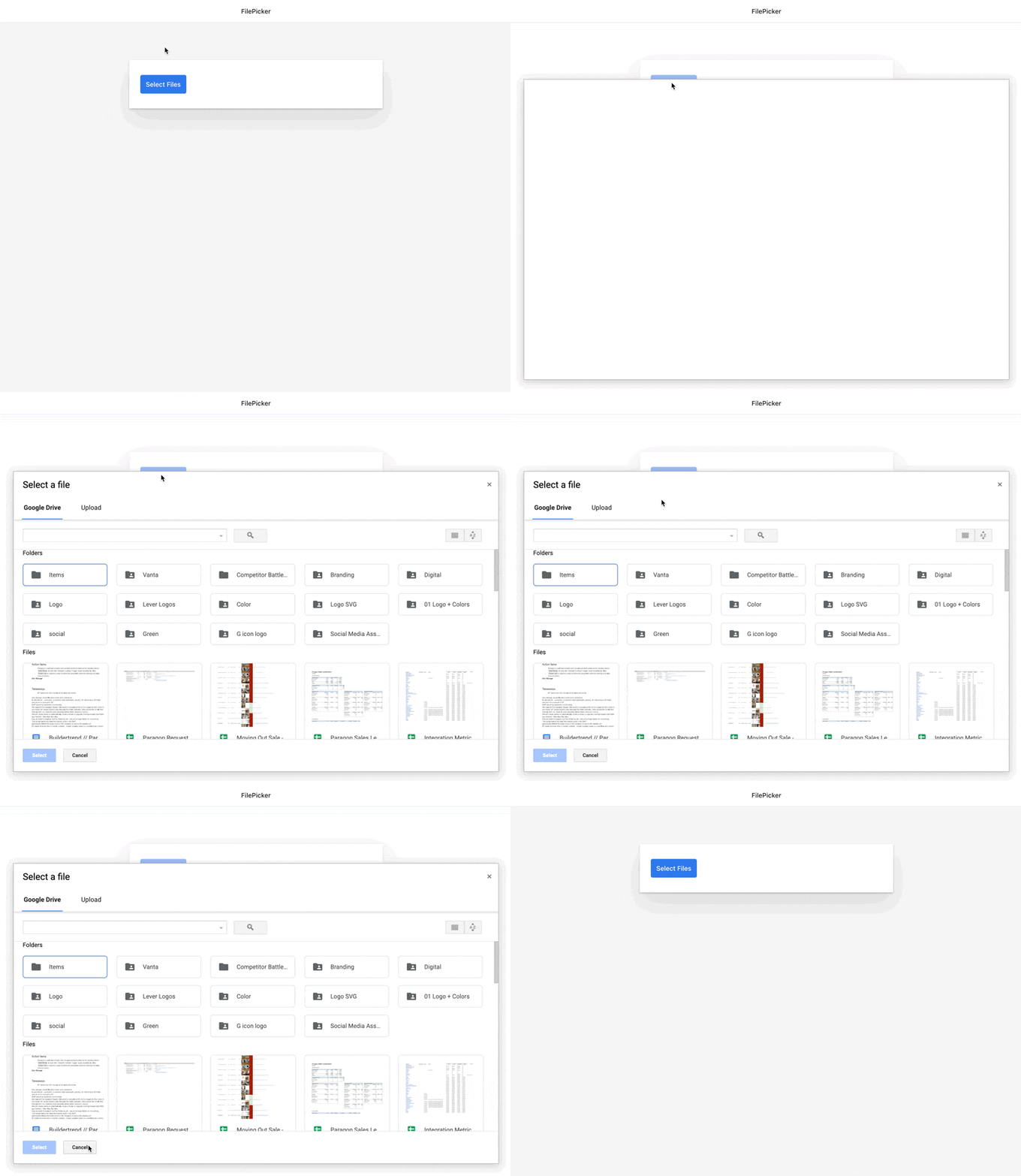 **Enable the Google Picker API**
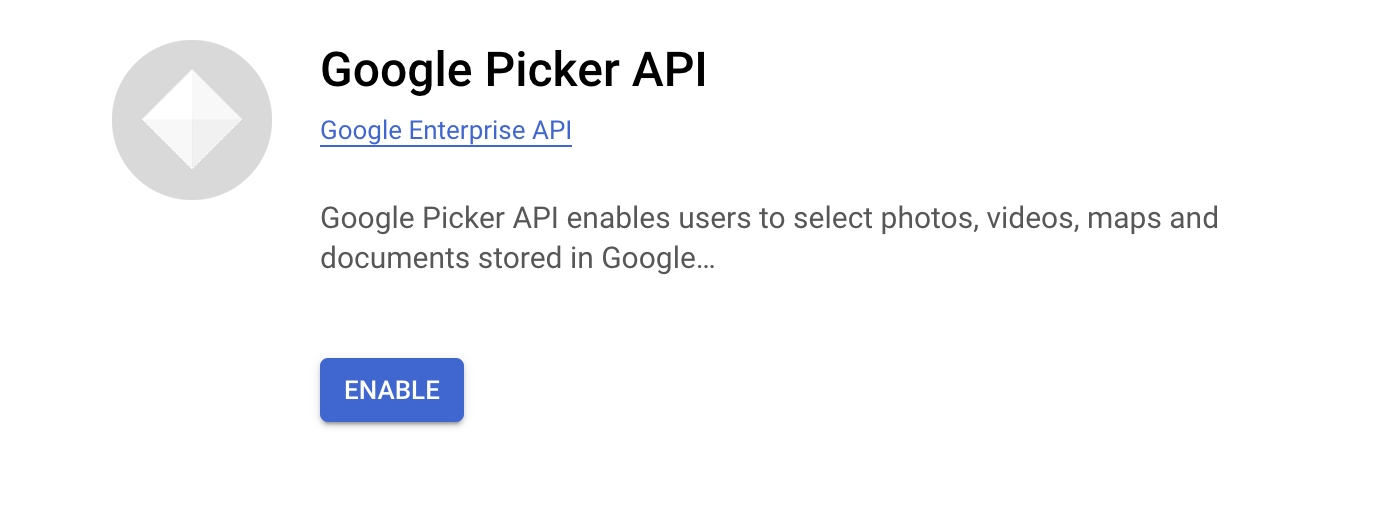
You will need to enable the Google Picker API for your application in order to access the File Picker.
1. In your [Google Cloud Console dashboard,](https://console.cloud.google.com/projectselector2/home/dashboard?supportedpurview=project) navigate to **APIs & Services > Library** in the sidebar for your app.
2. Search for "**Google Picker API**" from the API Library.
3. Select the "**Google Picker API**" and press the blue "**Enable**" button to enable the API for your application.
**Enable the Google Picker API**
You will need to enable the Google Picker API for your application in order to access the File Picker.
1. In your [Google Cloud Console dashboard,](https://console.cloud.google.com/projectselector2/home/dashboard?supportedpurview=project) navigate to **APIs & Services > Library** in the sidebar for your app.
2. Search for "**Google Picker API**" from the API Library.
3. Select the "**Google Picker API**" and press the blue "**Enable**" button to enable the API for your application.
 **Creating a Google Drive API Key**
To show the Google Drive File Picker, you will need a **Google Drive API Key**. This key is a separate key from the Client ID you provided to Paragon during integration setup.
1. Navigate to [Google Cloud Console > APIs & Services > Credentials](https://console.cloud.google.com/apis/credentials). Make sure the selected project in the header is your app.
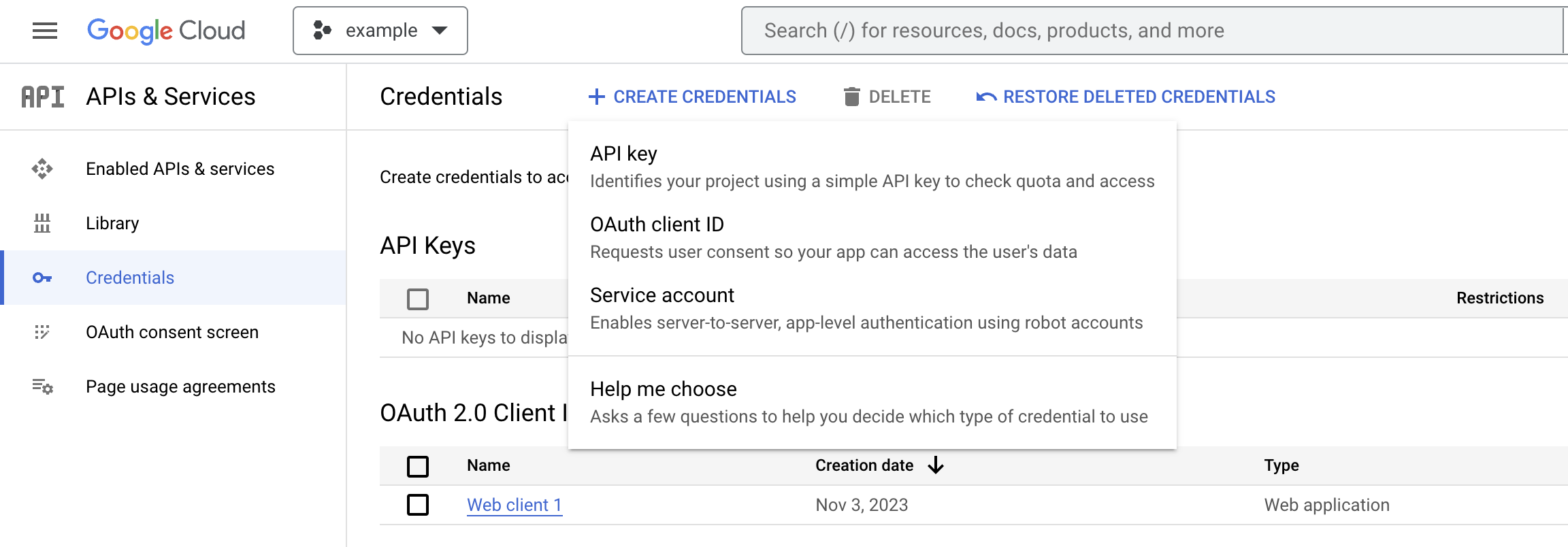
2. Click **Create Credentials** and select **API key**.
3. An API key value will appear. Copy this value to use in [Showing the File Picker](#showing-the-file-picker).
**Creating a Google Drive API Key**
To show the Google Drive File Picker, you will need a **Google Drive API Key**. This key is a separate key from the Client ID you provided to Paragon during integration setup.
1. Navigate to [Google Cloud Console > APIs & Services > Credentials](https://console.cloud.google.com/apis/credentials). Make sure the selected project in the header is your app.
2. Click **Create Credentials** and select **API key**.
3. An API key value will appear. Copy this value to use in [Showing the File Picker](#showing-the-file-picker).
 **Note**: While the API Key value is not sensitive and can safely be used in your public application, we recommend restricting the API Key with the following settings:
* Application restrictions: Websites with your origin/domain
* API restrictions: Google Drive API
[Read more](https://cloud.google.com/docs/authentication/api-keys#api_key_restrictions) in Google's docs for API Key restrictions.
#### Showing the File Picker
Use the Paragon SDK in your frontend application to show the File Picker in your app.
The SDK provides an `ExternalFilePicker` class to load Google's JavaScript into your page and authenticate with your user's connected Google Drive account.
To initialize the picker you will need your Google Drive API key and your Google Cloud project number. The Google Cloud project number is a unique, numerical identifier for your project. You can find it within the Google Cloud Console from the sidebar navigation under [**IAM & Admin section > Settings**](https://console.cloud.google.com/iam-admin/settings).
```js theme={null}
let picker = new paragon.ExternalFilePicker("googledrive", {
onFileSelect: (files) => {
// Handle file selection
},
// Optional settings:
integrationOptions: {
googledrive: {
// If true, a tab in the Picker appears for browsing Shared Drives
enableSharedDrives: true,
// If true, the full folder hierarchy appears in the Picker. Otherwise,
// all files will appear as a flat list. Defaults to `false`.
includeFolders: false
// Set the display mode of the Picker as a thumbnail grid or list of file titles.
// Defaults to "grid". Thumbnail grid requires either `https://www.googleapis.com/auth/drive` or
// `https://www.googleapis.com/auth/drive.readonly` scope to appear correctly.
viewMode: "grid" || "list",
}
}
});
// Loads external dependencies and user's access token
await picker.init({ developerKey: "YOUR_GOOGLE_API_KEY", "appId": "YOUR_GOOGLE_PROJECT_NUMBER" });
// Open the File Picker
picker.open();
```
You can configure the File Picker to listen for additional callbacks or to restrict allowed file types. Learn more about configuring File Picker options in the [SDK Reference](/apis/api-reference#externalfilepicker).
**Note**: While the API Key value is not sensitive and can safely be used in your public application, we recommend restricting the API Key with the following settings:
* Application restrictions: Websites with your origin/domain
* API restrictions: Google Drive API
[Read more](https://cloud.google.com/docs/authentication/api-keys#api_key_restrictions) in Google's docs for API Key restrictions.
#### Showing the File Picker
Use the Paragon SDK in your frontend application to show the File Picker in your app.
The SDK provides an `ExternalFilePicker` class to load Google's JavaScript into your page and authenticate with your user's connected Google Drive account.
To initialize the picker you will need your Google Drive API key and your Google Cloud project number. The Google Cloud project number is a unique, numerical identifier for your project. You can find it within the Google Cloud Console from the sidebar navigation under [**IAM & Admin section > Settings**](https://console.cloud.google.com/iam-admin/settings).
```js theme={null}
let picker = new paragon.ExternalFilePicker("googledrive", {
onFileSelect: (files) => {
// Handle file selection
},
// Optional settings:
integrationOptions: {
googledrive: {
// If true, a tab in the Picker appears for browsing Shared Drives
enableSharedDrives: true,
// If true, the full folder hierarchy appears in the Picker. Otherwise,
// all files will appear as a flat list. Defaults to `false`.
includeFolders: false
// Set the display mode of the Picker as a thumbnail grid or list of file titles.
// Defaults to "grid". Thumbnail grid requires either `https://www.googleapis.com/auth/drive` or
// `https://www.googleapis.com/auth/drive.readonly` scope to appear correctly.
viewMode: "grid" || "list",
}
}
});
// Loads external dependencies and user's access token
await picker.init({ developerKey: "YOUR_GOOGLE_API_KEY", "appId": "YOUR_GOOGLE_PROJECT_NUMBER" });
// Open the File Picker
picker.open();
```
You can configure the File Picker to listen for additional callbacks or to restrict allowed file types. Learn more about configuring File Picker options in the [SDK Reference](/apis/api-reference#externalfilepicker).