> ## Documentation Index
> Fetch the complete documentation index at: https://docs.useparagon.com/llms.txt
> Use this file to discover all available pages before exploring further.
# Displaying the Connect Portal
> Connect to your users' app accounts with the Connect Portal
Once an integration has been added to the Paragon dashboard, you can now display the Connect Portal for that integration in your application. The **Connect Portal** is a component that your users interact with to connect their third-party app accounts to your application. The Connect Portal provides a **fully managed authentication** so you don't need to worry about managing, storing, or refreshing your customers' credentials.
## Activating the Integration
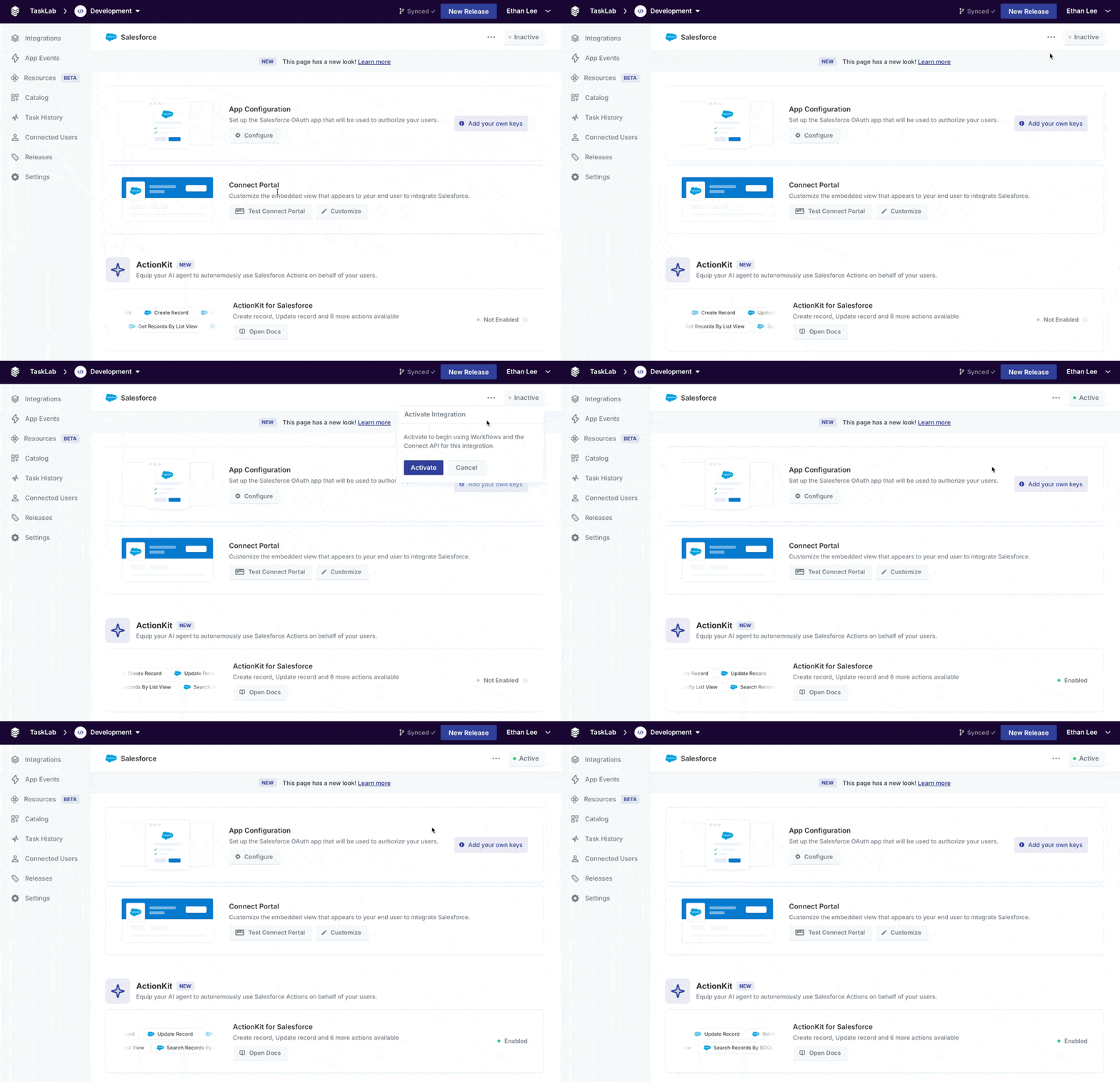
You'll need to mark your integration as **Active** for it to display to your end users.
To do this, click the "Inactive" button in the top-right corner and press "Activate".
 ## Displaying the Connect Portal in your app
[`paragon.authenticate`](/apis/api-reference#authenticate) should be called at the beginning of your application's lifecycle in all cases. This is to make sure that the `userToken` is always as fresh as possible, with respect to your user's existing session on your own site. You may reference [Installing the Connect SDK](/getting-started/installing-the-connect-sdk#setup) for a detailed explanation on how to use [`paragon.authenticate`](/apis/api-reference#authenticate).
**Example:**
```js theme={null}
await paragon.authenticate(
// Your Paragon Project ID
"38b1f170-0c43-4eae-9a04-ab85325d99f7",
// See Setup for how to encode your user token
"eyJhbGciOiJSUzI1NiIsInR5cCI6IkpXVCJ9.ey..."
);
```
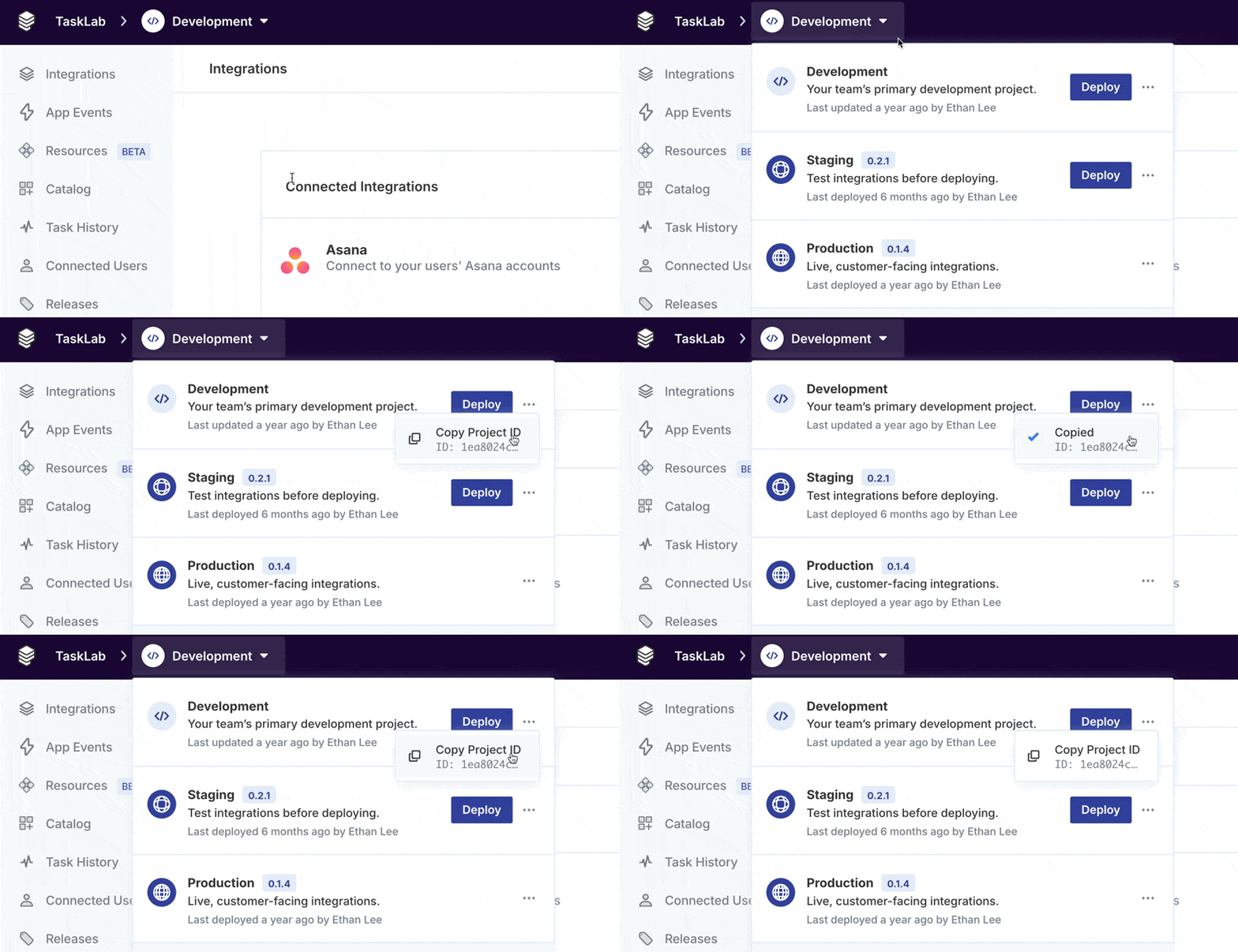
You can copy your Project ID by clicking Copy Project ID under the Environment switcher:
## Displaying the Connect Portal in your app
[`paragon.authenticate`](/apis/api-reference#authenticate) should be called at the beginning of your application's lifecycle in all cases. This is to make sure that the `userToken` is always as fresh as possible, with respect to your user's existing session on your own site. You may reference [Installing the Connect SDK](/getting-started/installing-the-connect-sdk#setup) for a detailed explanation on how to use [`paragon.authenticate`](/apis/api-reference#authenticate).
**Example:**
```js theme={null}
await paragon.authenticate(
// Your Paragon Project ID
"38b1f170-0c43-4eae-9a04-ab85325d99f7",
// See Setup for how to encode your user token
"eyJhbGciOiJSUzI1NiIsInR5cCI6IkpXVCJ9.ey..."
);
```
You can copy your Project ID by clicking Copy Project ID under the Environment switcher:
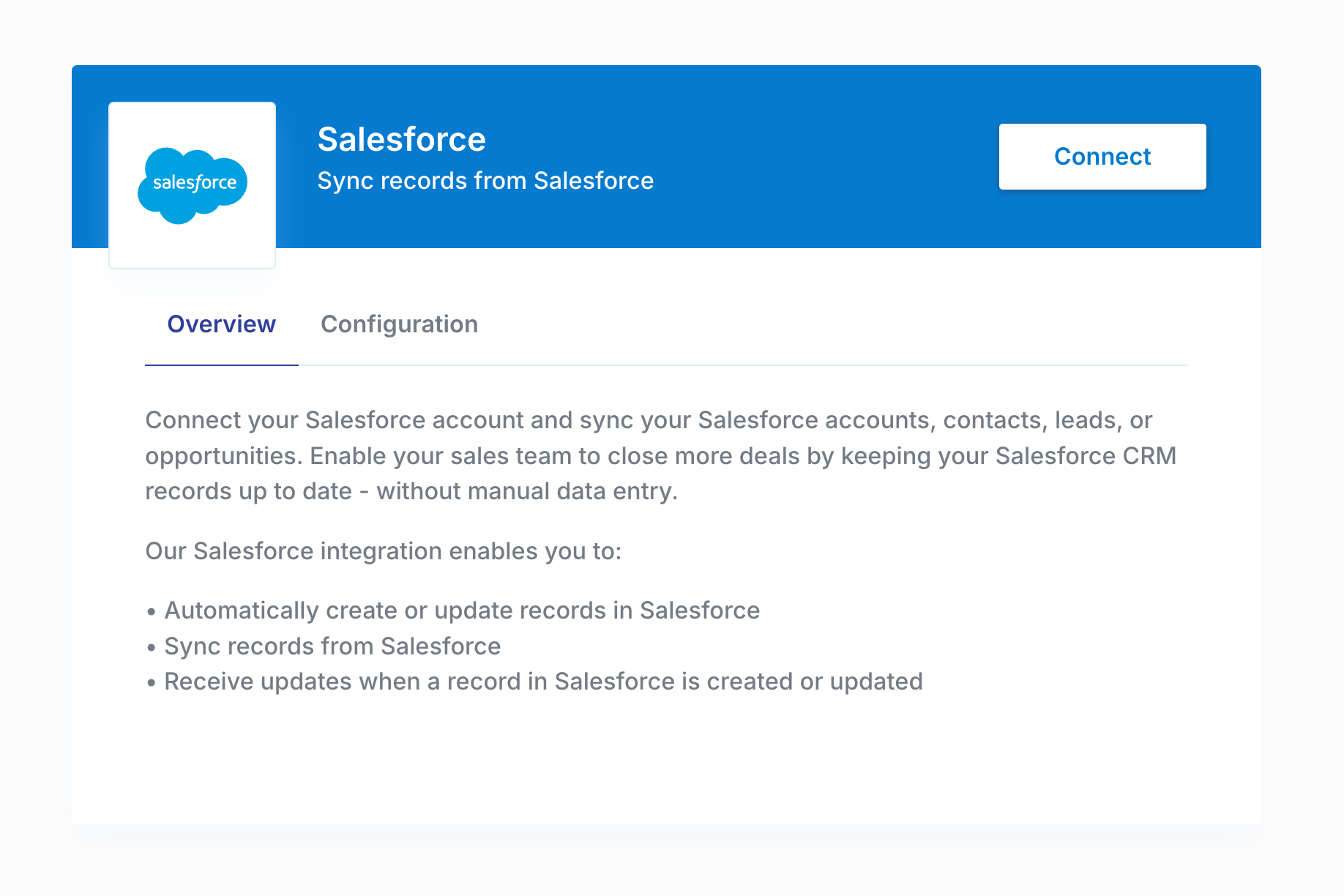
 Once [`paragon.authenticate`](/apis/api-reference#authenticate) has been called and the Promise it returns has resolved, you can call [`paragon.connect`](/apis/api-reference#connect) to launch your Connect Portal for a specific integration provider. You can find the `integrationType` identifier you need in the Overview page for the integration.
**Example:**
```js theme={null}
paragon.connect("salesforce");
```
You *must* have an integration configured of this `integrationType` for the Portal to appear. Otherwise, this function does nothing.
Once [`paragon.authenticate`](/apis/api-reference#authenticate) has been called and the Promise it returns has resolved, you can call [`paragon.connect`](/apis/api-reference#connect) to launch your Connect Portal for a specific integration provider. You can find the `integrationType` identifier you need in the Overview page for the integration.
**Example:**
```js theme={null}
paragon.connect("salesforce");
```
You *must* have an integration configured of this `integrationType` for the Portal to appear. Otherwise, this function does nothing.
 ## Authenticating an Account
Your users can connect their third-party app account in the Connect Portal by clicking **"Connect"**. Paragon natively supports all sorts of authentication types, like OAuth 2.0 and API Keys.
## Authenticating an Account
Your users can connect their third-party app account in the Connect Portal by clicking **"Connect"**. Paragon natively supports all sorts of authentication types, like OAuth 2.0 and API Keys.
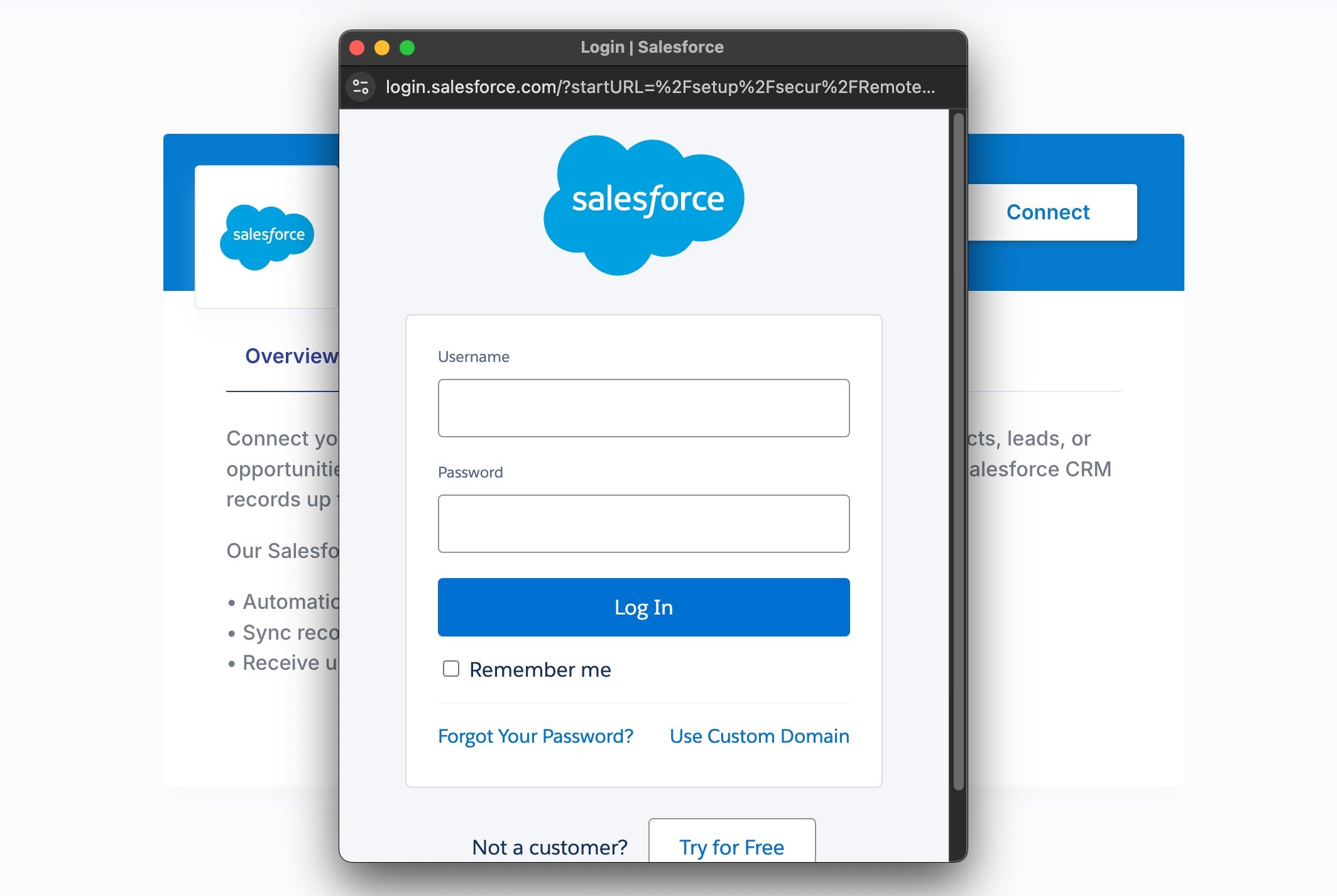
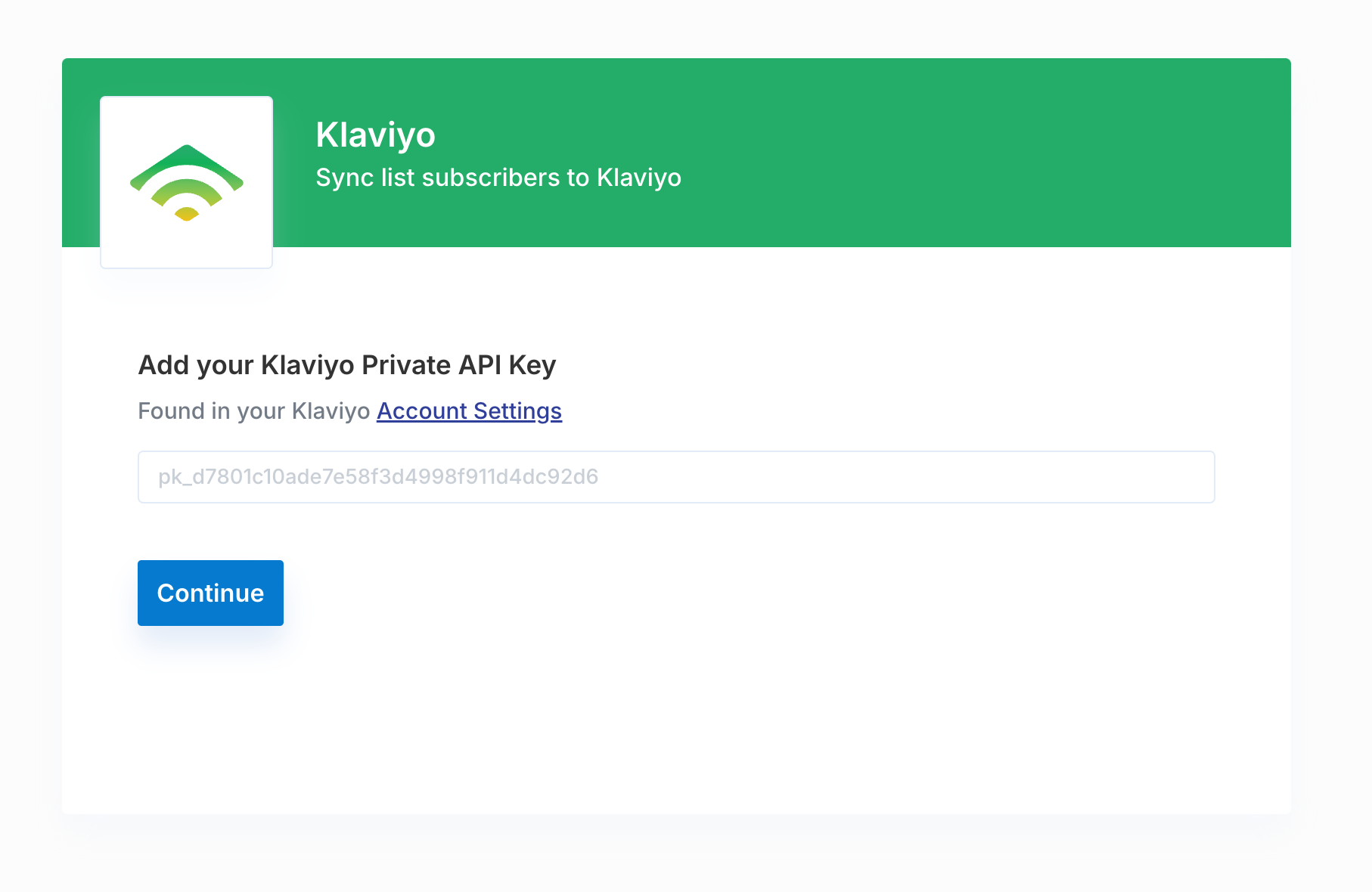 Once your user connects their third-party app account in the Connect Portal, you can access their app account by creating [Workflows](/workflows/building-workflows) or via the [Proxy API](/apis/proxy). You can always call [`paragon.getUser`](/apis/api-reference#getuser) to retrieve the currently authenticated user and their connected integration state.