> ## Documentation Index
> Fetch the complete documentation index at: https://docs.useparagon.com/llms.txt
> Use this file to discover all available pages before exploring further.
# Working with Multiple Projects
> Create unique spaces for different teams to collaborate.
## Overview
Create projects in your Organization. This is great for creating unique spaces for different environments, such as production, staging, and development. Each one has its own workflows and authentication methods so you can test out new changes before going live to your customers.
 **Looking for **`read-only`** Projects?**
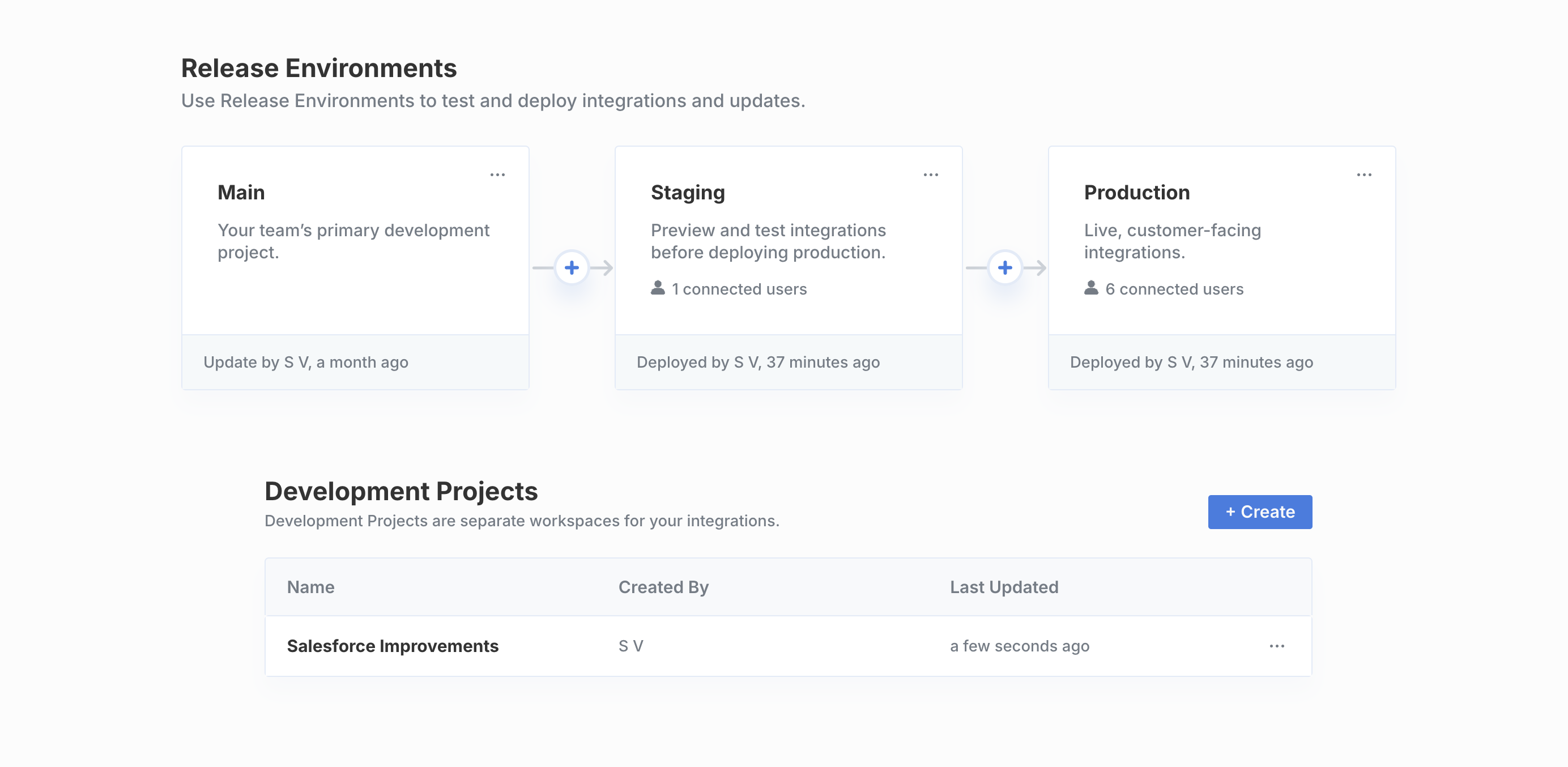
[Release Environments](/deploying-integrations/release-environments) provides access to `staging` and `production` projects that are `read-only`, allowing you to safely test and deploy changes across your development pipeline.
## Creating Projects
To create a new project:
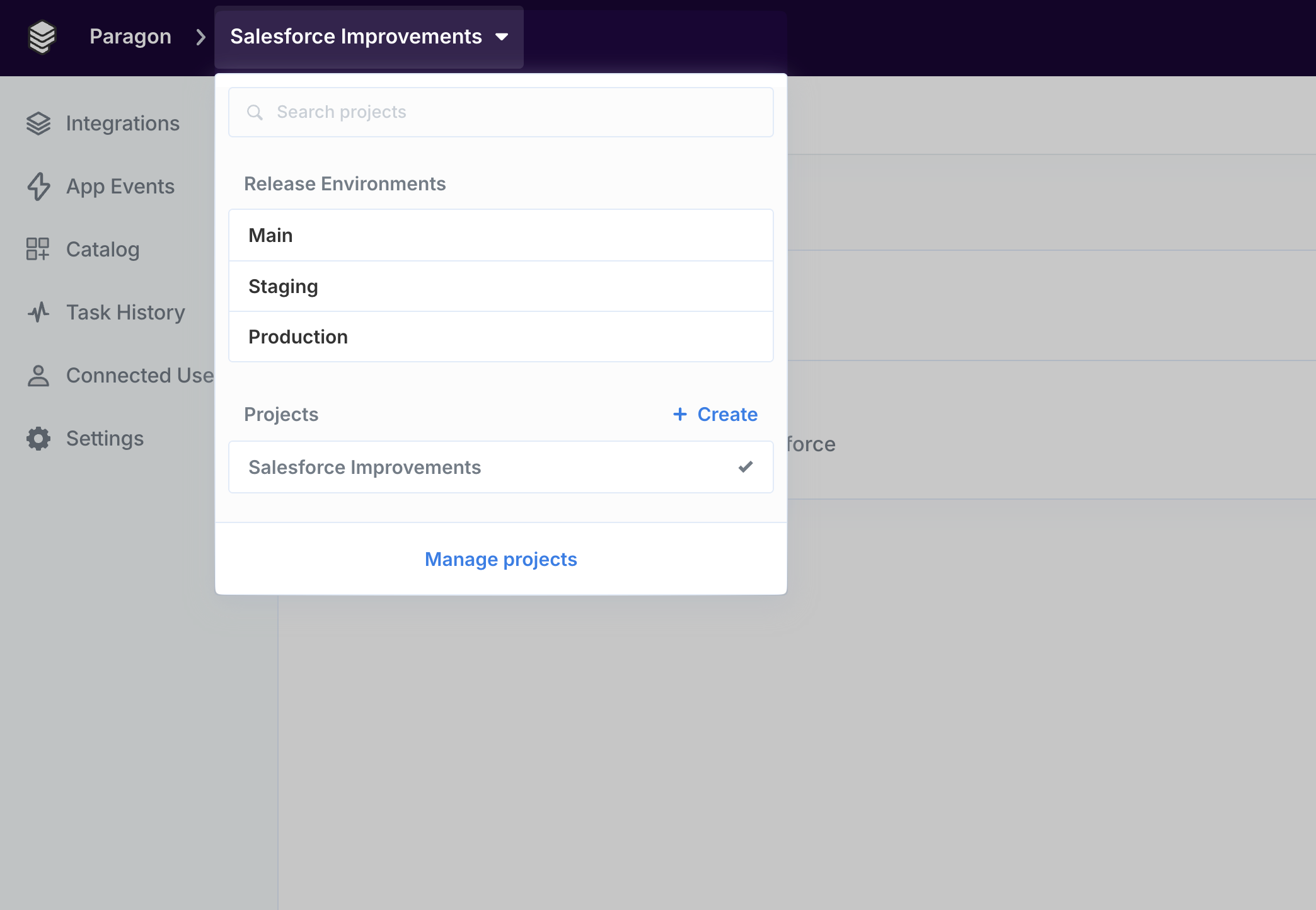
1. Click the Project dropdown in the top-left corner.
2. Click "**+ Create**"
**Looking for **`read-only`** Projects?**
[Release Environments](/deploying-integrations/release-environments) provides access to `staging` and `production` projects that are `read-only`, allowing you to safely test and deploy changes across your development pipeline.
## Creating Projects
To create a new project:
1. Click the Project dropdown in the top-left corner.
2. Click "**+ Create**"
 ## Managing Projects
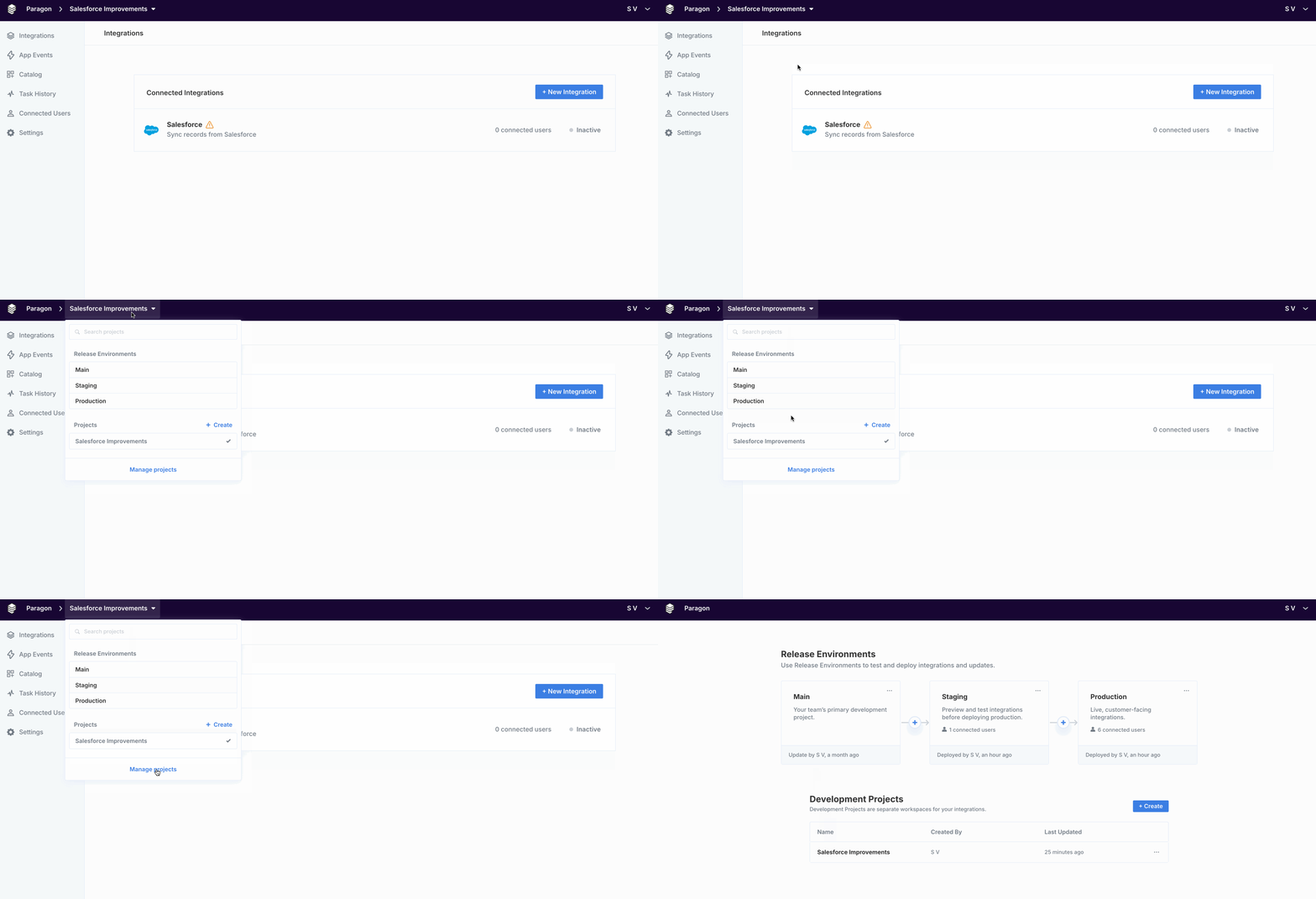
To view and manage projects:
1. Click the Project dropdown in the top-left corner.
2. Click "**Manage projects**".
## Managing Projects
To view and manage projects:
1. Click the Project dropdown in the top-left corner.
2. Click "**Manage projects**".
 ## Deleting Projects
To delete a project:
1. Click the Project dropdown in the top-left corner.
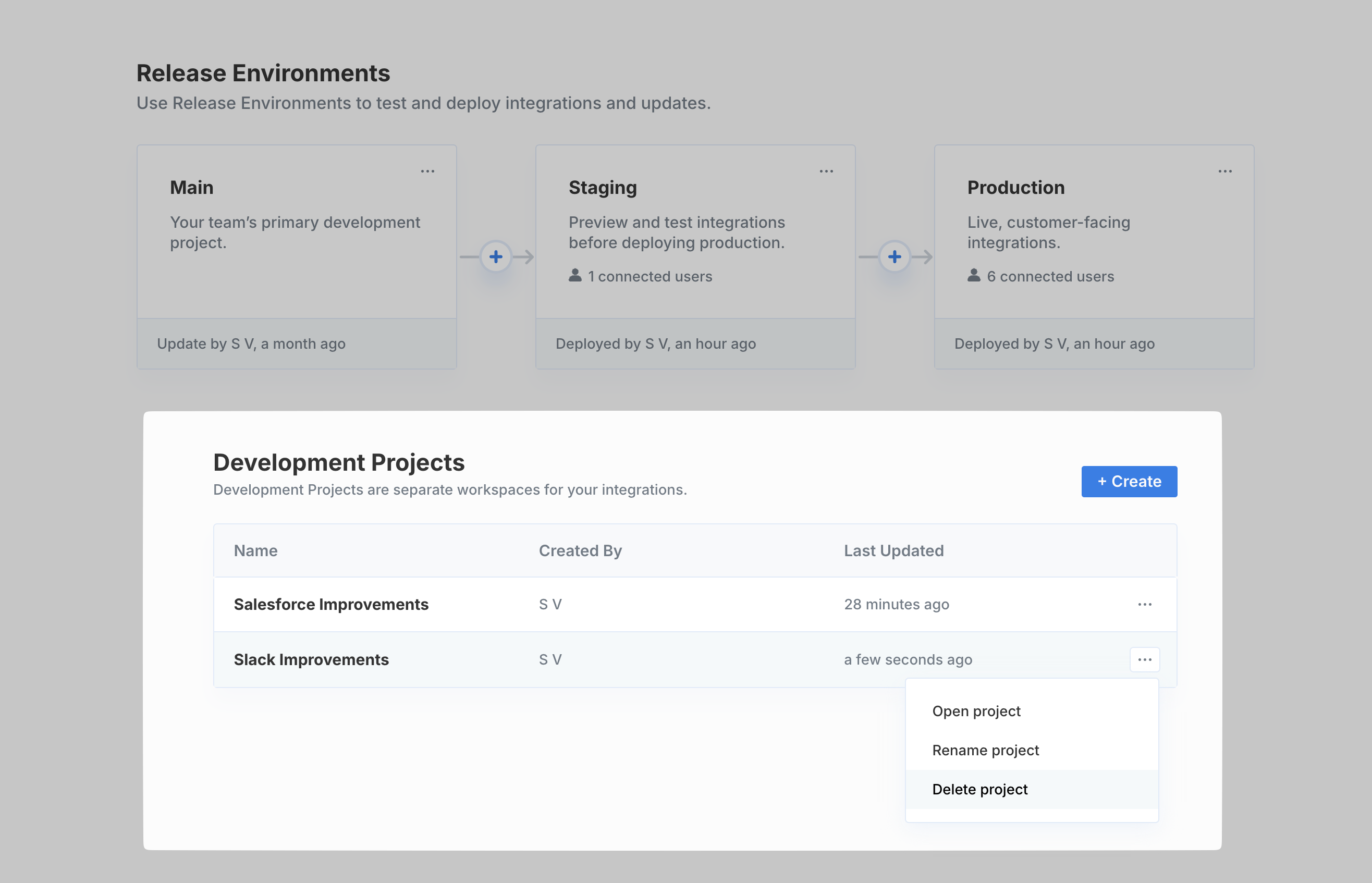
2. Under **Development Projects**, select the triple-dot menu for the Project you want to delete.
3. Click "**Delete project**".
## Deleting Projects
To delete a project:
1. Click the Project dropdown in the top-left corner.
2. Under **Development Projects**, select the triple-dot menu for the Project you want to delete.
3. Click "**Delete project**".
 ## Copying Workflows
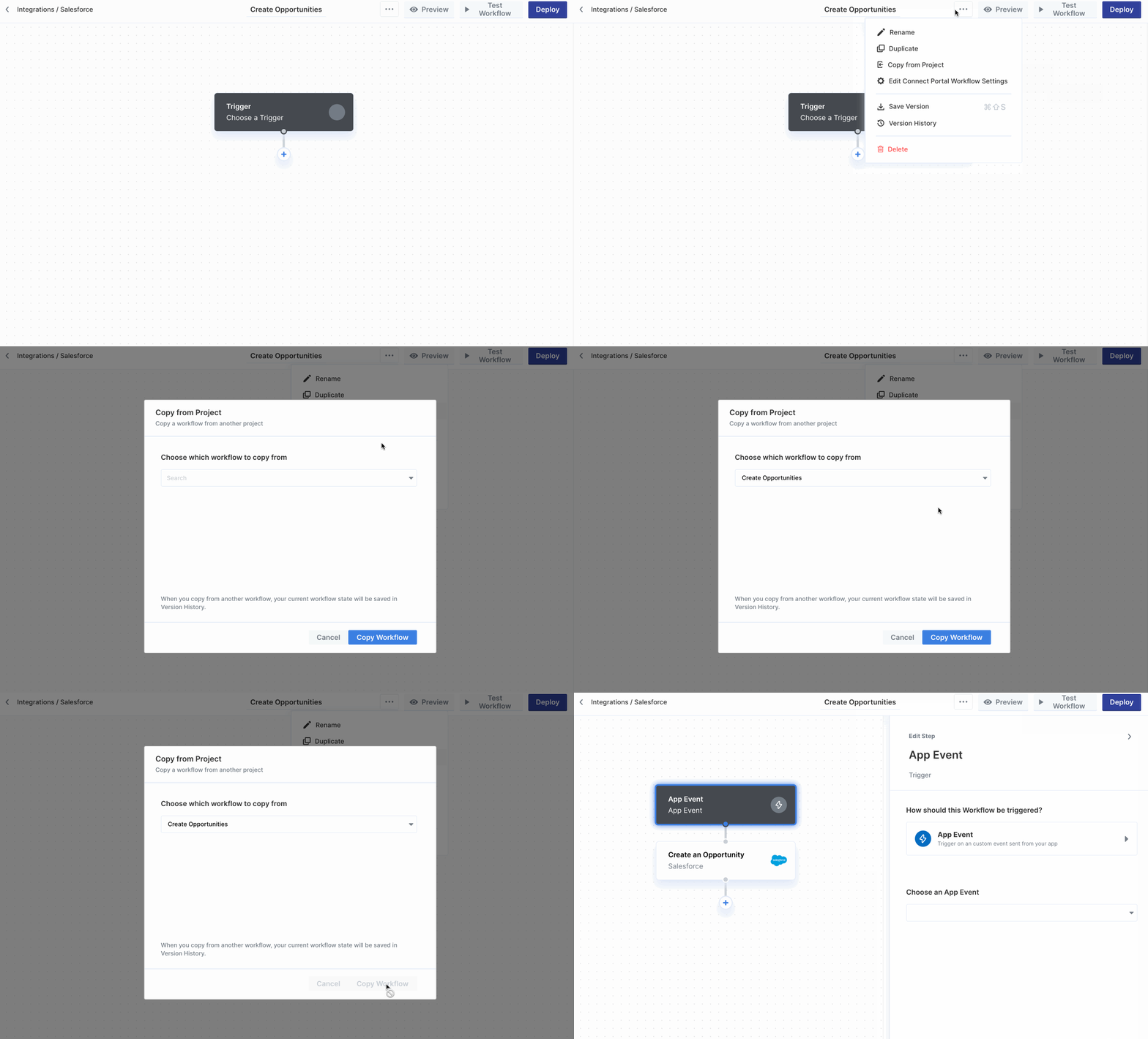
You can copy workflows between projects by clicking the settings menu inside the Workflow Editor, then selecting **Copy from Project**. When copying from another workflow, your current workflow state will be saved in Version History.
## Copying Workflows
You can copy workflows between projects by clicking the settings menu inside the Workflow Editor, then selecting **Copy from Project**. When copying from another workflow, your current workflow state will be saved in Version History.