> ## Documentation Index
> Fetch the complete documentation index at: https://docs.useparagon.com/llms.txt
> Use this file to discover all available pages before exploring further.
# User Settings
> Provide settings in the Connect Portal to allow your users to configure their integration and workflows.
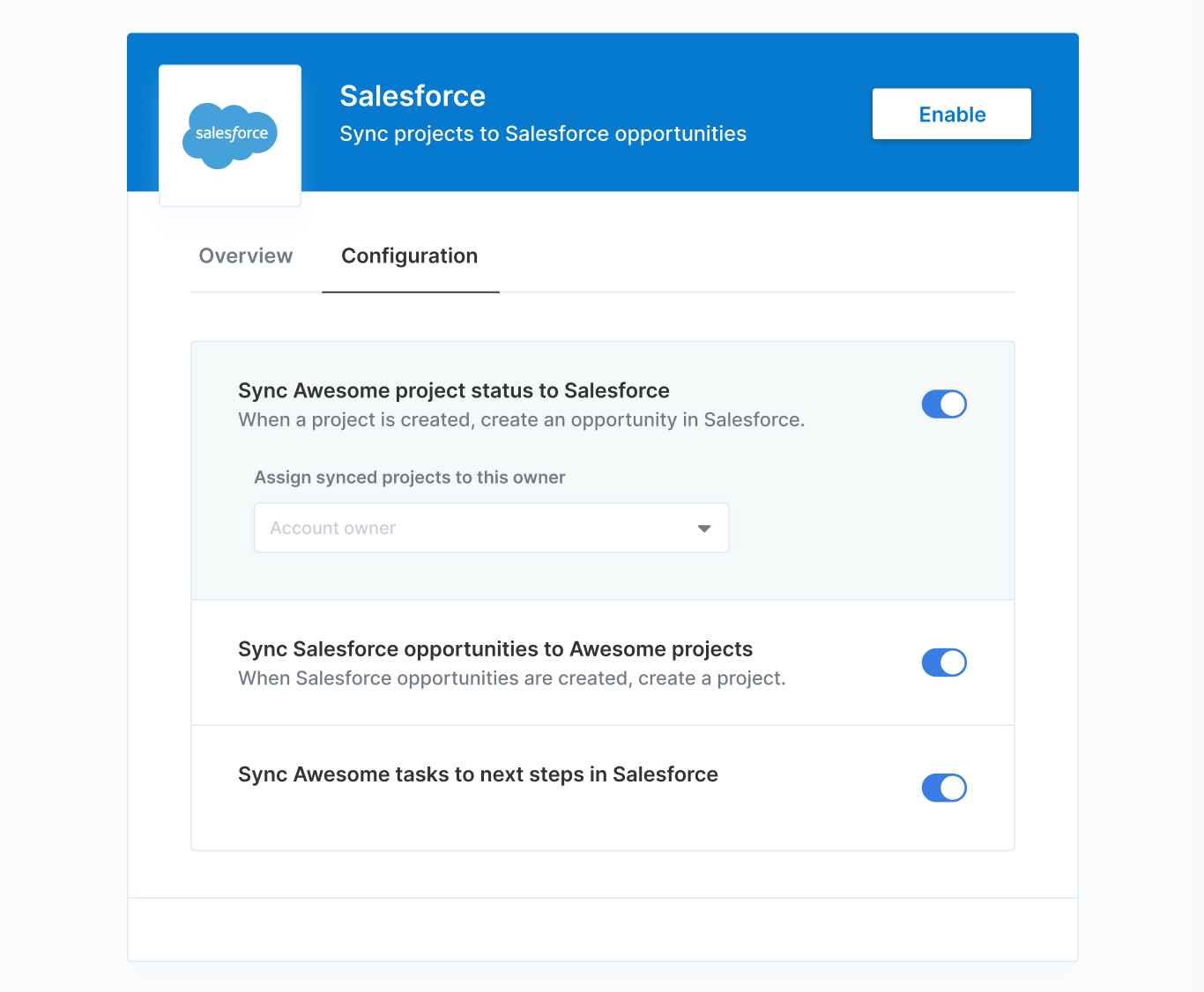
**User Settings** provide options for your users to configure settings for their integration in the Connect Portal. This makes it easy for you to create integrations that work with custom objects or fields that may be specific to your users' third-party app accounts.
For example, common use cases include:
* **Slack** - choosing which channel that messages should be sent in
* **Salesforce** - choosing a custom opportunity stage that new opportunities created in
* **Hubspot** - choosing a custom lead status that new leads should be created with
* **Jira** - choosing which Jira user that new issues should be assigned to
User Settings can be defined globally at the integration level or locally at the workflow level.
* If they are included at the integration level, the User Settings can be referenced from any workflow for that integration.
* If they are included at the workflow level, the User Settings will appear when that workflow is enabled by your user and can only be referenced from the workflow it belongs to.
 ## Adding User Settings
To add User Settings at the integration level:
1. Click **Customize Connect Portal** in any integration's Overview page to open the Connect Portal Editor.
2. Click the **Configuration** tab in the sidebar.
3. Under **Settings** in the sidebar, click **+ Add Setting.**
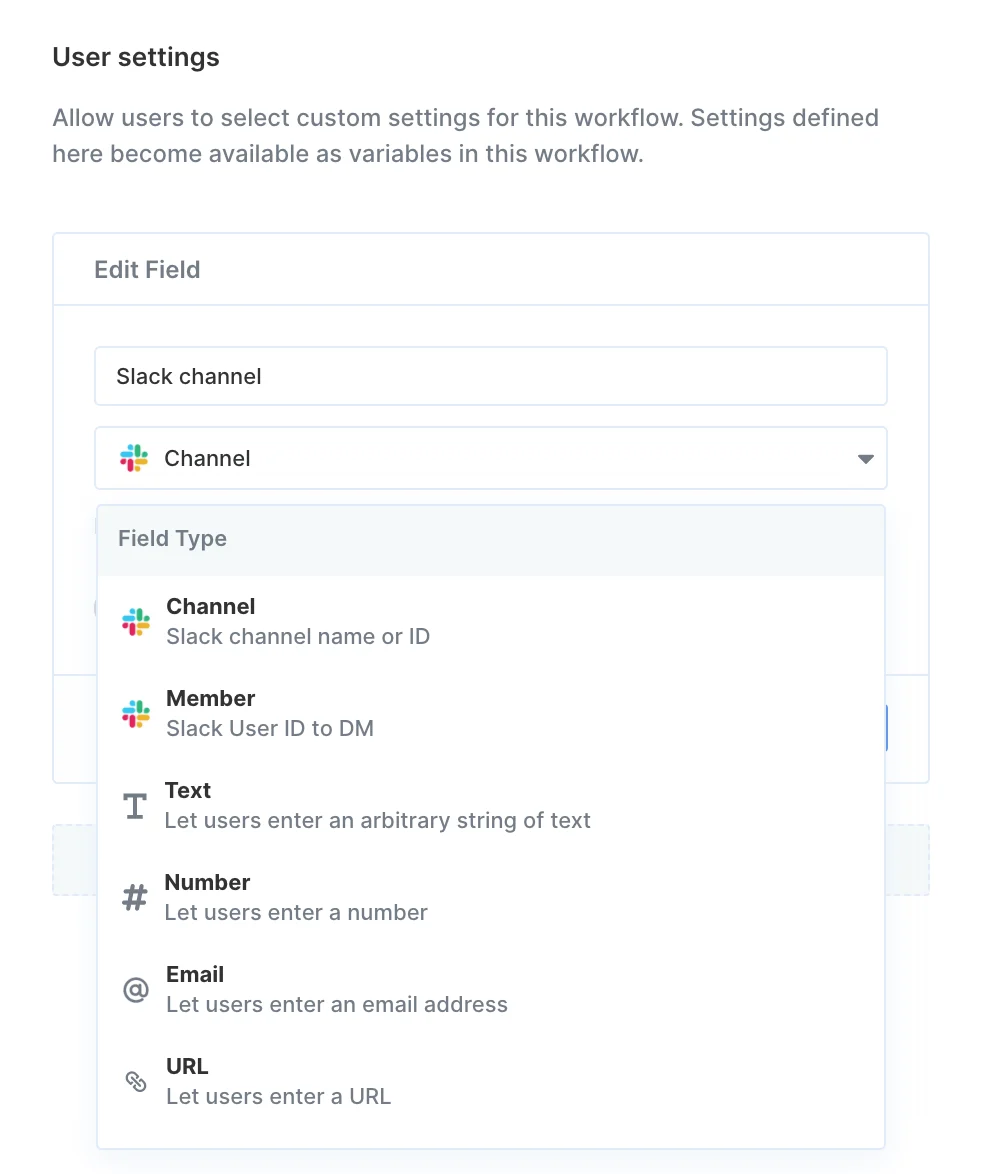
4. Enter options for Name, Field Type, Tooltip, and whether or not the field should be required for your user to enable the integration.
To add User Settings at the workflow level:
1. Click **Customize Connect Portal** in any integration's Overview page to open the Connect Portal Editor.
2. Click the **Configuration** tab in the sidebar.
3. Click on the workflow you'd like to add User Settings to.
4. Under **User Settings** in the sidebar, click **+ Add Setting.**
5. Enter options for Name, Field Type, Tooltip, and whether or not the field should be required for your user to enable the integration.
## Adding User Settings
To add User Settings at the integration level:
1. Click **Customize Connect Portal** in any integration's Overview page to open the Connect Portal Editor.
2. Click the **Configuration** tab in the sidebar.
3. Under **Settings** in the sidebar, click **+ Add Setting.**
4. Enter options for Name, Field Type, Tooltip, and whether or not the field should be required for your user to enable the integration.
To add User Settings at the workflow level:
1. Click **Customize Connect Portal** in any integration's Overview page to open the Connect Portal Editor.
2. Click the **Configuration** tab in the sidebar.
3. Click on the workflow you'd like to add User Settings to.
4. Under **User Settings** in the sidebar, click **+ Add Setting.**
5. Enter options for Name, Field Type, Tooltip, and whether or not the field should be required for your user to enable the integration.
 ## Referencing User Settings in the Workflow Editor
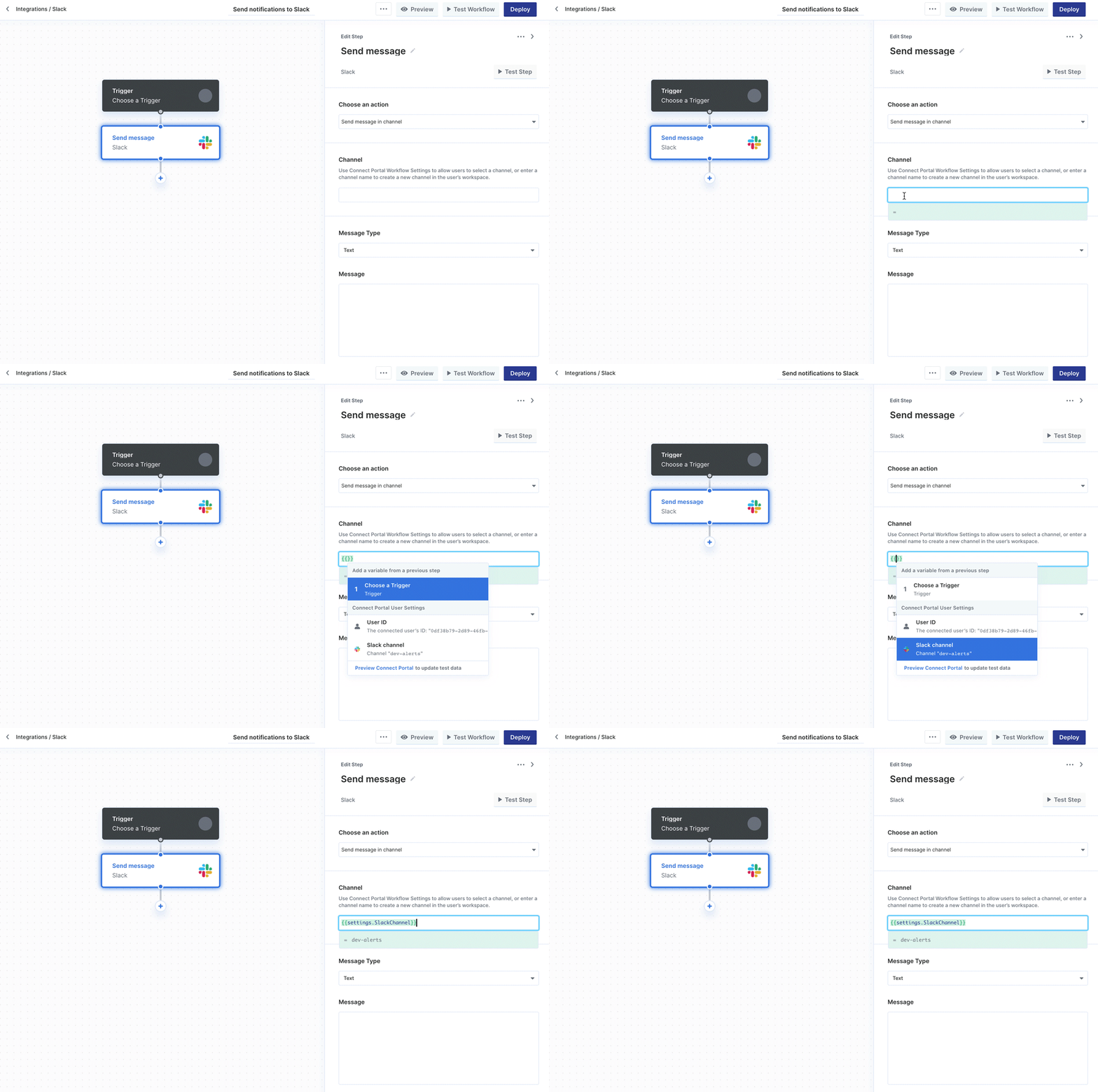
Actions in Paragon will indicate when they accept User Settings as an input parameter. In these cases, you should first add the respective User Settings in the Connect Portal Editor, then use the **variable menu** to reference that User Setting in the Action sidebar.
Enter two left curly braces `{{` to open the **dynamic** **variable menu.**
## Referencing User Settings in the Workflow Editor
Actions in Paragon will indicate when they accept User Settings as an input parameter. In these cases, you should first add the respective User Settings in the Connect Portal Editor, then use the **variable menu** to reference that User Setting in the Action sidebar.
Enter two left curly braces `{{` to open the **dynamic** **variable menu.**
 ## Testing User Settings
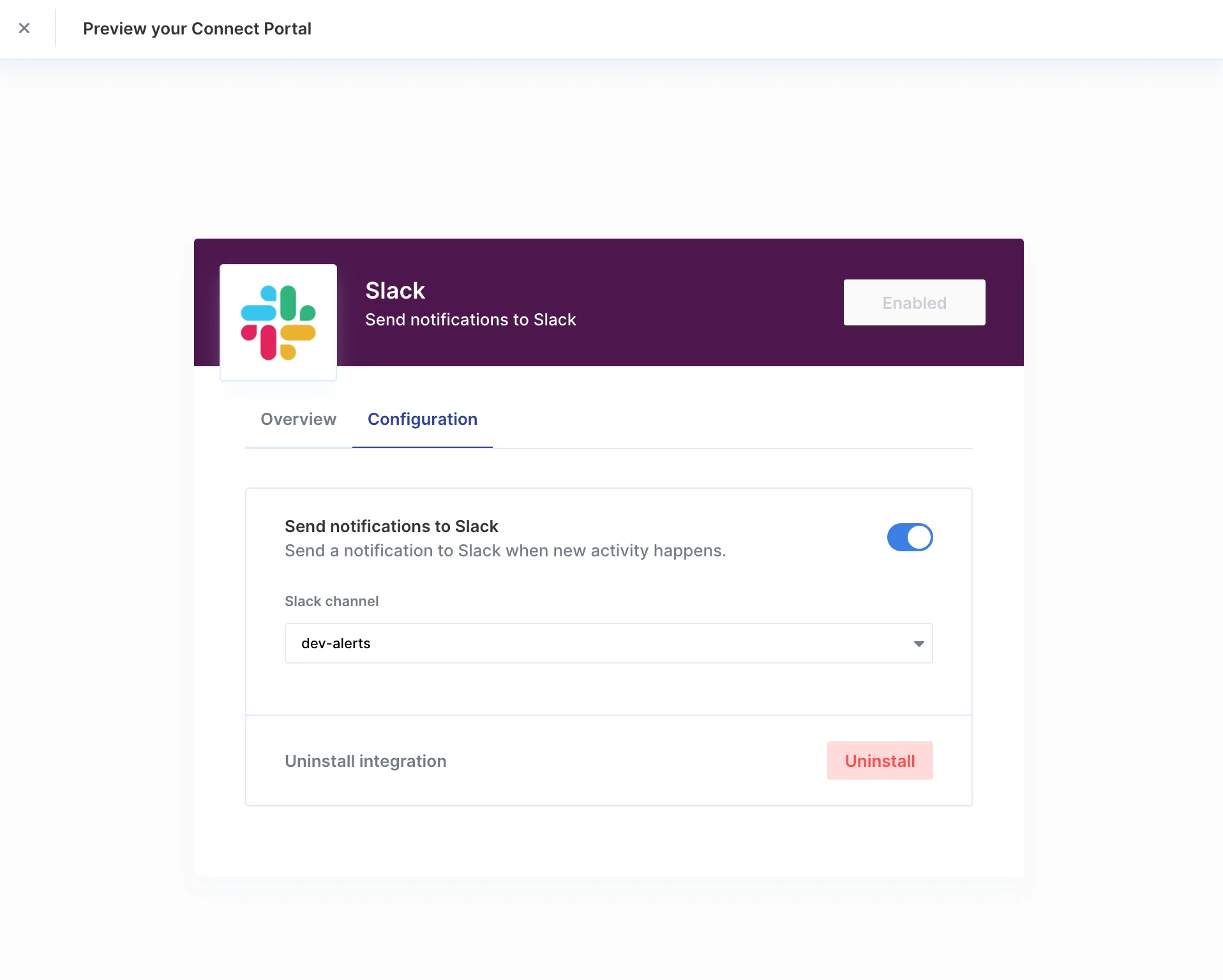
To test your Workflow User Settings, open the click the **Preview** button in the top-right of the navigation bar. This launches a live preview where you can test the end-user experience of your Connect Portal.
## Testing User Settings
To test your Workflow User Settings, open the click the **Preview** button in the top-right of the navigation bar. This launches a live preview where you can test the end-user experience of your Connect Portal.
 ### Connecting a test account
By clicking **Connect** in the Connect Portal Preview, you can connect a test account for that integration and configure any of its Workflow User Settings for that test account.
### Testing workflows with user settings
Once you've enabled an integration in the Connect Portal Preview, you can test its workflows using the **Test Workflow** or **Test Step** button in the Workflow Editor. This will test the workflow on the account that you connected in the Connect Portal Preview, and any User Settings you configured in the Connect Portal Preview will be used as test data.
### Connecting a test account
By clicking **Connect** in the Connect Portal Preview, you can connect a test account for that integration and configure any of its Workflow User Settings for that test account.
### Testing workflows with user settings
Once you've enabled an integration in the Connect Portal Preview, you can test its workflows using the **Test Workflow** or **Test Step** button in the Workflow Editor. This will test the workflow on the account that you connected in the Connect Portal Preview, and any User Settings you configured in the Connect Portal Preview will be used as test data.