> ## Documentation Index
> Fetch the complete documentation index at: https://docs.useparagon.com/llms.txt
> Use this file to discover all available pages before exploring further.
# Workflow Permissions
> Restrict the visibility of workflows to specific users or groups with Workflow Permissions.
You can restrict the visibility of workflows to specific users or groups with Workflow Permissions.
Workflow Permissions can be defined for any workflow as a set of conditions that a user's [metadata](../apis/users#associate-connected-user-with-metadata) must match in order for the workflow to appear in their Connect Portal.
For example, you can use Workflow Permissions to:
* Limit the availability of workflows to users on specific pricing plans
* Build a bespoke workflow for a specific user
* Roll out a new workflow to a group of users, under a feature flag
Workflow Permissions is available on our **Enterprise plan** and above. Please [contact us](mailto:sales@useparagon.com) to enable this option in your account.
## Using Workflow Permissions
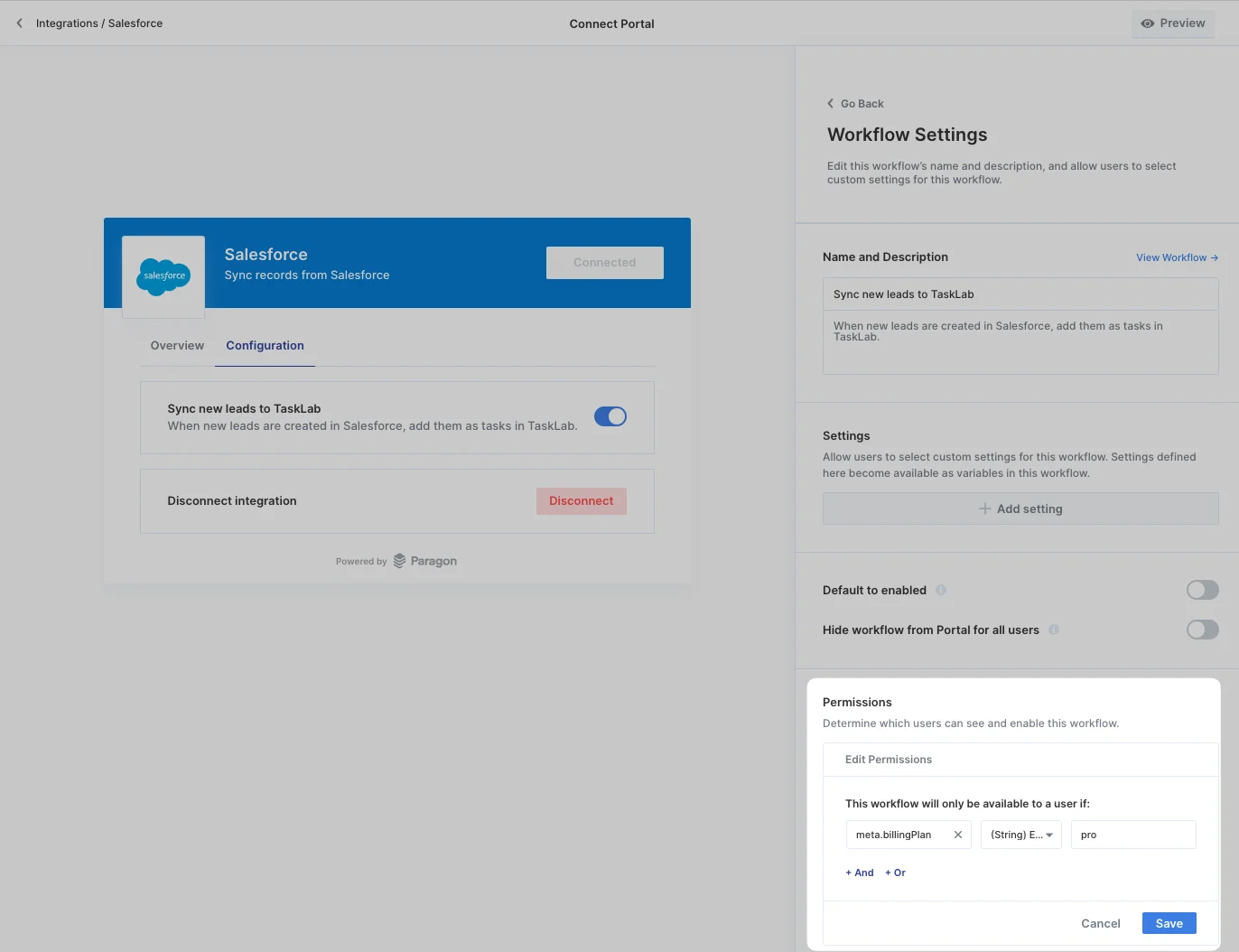
Workflow Permissions are available in the options for any Workflow on the [Customize Connect Portal](./connect-portal-customization) page. Navigate to **Configuration > Workflows**, and choose any workflow to set Workflow Permissions.
To set Workflow Permissions, click **Update** and create conditions for the user's metadata object.
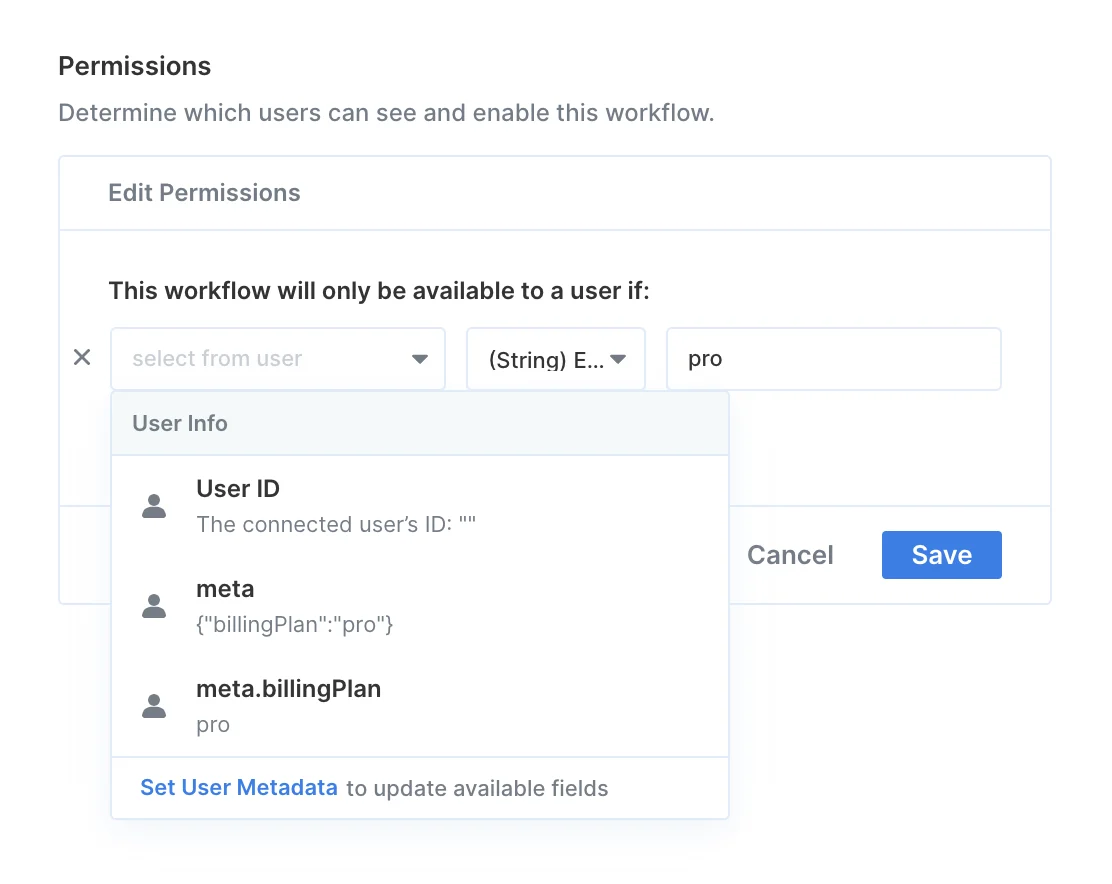
 The fields shown in the field selection menu are based on the [User Metadata](../apis/users#associate-connected-user-with-metadata) for the Test User, which you can update by clicking "Set User Metadata" at the bottom of the menu.
 Finally, click **Save** to update the permissions for this workflow.
**Note:** If the workflow has already been enabled for existing users prior to this change, it will automatically be disabled if their metadata does not match the saved permissions.
## How Workflow Permissions are applied
If a Connected User does not satisfy the Workflow Permissions with the [User Metadata](/apis/users#associate-connected-user-with-metadata) associated with them, the workflow:
* Will not appear in the Connect Portal for this user
* Cannot be enabled for this user using the [Users API](/apis/users), [Connected Users Dashboard](/monitoring/users), or [by default](./displaying-workflows#default-to-enabled)
* Cannot be triggered or executed for this user
Workflow Permissions are re-evaluated whenever the conditions change for the workflow *or* when the metadata for the user has changed.
Finally, click **Save** to update the permissions for this workflow.
**Note:** If the workflow has already been enabled for existing users prior to this change, it will automatically be disabled if their metadata does not match the saved permissions.
## How Workflow Permissions are applied
If a Connected User does not satisfy the Workflow Permissions with the [User Metadata](/apis/users#associate-connected-user-with-metadata) associated with them, the workflow:
* Will not appear in the Connect Portal for this user
* Cannot be enabled for this user using the [Users API](/apis/users), [Connected Users Dashboard](/monitoring/users), or [by default](./displaying-workflows#default-to-enabled)
* Cannot be triggered or executed for this user
Workflow Permissions are re-evaluated whenever the conditions change for the workflow *or* when the metadata for the user has changed.