> ## Documentation Index
> Fetch the complete documentation index at: https://docs.useparagon.com/llms.txt
> Use this file to discover all available pages before exploring further.
# Engage Inactive Users by Email
> Segment and engage inactive users via email campaign.
Let's say we have an app, and want to re-engage users who've become inactive by sending them an email.
**We'll build a workflow that does this in 5 minutes**.
Don't have a Paragon account yet?
[Sign up for Paragon](https://app.useparagon.com/signup) on our website to get started!
## 1. Set a trigger
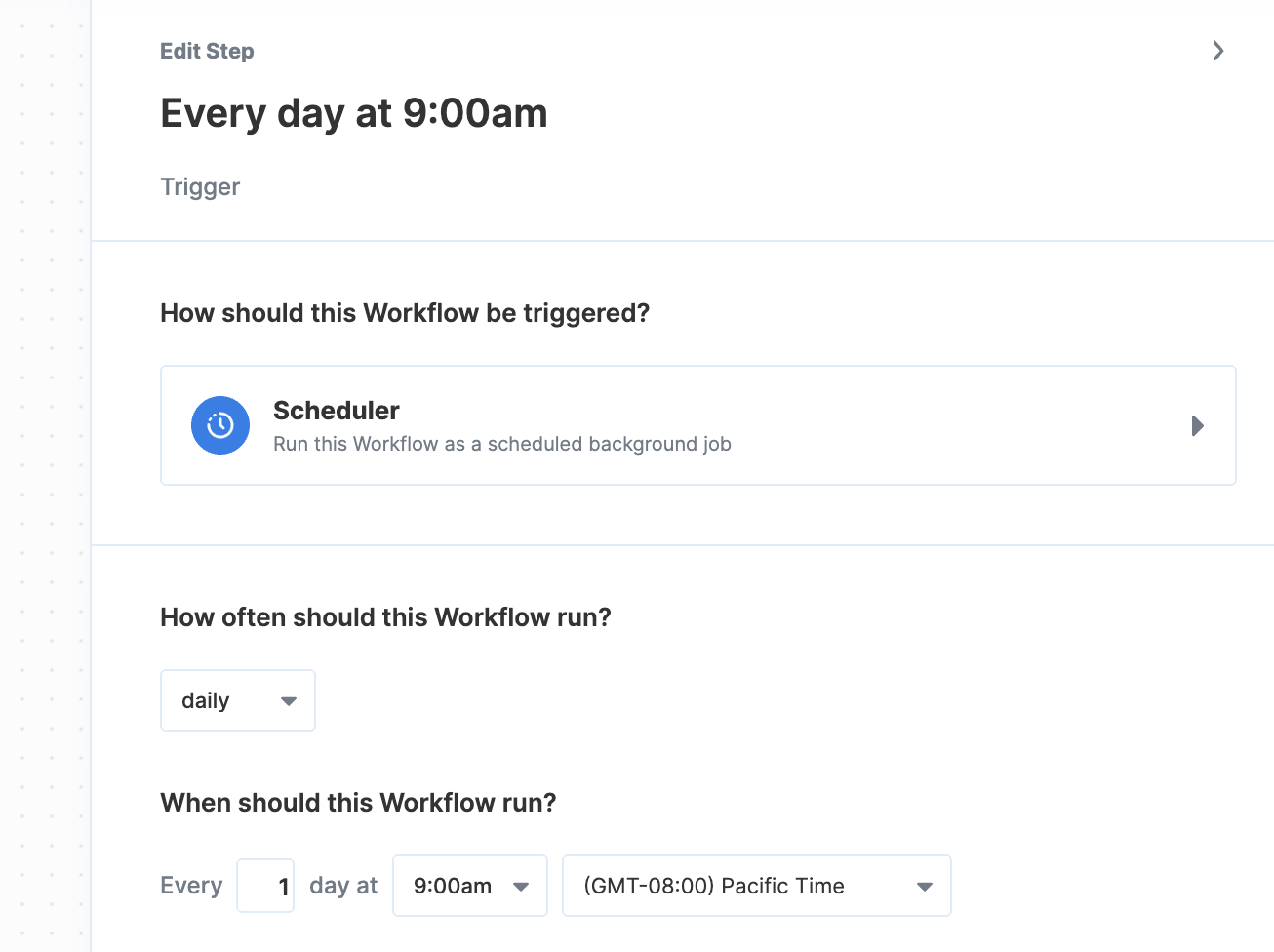
We'll start by choosing a trigger for our workflow. In this case, we probably want to run the workflow every day to check for new inactive users, so we'll choose the [Scheduler](/automate/building-workflows/triggers#scheduler) trigger option.
From there, you can choose the **daily** option and what time you want your workflow to run.
 ## 2. Query users from database
You can use any of Paragon's [database integrations](/automate/resources/integrations-catalog#databases) depending on where your users are stored – and for this example, we'll use PostgreSQL. You'll first need to connect your PostgreSQL database to Paragon, which is covered in our [PostgreSQL section](/automate/resources/integrations-catalog/postgresql).
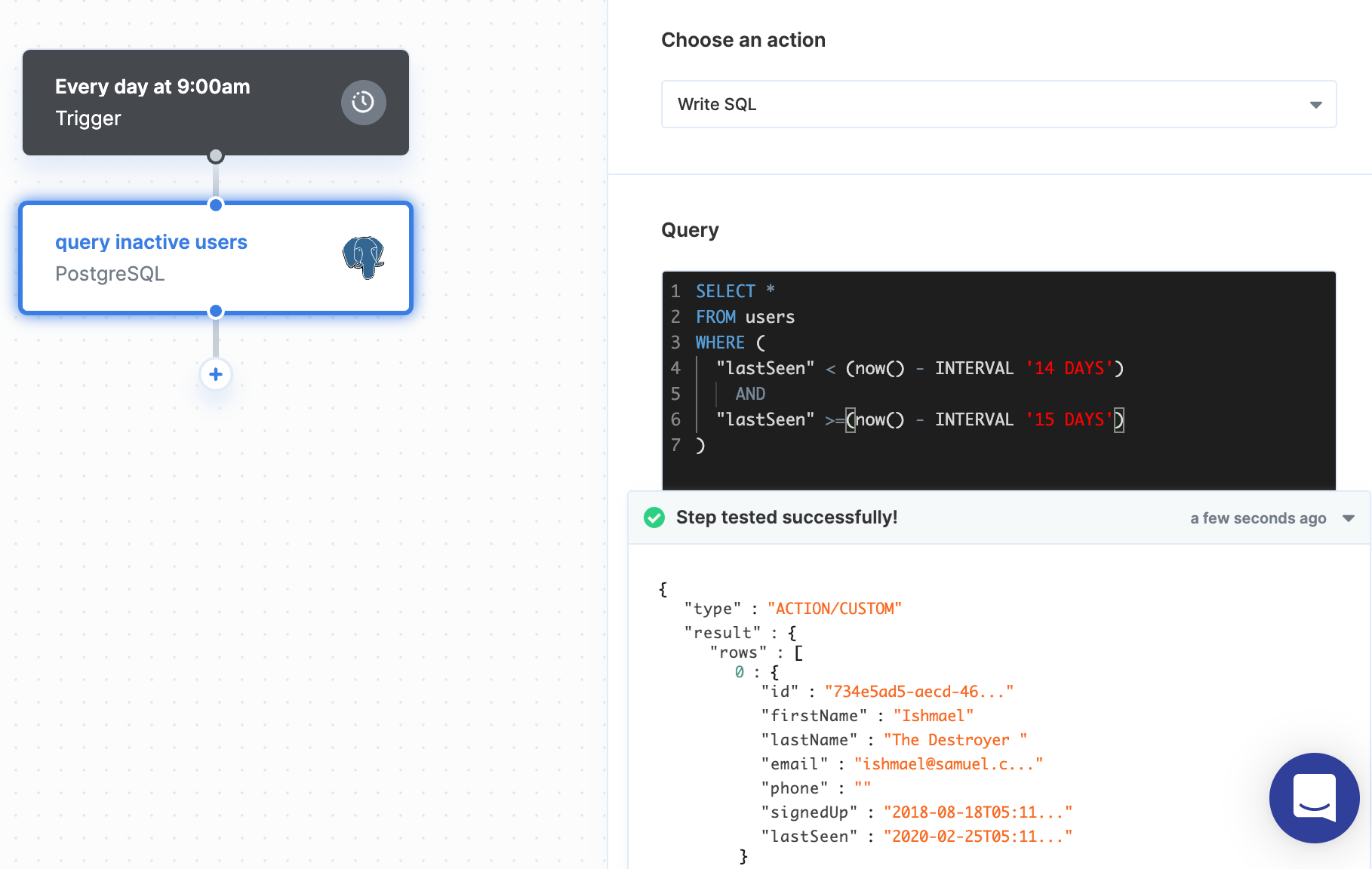
Let's say we want to query users who are inactive for 14 days, and our `user` model has a `lastSeen` property that stores the date they last logged into your app.
Once you connect your PostgreSQL database to Paragon, you can write the following SQL query. You'll notice we're only querying users who were last seen between 14 and 15 days ago so we don't send the same user multiple emails (since we're running this workflow every day).
```sql MySQL theme={null}
SELECT *
FROM users
WHERE (
"lastSeen" < (now() - INTERVAL '14 DAYS')
AND
"lastSeen" >=(now() - INTERVAL '15 DAYS')
)
```
You can test your database query by clicking the **Test Step** button in the top-right of the step sidebar. This will perform the database query and show a preview of the query results.
## 2. Query users from database
You can use any of Paragon's [database integrations](/automate/resources/integrations-catalog#databases) depending on where your users are stored – and for this example, we'll use PostgreSQL. You'll first need to connect your PostgreSQL database to Paragon, which is covered in our [PostgreSQL section](/automate/resources/integrations-catalog/postgresql).
Let's say we want to query users who are inactive for 14 days, and our `user` model has a `lastSeen` property that stores the date they last logged into your app.
Once you connect your PostgreSQL database to Paragon, you can write the following SQL query. You'll notice we're only querying users who were last seen between 14 and 15 days ago so we don't send the same user multiple emails (since we're running this workflow every day).
```sql MySQL theme={null}
SELECT *
FROM users
WHERE (
"lastSeen" < (now() - INTERVAL '14 DAYS')
AND
"lastSeen" >=(now() - INTERVAL '15 DAYS')
)
```
You can test your database query by clicking the **Test Step** button in the top-right of the step sidebar. This will perform the database query and show a preview of the query results.
 ## 3. Fan Out users
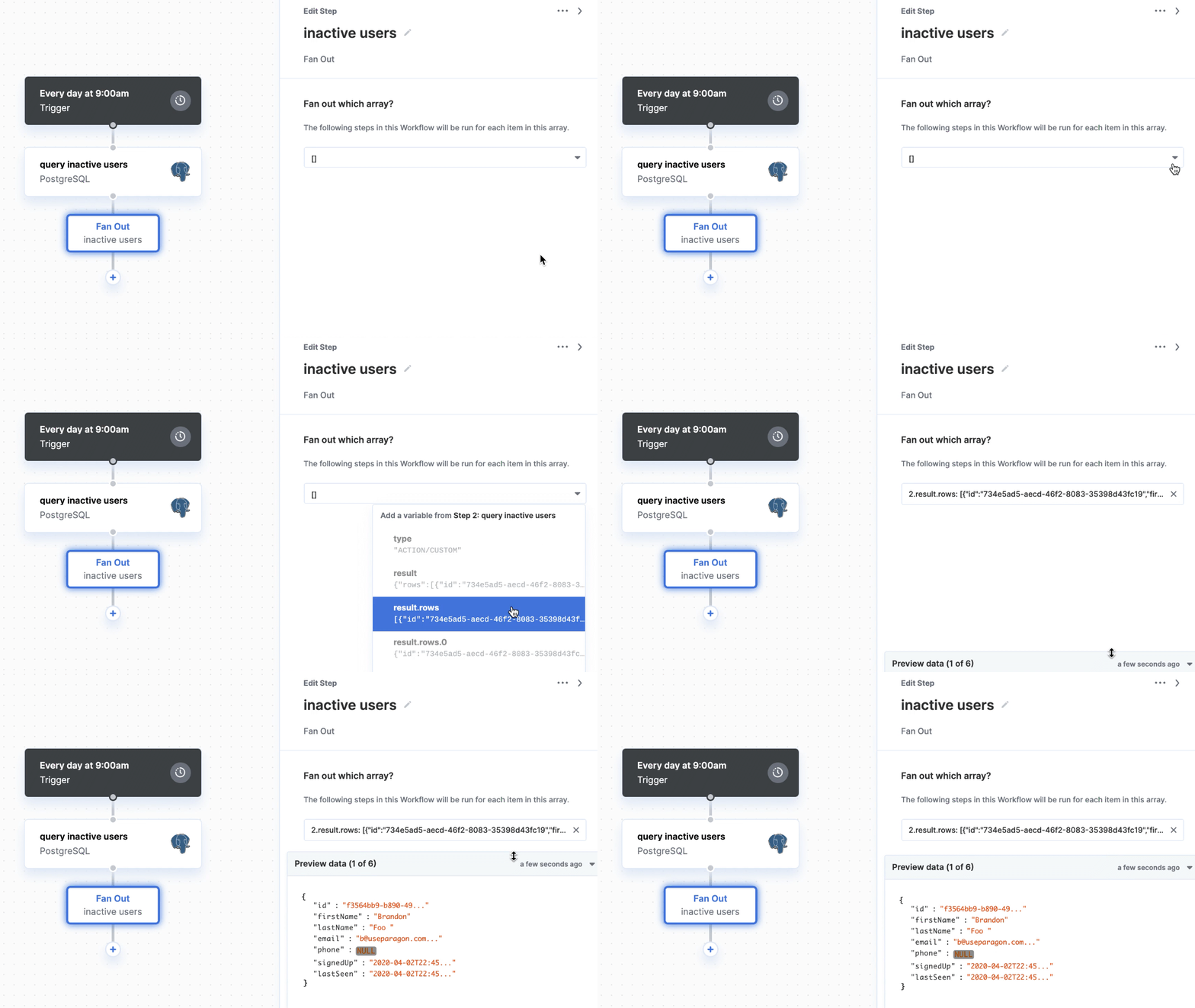
Next, we'll want to [Fan Out](/automate/building-workflows/using-fan-outs) the users from our database query, so we can iterate over each user and send them an email.
Add a Fan Out step to your workflow and choose the array of users from PostgreSQL database query. Now, any steps added under the Fan Out step will be performed for each user.
## 3. Fan Out users
Next, we'll want to [Fan Out](/automate/building-workflows/using-fan-outs) the users from our database query, so we can iterate over each user and send them an email.
Add a Fan Out step to your workflow and choose the array of users from PostgreSQL database query. Now, any steps added under the Fan Out step will be performed for each user.
 ## 4. Send each user an email
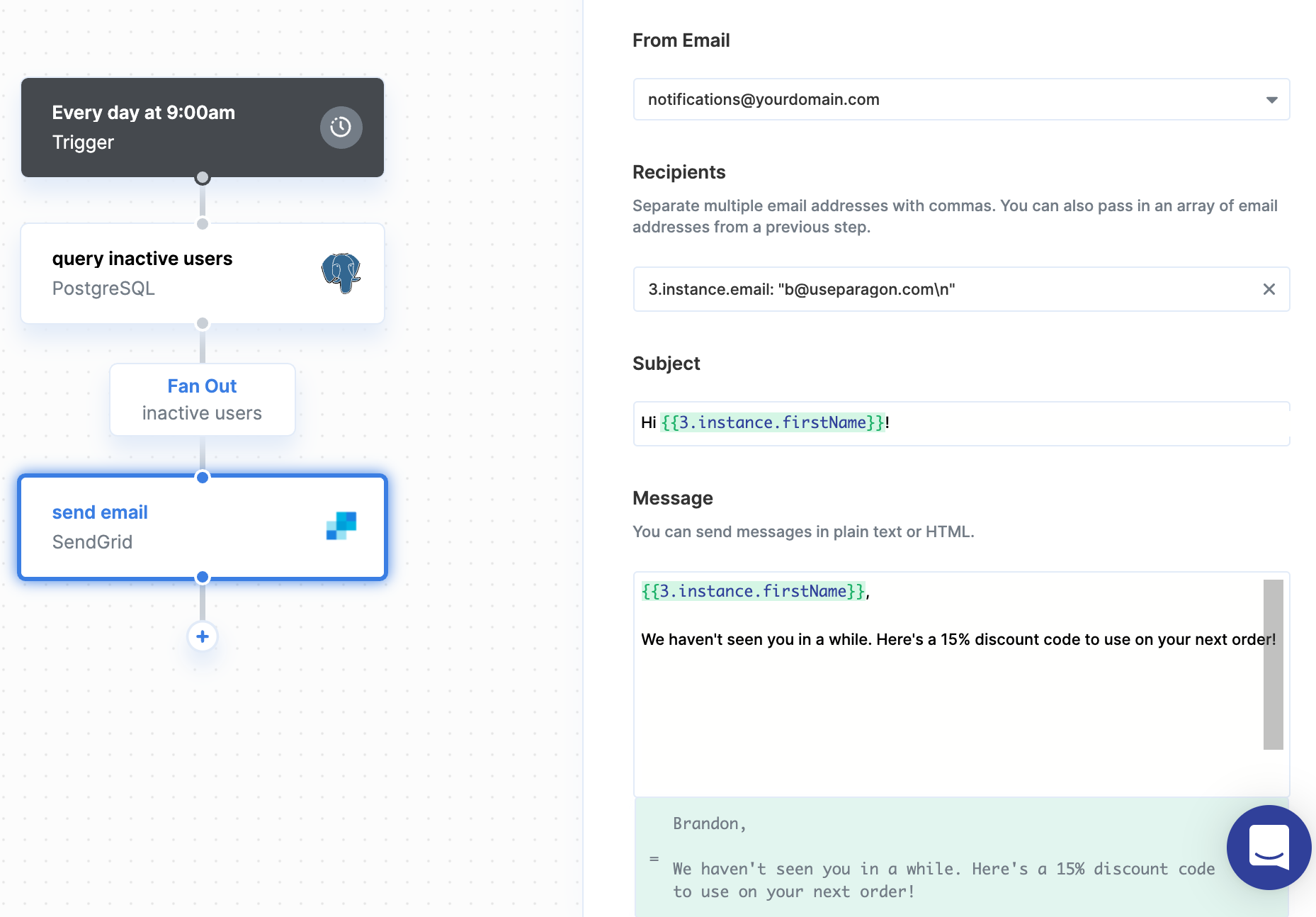
Paragon supports [several integrations](/automate/resources/integrations-catalog#messaging) for messaging – and for this example, we'll use [Sendgrid](/automate/resources/integrations-catalog/sendgrid) to send each user an email. Add a Sendgrid step to your workflow, connect your Sendgrid account, and choose the **Send Email** action.
Under **Recipients**, click the dropdown to bring up the variable menu and choose the user's email address from the Fan Out step. In the **Subject** and **Message** fields, you can insert data from previous steps (e.g. your users' name, etc.) by typing `{{` to bring up the variable menu.
## 4. Send each user an email
Paragon supports [several integrations](/automate/resources/integrations-catalog#messaging) for messaging – and for this example, we'll use [Sendgrid](/automate/resources/integrations-catalog/sendgrid) to send each user an email. Add a Sendgrid step to your workflow, connect your Sendgrid account, and choose the **Send Email** action.
Under **Recipients**, click the dropdown to bring up the variable menu and choose the user's email address from the Fan Out step. In the **Subject** and **Message** fields, you can insert data from previous steps (e.g. your users' name, etc.) by typing `{{` to bring up the variable menu.
 ## 5. Deploy your workflow
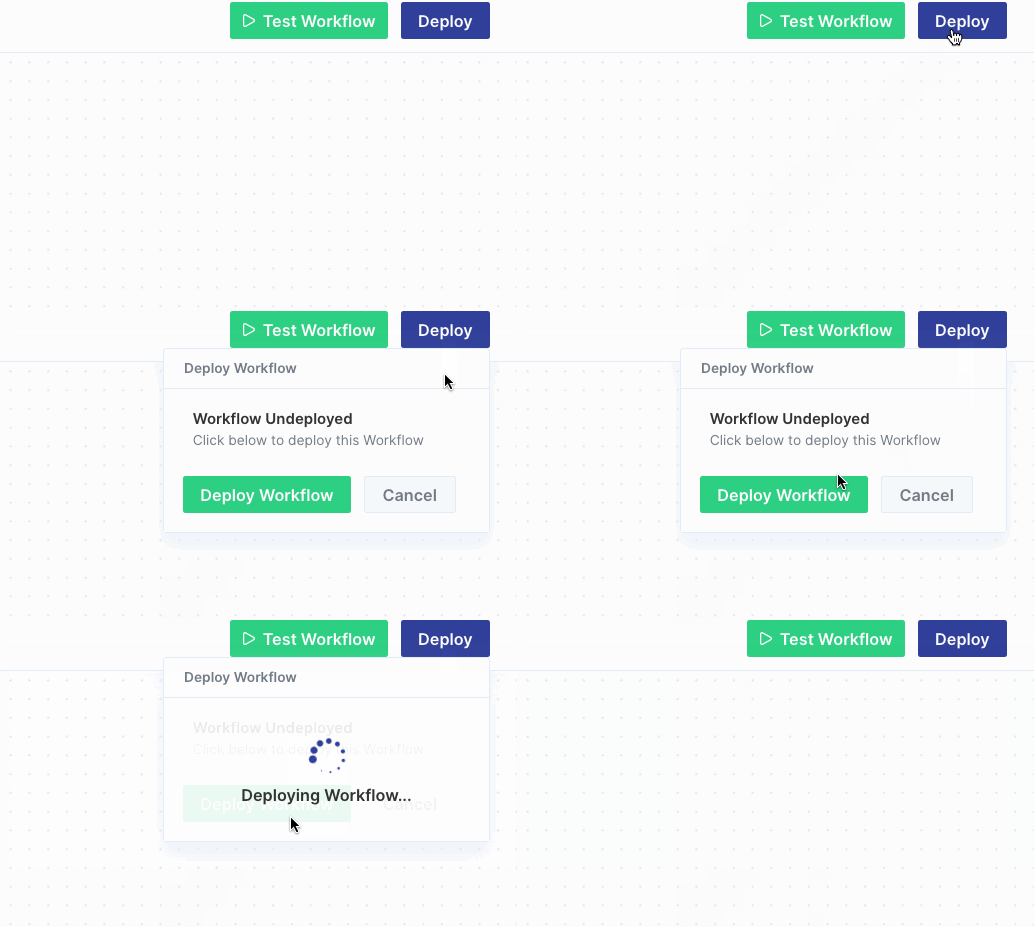
Now that your workflow is all set up, all you have to do is deploy your workflow by clicking the "Deploy" button in the top-right of your screen. Once you do, your workflow will begin running at the scheduled Trigger time.
## 5. Deploy your workflow
Now that your workflow is all set up, all you have to do is deploy your workflow by clicking the "Deploy" button in the top-right of your screen. Once you do, your workflow will begin running at the scheduled Trigger time.
 Great work! We just built a workflow that sends your inactive users re-engagement messages in just a few minutes. Of course, this is just a basic example of what you can do with Paragon, and we hope it gives you an idea of how to use Paragon for your own messaging workflows!
Want to build your own workflows?
[Sign up for Paragon](https://app.useparagon.com/signup) on our website to get started!
Great work! We just built a workflow that sends your inactive users re-engagement messages in just a few minutes. Of course, this is just a basic example of what you can do with Paragon, and we hope it gives you an idea of how to use Paragon for your own messaging workflows!
Want to build your own workflows?
[Sign up for Paragon](https://app.useparagon.com/signup) on our website to get started!