> ## Documentation Index
> Fetch the complete documentation index at: https://docs.useparagon.com/llms.txt
> Use this file to discover all available pages before exploring further.
# Slack OAuth
> Connect your Slack app for OAuth in Paragon
## Setup Guide
You can find your Slack app credentials by visiting your [Slack App dashboard](https://api.slack.com/apps).
**Note:** You'll need to create a new Slack app if you don't already have one.
You'll need the following information to set up your Slack App with Paragon:
* App Name
* Client ID
* Client Secret
* Scopes Requested
### 1. Gather your credentials
1. Log in to your [Slack App dashboard](https://api.slack.com/apps).
2. Navigate to **Basic Information** in the sidebar, then scroll to **App Credentials**.
### 2. Add your Slack app to Paragon
1. Click the "**Trigger**" step in the workflow canvas, and choose **OAuth** from the sidebar.
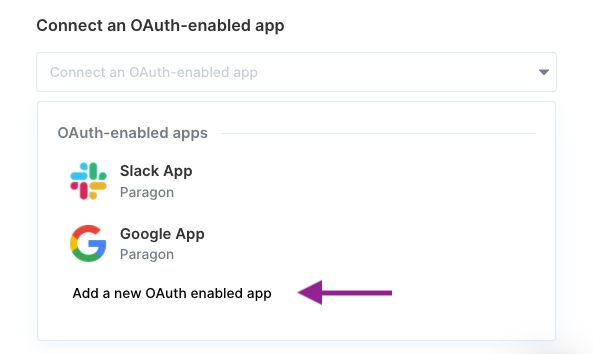
2. Under **Connect an OAuth-enabled app**, choose "**Add a new OAuth-enabled app**" and select "**Slack**".
 ### 3. Input your credentials
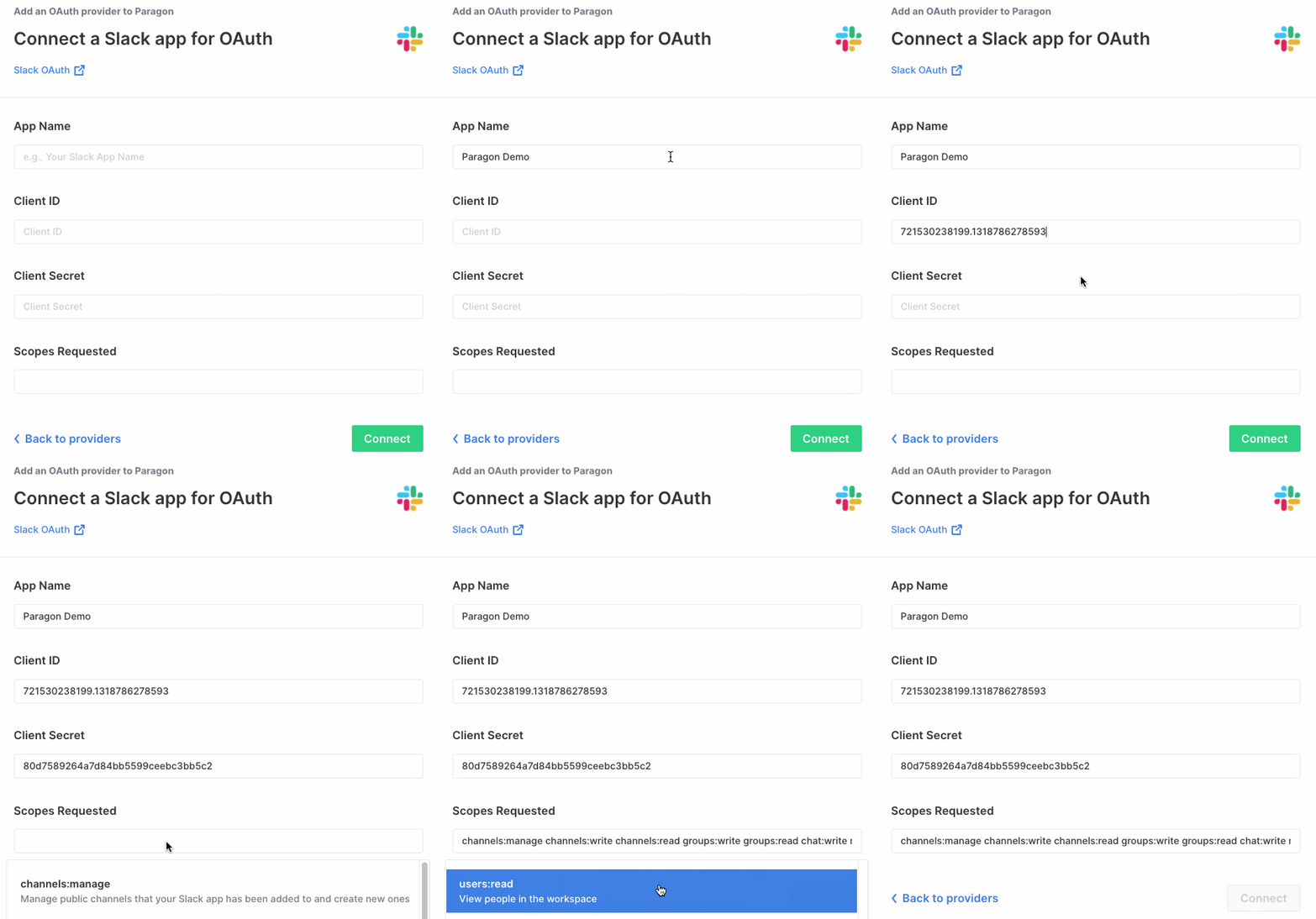
Fill out your credentials from [Step 1](/automate/resources/oauth/slack#1-gather-your-credentials) in their respective sections:
* **App Name:** Chosen name for your application.
* **Client ID:** Found under Basic Information > App Credentials on your Slack App page.
* **Client Secret:** Found under Basic Information > App Credentials on your Slack App page.
* **Scopes Requested:** A space-separated list of OAuth scopes. A complete list of Slack's scopes is [here](https://api.slack.com/docs/oauth-scopes).
Press the green "Connect" button to save your credentials.
### 3. Input your credentials
Fill out your credentials from [Step 1](/automate/resources/oauth/slack#1-gather-your-credentials) in their respective sections:
* **App Name:** Chosen name for your application.
* **Client ID:** Found under Basic Information > App Credentials on your Slack App page.
* **Client Secret:** Found under Basic Information > App Credentials on your Slack App page.
* **Scopes Requested:** A space-separated list of OAuth scopes. A complete list of Slack's scopes is [here](https://api.slack.com/docs/oauth-scopes).
Press the green "Connect" button to save your credentials.
 ### 4. Add the Redirect URL to your Slack app
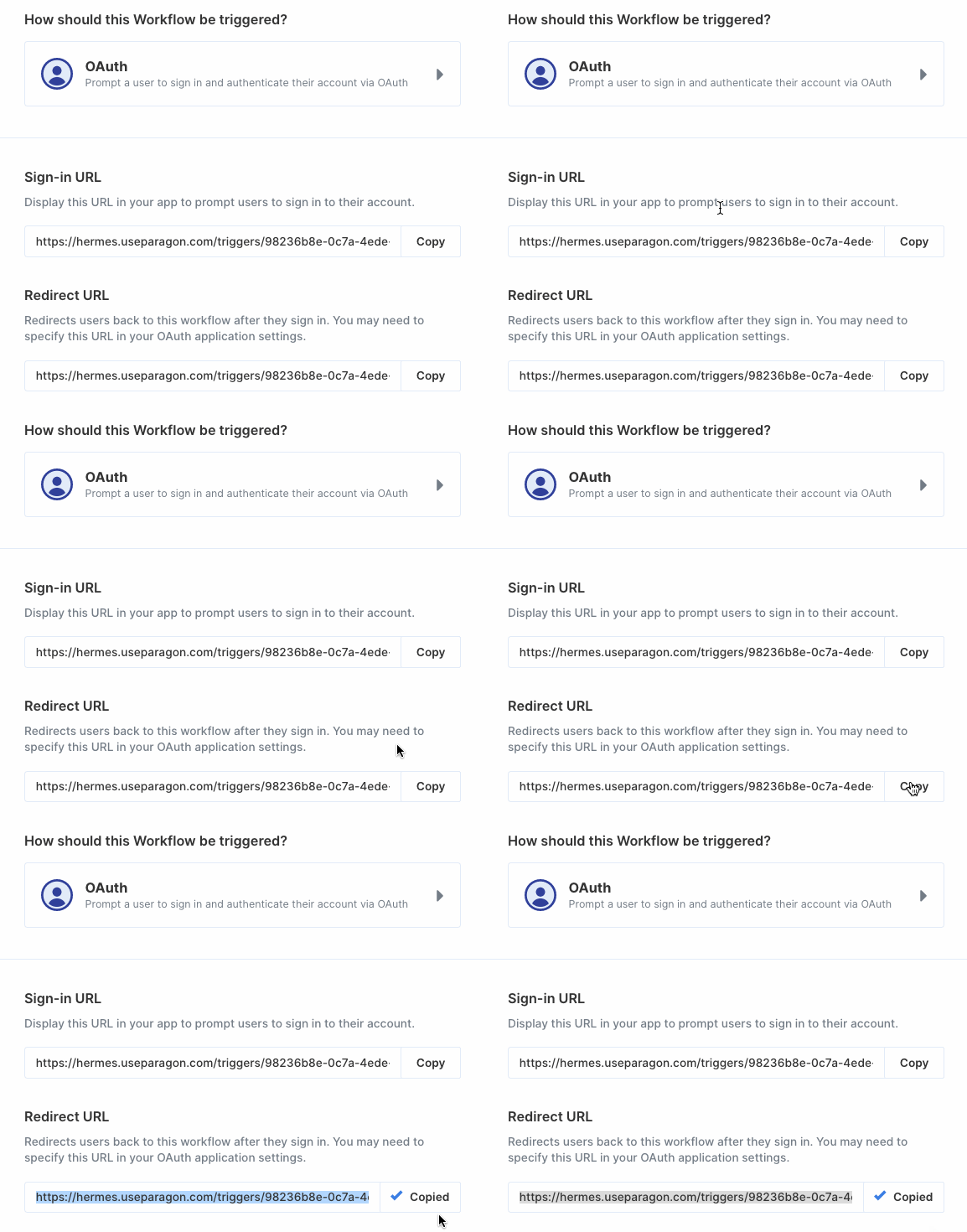
Paragon provides a redirect URL to send information to your Slack app. To add the redirect URL to your Slack app:
1\. Copy the link under "**Redirect URL"** in Paragon.
### 4. Add the Redirect URL to your Slack app
Paragon provides a redirect URL to send information to your Slack app. To add the redirect URL to your Slack app:
1\. Copy the link under "**Redirect URL"** in Paragon.
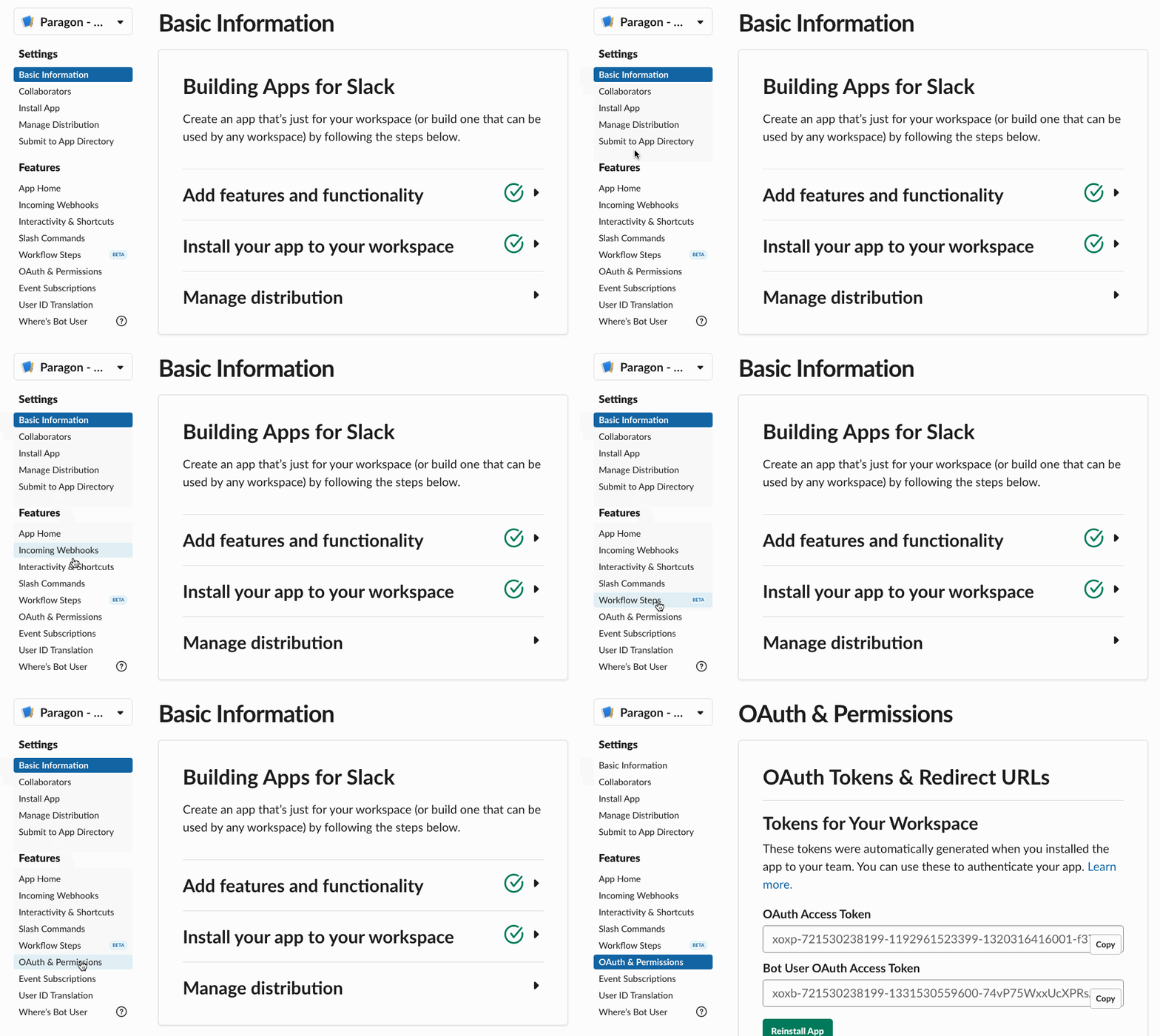
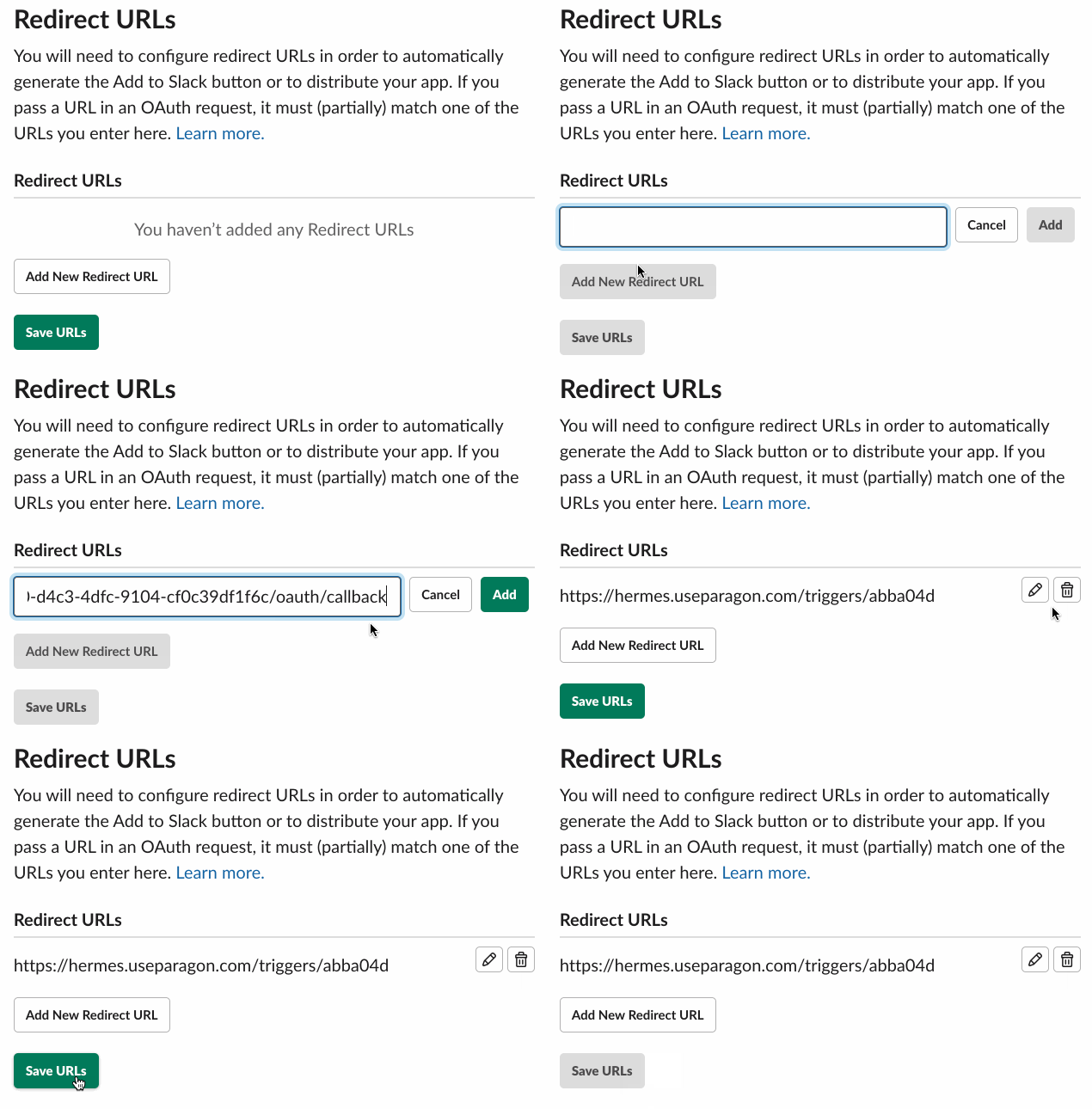
 2\. In your Slack App page sidebar, navigate to **OAuth & Permissions > Redirect URLs**.
 3\. Press "**Add New Redirect URL**".
4\. Paste-in the redirect URL from Paragon.
5\. Press "**Add**", then press "**Save URLs**".
**Note:** You'll need to add your workflow-specific redirect URL to your Slack
app for every workflow using your Slack app.
3\. Press "**Add New Redirect URL**".
4\. Paste-in the redirect URL from Paragon.
5\. Press "**Add**", then press "**Save URLs**".
**Note:** You'll need to add your workflow-specific redirect URL to your Slack
app for every workflow using your Slack app.
 ## OAuth-enabled Actions
Ready to use your OAuth-enabled app in your workflow? Check out our OAuth-enabled action documentation [here](/automate/building-workflows/configuring-oauth#oauth-enabled-actions) to get started!
## OAuth-enabled Actions
Ready to use your OAuth-enabled app in your workflow? Check out our OAuth-enabled action documentation [here](/automate/building-workflows/configuring-oauth#oauth-enabled-actions) to get started!