> ## Documentation Index
> Fetch the complete documentation index at: https://docs.useparagon.com/llms.txt
> Use this file to discover all available pages before exploring further.
# Zendesk Integration
> Manage tickets in Zendesk Support.
## Setup Guide
### 1. Add Zendesk to Paragon
Click the "+" button in the workflow canvas and choose Zendesk from the sidebar. Under **Choose your Zendesk account**, select "Add new account for Zendesk" and enter the subdomain to the Zendesk account you want to connect to.
### 2. Query Zendesk
Once your Zendesk account is connected, you can add steps to perform the following actions:
* Create Ticket
* Update Ticket
* Add Comment to Ticket
* Search Tickets
* Get Ticket by ID
* Get Users
When creating or updating tickets in Zendesk, you can reference data from previous steps by typing `{{` to invoke the variable menu.
## Event Trigger
Event triggers can be used to run workflows based on events in your Zendesk account. For example, you might want to trigger a workflow whenever new tickets are created in Zendesk to sync your Zendesk tickets to your application in real-time.
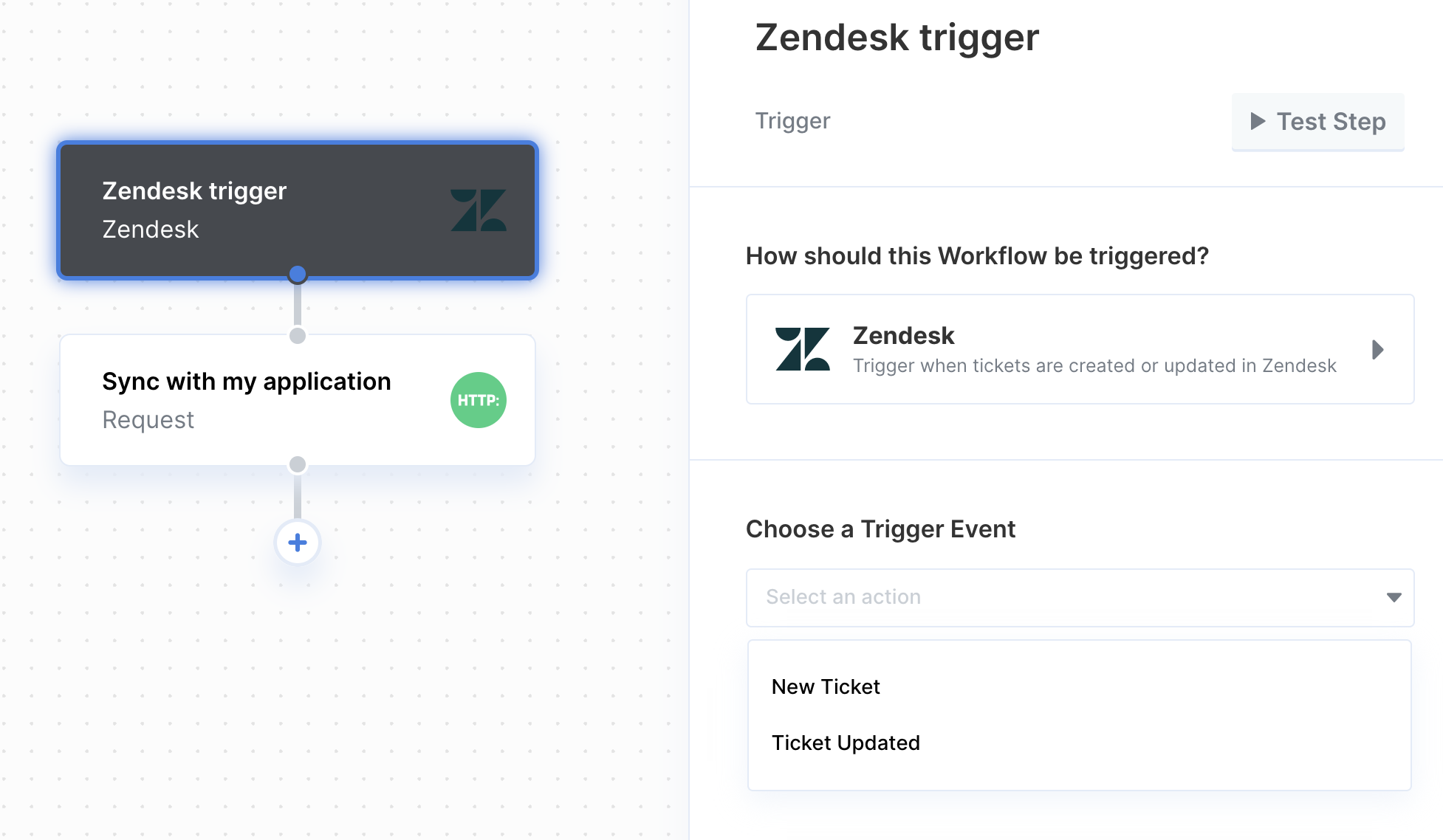 You can find the full list of Event Triggers for Zendesk below:
* **New Ticket**
* **Ticket Updated**
#### Testing Event-based Triggers
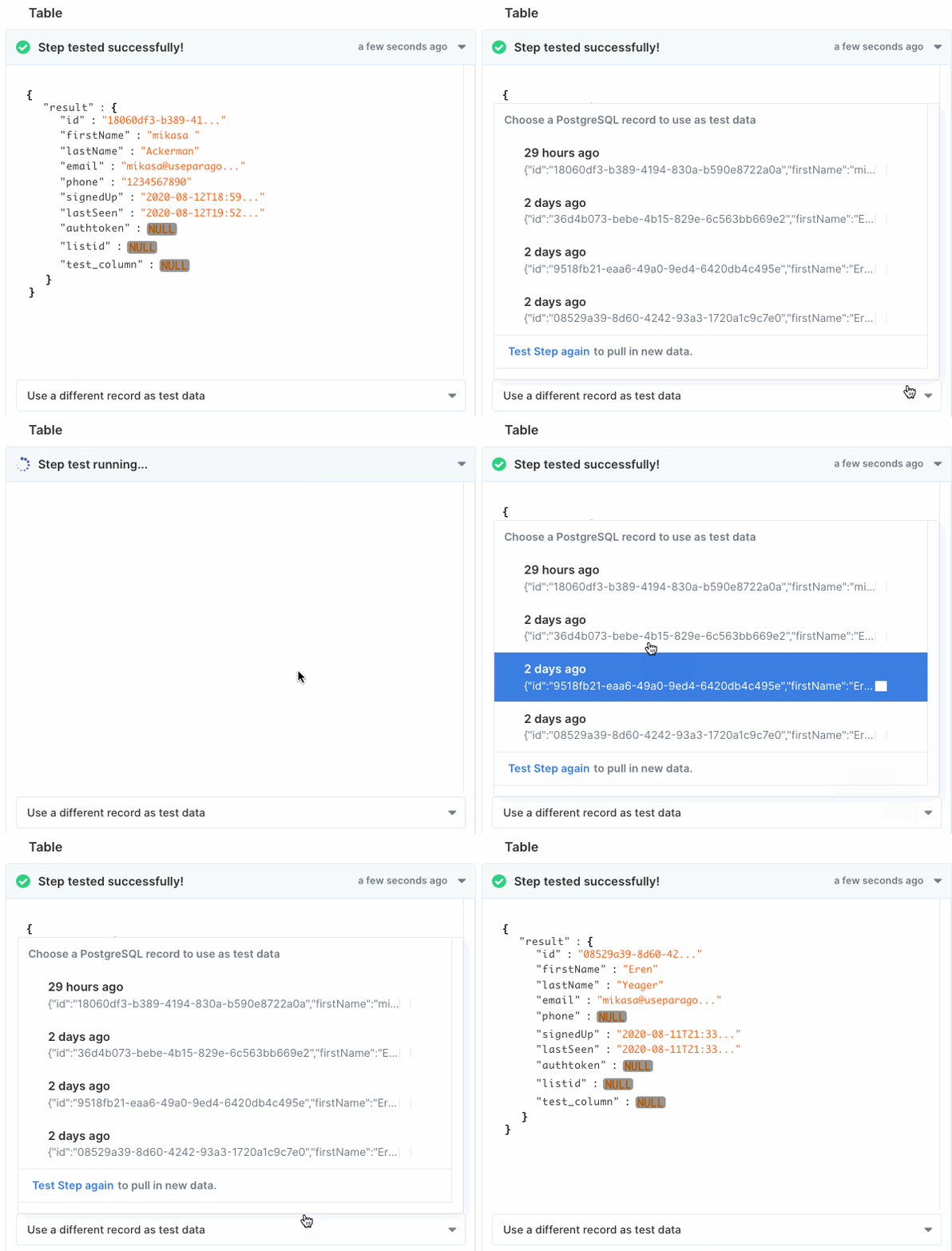
You can test your workflow on different records using the **Debugging Menu**. Click the "use a different record as test data" dropdown menu for a list of available records.
You can find the full list of Event Triggers for Zendesk below:
* **New Ticket**
* **Ticket Updated**
#### Testing Event-based Triggers
You can test your workflow on different records using the **Debugging Menu**. Click the "use a different record as test data" dropdown menu for a list of available records.