> ## Documentation Index
> Fetch the complete documentation index at: https://docs.useparagon.com/llms.txt
> Use this file to discover all available pages before exploring further.
# SendGrid Integration
> Send emails with SendGrid from Paragon
## 1. Get SendGrid API Key
You can see a list of your SendGrid API keys via the [API Keys section](https://app.sendgrid.com/settings/api_keys) of your SendGrid account's Settings page. You'll need to create a new API key to use with Paragon - press the "Create API Key" button to create a new key save it.
## 2. Add SendGrid to Paragon
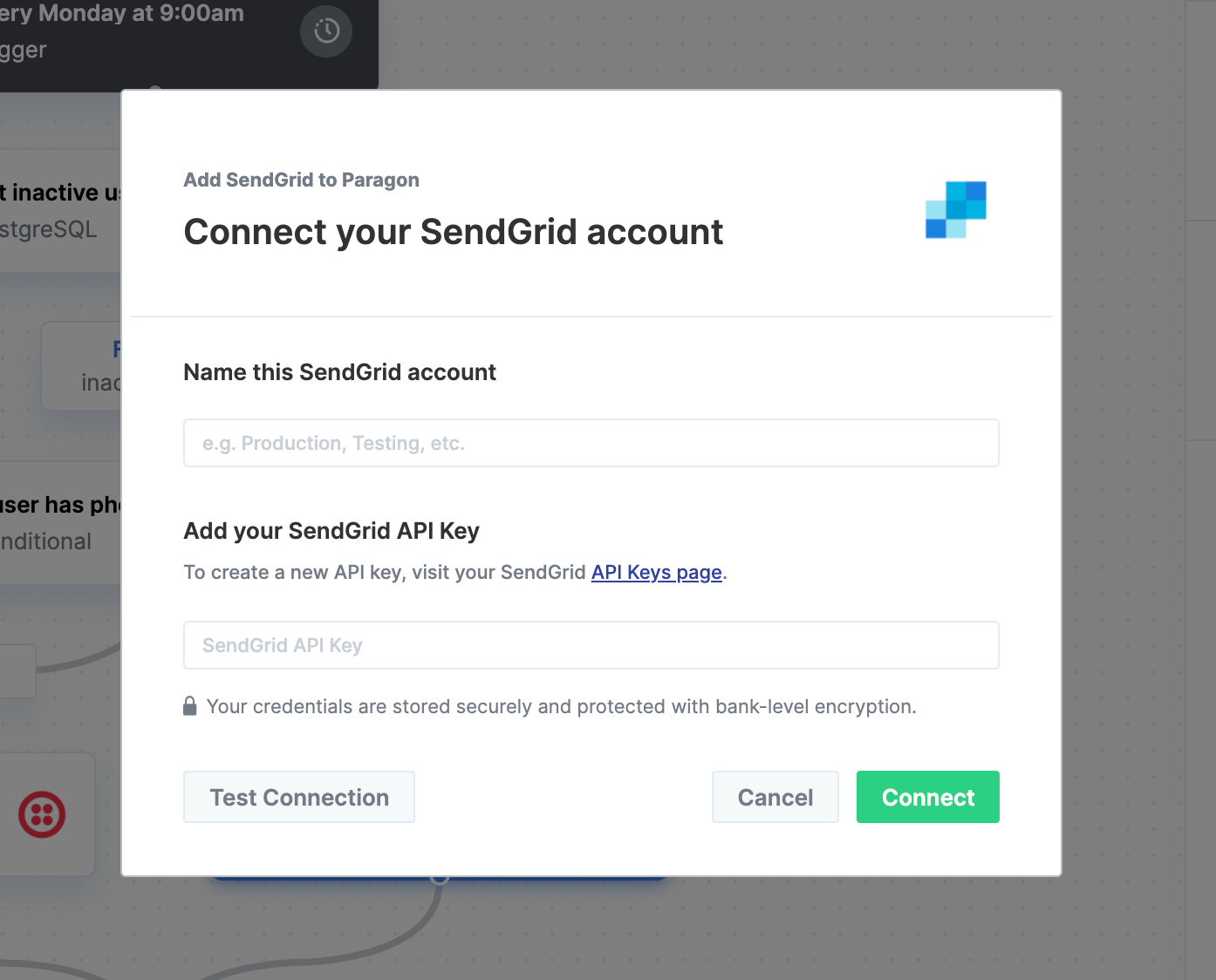
To add SendGrid to Paragon, click the "+" button in the workflow canvas and choose Sendgrid from the sidebar. Under **Connect your SendGrid account**, choose "Add new account for SendGrid" and enter your SendGrid API key.
 ## 3. Send emails with SendGrid
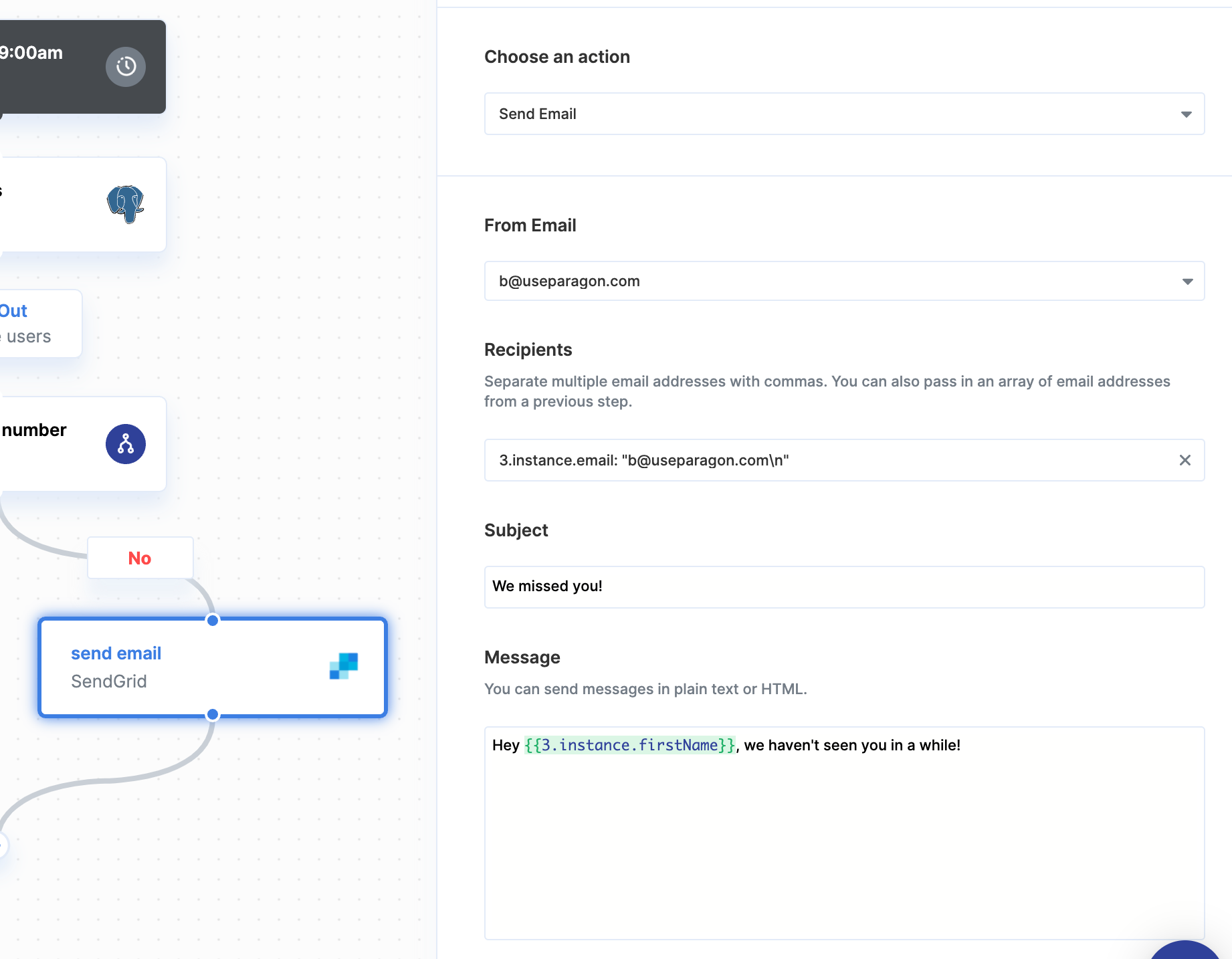
Once your SenGrid account is connected, you can add steps to perform the following actions:
* Send email
* Send email from Template
When composing your SendGrid message, you can reference data from previous steps by typing `{{` to invoke the variable menu.
## 3. Send emails with SendGrid
Once your SenGrid account is connected, you can add steps to perform the following actions:
* Send email
* Send email from Template
When composing your SendGrid message, you can reference data from previous steps by typing `{{` to invoke the variable menu.