> ## Documentation Index
> Fetch the complete documentation index at: https://docs.useparagon.com/llms.txt
> Use this file to discover all available pages before exploring further.
# Salesforce Integration
> Connect your Salesforce account to Paragon
✨ This integration is included in the [**Business
Plan**](https://www.useparagon.com/pricing) and above. [View
pricing](https://useparagon.com/pricing).
## Setup Guide
### 1. Add Salesforce to Paragon
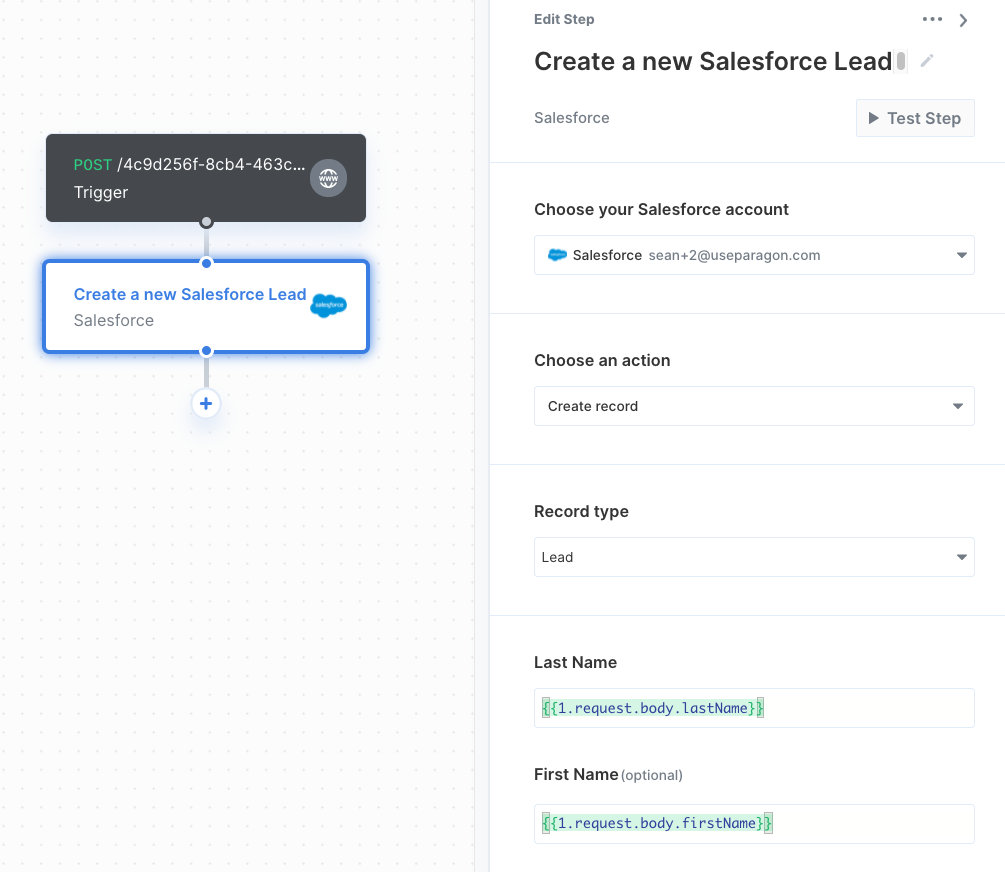
Click the "+" button in the workflow canvas and choose Salesforce from the sidebar. Under **Choose your Salesforce account**, select "Add new account for Salesforce" and log in to the Salesforce account you want to connect to.
**Note:** You can also connect to a Sandbox Salesforce environment if you have
one. Select "Add new sandbox account for Salesforce".
### 2. Query Salesforce
Once your Salesforce account is connected, you can add steps to perform the following actions:
* Create record
* Update record
* Delete record
* Get record by ID
* Search records
* Search records by SOQL query
* Get record metadata
When creating or updating records in Salesforce, you can reference data from previous steps by typing `{{` to invoke the variable menu.