> ## Documentation Index
> Fetch the complete documentation index at: https://docs.useparagon.com/llms.txt
> Use this file to discover all available pages before exploring further.
# FTP Integration
> Download or upload files via FTP or SFTP in Paragon
## Setup Guide
### 1. Get FTP / SFTP Details & Whitelist Paragon IP Addresses
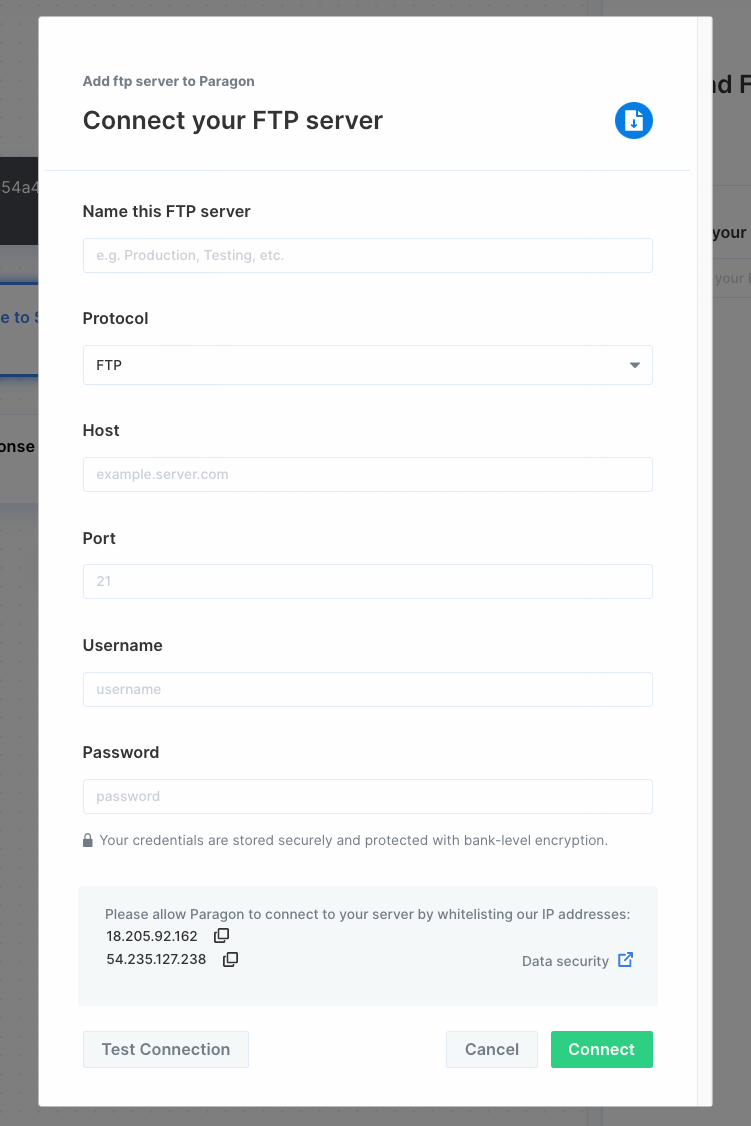
You can get your server credentials from whoever set up the server. You'll also need to get them to whitelist the Paragon IP addresses:
* `18.205.92.162`
* `54.235.127.238`
* `107.20.97.35`
* `54.237.188.41`
### 2. Add FTP / SFTP server to Paragon
To add an FTP / SFTP server to Paragon, click the "+" button in the workflow canvas and choose the FTP integration from the sidebar. Under **Choose your FTP server**, choose "Add new account for FTP" and enter your server credentials.
**Note:** You can switch between FTP / SFTP protocols under **Protocol**.
 ### 3. Query FTP / SFTP
Once your FTP server is connected, you can add steps to perform the following actions:
* List files
* Download file
* Upload file
* Delete file
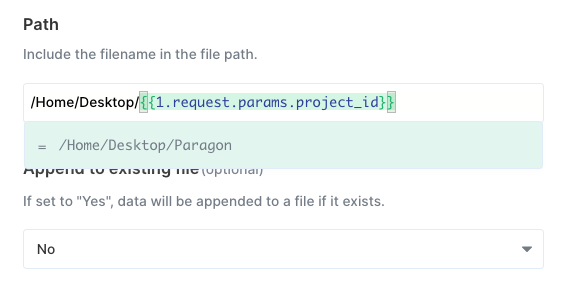
When including the file path, you can reference data from previous steps by typing `{{` to invoke the variable menu.
### 3. Query FTP / SFTP
Once your FTP server is connected, you can add steps to perform the following actions:
* List files
* Download file
* Upload file
* Delete file
When including the file path, you can reference data from previous steps by typing `{{` to invoke the variable menu.