> ## Documentation Index
> Fetch the complete documentation index at: https://docs.useparagon.com/llms.txt
> Use this file to discover all available pages before exploring further.
# Viewing Task History
> Quickly view a timeline and status of previous workflow executions.
## Overview
Task History keeps track of your workflow executions and lives on the left side of the dashboard. It serves as a timeline and an easy way to navigate through your workflow history, revisit any failed workflows, and get a step-by-step breakdown of the executed tasks in each one.
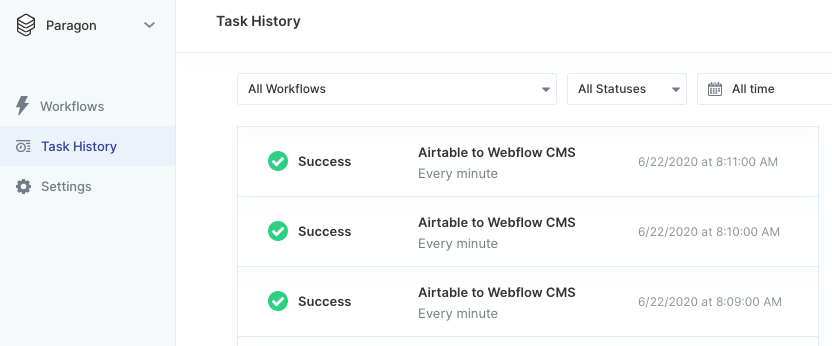 Under Task History, you can find information about each workflow:
* **Status** (e.g. Success or Errored)
* **Trigger method** (e.g. every 5 minutes or via HTTP request)
* **Time and date** your workflow ran
Clicking anywhere on a workflow provides you with a detailed view of the status of each step related to that workflow.
## Detailed task execution
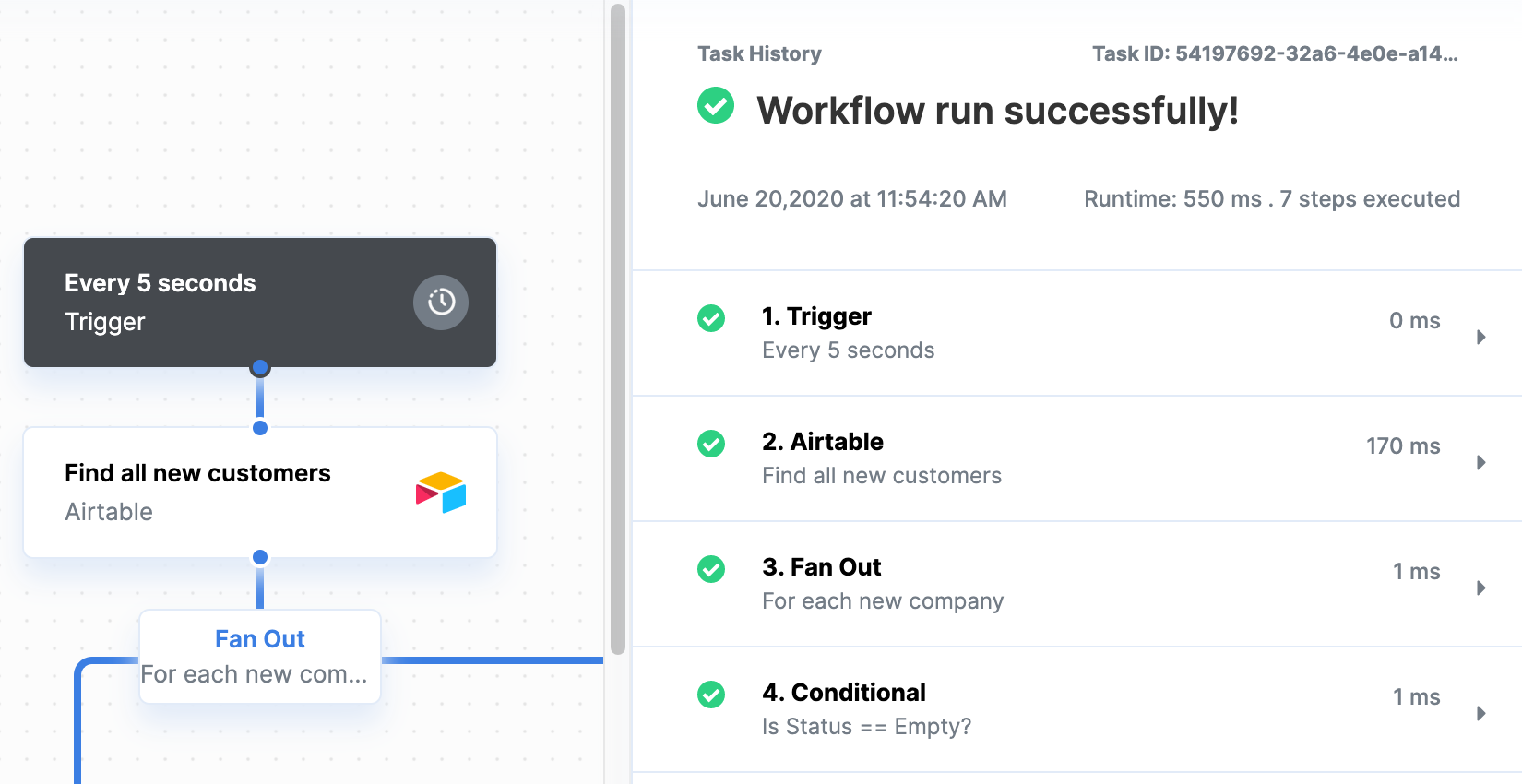
Each workflow in your Task History includes a step-by-step breakdown of the tasks related to the workflow. In this view, the Task History also shows:
* How long it took your workflow to run
* Number of steps executed
* List of each executed step
Under Task History, you can find information about each workflow:
* **Status** (e.g. Success or Errored)
* **Trigger method** (e.g. every 5 minutes or via HTTP request)
* **Time and date** your workflow ran
Clicking anywhere on a workflow provides you with a detailed view of the status of each step related to that workflow.
## Detailed task execution
Each workflow in your Task History includes a step-by-step breakdown of the tasks related to the workflow. In this view, the Task History also shows:
* How long it took your workflow to run
* Number of steps executed
* List of each executed step
 ## Following your workflow
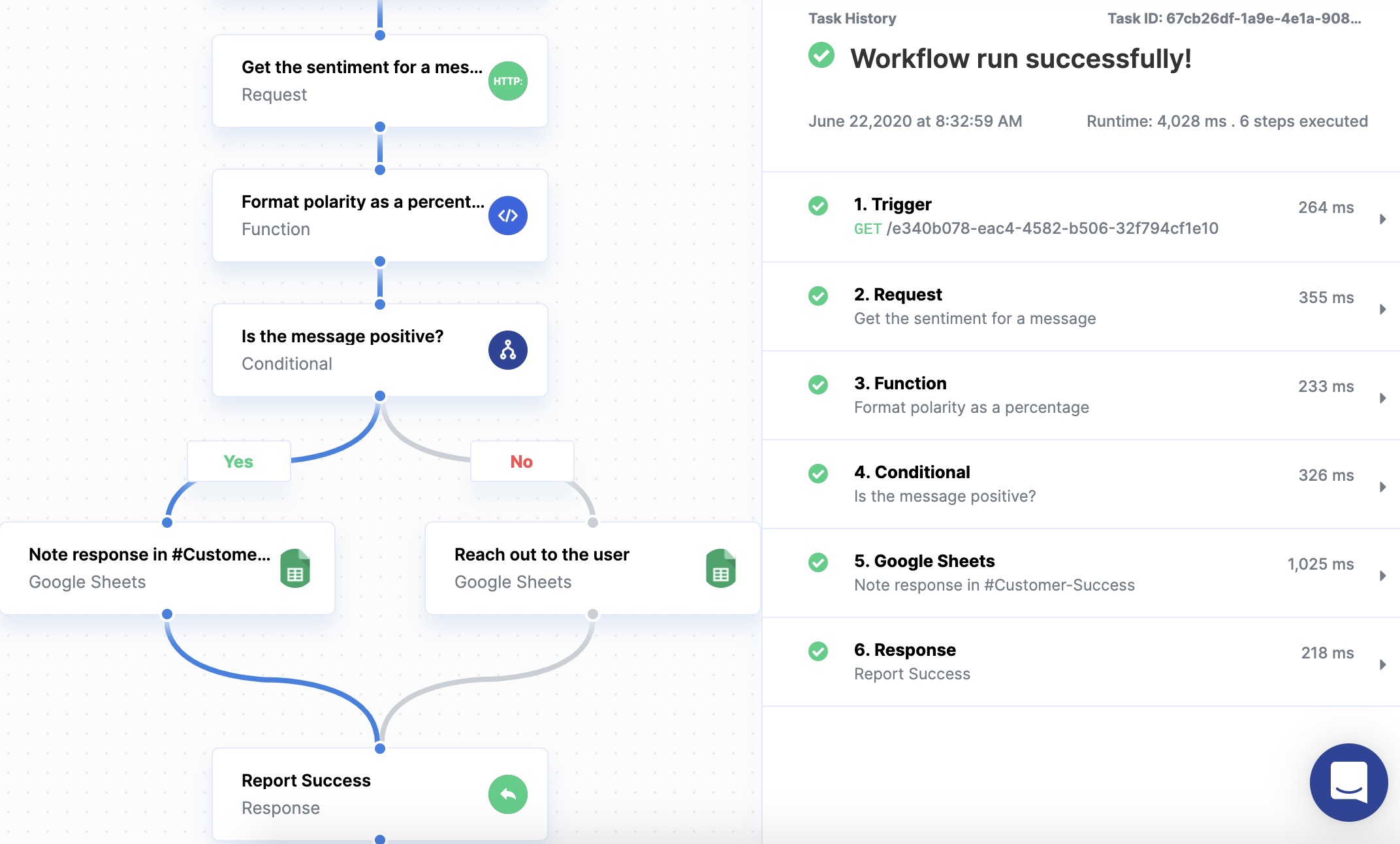
Paragon also allows you to visualize the flow of data throughout each workflow execution, making it easy for teams to track and debug. A **blue path** indicates the path taken by your workflow while running. A **grey path** indicates the path exists in the workflow but was not taken during this execution.
## Following your workflow
Paragon also allows you to visualize the flow of data throughout each workflow execution, making it easy for teams to track and debug. A **blue path** indicates the path taken by your workflow while running. A **grey path** indicates the path exists in the workflow but was not taken during this execution.
 ## Editing and replaying
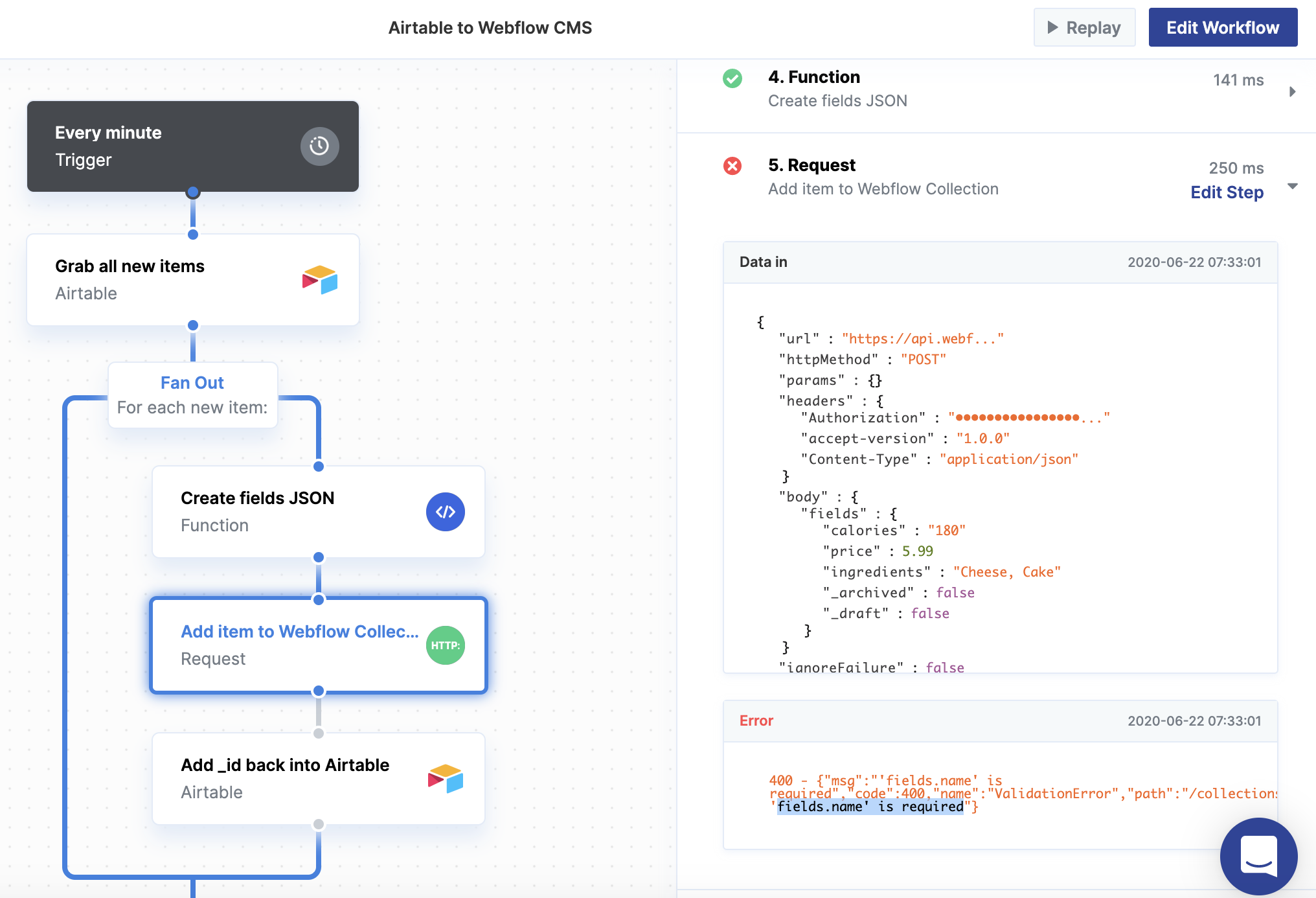
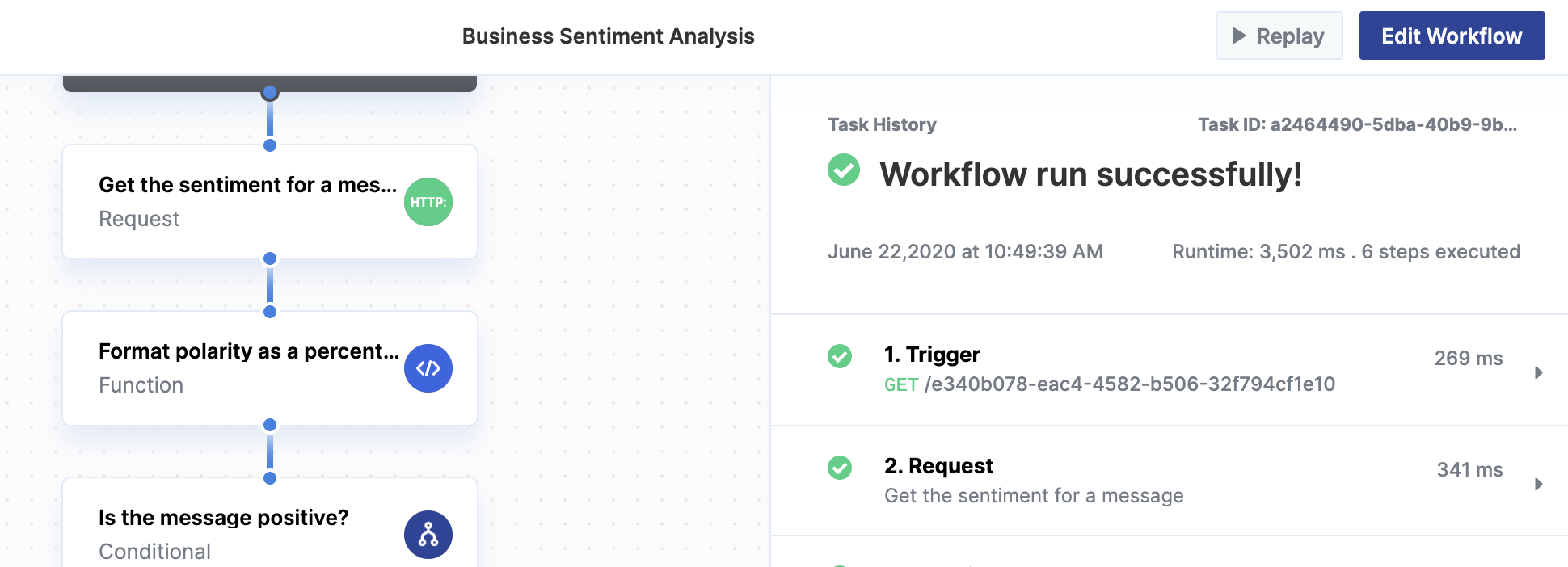 * **Editing the Workflow:** Pressing the "Edit Workflow" button allows you to make changes to your workflow.
* **Replaying the Workflow:** Pressing the "Replay" button re-runs your currently deployed workflow. This is useful if you want to replay a workflow that initially failed.
**Replaying a workflow**
This replays your workflow in its **Currently deployed** state with the original input data.
## Filtering
Filtering your Task History allows you to view the history of specific workflows that meet the criteria you specify while hiding the others.
* **Editing the Workflow:** Pressing the "Edit Workflow" button allows you to make changes to your workflow.
* **Replaying the Workflow:** Pressing the "Replay" button re-runs your currently deployed workflow. This is useful if you want to replay a workflow that initially failed.
**Replaying a workflow**
This replays your workflow in its **Currently deployed** state with the original input data.
## Filtering
Filtering your Task History allows you to view the history of specific workflows that meet the criteria you specify while hiding the others.
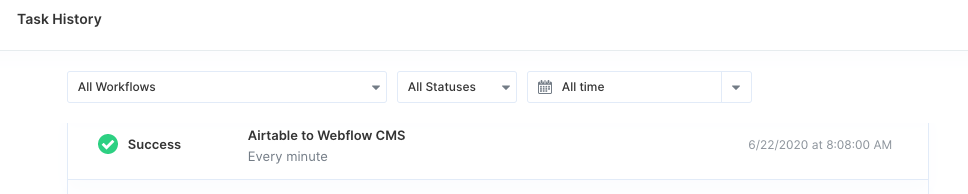 You can filter your Task History by:
* **Workflow**
* **Status**
* Queued
* Running
* Waiting
* Success
* Errored
* Paused
* Cancelled
* **Date range**
## Debugging
Paragon provides a detailed breakdown of the data input and output of each step. Click on any step to view its status and data. You can make changes to a step by clicking the "Edit Step" button. Doing so will open the workflow editor and display the related step, where you can update it as needed.
You can filter your Task History by:
* **Workflow**
* **Status**
* Queued
* Running
* Waiting
* Success
* Errored
* Paused
* Cancelled
* **Date range**
## Debugging
Paragon provides a detailed breakdown of the data input and output of each step. Click on any step to view its status and data. You can make changes to a step by clicking the "Edit Step" button. Doing so will open the workflow editor and display the related step, where you can update it as needed.