> ## Documentation Index
> Fetch the complete documentation index at: https://docs.useparagon.com/llms.txt
> Use this file to discover all available pages before exploring further.
# Making API Requests
> Integrate with any API in minutes with Paragon's request step.
## Overview
You can make requests to any HTTP API using Paragon's Request step. This is useful for building workflows that interface with your own internal APIs, or with services that Paragon might not support integration with yet.
 ## Making a Request
To add a request to your workflow, click the "+" button in the workflow canvas and choose the Request step from the sidebar. You can follow familiar specifications to setup requests in Paragon:
* URL
* Request type
* `POST`
* `GET`
* `PATCH`
* `PUT`
* `DELETE`
* Request data
* Query parameters
* Headers
* Body parameters
* `JSON`
* `multipart/form-data`
* `x-www-form-urlencoded`
* `GraphQL`
* `XML`
* `Raw`
* Authorization
* `Bearer Token`
* `Basic Auth`
* `Query Params`
* `Auth Header`
* `OAuth 2.0 Client Credentials`
* `OAuth 2.0 Refresh Token`
* `ROPC Access Token`
### Configuring your Request URL
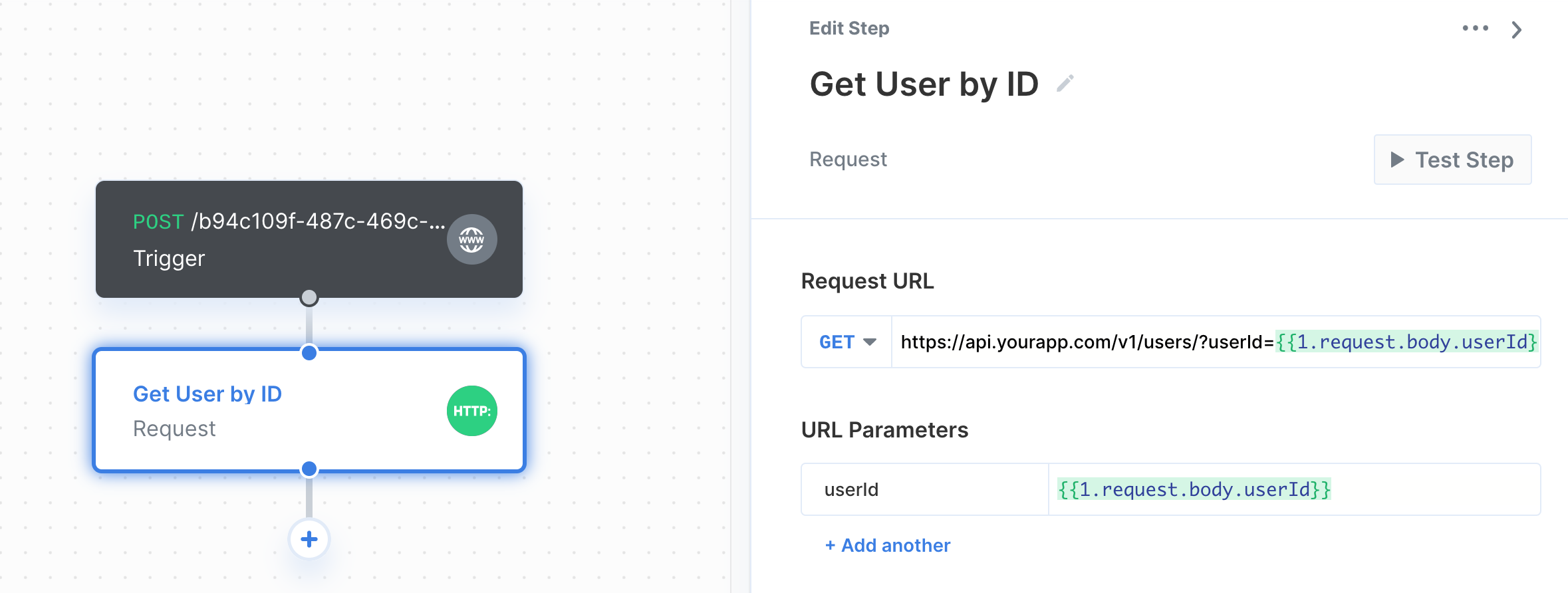
You can enter the request URL in the input under "**Request URL"**. You can also include parameters as part of the URL by typing `{{` to invoke the variable menu.
## Making a Request
To add a request to your workflow, click the "+" button in the workflow canvas and choose the Request step from the sidebar. You can follow familiar specifications to setup requests in Paragon:
* URL
* Request type
* `POST`
* `GET`
* `PATCH`
* `PUT`
* `DELETE`
* Request data
* Query parameters
* Headers
* Body parameters
* `JSON`
* `multipart/form-data`
* `x-www-form-urlencoded`
* `GraphQL`
* `XML`
* `Raw`
* Authorization
* `Bearer Token`
* `Basic Auth`
* `Query Params`
* `Auth Header`
* `OAuth 2.0 Client Credentials`
* `OAuth 2.0 Refresh Token`
* `ROPC Access Token`
### Configuring your Request URL
You can enter the request URL in the input under "**Request URL"**. You can also include parameters as part of the URL by typing `{{` to invoke the variable menu.
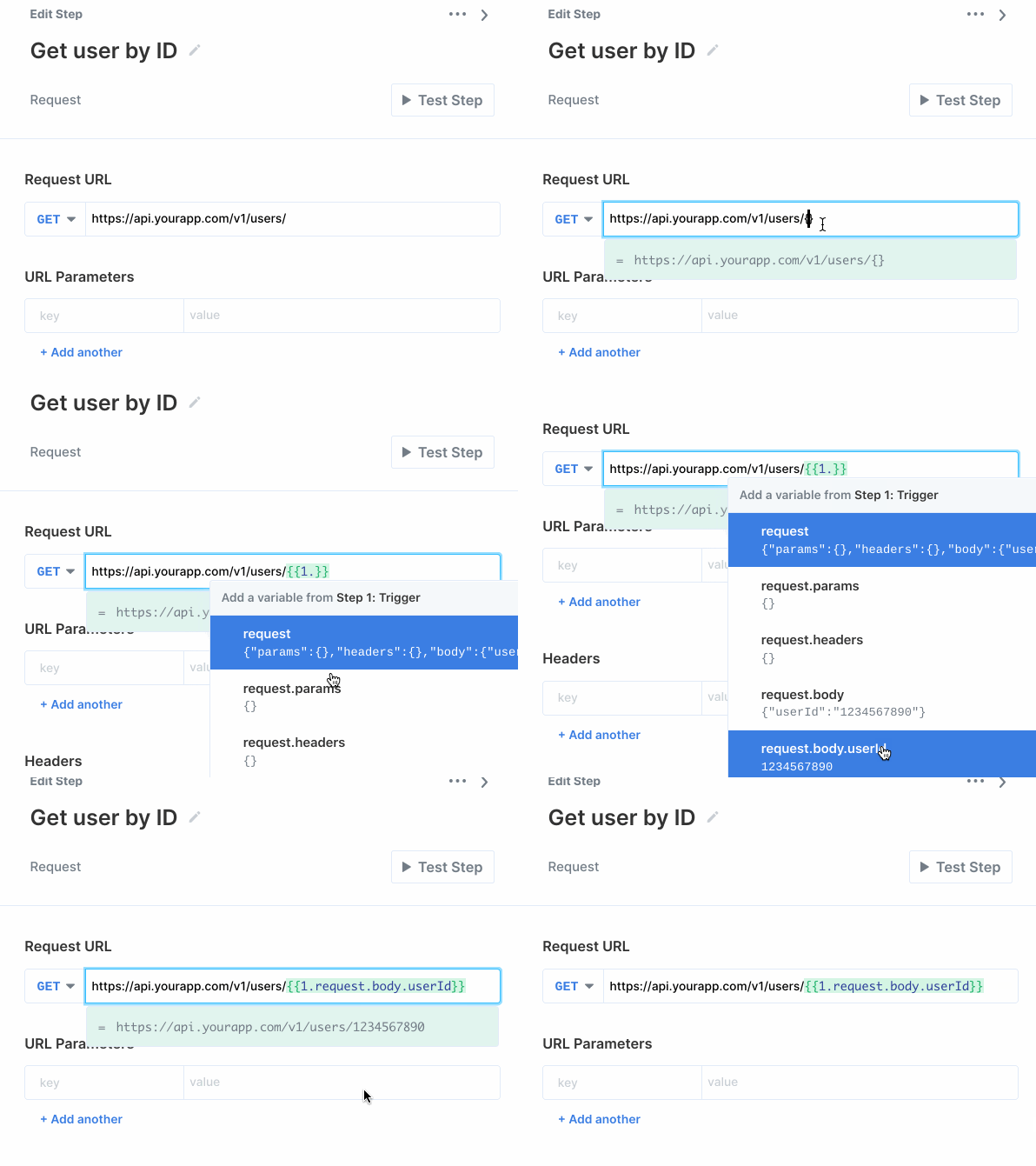 The **variable menu** allows you to reference data from upstream steps in your request URL. For example, we can pass a `userId` from the Trigger into the request URL, which is represented as: `/users/{{1.request.body.userId}}`
### Sending data in the request
Query parameters, headers, and body parameters can be included in the request by adding them in the key-value table under their respective heading.
The **variable menu** allows you to reference data from upstream steps in your request URL. For example, we can pass a `userId` from the Trigger into the request URL, which is represented as: `/users/{{1.request.body.userId}}`
### Sending data in the request
Query parameters, headers, and body parameters can be included in the request by adding them in the key-value table under their respective heading.
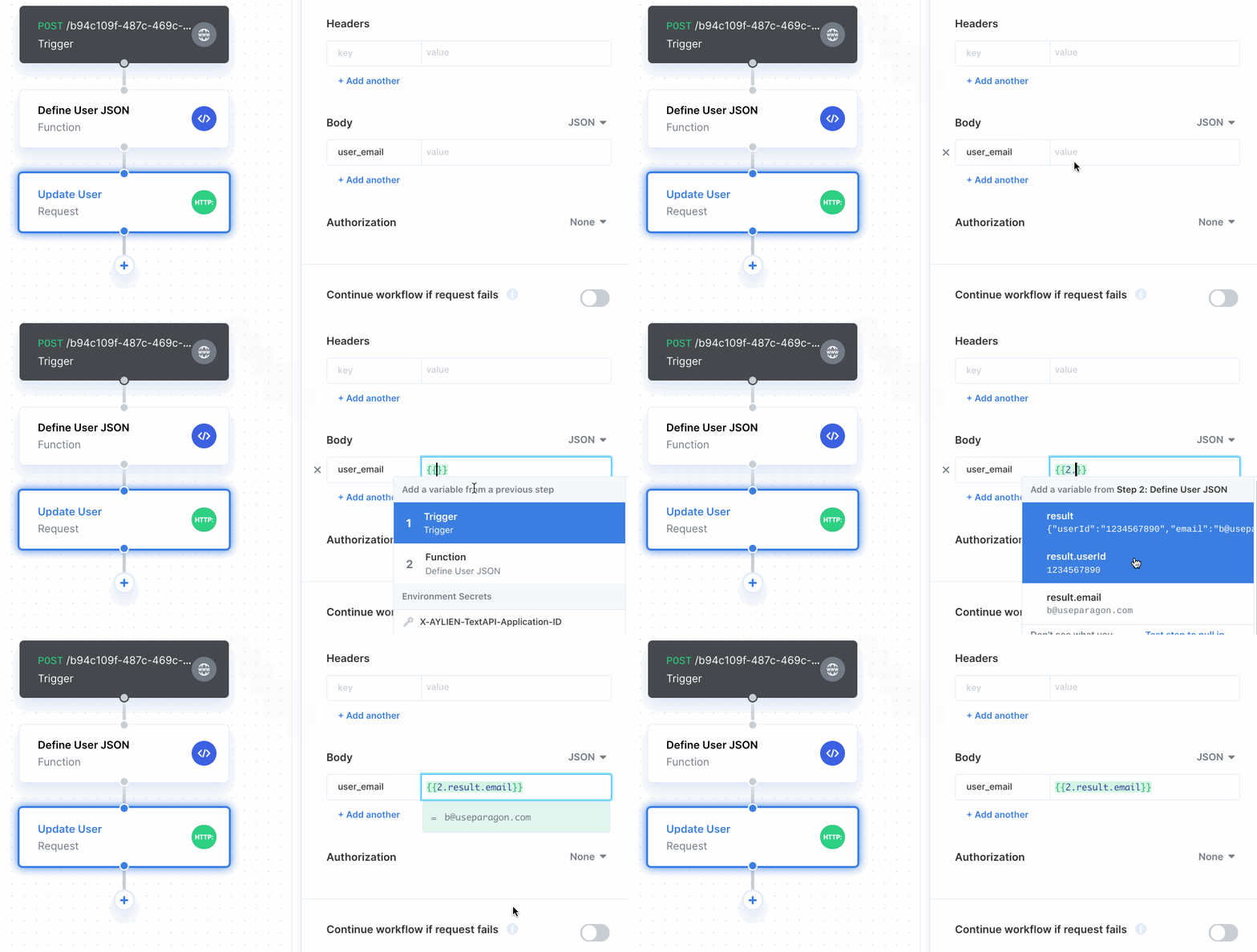 When using the key-value table, you can type in **static values** or **reference variables** from upstream steps by invoking the variable menu using the dropdown button.
### Sending JSON in a request
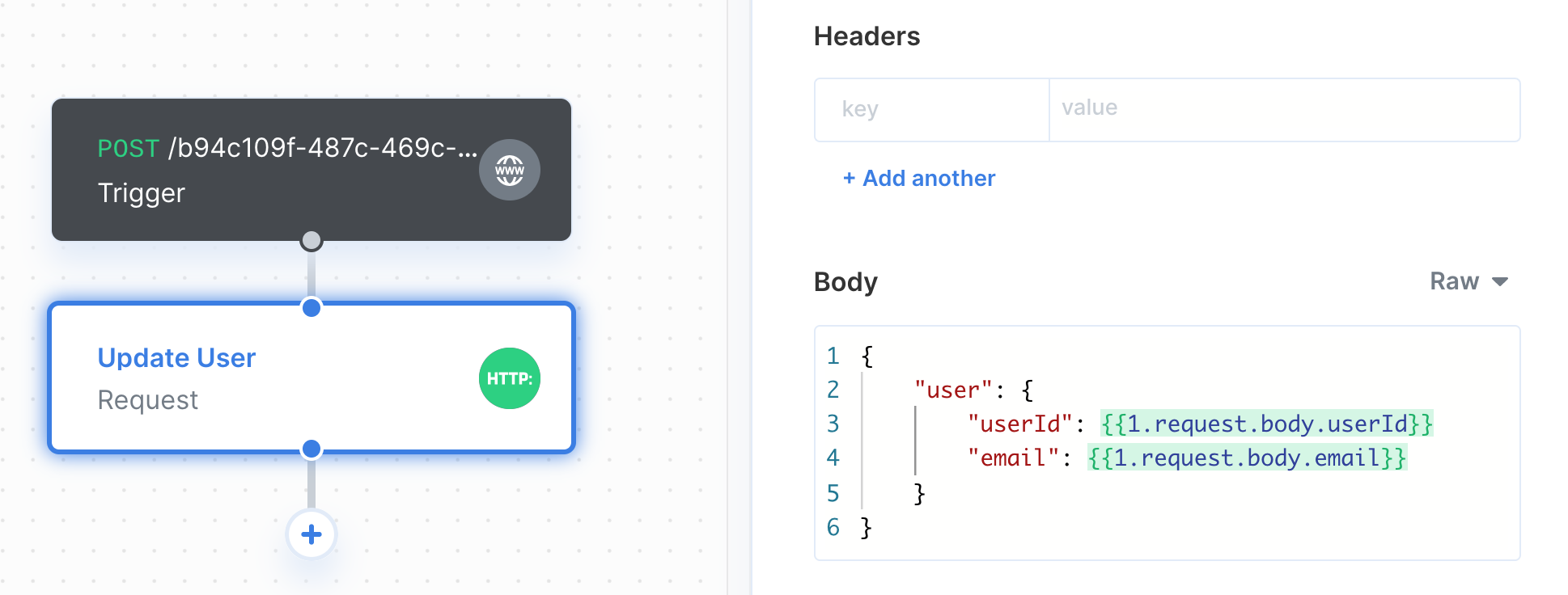
You can easily send JSON in a request by choosing `Raw` in the dropdown to the right of Body. When creating the raw JSON body, you can type in **static values** or **reference variables** from upstream steps by typing `{{` to invoke the variable menu.
When using the key-value table, you can type in **static values** or **reference variables** from upstream steps by invoking the variable menu using the dropdown button.
### Sending JSON in a request
You can easily send JSON in a request by choosing `Raw` in the dropdown to the right of Body. When creating the raw JSON body, you can type in **static values** or **reference variables** from upstream steps by typing `{{` to invoke the variable menu.
 ### Handling request failures
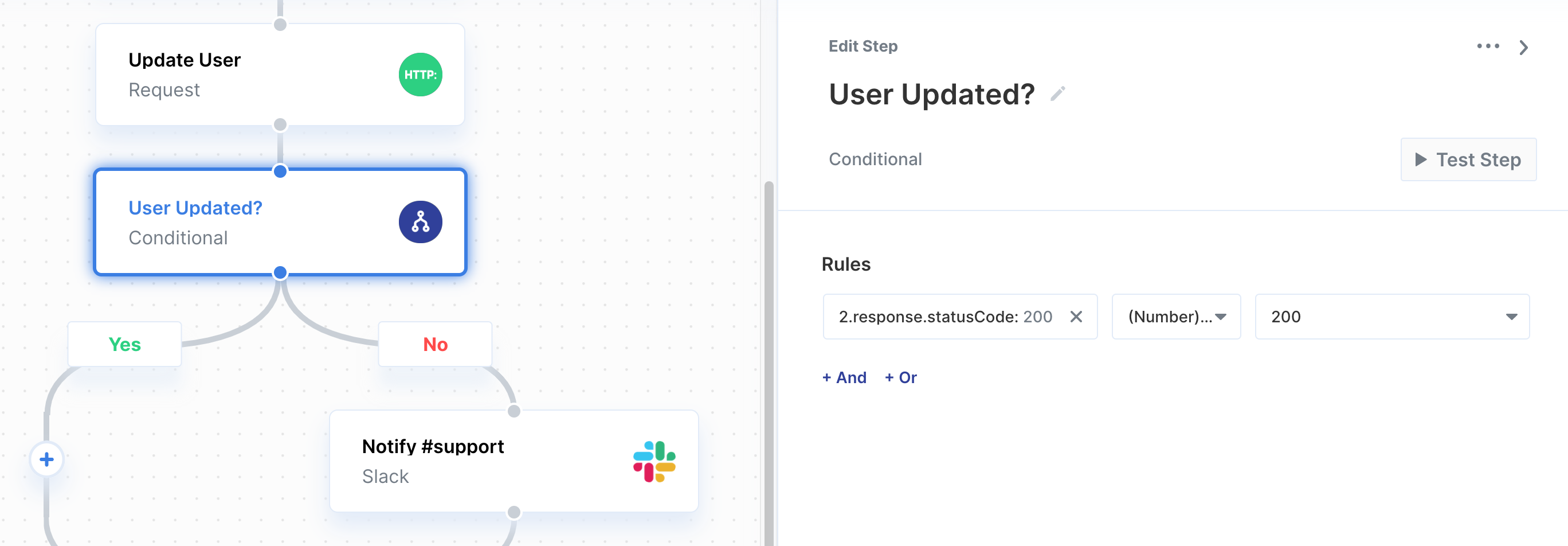
You can choose whether or not the workflow should continue to the next step if the request fails under "Continue workflow if request fails". This option is useful if you want to conditionally handle request failures. You can do this by adding a [Conditional](/automate/building-workflows/using-conditionals) step after the Request step, then referencing the request's response status code in the [Conditional](/automate/building-workflows/using-conditionals).
### Handling request failures
You can choose whether or not the workflow should continue to the next step if the request fails under "Continue workflow if request fails". This option is useful if you want to conditionally handle request failures. You can do this by adding a [Conditional](/automate/building-workflows/using-conditionals) step after the Request step, then referencing the request's response status code in the [Conditional](/automate/building-workflows/using-conditionals).