> ## Documentation Index
> Fetch the complete documentation index at: https://docs.useparagon.com/llms.txt
> Use this file to discover all available pages before exploring further.
# Working with Functions
> Run cloud functions within your workflow.
## Overview
Paragon's Functions are built-in cloud functions that provide a powerful way to add custom logic to your workflows. You can use functions to transform or compute data, or even to perform more complex operations within workflows that you might otherwise need to write server-side code for. Paragon functions support Javascript (ES7) and provide access to select npm modules.
To add a function to your workflow, click the "+" button in the workflow canvas and
choose the Function step from the sidebar.
 ## Defining function parameters
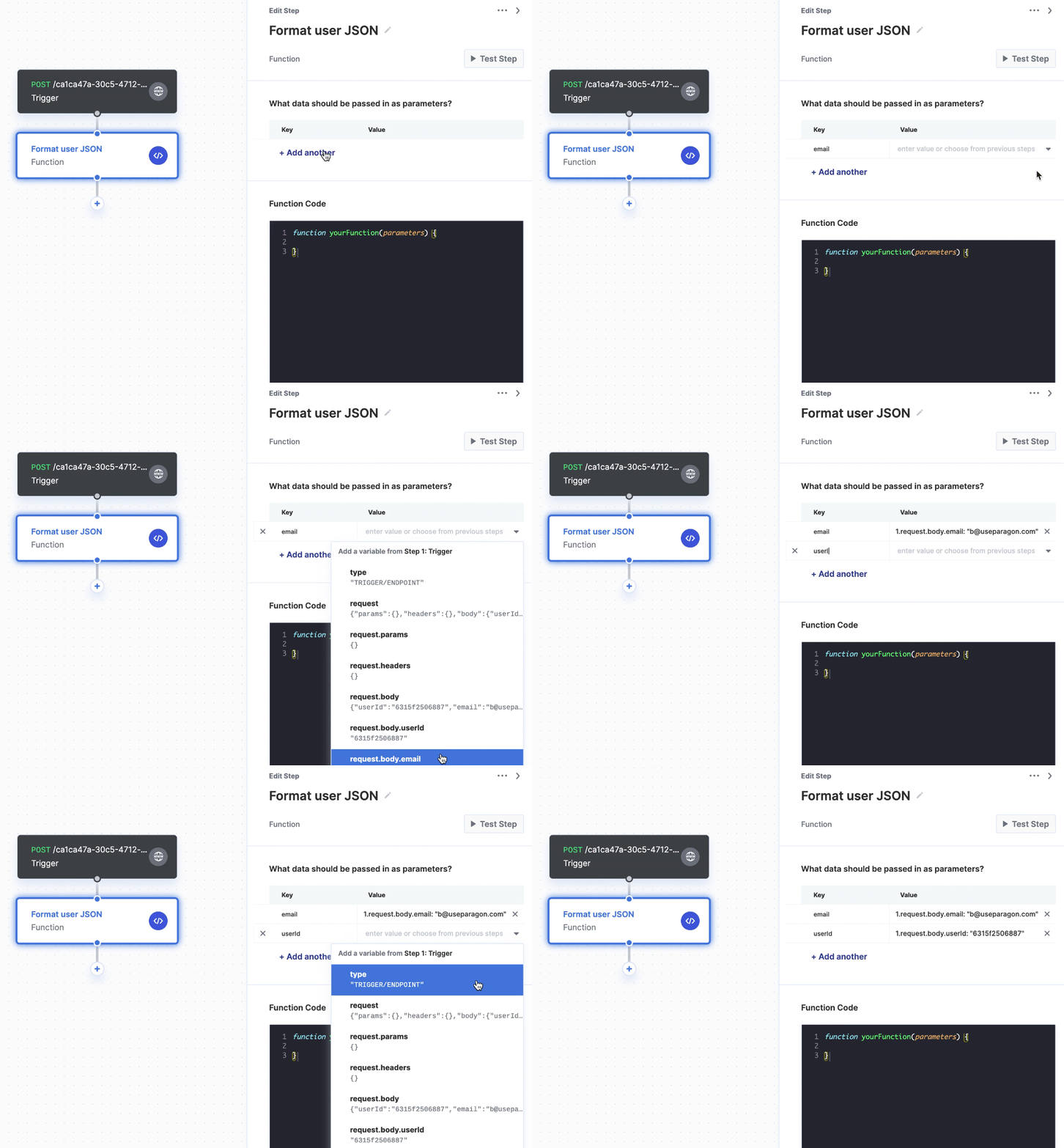
You can pass any data from upstream steps into your Function as parameters using the key-value table under "What data should be passed in as parameters?". Under "Key", you can give your variable a name and under "Value" you can insert a variable from the variable menu by clicking the dropdown button.
## Writing function code
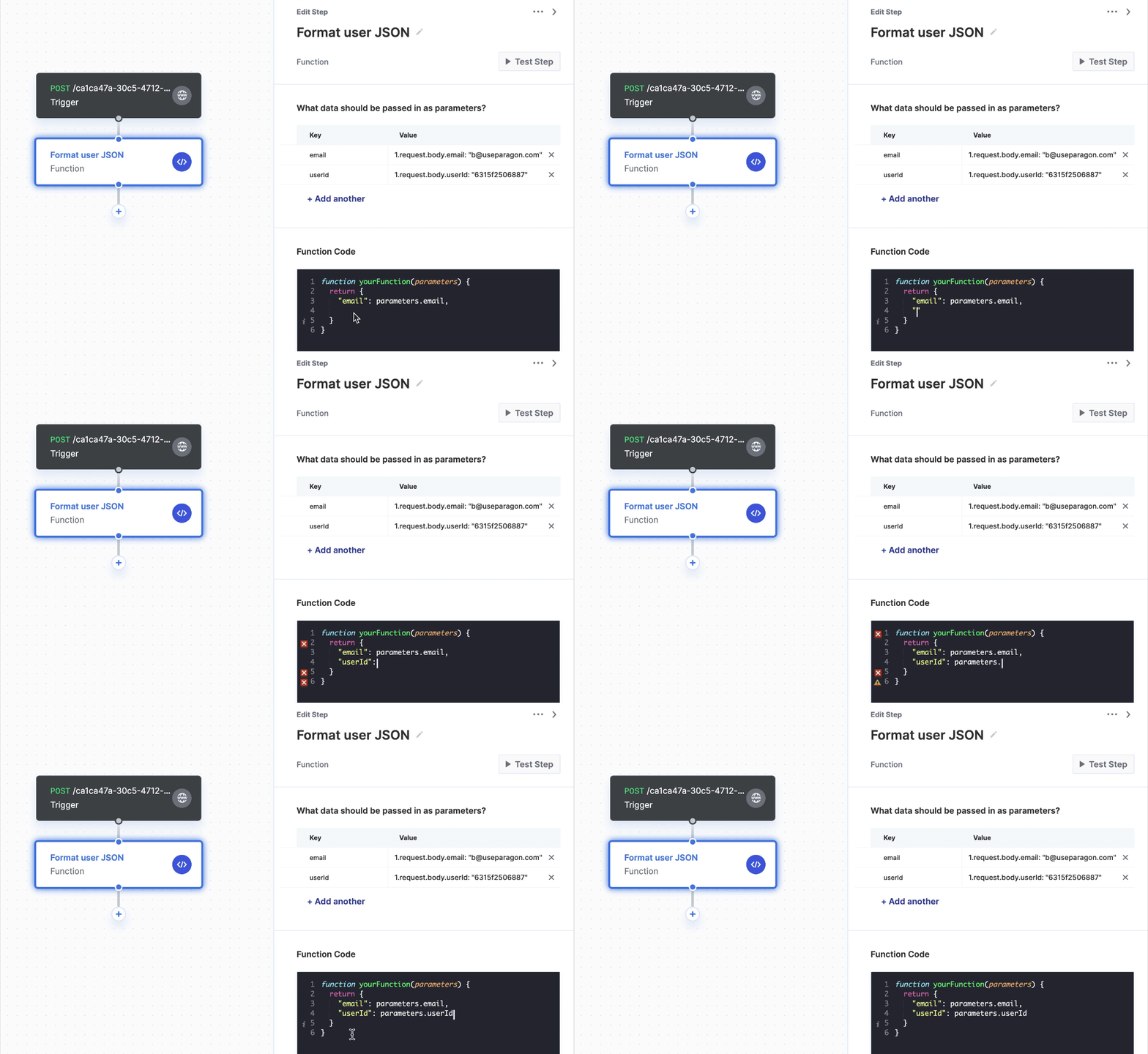
You can write your custom code in the `yourFunction()` function, which accepts any valid Javascript (ES7). Any data that you `return` from this function can then accessed by downstream steps in your workflow.
You can access parameters defined in the key-value table above by referencing `parameters.` within `yourFunction()`. For example, a parameter whose key is `email` can be accessed in the function by referencing `parameters.email`.
## Defining function parameters
You can pass any data from upstream steps into your Function as parameters using the key-value table under "What data should be passed in as parameters?". Under "Key", you can give your variable a name and under "Value" you can insert a variable from the variable menu by clicking the dropdown button.
## Writing function code
You can write your custom code in the `yourFunction()` function, which accepts any valid Javascript (ES7). Any data that you `return` from this function can then accessed by downstream steps in your workflow.
You can access parameters defined in the key-value table above by referencing `parameters.` within `yourFunction()`. For example, a parameter whose key is `email` can be accessed in the function by referencing `parameters.email`.
 ## Using NPM modules in functions
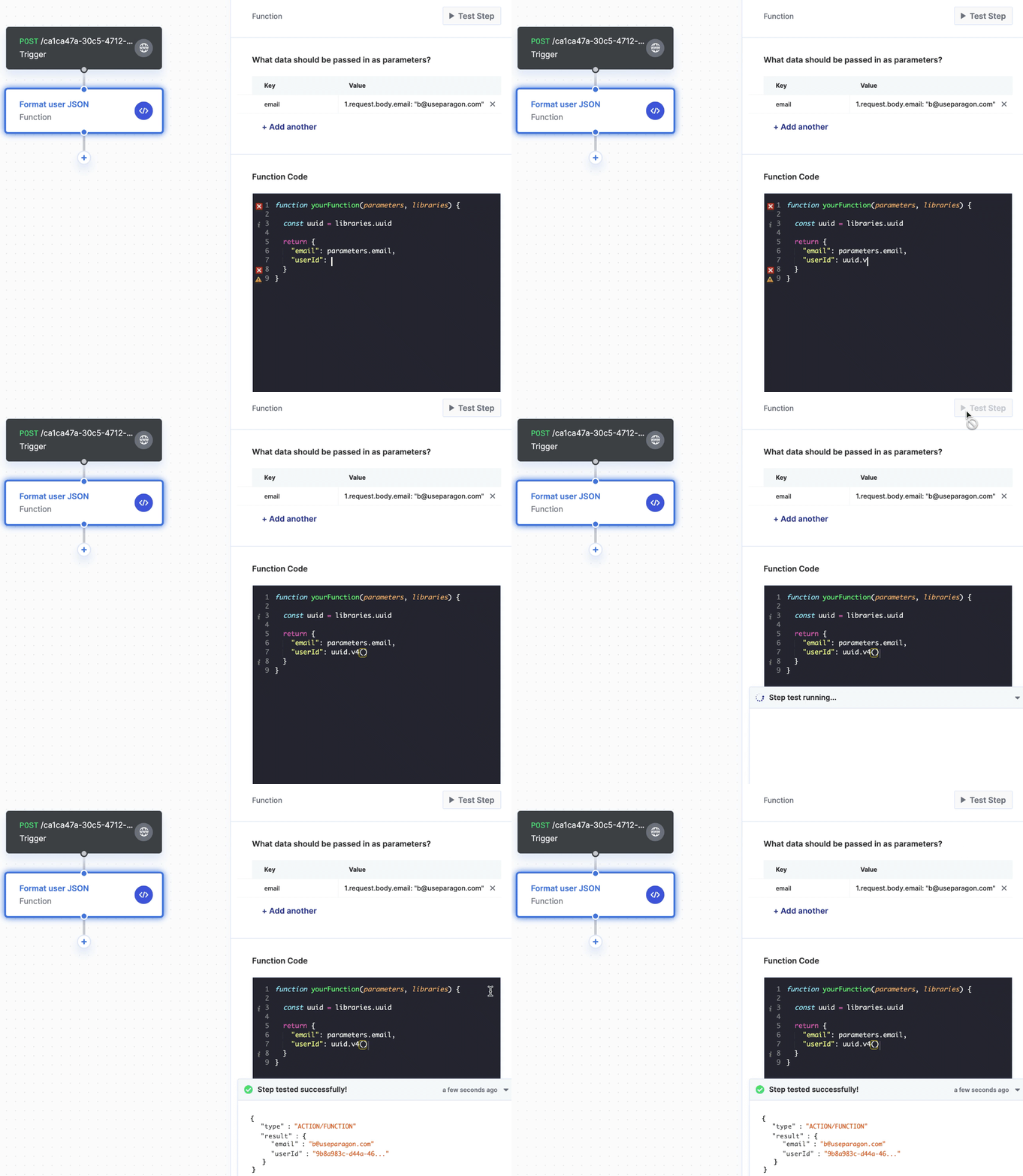
Paragon provides access to [certain npm modules](/automate/resources/javascript-libraries) that can be used within functions. Here's an example of how you can access the `uuid` npm module within a function.
```js JavaScript theme={null}
function yourFunction(parameters, libraries) {
const uuid = libraries.uuid;
}
```
Note that you'll need to add the `libraries` parameter to `yourFunction()`. If your function needs to work asynchronously, you can declare it `async`.
## Using NPM modules in functions
Paragon provides access to [certain npm modules](/automate/resources/javascript-libraries) that can be used within functions. Here's an example of how you can access the `uuid` npm module within a function.
```js JavaScript theme={null}
function yourFunction(parameters, libraries) {
const uuid = libraries.uuid;
}
```
Note that you'll need to add the `libraries` parameter to `yourFunction()`. If your function needs to work asynchronously, you can declare it `async`.
 You can find the full list of supported npm modules in our [Javascript Libraries Catalog](/automate/resources/javascript-libraries). If you don't see the module that you're looking for, [let us know](mailto:team@useparagon.com) and can usually add it for you.
## Considerations
When using Functions, there are a few things to keep in mind:
### Memory Constraints
At the system level, the container that processes workloads is limited by its available resources. Paragon limits step input and output sizes based on your billing plan:
* **Free**: 50 MB
* **Starter**: 50 MB
* **Business**: 100 MB
* **Premium**: 1 GB
### Time Constraints
Paragon sets time limits for how long Functions can execute based on your billing plan to ensure your workflows run smoothly. If a Function takes longer than allowed, the workflow step will fail.
Here are the maximum execution times by billing plan:
* **Free**: 1 minute
* **Starter**: 1 minute
* **Business**: 1 minute
* **Premium**: 1 hour
You can find the full list of supported npm modules in our [Javascript Libraries Catalog](/automate/resources/javascript-libraries). If you don't see the module that you're looking for, [let us know](mailto:team@useparagon.com) and can usually add it for you.
## Considerations
When using Functions, there are a few things to keep in mind:
### Memory Constraints
At the system level, the container that processes workloads is limited by its available resources. Paragon limits step input and output sizes based on your billing plan:
* **Free**: 50 MB
* **Starter**: 50 MB
* **Business**: 100 MB
* **Premium**: 1 GB
### Time Constraints
Paragon sets time limits for how long Functions can execute based on your billing plan to ensure your workflows run smoothly. If a Function takes longer than allowed, the workflow step will fail.
Here are the maximum execution times by billing plan:
* **Free**: 1 minute
* **Starter**: 1 minute
* **Business**: 1 minute
* **Premium**: 1 hour