> ## Documentation Index
> Fetch the complete documentation index at: https://docs.useparagon.com/llms.txt
> Use this file to discover all available pages before exploring further.
# Configuring OAuth
> Run your workflows with your user's data.
✨ This feature is included in the [Business
Plan](https://www.useparagon.com/pricing) and above. [View
pricing](https://useparagon.com/pricing).
## Connecting an OAuth-enabled app
To add an OAuth provider to Paragon, click the "trigger" step in the workflow canvas, and choose "OAuth" from the sidebar. Under **Connect an OAuth-enabled app**, choose "Add a new OAuth-enabled app" and select the provider you want to connect to.
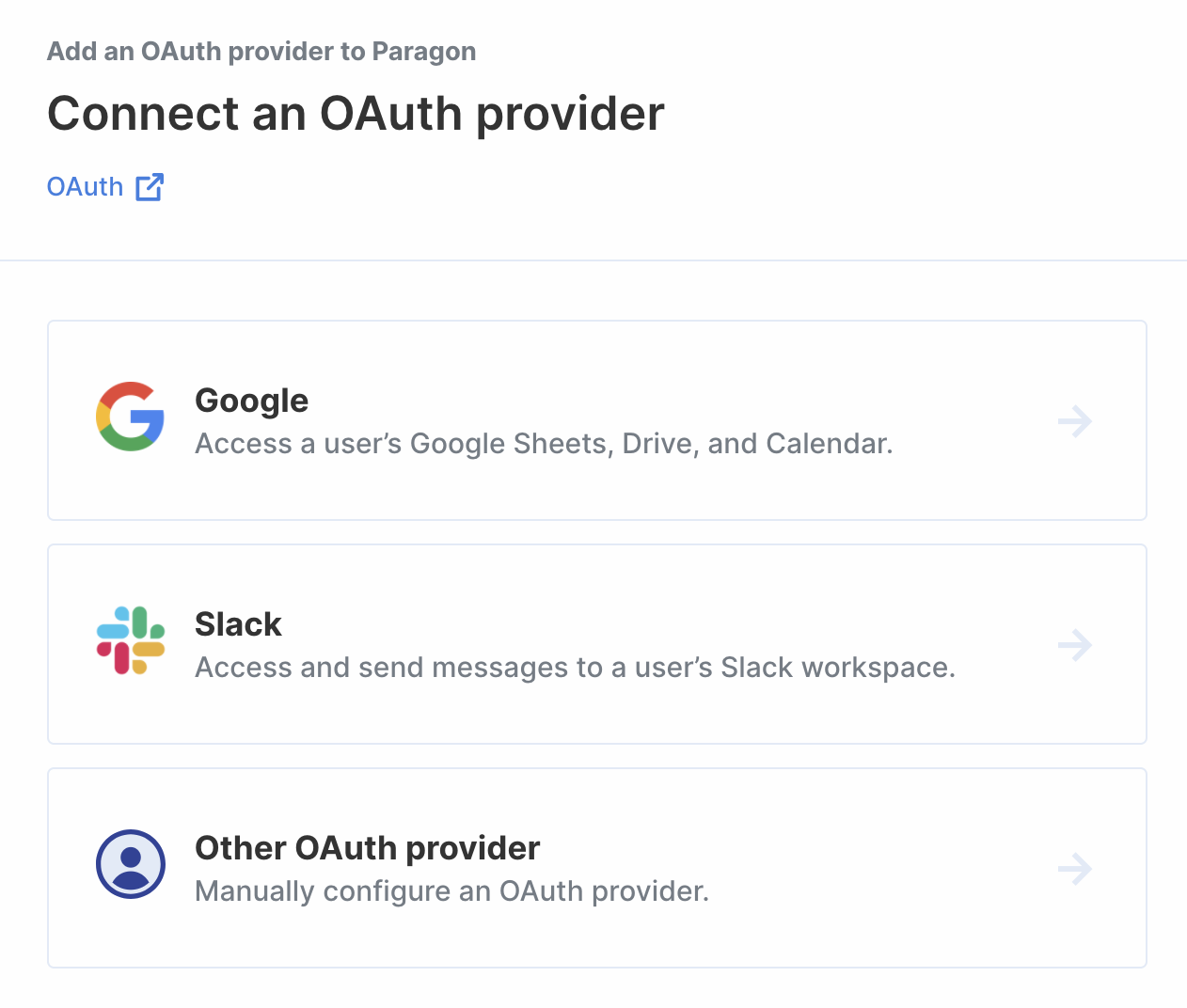 You can find the full list of supported OAuth providers below:
**Don't see an OAuth provider on this list?**
Manually [configure an OAuth provider](/automate/resources/oauth/custom)!
## Using OAuth-enabled apps in your workflow
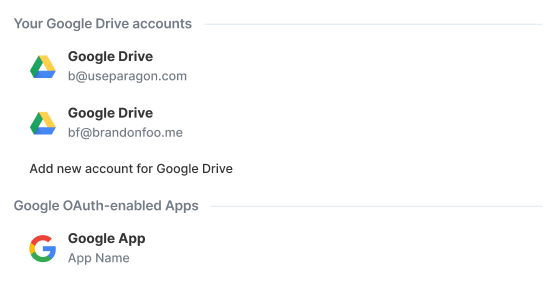
The application will appear under "OAuth-enabled Apps" once you've added it.
You can find the full list of supported OAuth providers below:
**Don't see an OAuth provider on this list?**
Manually [configure an OAuth provider](/automate/resources/oauth/custom)!
## Using OAuth-enabled apps in your workflow
The application will appear under "OAuth-enabled Apps" once you've added it.
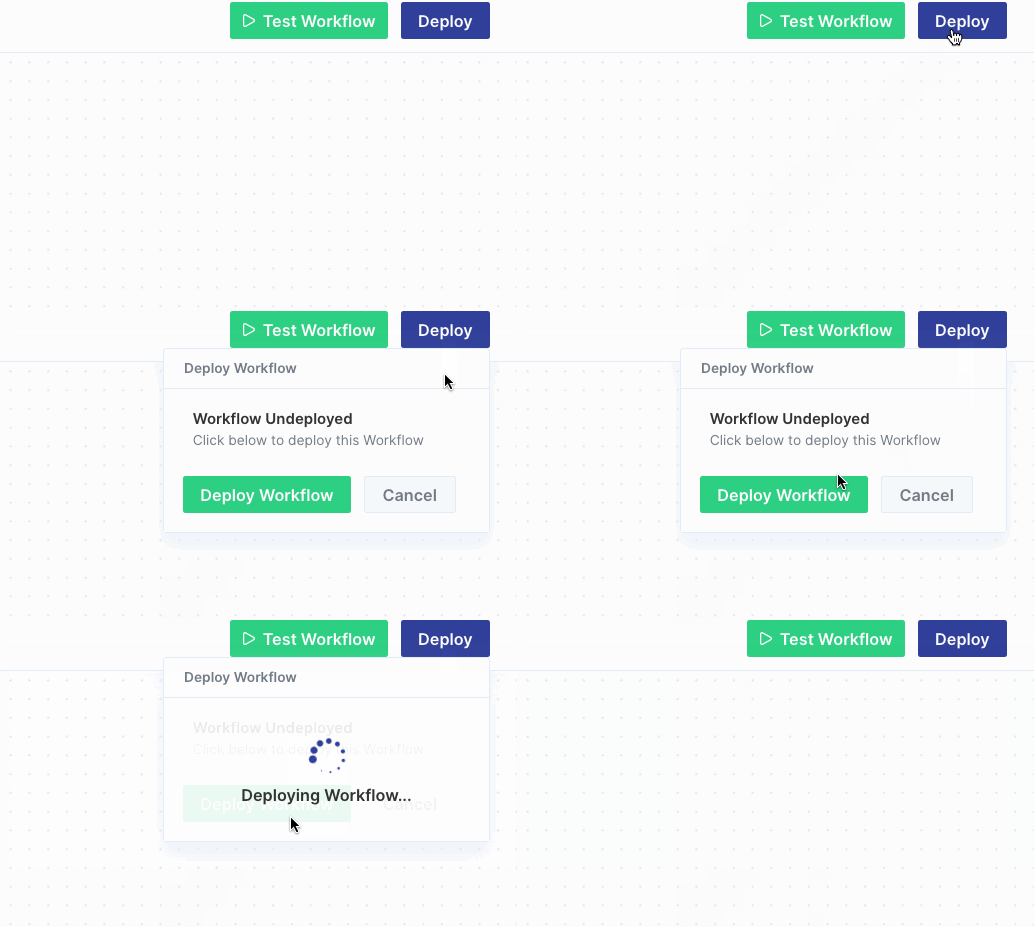
 Once you're ready to start using an OAuth trigger workflow in production, click the "Deploy" button in the top-right of the screen to deploy the workflow.
 ### Authenticating Users
For certain integrations, the **User authentication** header appears after selecting your app.
### Authenticating Users
For certain integrations, the **User authentication** header appears after selecting your app.
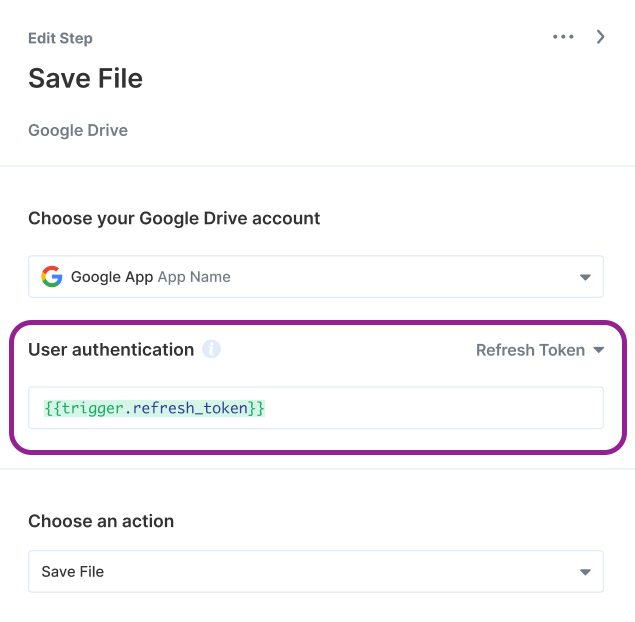 There are multiple forms of user authentication you can use:
* **Refresh Token:** Automatically provides an up-to-date Access Token.
* **Access Token:** Acts as an API key by authenticating requests on behalf of the user. Typically expires for security reasons.
* **Bot Token:** Acts as an API key by authenticating your bot client.
**Note:** When available, you should use a **refresh token** to ensure your
client's account is always authenticated.
There are multiple forms of user authentication you can use:
* **Refresh Token:** Automatically provides an up-to-date Access Token.
* **Access Token:** Acts as an API key by authenticating requests on behalf of the user. Typically expires for security reasons.
* **Bot Token:** Acts as an API key by authenticating your bot client.
**Note:** When available, you should use a **refresh token** to ensure your
client's account is always authenticated.