> ## Documentation Index
> Fetch the complete documentation index at: https://docs.useparagon.com/llms.txt
> Use this file to discover all available pages before exploring further.
# Users API
## Introduction
The Users API allows you to query and modify the state of your Connected Users and their integrations.
The API includes REST endpoints (and matching SDK functions) for identifying what integrations your user has enabled, disconnecting integrations, and disabling workflows. The API also allows your application to associate metadata with a Connected User.
✨ User Metadata is included in the **Pro Plan** and above. [Contact us](mailto:sales@useparagon.com) to schedule a demo of User Metadata or upgrade your account.
### When to use the Users API
The Users API can be used for integration usage analysis or maintenance of Connected Users. For example, using the API methods, you can...
* Automatically disconnect integrations when a user deletes or downgrades their account in your application
* Enrich your Connected Users' profile information with email, name, and other metadata
* Check if a user has enabled a certain integration and view account connection status
## Authorization
Requests to the Users API are authorized with a Bearer-type `Authorization` header using a Paragon User Token:
```bash theme={null}
https://api.useparagon.com/projects//sdk/...
Authorization: Bearer
```
In the SDK, the Users API can be called directly after calling `paragon.authenticate`:
```js theme={null}
// Authenticate the user
await paragon.authenticate("", "");
// Call a Users API method, like setUserMetadata
paragon.setUserMetadata({ ... });
```
## Examples
### Associate Connected User with metadata
You can associate your user with metadata by including it in your existing SDK call to `paragon.authenticate`, as an additional parameter:
```js theme={null}
await paragon.authenticate("", "", {
metadata: {
Name: user.fullName,
Email: user.email,
AccountType: user.plan,
}
});
```
**Note:** `Name` and `Email` are special parameters that you can view within the [Connected Users Dashboard](/monitoring/users). They are also case-sensitive.
Alternatively, you can supply the metadata from your application after authenticating:
```js JavaScript SDK theme={null}
paragon.setUserMetadata({
Name: "Sean V",
Email: "sean@useparagon.com",
AccountType: "Pro",
});
```
```bash REST API theme={null}
// REQUEST
PATCH https://api.useparagon.com/projects//sdk/me
// Headers
Authorization:
Content-Type: application/json
// Body
{ "meta": { "Email": "sean@useparagon.com" } }
```
#### Using Metadata in Workflows
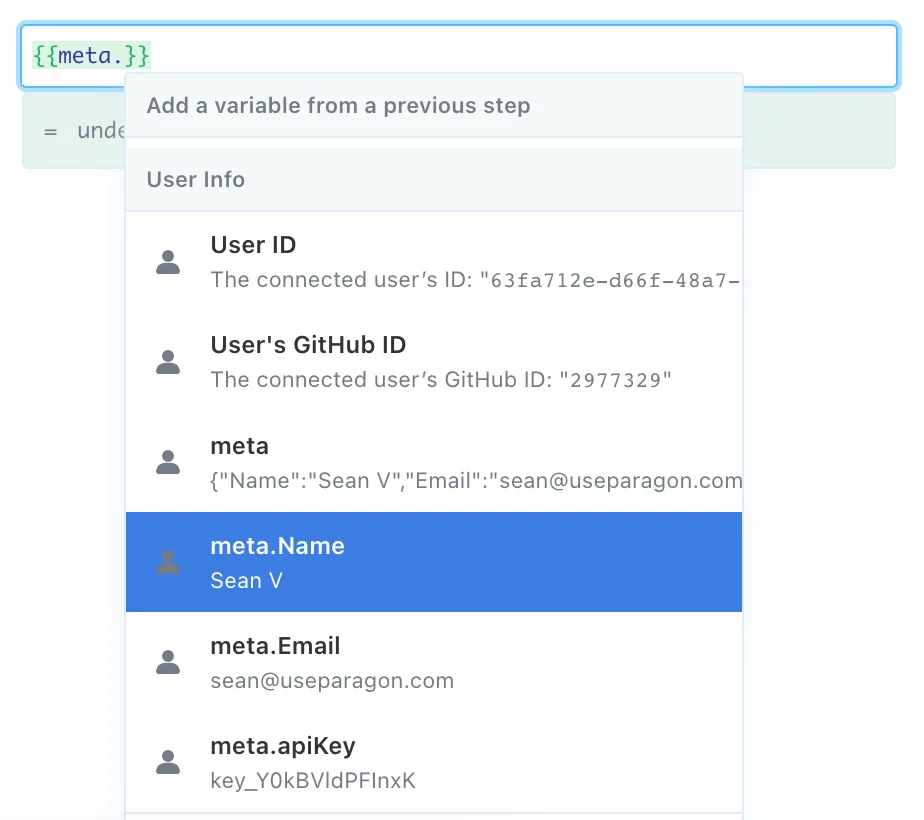
Metadata properties are available for use in workflows in the variable menu of the Workflow Editor. To select a metadata property in a workflow, you'll first need to set a sample metadata object.
From any workflow, click the Options menu in the top navigation and select **Set User Metadata**:
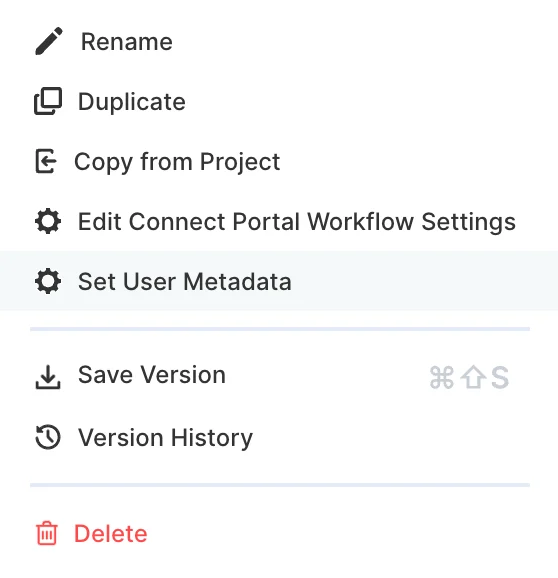 A dialog will appear to set a sample metadata object that represents the object you will pass through to the API or SDK as shown above in [Associate Connected User with metadata](/apis/users#associate-connected-user-with-metadata).
Any properties set in this sample object will be available for selection in the variable menu, in the "User Info" section:
A dialog will appear to set a sample metadata object that represents the object you will pass through to the API or SDK as shown above in [Associate Connected User with metadata](/apis/users#associate-connected-user-with-metadata).
Any properties set in this sample object will be available for selection in the variable menu, in the "User Info" section:
 ### Get Connected User info and integration state
You can access Connected User info (including any associated metadata) using `paragon.getUser` or with the REST API.
```js JavaScript SDK theme={null}
paragon.getUser();
// Returns:
{
authenticated: true,
integrations: {
salesforce: {
enabled: true,
credentialStatus: "VALID", // "INVALID" if account is unreachable
providerData: {...}, // Account details for integration
providerId: "00502000..." // Account's unique ID for integration
}
},
meta: {...}, // Metadata provided by your application
userId: "12345" // User ID specified in "sub" field of Paragon User Token
}
```
```bash REST API theme={null}
// REQUEST
GET https://api.useparagon.com/projects//sdk/me
// Headers
Authorization: Bearer
// RESPONSE
{
"authenticated": true,
"integrations": {
"salesforce": {
"enabled": true,
"credentialStatus": "VALID",
"providerData": {...},
"providerId": "00502000..."
}
},
"meta": {...},
"userId": "12345"
}
```
#### Validating account status with the `credentialStatus` property
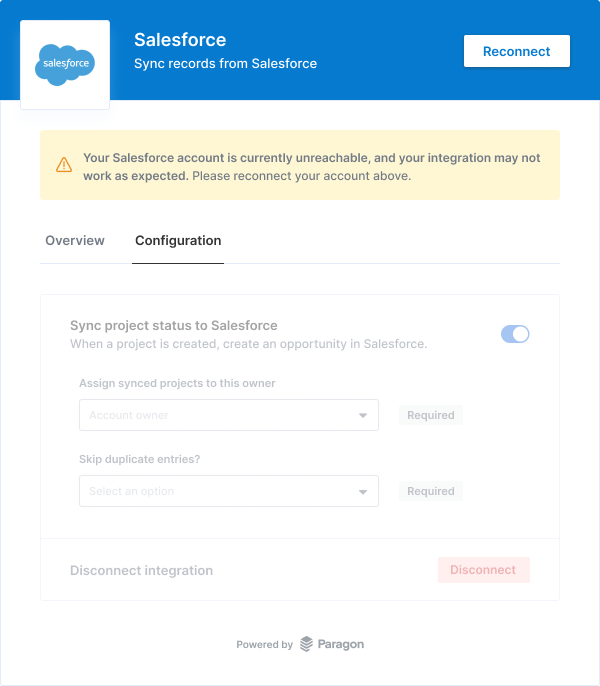
If a previously connected account is unreachable (e.g. your user revokes access from the integration), the Connect Portal will show a warning and prompt your user to reconnect their account:
### Get Connected User info and integration state
You can access Connected User info (including any associated metadata) using `paragon.getUser` or with the REST API.
```js JavaScript SDK theme={null}
paragon.getUser();
// Returns:
{
authenticated: true,
integrations: {
salesforce: {
enabled: true,
credentialStatus: "VALID", // "INVALID" if account is unreachable
providerData: {...}, // Account details for integration
providerId: "00502000..." // Account's unique ID for integration
}
},
meta: {...}, // Metadata provided by your application
userId: "12345" // User ID specified in "sub" field of Paragon User Token
}
```
```bash REST API theme={null}
// REQUEST
GET https://api.useparagon.com/projects//sdk/me
// Headers
Authorization: Bearer
// RESPONSE
{
"authenticated": true,
"integrations": {
"salesforce": {
"enabled": true,
"credentialStatus": "VALID",
"providerData": {...},
"providerId": "00502000..."
}
},
"meta": {...},
"userId": "12345"
}
```
#### Validating account status with the `credentialStatus` property
If a previously connected account is unreachable (e.g. your user revokes access from the integration), the Connect Portal will show a warning and prompt your user to reconnect their account:
 You can check for this condition with the SDK with the `credentialStatus` property. For example:
```js theme={null}
paragon.getUser();
// Returns:
{
integrations: {
salesforce: {
enabled: false,
credentialStatus: "INVALID",
...
}
},
...
}
```
If you are using the [Headless Connect Portal](/connect-portal/headless-connect-portal), you should show a reconnection prompt when `credentialStatus` is not `"VALID"`. You can initiate a reconnection flow with the same function used to start a connection flow: [.installIntegration(integrationType: string, installOptions?: InstallOptions) -> Promise\](/apis/api-reference#installintegration).
### Disconnecting integrations
Integrations can be disconnected using `paragon.uninstallIntegration` or with the REST API.
When an integration is disconnected, workflows for that integration will stop running for the authenticated user and any saved User Settings will be cleared.
```js theme={null}
// Use the integration name, as used in paragon.connect();
await paragon.uninstallIntegration("salesforce");
```
Get the ID of the integration you want to disconnect, with the `/sdk/integrations` endpoint:
**Request**
```bash theme={null}
GET https://api.useparagon.com/projects//sdk/integrations
// Headers
Authorization: Bearer
```
**Response**
```json theme={null}
[
{ "id": "", "type": "salesforce", ... },
{...}
]
```
The `` can be used to disconnect the integration for the user:
**Request**
```bash theme={null}
DELETE https://api.useparagon.com/projects//sdk/integrations/
// Headers
Authorization: Bearer
```
You can check for this condition with the SDK with the `credentialStatus` property. For example:
```js theme={null}
paragon.getUser();
// Returns:
{
integrations: {
salesforce: {
enabled: false,
credentialStatus: "INVALID",
...
}
},
...
}
```
If you are using the [Headless Connect Portal](/connect-portal/headless-connect-portal), you should show a reconnection prompt when `credentialStatus` is not `"VALID"`. You can initiate a reconnection flow with the same function used to start a connection flow: [.installIntegration(integrationType: string, installOptions?: InstallOptions) -> Promise\](/apis/api-reference#installintegration).
### Disconnecting integrations
Integrations can be disconnected using `paragon.uninstallIntegration` or with the REST API.
When an integration is disconnected, workflows for that integration will stop running for the authenticated user and any saved User Settings will be cleared.
```js theme={null}
// Use the integration name, as used in paragon.connect();
await paragon.uninstallIntegration("salesforce");
```
Get the ID of the integration you want to disconnect, with the `/sdk/integrations` endpoint:
**Request**
```bash theme={null}
GET https://api.useparagon.com/projects//sdk/integrations
// Headers
Authorization: Bearer
```
**Response**
```json theme={null}
[
{ "id": "", "type": "salesforce", ... },
{...}
]
```
The `` can be used to disconnect the integration for the user:
**Request**
```bash theme={null}
DELETE https://api.useparagon.com/projects//sdk/integrations/
// Headers
Authorization: Bearer
```