> ## Documentation Index
> Fetch the complete documentation index at: https://docs.useparagon.com/llms.txt
> Use this file to discover all available pages before exploring further.
# Multi-Configuration
> Use the SDK to set up multiple configurations of settings or workflow enablements for one connected account authorization.
Multi-Configuration allows you to use one connected account authorization (1 credential) to set up multiple *configurations* of [User Settings](../../connect-portal/workflow-user-settings/) or [Workflow](/workflows) enablements for your users.
For example, if your Google Drive integration might require you to set up different workflows for different folders that your user wants to watch, Multi-Configuration can provide a separate "instance" of the [Connect Portal](/connect-portal/) to show for each of those folder configurations.
Configurations currently do not appear in the [Connected Users Dashboard](/monitoring/users).
Any workflow enablements that are displayed in the Connected Users page represent the default configuration, and values for other configurations can only be viewed and modified with the API at this time.
## Configurations
A **Configuration** is a set of User Settings and Workflow Enablements associated with one connected account (credential), as shown here:
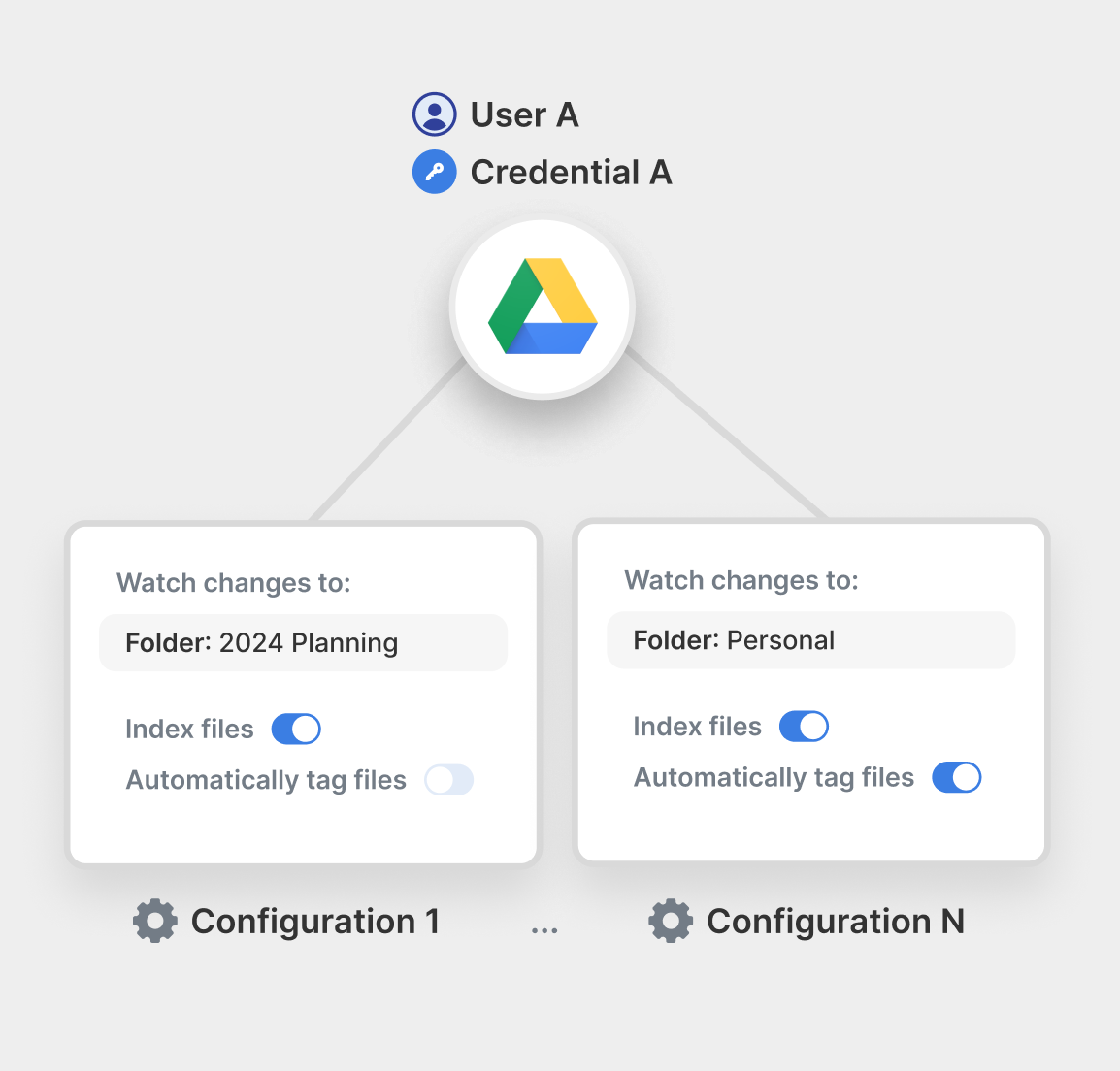 In the above example, User `A` with Google Drive Credential `A` can have $N$ configurations associated with that credential.
* Different sets of Workflows can be enabled / disabled for each configuration.
* Different User Settings can be used for each configuration.
* Configurations can be associated with an **External ID** (an ID that you provide).
* An External ID which can be used to reference a Configuration(s) *in place of* a UUID, in the following format: `ext:[External ID]`
* For example, if the configuration is created with `externalId: "Team A"`, it can be addressed in the Paragon User Token as `configuration:ext:Team A`.
## Usage
### Creating and managing configurations
To create a new configuration, call `createConfiguration` with a `credentialId` to attach the configuration to and an optional `externalId` to reference this configuration in the API.
```typescript theme={null}
const config = await paragon.createConfiguration({
// The credential to create this configuration from
credentialId: "...",
// An external ID that can be used to reference this configuration from the API
externalId: "Team A"
});
// -> { id: "", credentialId: "", settings: {}, configuredWorkflows: {} }
```
The `createConfiguration` call will return a Promise that resolves with the saved configuration object.
After creating a configuration, it will be included in the `paragon.getUser` response under each integration, in both the `allConfigurations` array and within the `configurations` property of each credential object.
```typescript theme={null}
paragon.getUser();
// -> { jira: { allCredentials: [{ configurations }], allConfigurations: [] } }
```
Finally, you can destroy a configuration (removing any User Settings and disabling any workflow enablements for the associated configuration) with `destroyConfiguration`:
```typescript theme={null}
// Destroy a configuration using its external ID
await paragon.destroyConfiguration({
id: "ext:Team A", // Configuration ID (use "ext:" prefix for external ID)
credentialId: "..." // The credential ID that this configuration belongs to
});
// Or destroy using configuration UUID
await paragon.destroyConfiguration({
id: "a1304037-d994-40ef-894a-8d6c55f65f7c", // Configuration UUID
credentialId: "..." // The credential ID that this configuration belongs to
});
```
The `destroyConfiguration` method accepts:
* `id` - The configuration ID to destroy. This can be either:
* A configuration UUID (e.g., `"a1304037-d994-40ef-894a-8d6c55f65f7c"`)
* An external ID with the `ext:` prefix (e.g., `"ext:Team A"`)
* `credentialId` - The connected account credential ID that this configuration belongs to.
### Presenting the Connect Portal
After creating a configuration, you can present a Connect Portal by passing `selectedConfigurationId`. You can pass a configuration UUID or the external ID prefixed with `ext:`to reference the configuration.
```typescript theme={null}
// Open Connect Portal of this configuration
paragon.connect("jira", {
selectedConfigurationId: "ext:Team A"
});
```
You can also use Headless Connect Portal functions for managing workflow enablements with the configuration ID:
```typescript theme={null}
// Manage Headless workflow enablements for this configuration
await paragon.enableWorkflow("workflow-id", {
selectedConfigurationId: config.id
});
await paragon.disableWorkflow("workflow-id", {
selectedConfigurationId: config.id
});
```
**Note:** All credentials have a default Configuration included, which will be used if the configuration does not exist or if `selectedConfigurationId` is undefined.
### Calling the API
You can use `selectedConfigurationId` as an option for SDK calls and `X-Paragon-Configuration-Id`for API calls.
```javascript theme={null}
// Send an App Event for this configuration only
await paragon.event("workflow-id", {
selectedConfigurationId: config.id
});
```
```
POST /sdk/events
X-Paragon-Credential: a1304037-d994-40ef-894a-8d6c55f65f7c
X-Paragon-Configuration-Id: ext:Team A
```
## Access Control
If you are using Multi-Configuration to enable different groups of users (such as teams) within one organization to set up distinct configurations of an integration, you may want to control which authenticated users in your application have visibility to each configuration.
You can use JWT Permissions to encode these visibility controls into your Paragon User Token:
Learn more abut implementing JWT Permissions to control access to configurations.
In the above example, User `A` with Google Drive Credential `A` can have $N$ configurations associated with that credential.
* Different sets of Workflows can be enabled / disabled for each configuration.
* Different User Settings can be used for each configuration.
* Configurations can be associated with an **External ID** (an ID that you provide).
* An External ID which can be used to reference a Configuration(s) *in place of* a UUID, in the following format: `ext:[External ID]`
* For example, if the configuration is created with `externalId: "Team A"`, it can be addressed in the Paragon User Token as `configuration:ext:Team A`.
## Usage
### Creating and managing configurations
To create a new configuration, call `createConfiguration` with a `credentialId` to attach the configuration to and an optional `externalId` to reference this configuration in the API.
```typescript theme={null}
const config = await paragon.createConfiguration({
// The credential to create this configuration from
credentialId: "...",
// An external ID that can be used to reference this configuration from the API
externalId: "Team A"
});
// -> { id: "", credentialId: "", settings: {}, configuredWorkflows: {} }
```
The `createConfiguration` call will return a Promise that resolves with the saved configuration object.
After creating a configuration, it will be included in the `paragon.getUser` response under each integration, in both the `allConfigurations` array and within the `configurations` property of each credential object.
```typescript theme={null}
paragon.getUser();
// -> { jira: { allCredentials: [{ configurations }], allConfigurations: [] } }
```
Finally, you can destroy a configuration (removing any User Settings and disabling any workflow enablements for the associated configuration) with `destroyConfiguration`:
```typescript theme={null}
// Destroy a configuration using its external ID
await paragon.destroyConfiguration({
id: "ext:Team A", // Configuration ID (use "ext:" prefix for external ID)
credentialId: "..." // The credential ID that this configuration belongs to
});
// Or destroy using configuration UUID
await paragon.destroyConfiguration({
id: "a1304037-d994-40ef-894a-8d6c55f65f7c", // Configuration UUID
credentialId: "..." // The credential ID that this configuration belongs to
});
```
The `destroyConfiguration` method accepts:
* `id` - The configuration ID to destroy. This can be either:
* A configuration UUID (e.g., `"a1304037-d994-40ef-894a-8d6c55f65f7c"`)
* An external ID with the `ext:` prefix (e.g., `"ext:Team A"`)
* `credentialId` - The connected account credential ID that this configuration belongs to.
### Presenting the Connect Portal
After creating a configuration, you can present a Connect Portal by passing `selectedConfigurationId`. You can pass a configuration UUID or the external ID prefixed with `ext:`to reference the configuration.
```typescript theme={null}
// Open Connect Portal of this configuration
paragon.connect("jira", {
selectedConfigurationId: "ext:Team A"
});
```
You can also use Headless Connect Portal functions for managing workflow enablements with the configuration ID:
```typescript theme={null}
// Manage Headless workflow enablements for this configuration
await paragon.enableWorkflow("workflow-id", {
selectedConfigurationId: config.id
});
await paragon.disableWorkflow("workflow-id", {
selectedConfigurationId: config.id
});
```
**Note:** All credentials have a default Configuration included, which will be used if the configuration does not exist or if `selectedConfigurationId` is undefined.
### Calling the API
You can use `selectedConfigurationId` as an option for SDK calls and `X-Paragon-Configuration-Id`for API calls.
```javascript theme={null}
// Send an App Event for this configuration only
await paragon.event("workflow-id", {
selectedConfigurationId: config.id
});
```
```
POST /sdk/events
X-Paragon-Credential: a1304037-d994-40ef-894a-8d6c55f65f7c
X-Paragon-Configuration-Id: ext:Team A
```
## Access Control
If you are using Multi-Configuration to enable different groups of users (such as teams) within one organization to set up distinct configurations of an integration, you may want to control which authenticated users in your application have visibility to each configuration.
You can use JWT Permissions to encode these visibility controls into your Paragon User Token:
Learn more abut implementing JWT Permissions to control access to configurations.