> ## Documentation Index
> Fetch the complete documentation index at: https://docs.useparagon.com/llms.txt
> Use this file to discover all available pages before exploring further.
# User Configuration
> Allow users to configure their trigger parameters in your application UI.
If your in-product workflow builder or UI will allow users to configure their own triggers, use the JavaScript SDK or Triggers API to collect user input for trigger parameters such as a Salesforce Record Type or event filter conditions.
## Trigger Parameters
The SDK provides all available Trigger Parameters when you call `paragon.getTriggers`. You can also fetch the same schema directly from [List Available Triggers](/actionkit/triggers/api-reference/list-available-triggers).
Each trigger has a `parameters` field that will provide a list of Paragon-formatted [Input Types](/actionkit/schema-formats#overview) that can be rendered and exposed to your users.
```js JavaScript SDK theme={null}
const response = await paragon.getTriggers("salesforce", {
// Optional: pass when Multi-Account Authorization.
selectedCredentialId: "",
});
const triggerDefinitions = response.triggers.salesforce;
```
```http REST API theme={null}
GET https://actionkit.useparagon.com/projects//triggers?integrations=salesforce
Authorization: Bearer
// Optional: pass when using Multi-Account Authorization
X-Paragon-Credential:
```
```json Response: Trigger definitions highlight={9-21} expandable theme={null}
{
"triggers": {
"salesforce": [
{
"type": "SALESFORCE_TRIGGER_RECORD_CREATED",
"triggerModel": "POLLING",
"title": "New Record",
"description": "Trigger when a new record is created in Salesforce",
"parameters": [
{
"id": "recordType",
"type": "ENUM",
"title": "Record type",
"required": true,
"valuesSource": {
"sourceType": "recordTypes",
"dependencies": []
}
}
]
}
]
}
}
```
The `id` property of each input should be used as the key names of `parameters` when calling [Subscribe to a Trigger](/actionkit/triggers/api-reference/subscribe-to-trigger). The values should be the input collected from your user.
## Displaying Inputs
Render each trigger parameter based on its `type`, and use `paragon.getSourcesForActionInput` to determine whether the input needs static or dynamic options.
```js JavaScript SDK expandable theme={null}
const inputSources = paragon.getSourcesForActionInput(input);
switch (inputSources.source.type) {
// Static dropdowns
case "STATIC_ENUM":
renderSelectInput({
input,
value,
options: inputSources.source.values,
onChange,
});
break;
// Dynamic dropdowns
case "DYNAMIC_DATA_SOURCE":
const options = await paragon.getFieldOptions({
integration,
action: inputSources.source.cacheKey,
parameters: inputSources.source.dependencies.map((key) => ({
key,
source: { type: "VALUE", value: triggerForm.parameters[key] },
})),
});
renderSelectInput({ input, value, options, onChange });
break;
default:
renderPlainInput({ input, value, onChange });
break;
}
```
For plain inputs, render directly from `input.type`. For example, `TEXT`, `CODE`, `PASSWORD`, and `NUMBER` can be rendered as text inputs; `TEXTAREA` can be rendered as a textarea; `BOOLEAN_INPUT` and `SWITCH` can be rendered as toggles.
### Dropdown inputs
For static dropdowns, `paragon.getSourcesForActionInput` returns a `STATIC_ENUM` source. Render these values directly in your dropdown.
Some inputs require loading dynamic data from the user's connected account. For example, the **Salesforce: New Record** trigger requires an **Object** selection to be made by your user:
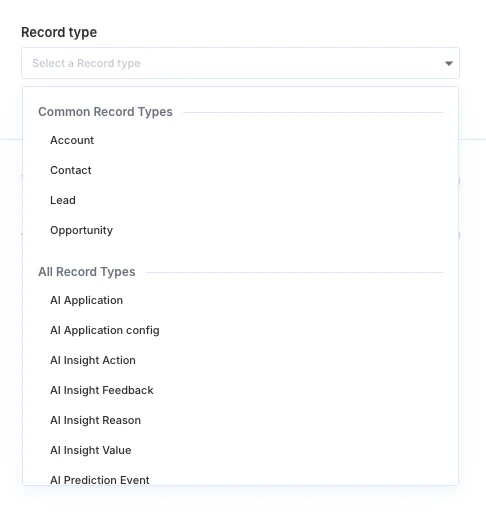 For dynamic dropdowns, `paragon.getSourcesForActionInput` returns a `DYNAMIC_DATA_SOURCE` source. Pass the source to `paragon.getFieldOptions`, along with any dependency values required by `source.refreshDependencies`.
```js JavaScript SDK expandable theme={null}
async function loadDynamicOptions({
integration,
source,
parameterValues,
search,
selectedCredentialId,
}) {
const dependencyKeys = (source.refreshDependencies ?? []).filter(
(key) => typeof key === "string"
);
const dependencies = dependencyKeys.map((key) => ({
cacheKey: key,
value: parameterValues[key],
}));
const hasDependencies = dependencyKeys.length > 0;
const dependenciesSatisfied = dependencies.every((item) => Boolean(item.value));
if (hasDependencies && !dependenciesSatisfied) {
return [];
}
const response = await paragon.getFieldOptions({
integration,
source,
search,
selectedCredentialId,
parameters: dependencies.map((dependency) => ({
key: dependency.cacheKey,
source: {
type: "VALUE",
value: dependency.value,
},
})),
});
return response.data;
}
```
### Conditional inputs
For `CONDITIONAL` inputs, render a filter builder UI, such as the below:
For dynamic dropdowns, `paragon.getSourcesForActionInput` returns a `DYNAMIC_DATA_SOURCE` source. Pass the source to `paragon.getFieldOptions`, along with any dependency values required by `source.refreshDependencies`.
```js JavaScript SDK expandable theme={null}
async function loadDynamicOptions({
integration,
source,
parameterValues,
search,
selectedCredentialId,
}) {
const dependencyKeys = (source.refreshDependencies ?? []).filter(
(key) => typeof key === "string"
);
const dependencies = dependencyKeys.map((key) => ({
cacheKey: key,
value: parameterValues[key],
}));
const hasDependencies = dependencyKeys.length > 0;
const dependenciesSatisfied = dependencies.every((item) => Boolean(item.value));
if (hasDependencies && !dependenciesSatisfied) {
return [];
}
const response = await paragon.getFieldOptions({
integration,
source,
search,
selectedCredentialId,
parameters: dependencies.map((dependency) => ({
key: dependency.cacheKey,
source: {
type: "VALUE",
value: dependency.value,
},
})),
});
return response.data;
}
```
### Conditional inputs
For `CONDITIONAL` inputs, render a filter builder UI, such as the below:
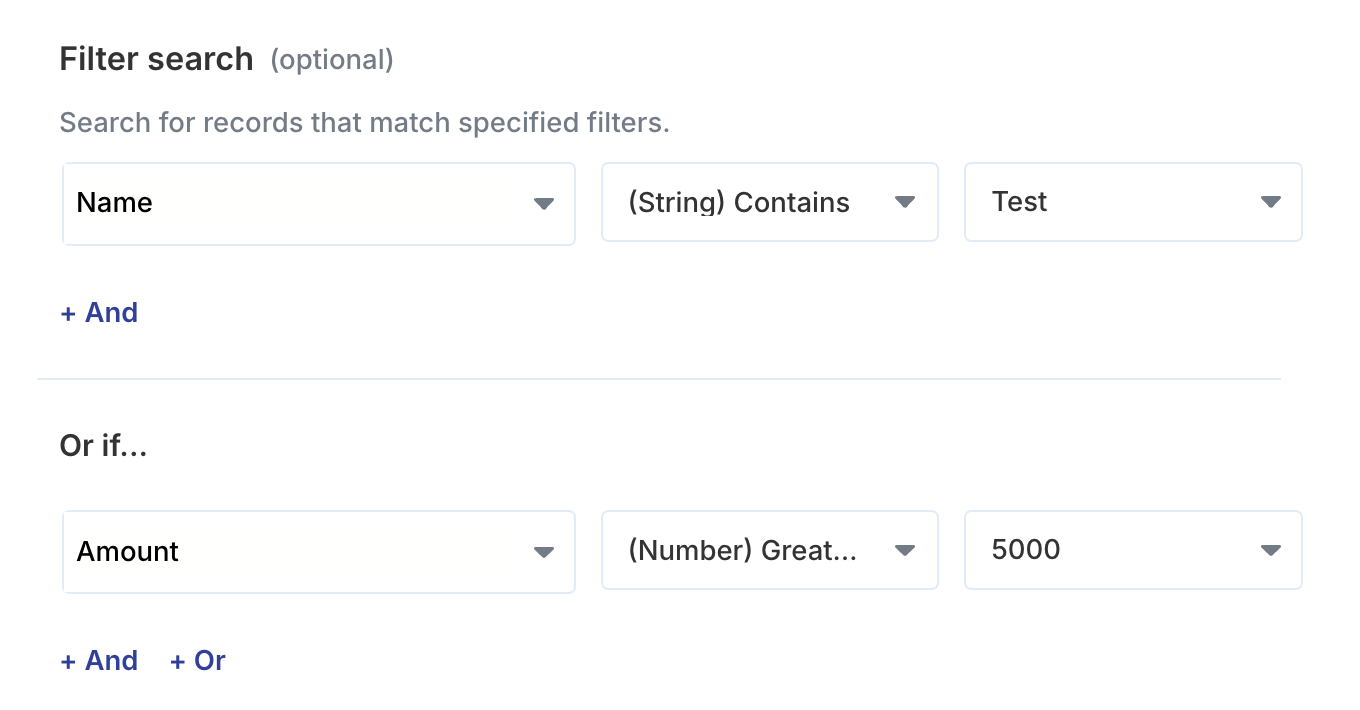 The value should be an object with `operator` (`OR` or `AND`) and `conditions` properties; each condition contains the selected `field`, `operator`, and `value`.
```js JavaScript SDK theme={null}
const filterValue = {
operator: "OR",
conditions: [
{
field: "Name",
operator: "$stringContains",
value: "Test",
},
{
field: "Amount",
operator: "$numberGreaterThan",
value: "5000",
},
],
};
```
For complex conditional inputs, you can use DNF (Disjunctive Normal Form) to represent the filter value.
This expression represents: Opportunity Amount > 5000 OR (Contact.Title contains "CEO" AND Amount > 1000)
```json theme={null}
{
"operator": "OR",
"conditions": [
{
"operator": "AND",
"conditions": [
{
"field": "Amount",
"operator": "$numberGreaterThan",
"value": "5000",
},
],
},
{
"operator": "AND",
"conditions": [
{
"field": "Contact.Title",
"operator": "$stringContains",
"value": "CEO",
},
{
"field": "Amount",
"operator": "$numberGreaterThan",
"value": "1000",
},
],
},
],
}
```
Conditional inputs can provide static `supportedKeys` or a dynamic `supportedKeysSource` for listing out available options for `field`.
When the keys are dynamic, load them the same way you load dynamic dropdown options. Use `supportedOperators` to limit the operators available in your UI, and respect `disableOrCondition` if your filter builder supports OR groups.
```js JavaScript SDK expandable theme={null}
async function getConditionalFields({ integration, input, parameterValues }) {
if (input.supportedKeys?.length) {
return input.supportedKeys.map((key) => ({ label: key, value: key }));
}
if (!input.supportedKeysSource) {
return [];
}
const response = await paragon.getFieldOptions({
integration,
action: input.supportedKeysSource.sourceType,
parameters: input.supportedKeysSource.dependencies.map((key) => ({
key,
source: {
type: "VALUE",
value: parameterValues[key],
},
})),
});
return flattenOptions(response.data);
}
```
Once your user has configured the trigger, send the collected parameter values to [Subscribe to a Trigger](/actionkit/triggers/api-reference/subscribe-to-trigger).
```json Subscribe to a Trigger request body highlight={5-19} theme={null}
{
"integration": "salesforce",
"triggerType": "SALESFORCE_TRIGGER_RECORD_CREATED",
"parameters": {
"objectName": "Opportunity",
"recordsFilterFormula": {
operator: "OR",
conditions: [
{
field: "Name",
operator: "$stringContains",
value: "Test",
},
{
field: "Amount",
operator: "$numberGreaterThan",
value: "5000",
},
]
}
}
}
```
See the resources below for implementation details:
Learn more about each Input Type and their UI requirements.
Learn more about loading dynamic data from your user's account with the SDK.
The value should be an object with `operator` (`OR` or `AND`) and `conditions` properties; each condition contains the selected `field`, `operator`, and `value`.
```js JavaScript SDK theme={null}
const filterValue = {
operator: "OR",
conditions: [
{
field: "Name",
operator: "$stringContains",
value: "Test",
},
{
field: "Amount",
operator: "$numberGreaterThan",
value: "5000",
},
],
};
```
For complex conditional inputs, you can use DNF (Disjunctive Normal Form) to represent the filter value.
This expression represents: Opportunity Amount > 5000 OR (Contact.Title contains "CEO" AND Amount > 1000)
```json theme={null}
{
"operator": "OR",
"conditions": [
{
"operator": "AND",
"conditions": [
{
"field": "Amount",
"operator": "$numberGreaterThan",
"value": "5000",
},
],
},
{
"operator": "AND",
"conditions": [
{
"field": "Contact.Title",
"operator": "$stringContains",
"value": "CEO",
},
{
"field": "Amount",
"operator": "$numberGreaterThan",
"value": "1000",
},
],
},
],
}
```
Conditional inputs can provide static `supportedKeys` or a dynamic `supportedKeysSource` for listing out available options for `field`.
When the keys are dynamic, load them the same way you load dynamic dropdown options. Use `supportedOperators` to limit the operators available in your UI, and respect `disableOrCondition` if your filter builder supports OR groups.
```js JavaScript SDK expandable theme={null}
async function getConditionalFields({ integration, input, parameterValues }) {
if (input.supportedKeys?.length) {
return input.supportedKeys.map((key) => ({ label: key, value: key }));
}
if (!input.supportedKeysSource) {
return [];
}
const response = await paragon.getFieldOptions({
integration,
action: input.supportedKeysSource.sourceType,
parameters: input.supportedKeysSource.dependencies.map((key) => ({
key,
source: {
type: "VALUE",
value: parameterValues[key],
},
})),
});
return flattenOptions(response.data);
}
```
Once your user has configured the trigger, send the collected parameter values to [Subscribe to a Trigger](/actionkit/triggers/api-reference/subscribe-to-trigger).
```json Subscribe to a Trigger request body highlight={5-19} theme={null}
{
"integration": "salesforce",
"triggerType": "SALESFORCE_TRIGGER_RECORD_CREATED",
"parameters": {
"objectName": "Opportunity",
"recordsFilterFormula": {
operator: "OR",
conditions: [
{
field: "Name",
operator: "$stringContains",
value: "Test",
},
{
field: "Amount",
operator: "$numberGreaterThan",
value: "5000",
},
]
}
}
}
```
See the resources below for implementation details:
Learn more about each Input Type and their UI requirements.
Learn more about loading dynamic data from your user's account with the SDK.