> ## Documentation Index
> Fetch the complete documentation index at: https://docs.useparagon.com/llms.txt
> Use this file to discover all available pages before exploring further.

# Schema Formats

export function Td({children}) {
  return <td style={{
    verticalAlign: 'top',
    padding: '8px'
  }}>{children}</td>;
}

## Overview

ActionKit supports multiple formats for accessing Tool definitions from the API, for different use cases:

* **JSON Schema** `format=json_schema`
  * For AI agent use cases: in most cases, you can pass Tool schemas directly in JSON Schema format to your LLM.
  * To learn more about JSON Schema, reference the [official specification](https://json-schema.org/draft/2020-12/json-schema-core). Paragon does not implement any of the non-standard fields in `draft-*` versions of JSON Schema at this time.
* **Paragon** `format=paragon`
  * For frontend configuration use cases: for example, if you are adding Tools to your product's workflow builder.
  * Learn more about the Paragon format below.

You can request a specific format in the [List Tools](/actionkit/api-reference/list-tools) API endpoint with the `format` query parameter.

## Paragon Format

The Paragon format is the same schema used internally to power our Workflow Editor. It is designed to render input fields to allow end users to configure Tools.

When using the Paragon format, you will need to support the following types of inputs in Paragon:

<table style={{ width: '100%', borderCollapse: 'collapse' }} id="top-aligned-table">
  <thead>
    <tr>
      <th style={{ textAlign: 'left', verticalAlign: 'top', padding: '8px', borderBottom: '2px solid #ddd' }}>Input Type</th>
      <th style={{ textAlign: 'left', verticalAlign: 'top', padding: '8px', borderBottom: '2px solid #ddd' }}>Key(s)</th>
      <th style={{ textAlign: 'left', verticalAlign: 'top', padding: '8px', borderBottom: '2px solid #ddd' }}>Example</th>
    </tr>
  </thead>

  <tbody>
    <tr>
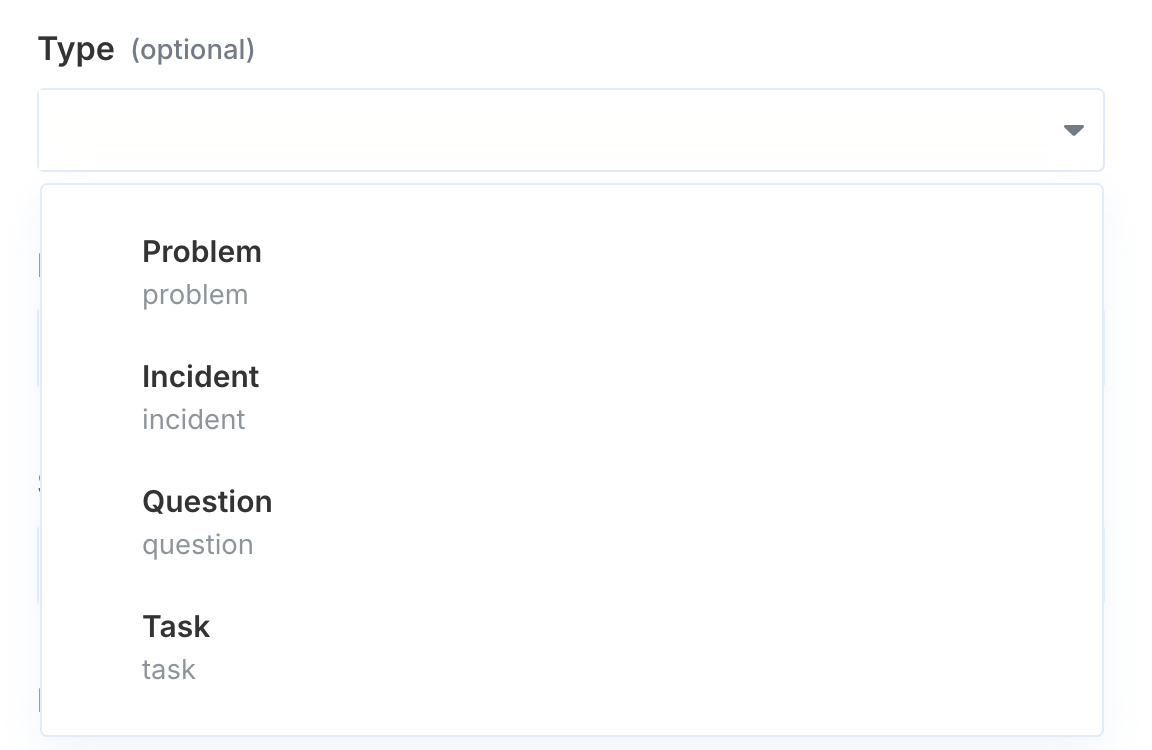
      <td><strong>Enum input</strong> (dropdown)</td>
      <td><code>ENUM</code> | <code>DYNAMIC\_ENUM</code></td>

      <td>
        <img src="https://mintcdn.com/paragon/p_CuCy_equ6Xxvlm/assets/enum-input.png?fit=max&auto=format&n=p_CuCy_equ6Xxvlm&q=85&s=84600fc563da8aee979425e09d36dbaf" width="1156" height="220" data-path="assets/enum-input.png" />
      </td>
    </tr>

    <tr>
      <td>
        <strong>Enum input with free text support</strong><br />
        The user should be able to add their own option, if unavailable in the list
      </td>

      <td><code>EDITABLE\_ENUM</code></td>

      <td>
        <img src="https://mintcdn.com/paragon/p_CuCy_equ6Xxvlm/assets/editable-enum.png?fit=max&auto=format&n=p_CuCy_equ6Xxvlm&q=85&s=4fdc89704d439b5fdfe6c72bb1f7cac8" width="1152" height="750" data-path="assets/editable-enum.png" />
      </td>
    </tr>

    <tr>
      <td>
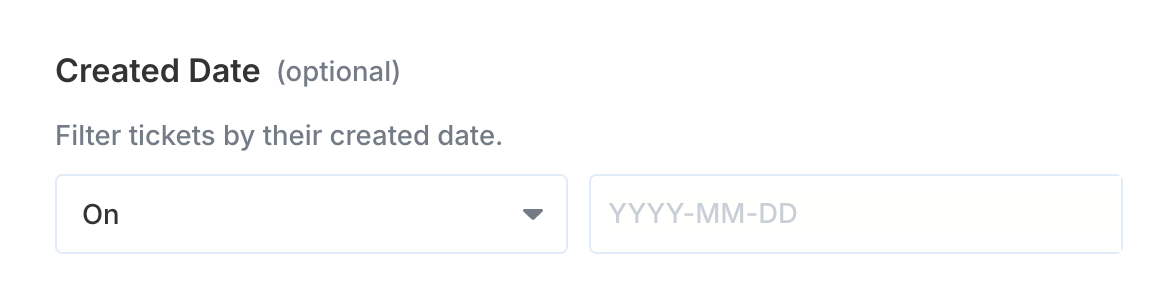
        <strong>Enum input with text area</strong><br />
        A text input should appear to the right of the dropdown.
      </td>

      <td><code>EnumTextAreaPairInput</code></td>

      <td>
        <img src="https://mintcdn.com/paragon/p_CuCy_equ6Xxvlm/assets/enum-textarea-pair.png?fit=max&auto=format&n=p_CuCy_equ6Xxvlm&q=85&s=41752527dd71260dd879d54466b59f80" width="1166" height="290" data-path="assets/enum-textarea-pair.png" />
      </td>
    </tr>

    <tr>
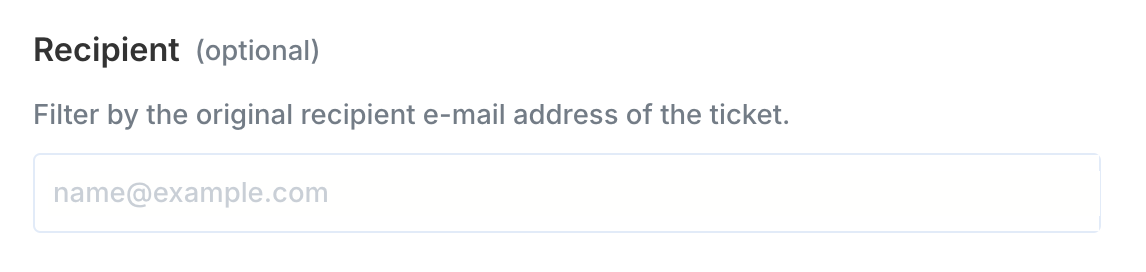
      <td>**Text input**</td>
      <td><code>TEXT</code> | <code>TEXT\_NO\_VARS</code></td>

      <td>
        <img src="https://mintcdn.com/paragon/R4LLy7K_LlshO0Ad/assets/text.png?fit=max&auto=format&n=R4LLy7K_LlshO0Ad&q=85&s=f94a0b87b3f721e370560c7839064be6" width="1146" height="272" data-path="assets/text.png" />
      </td>
    </tr>

    <tr>
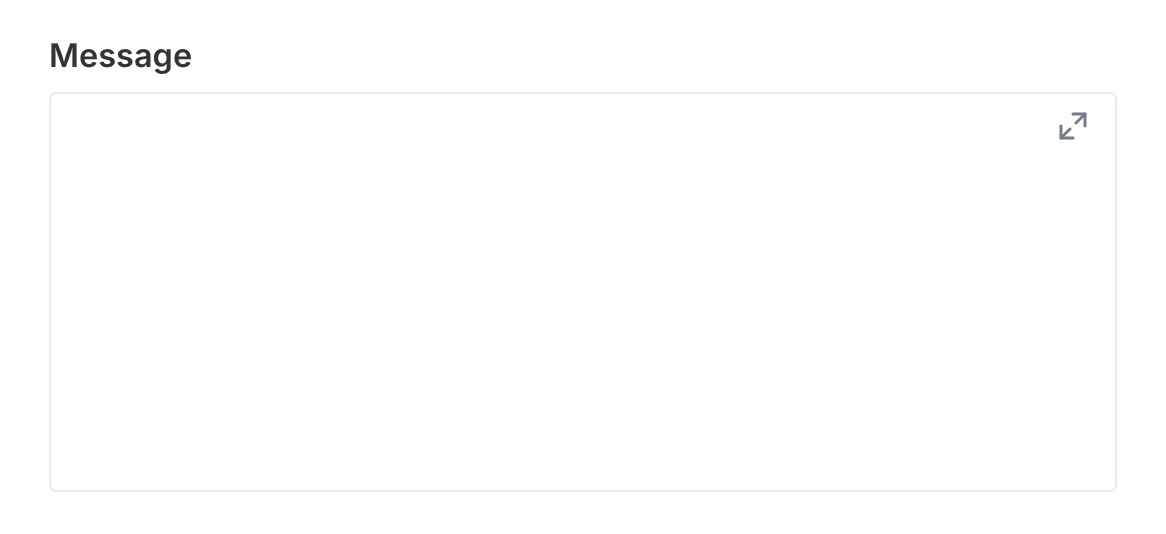
      <td>**Textarea input**<br />Note that by default, lines = 1 (in this case, this input should look identical to a text input).</td>
      <td><code>TEXTAREA</code> | <code>TEXTAREA\_NO\_VARS</code></td>

      <td>
        <img src="https://mintcdn.com/paragon/R4LLy7K_LlshO0Ad/assets/textarea-input.png?fit=max&auto=format&n=R4LLy7K_LlshO0Ad&q=85&s=f242978a8182696f1549d108fb2af3e6" width="1166" height="534" data-path="assets/textarea-input.png" />
      </td>
    </tr>

    <tr>
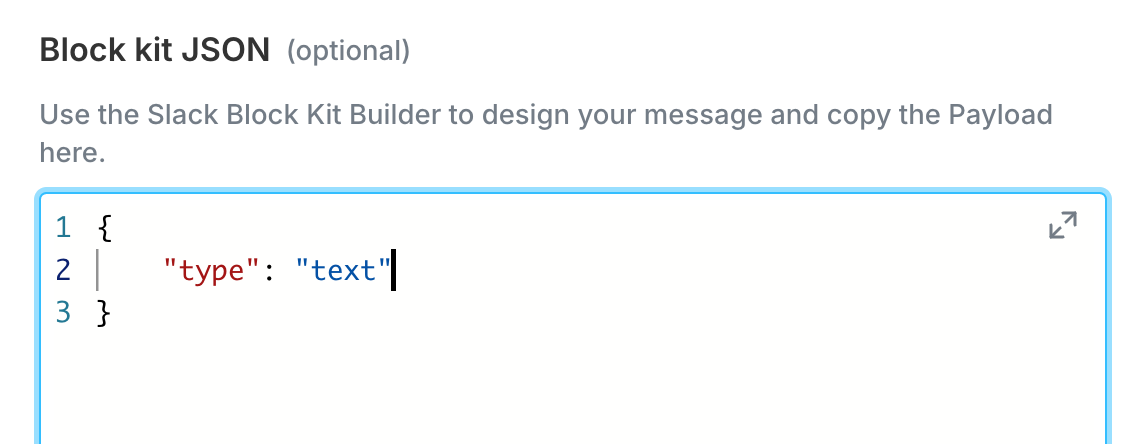
      <td>**Code input**</td>
      <td><code>CODE</code></td>

      <td>
        <img src="https://mintcdn.com/paragon/p_CuCy_equ6Xxvlm/assets/code-input.png?fit=max&auto=format&n=p_CuCy_equ6Xxvlm&q=85&s=247111699fcbbbffcce39de2b9ef109b" width="1146" height="444" data-path="assets/code-input.png" />
      </td>
    </tr>

    <tr>
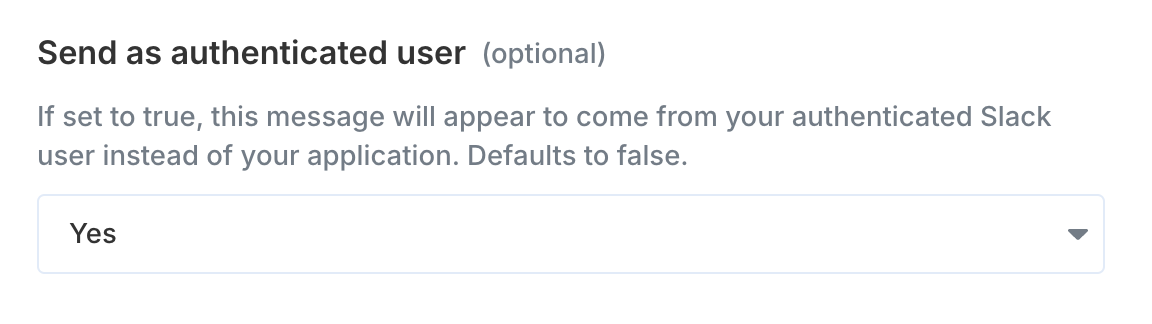
      <td>**Boolean input** (switch / toggle)</td>
      <td><code>BOOLEAN\_INPUT</code> | <code>SWITCH</code></td>

      <td>
        <img src="https://mintcdn.com/paragon/LX9pU-rN1rqQwuP1/assets/boolean-input.png?fit=max&auto=format&n=LX9pU-rN1rqQwuP1&q=85&s=c001746cbd577459a0ffeb288cf10c6f" width="1152" height="324" data-path="assets/boolean-input.png" />
      </td>
    </tr>

    <tr>
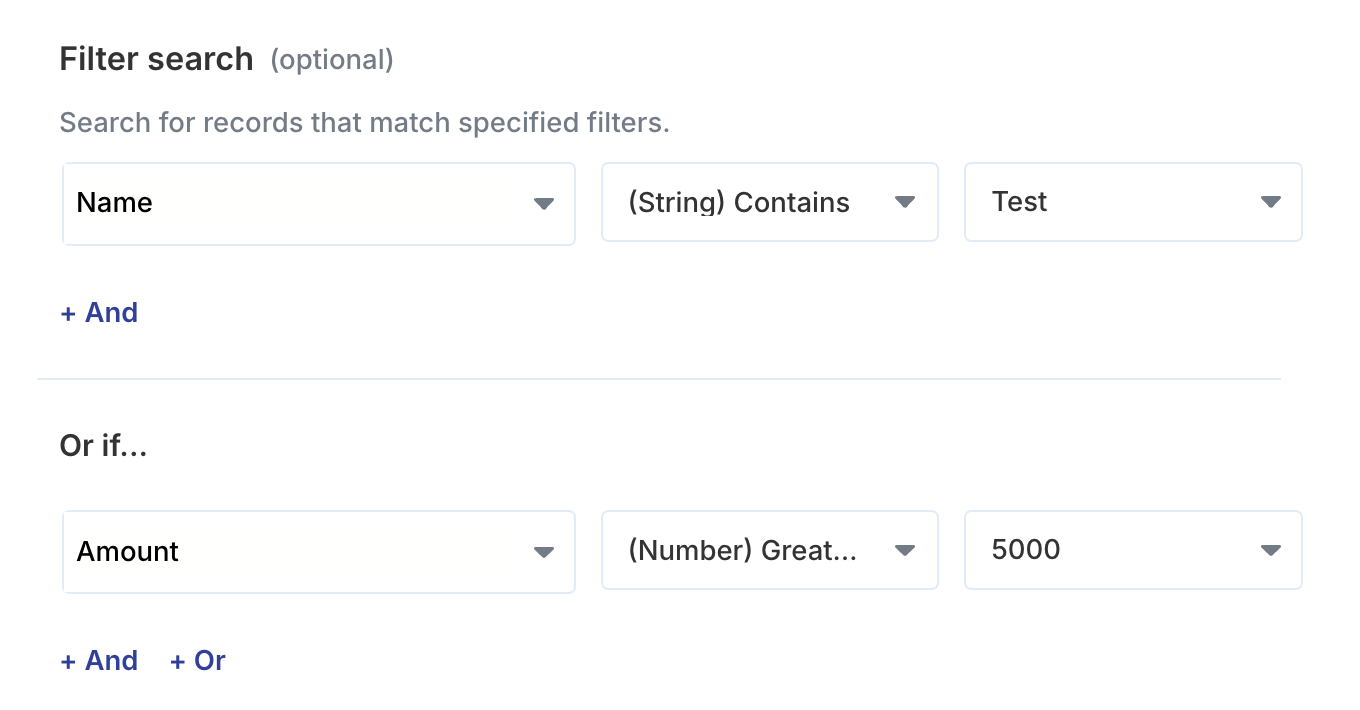
      <td>**Filter / conditional input**</td>
      <td><code>CONDITIONAL</code> | <code>DYNAMIC\_CONDITIONAL</code></td>

      <td>
        <img src="https://mintcdn.com/paragon/p_CuCy_equ6Xxvlm/assets/conditional-input.png?fit=max&auto=format&n=p_CuCy_equ6Xxvlm&q=85&s=6758c32a73c0b3896e0d86f0400d8c83" width="1360" height="710" data-path="assets/conditional-input.png" />
      </td>
    </tr>
  </tbody>
</table>

### Tool polymorphism

To work around limitations of JSON Schema, the `json_schema` (default) format automatically breaks down polymorphic parameters into individual Tools.

For example, `SALESFORCE_CREATE_RECORD` splits into 6 distinct Tools:

* `SALESFORCE_CREATE_OPPORTUNITY`
* `SALESFORCE_CREATE_CONTACT`
* `SALESFORCE_CREATE_ACCOUNT`
* `SALESFORCE_CREATE_LEAD`
* `SALESFORCE_CREATE_ANY`
  * For non-standard objects, whose fields can be discovered with `SALESFORCE_DESCRIBE_ACTION_SCHEMA`

In the `paragon` format, polymorphic schemas are not broken into individual Tools and instead will be represented as `dependentInputs` within the API (see below example).

When calling [Run Tool](/actionkit/api-reference/run-tool), you can reference either the specific Tool (e.g. `SALESFORCE_CREATE_OPPORTUNITY`) or the generic Tool (e.g. `SALESFORCE_CREATE_RECORD`), as long as the required parameters are supplied.

```json theme={null}
// Example format=paragon Tool Schema:
{
    "name": "SALESFORCE_CREATE_RECORD",
    "title": "Create record",
    "inputs": [
        {
            "id": "recordType",
            "title": "Record type",
            "type": "ENUM",
            "required": true,
            "values": [
                {
                    "value": "Opportunity",
                    // When recordType = "Opportunity", show inputs:
                    "dependentInputs": [...]
                },
                {
                    "value": "Contact",
                    // When recordType = "Contact", show inputs:
                    "dependentInputs": [...]
                },
                ...
            ]
        }
    ]
}
```